> ## Documentation Index
> Fetch the complete documentation index at: https://docs.noimosai.com/llms.txt
> Use this file to discover all available pages before exploring further.
# NoimosAI CLI
> Chat with the NoimosAI agent and publish social media posts and long-form articles directly from your terminal.
## Overview
The NoimosAI CLI (`@agos-labs/noimosai-cli`) lets you interact with your NoimosAI workspace from the command line. Chat with the NoimosAI agent for marketing analysis, content generation, and SEO work, draft and publish both short-form social posts and long-form articles (WordPress, note) across connected platforms, and inspect workspaces and integrations—without leaving your terminal.
The CLI is published on npm as [`@agos-labs/noimosai-cli`](https://www.npmjs.com/package/@agos-labs/noimosai-cli).
## Features
The CLI covers chat, publishing, and workspace management, and is designed to be driven by both humans and AI agents.
* **Chat** — Interactive or one-shot conversations with the NoimosAI agent (marketing analysis, content generation, SEO, and more).
* **Publish** — Push generated content to your connected accounts. Both short-form social posts and long-form articles (WordPress, note) are supported.
* **Workspace / Integration management** — Inspect workspaces and connected integrations from the CLI.
* **Scriptable** — All commands accept flags (no required interactive prompts) and support `--output json` for machine-readable results.
## Common Commands
You can get a feel for what the CLI does before installing. The block below covers the commands most users reach for; full options for each are in the [Commands](#commands) section.
```bash theme={null}
noimosai login # Log in (browser OAuth or API key)
noimosai chat # Start an interactive chat session
noimosai chat -p "Draft a launch post" # One-shot prompt
noimosai chat -p "..." -o json # One-shot prompt, JSON output
noimosai post posts.json --dry-run # Preview a publish (SNS or article)
noimosai post posts.json --now # Publish immediately
noimosai workspace list # List workspaces you can access
noimosai integration list # List connected accounts
```
## Supported Publishing Platforms
Both short-form social posts and long-form articles can be published from a single `posts.json` file. The `platform` field in each post entry determines the destination, and the same `noimosai post` command handles all of them.
| Type | Platform |
| ----------- | ---------------------------------------------------------------------------------------- |
| **SNS** | X (Twitter), Threads, Facebook, Instagram, YouTube, LinkedIn, TikTok, Bluesky, Pinterest |
| **Article** | WordPress, note |
## Requirements
Confirm the following before installing.
* Node.js `>= 18`
* An active NoimosAI account ([sign up](https://noimosai.com))
## Installation
Install globally with your preferred package manager.
```bash theme={null}
pnpm add -g @agos-labs/noimosai-cli
```
```bash theme={null}
npm install -g @agos-labs/noimosai-cli
```
After installation, the `noimosai` command becomes available in your shell.
## Quick Start
The fastest path is to log in, then start chatting with the NoimosAI agent.
### 1. Log in
```bash theme={null}
noimosai login
```
You can authenticate in one of two ways:
* **Browser login (OAuth)** — Opens your browser to complete authentication.
* **API key** — Paste an API key generated from your team settings on NoimosAI. To create one, open NoimosAI, go to your team settings, and copy a key from the API tab.
For non-interactive environments (CI/CD), pass the key directly:
```bash theme={null}
noimosai login --api-key "$NOIMOS_API_KEY"
```
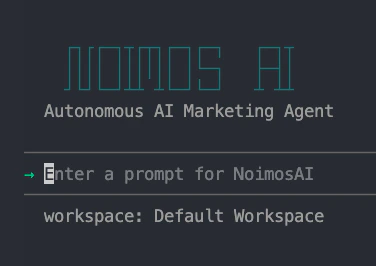
### 2. Start chatting
```bash theme={null}
noimosai chat
```
This opens an interactive session with the NoimosAI agent. From here you can ask questions, request marketing outputs, or iterate on content.
 ### 3. Discover all commands
```bash theme={null}
noimosai --help
```
Use `--help` on any command to see every available option in the version you have installed.
## Commands
Run `noimosai --help` for full options on any command.
### Authentication
Use these commands to sign in or remove stored credentials.
| Command | Description |
| -------------------------------- | -------------------------------------------- |
| `noimosai login` | Interactive login (browser OAuth or API key) |
| `noimosai login --oauth` | Force browser OAuth |
| `noimosai login --api-key ` | Non-interactive API key login (CI/CD) |
| `noimosai logout` | Remove stored credentials |
### Chat
Chat is the most common command and supports both interactive and one-shot use.
| Command | Description |
| -------------------------------------- | -------------------------------- |
| `noimosai chat` | Interactive chat session |
| `noimosai chat -p ""` | One-shot prompt |
| `noimosai chat -r ` | Resume a previous session |
| `noimosai chat -p "" -o json` | JSON output (scripting / piping) |
| `noimosai chat -w ` | Override default workspace |
### Publishing
Use `noimosai post` to publish or schedule posts from a `posts.json` file.
```bash theme={null}
noimosai post posts.json --dry-run # Preview what would be sent
noimosai post posts.json --now # Publish immediately
noimosai post posts.json --schedule "2026-04-10 09:00" # Schedule
noimosai post posts.json --now -o json # JSON result for scripts
```
`posts.json` is normally produced by the chat session (the agent emits it for you). When hand-crafting it, the schema is:
```jsonc theme={null}
{
"version": "1",
"metadata": { "generatedAt": "2026-04-27T09:00:00Z" },
"posts": [
{
"platform": "WordPress", // display label — see table below
"dataKey": "wpPostData", // routing key — REQUIRED, drives publishing
"providerAccountId": "...", // required for publishing (not for --dry-run)
"textBlocks": [{ "text": "..." }],
"media": []
}
]
}
```
The `dataKey` field is what actually routes a post to its destination. Use the value from this table:
| Platform (label) | `dataKey` |
| ---------------- | ------------------- |
| X (Twitter) | `xPostData` |
| Threads | `thPostData` |
| Facebook | `fbPostData` |
| Instagram | `igPostData` |
| YouTube | `ytPostData` |
| LinkedIn | `linkedinPostData` |
| TikTok | `ttPostData` |
| Bluesky | `blueskyPostData` |
| Pinterest | `pinterestPostData` |
| Note | `notePostData` |
| WordPress | `wpPostData` |
### Workspace and Integrations
Use these commands to inspect what is available to the current account.
| Command | Description |
| --------------------------- | ------------------------------------ |
| `noimosai workspace list` | List workspaces you can access |
| `noimosai integration list` | List connected external integrations |
### Configuration
Manage local CLI configuration with the following commands.
| Command | Description |
| --------------------------------- | ----------------------------- |
| `noimosai config show` | Show current configuration |
| `noimosai config get ` | Read one config value |
| `noimosai config set ` | Set a config value |
| `noimosai config path` | Print path of the config file |
### Global Options
The following flags are available on every command.
* `-o, --output ` — Output format (default `text`). `json` is intended for scripts and AI agents.
* `--help` — Available on every command and subcommand.
## CI / Agent Usage
The CLI is designed to be driven by both humans and AI agents. The patterns below show recommended headless and idempotent flows.
```bash theme={null}
# Headless login
noimosai login --api-key "$NOIMOS_API_KEY" -o json
# One-shot prompt, JSON result
noimosai chat -p "Draft a LinkedIn post about our launch" -o json
# Idempotent dry-run before any destructive publish
noimosai post posts.json --dry-run
noimosai post posts.json --now -o json
```
## Troubleshooting
The following are the most common issues users hit.
* **`Cannot find package 'zod'`** — your global install is older than `0.0.2`. Reinstall with `npm i -g @agos-labs/noimosai-cli`.
* **`Not authenticated`** — run `noimosai login` again.
* **`Workspace ID not configured`** — re-run `noimosai login`, or pass `-w ` per command.
## Related
* [What Is NoimosAI?](/help-center/getting-started/what-is-noimosai)
* [NoimosAI MCP Server](/developers/mcp/overview)
* [npm package](https://www.npmjs.com/package/@agos-labs/noimosai-cli)
### 3. Discover all commands
```bash theme={null}
noimosai --help
```
Use `--help` on any command to see every available option in the version you have installed.
## Commands
Run `noimosai --help` for full options on any command.
### Authentication
Use these commands to sign in or remove stored credentials.
| Command | Description |
| -------------------------------- | -------------------------------------------- |
| `noimosai login` | Interactive login (browser OAuth or API key) |
| `noimosai login --oauth` | Force browser OAuth |
| `noimosai login --api-key ` | Non-interactive API key login (CI/CD) |
| `noimosai logout` | Remove stored credentials |
### Chat
Chat is the most common command and supports both interactive and one-shot use.
| Command | Description |
| -------------------------------------- | -------------------------------- |
| `noimosai chat` | Interactive chat session |
| `noimosai chat -p ""` | One-shot prompt |
| `noimosai chat -r ` | Resume a previous session |
| `noimosai chat -p "" -o json` | JSON output (scripting / piping) |
| `noimosai chat -w ` | Override default workspace |
### Publishing
Use `noimosai post` to publish or schedule posts from a `posts.json` file.
```bash theme={null}
noimosai post posts.json --dry-run # Preview what would be sent
noimosai post posts.json --now # Publish immediately
noimosai post posts.json --schedule "2026-04-10 09:00" # Schedule
noimosai post posts.json --now -o json # JSON result for scripts
```
`posts.json` is normally produced by the chat session (the agent emits it for you). When hand-crafting it, the schema is:
```jsonc theme={null}
{
"version": "1",
"metadata": { "generatedAt": "2026-04-27T09:00:00Z" },
"posts": [
{
"platform": "WordPress", // display label — see table below
"dataKey": "wpPostData", // routing key — REQUIRED, drives publishing
"providerAccountId": "...", // required for publishing (not for --dry-run)
"textBlocks": [{ "text": "..." }],
"media": []
}
]
}
```
The `dataKey` field is what actually routes a post to its destination. Use the value from this table:
| Platform (label) | `dataKey` |
| ---------------- | ------------------- |
| X (Twitter) | `xPostData` |
| Threads | `thPostData` |
| Facebook | `fbPostData` |
| Instagram | `igPostData` |
| YouTube | `ytPostData` |
| LinkedIn | `linkedinPostData` |
| TikTok | `ttPostData` |
| Bluesky | `blueskyPostData` |
| Pinterest | `pinterestPostData` |
| Note | `notePostData` |
| WordPress | `wpPostData` |
### Workspace and Integrations
Use these commands to inspect what is available to the current account.
| Command | Description |
| --------------------------- | ------------------------------------ |
| `noimosai workspace list` | List workspaces you can access |
| `noimosai integration list` | List connected external integrations |
### Configuration
Manage local CLI configuration with the following commands.
| Command | Description |
| --------------------------------- | ----------------------------- |
| `noimosai config show` | Show current configuration |
| `noimosai config get ` | Read one config value |
| `noimosai config set ` | Set a config value |
| `noimosai config path` | Print path of the config file |
### Global Options
The following flags are available on every command.
* `-o, --output ` — Output format (default `text`). `json` is intended for scripts and AI agents.
* `--help` — Available on every command and subcommand.
## CI / Agent Usage
The CLI is designed to be driven by both humans and AI agents. The patterns below show recommended headless and idempotent flows.
```bash theme={null}
# Headless login
noimosai login --api-key "$NOIMOS_API_KEY" -o json
# One-shot prompt, JSON result
noimosai chat -p "Draft a LinkedIn post about our launch" -o json
# Idempotent dry-run before any destructive publish
noimosai post posts.json --dry-run
noimosai post posts.json --now -o json
```
## Troubleshooting
The following are the most common issues users hit.
* **`Cannot find package 'zod'`** — your global install is older than `0.0.2`. Reinstall with `npm i -g @agos-labs/noimosai-cli`.
* **`Not authenticated`** — run `noimosai login` again.
* **`Workspace ID not configured`** — re-run `noimosai login`, or pass `-w ` per command.
## Related
* [What Is NoimosAI?](/help-center/getting-started/what-is-noimosai)
* [NoimosAI MCP Server](/developers/mcp/overview)
* [npm package](https://www.npmjs.com/package/@agos-labs/noimosai-cli)