> ## Documentation Index
> Fetch the complete documentation index at: https://docs.noimosai.com/llms.txt
> Use this file to discover all available pages before exploring further.
# Changer le nom du compte
> Mettez à jour le nom d'affichage utilisé dans votre profil
## Aperçu
Modifiez votre nom d'affichage pour contrôler la façon dont votre nom apparaît aux coéquipiers dans NoimosAI.
## Où trouver
Utilisez le chemin suivant pour ouvrir cette zone.
* `Paramètres -> Profil`.
## Comment mettre à jour
Suivez les étapes ci-dessous pour terminer cette action.
1. Ouvrir `Paramètres`, puis allez à `Profil`.
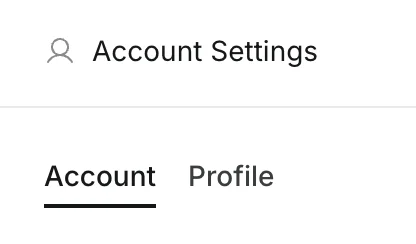 2. Modifiez le `Nom d'affichage` champ.
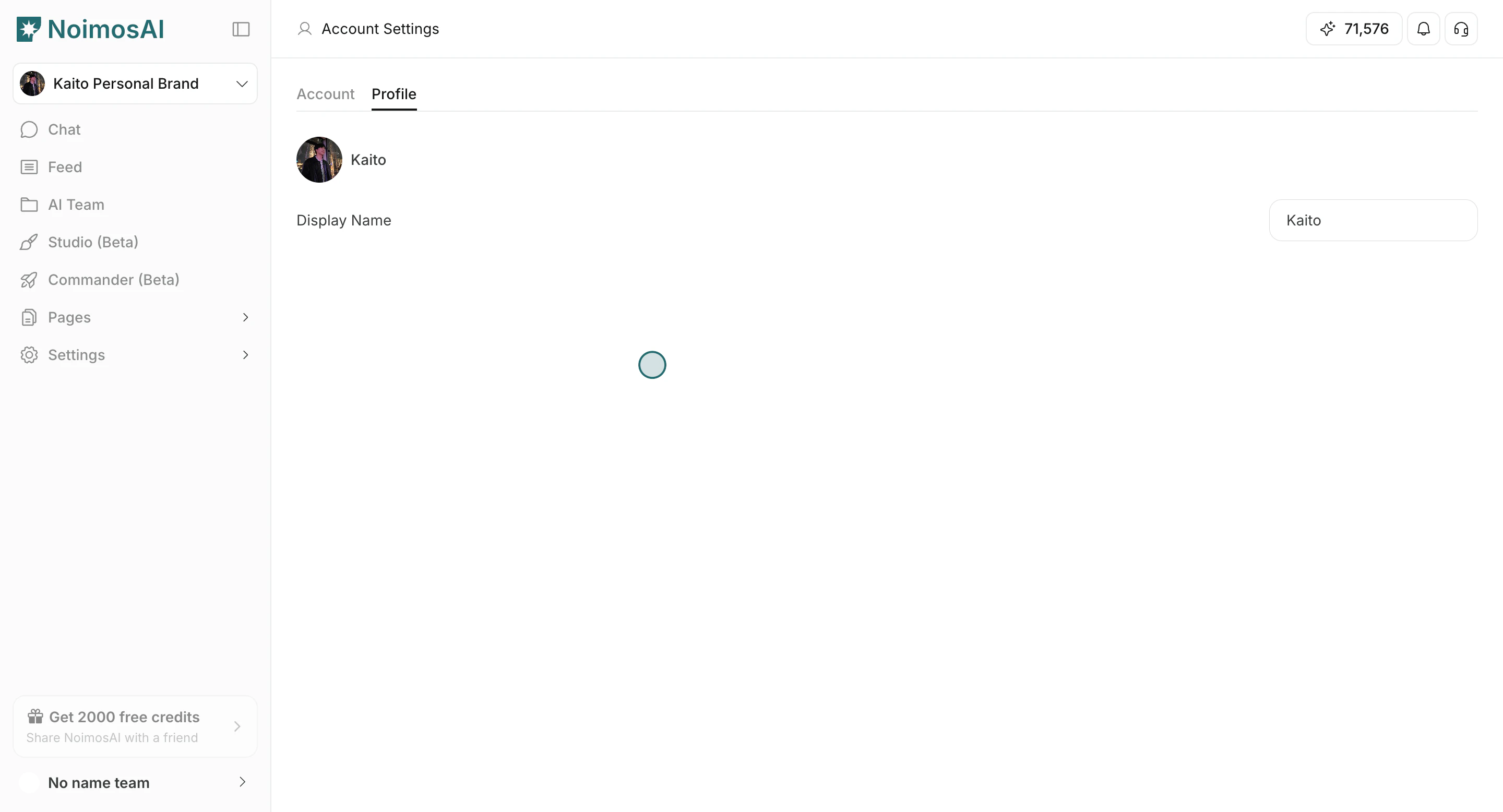
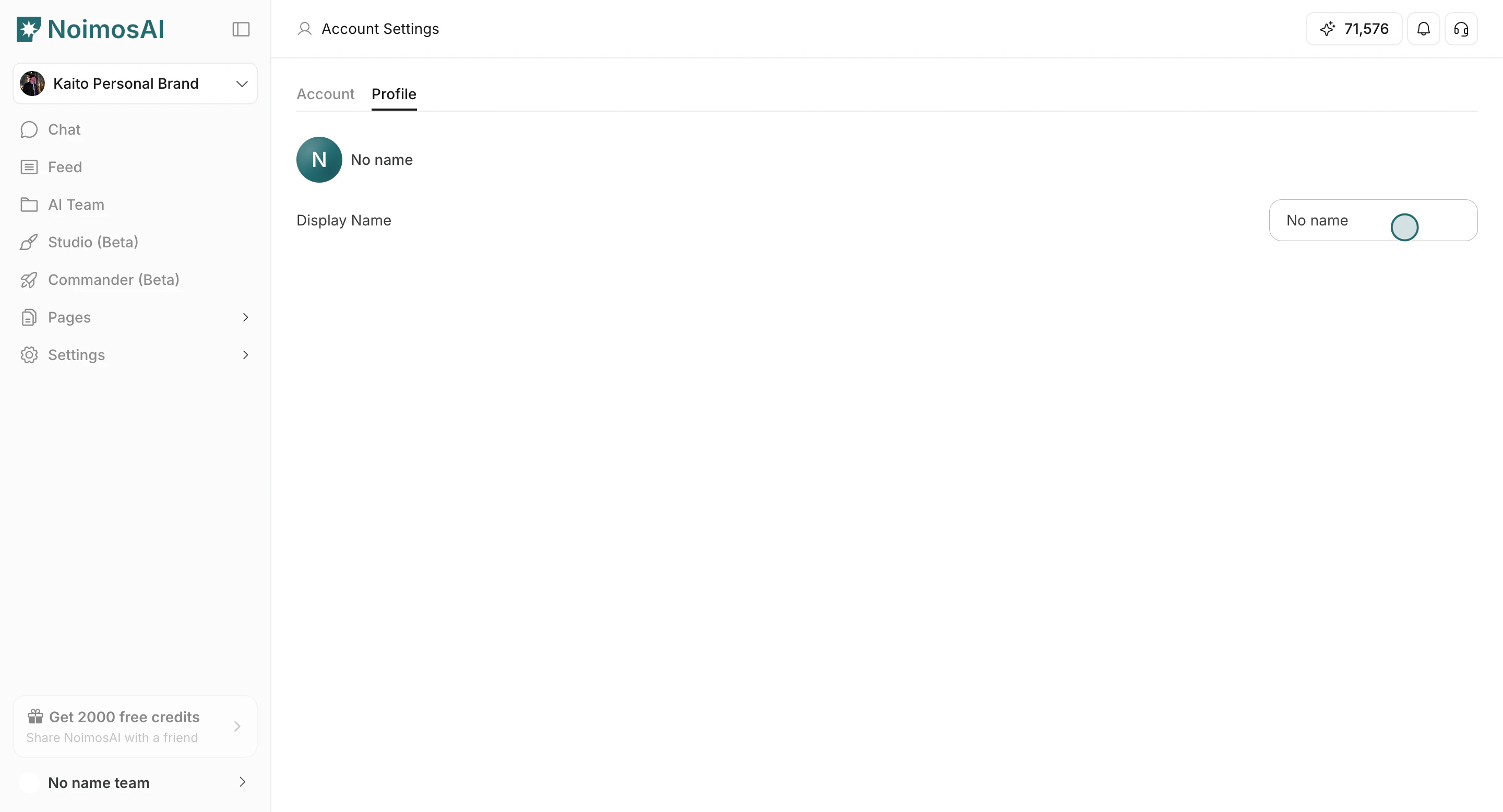 3. Cliquez en dehors du champ pour enregistrer.
4. Confirmez que le nom mis à jour apparaît dans votre profil et dans l'interface utilisateur de l'équipe.
3. Cliquez en dehors du champ pour enregistrer.
4. Confirmez que le nom mis à jour apparaît dans votre profil et dans l'interface utilisateur de l'équipe.
 ## Conseils
Utilisez ces conseils pour améliorer la cohérence et la qualité des résultats.
* Utilisez un format de nom que vos coéquipiers peuvent reconnaître rapidement.
* Gardez le nom court et cohérent dans toutes vos équipes.
## En rapport
Utilisez ces pages connexes pour des conseils plus approfondis.
* [Notions de base du compte](/fr/help-center/account/account-basics)
* [Modifier l'image du profil du compte](/fr/help-center/account/change-account-profile-image)
## Conseils
Utilisez ces conseils pour améliorer la cohérence et la qualité des résultats.
* Utilisez un format de nom que vos coéquipiers peuvent reconnaître rapidement.
* Gardez le nom court et cohérent dans toutes vos équipes.
## En rapport
Utilisez ces pages connexes pour des conseils plus approfondis.
* [Notions de base du compte](/fr/help-center/account/account-basics)
* [Modifier l'image du profil du compte](/fr/help-center/account/change-account-profile-image)