> ## Documentation Index
> Fetch the complete documentation index at: https://docs.noimosai.com/llms.txt
> Use this file to discover all available pages before exploring further.
# Change Account Profile Image
> Upload or replace your account profile image
## Overview
Update your profile image so teammates can identify you quickly across shared workspaces.
## Where to find
Use the following path to open this area.
* `Settings -> Profile`.
## How to update
Follow the steps below to complete this action.
1. Open `Settings`, then go to `Profile`.
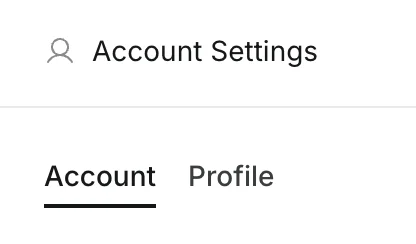 2. Click your current avatar (or add avatar button).
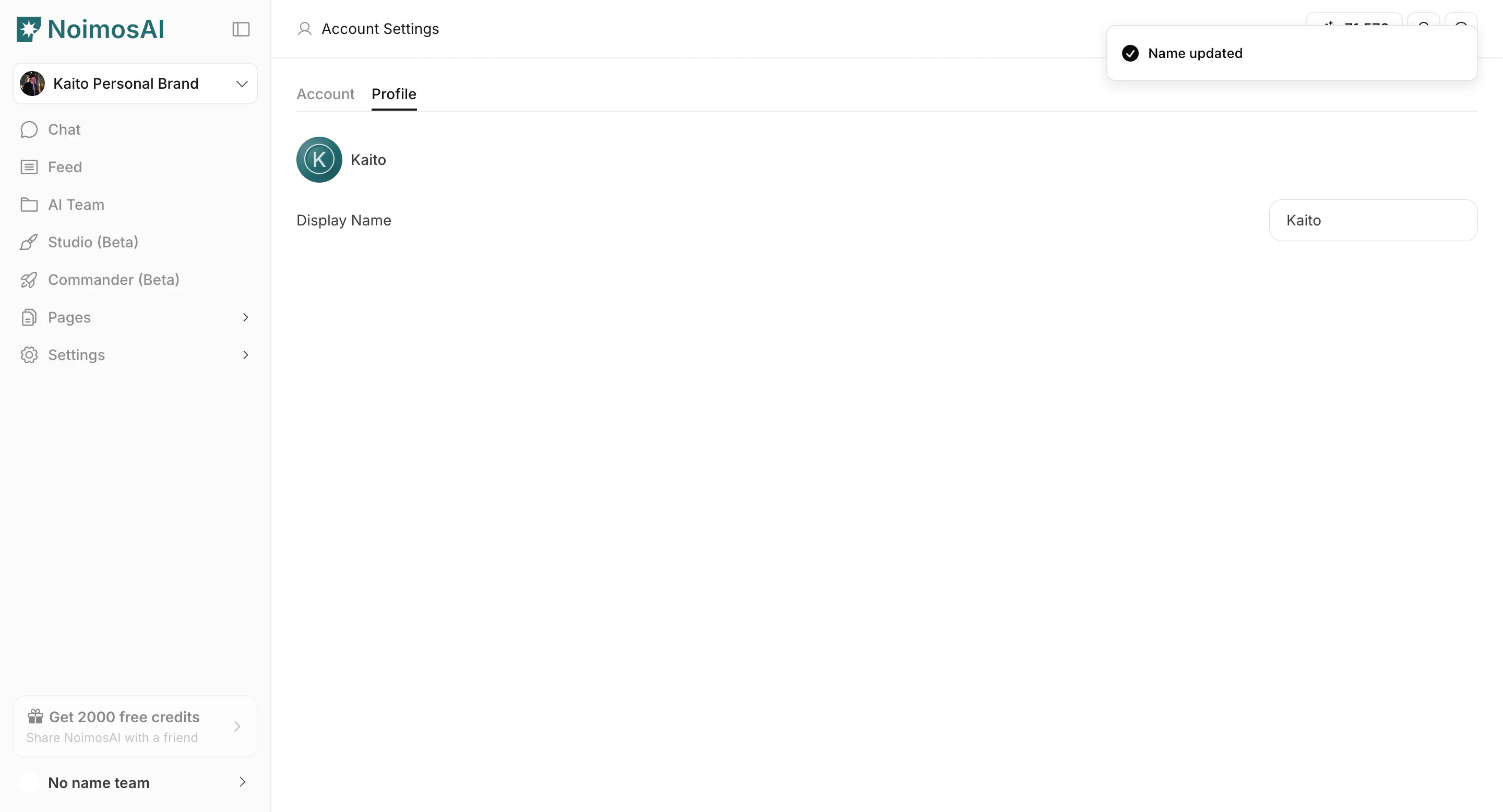 3. Upload an image file from your device.
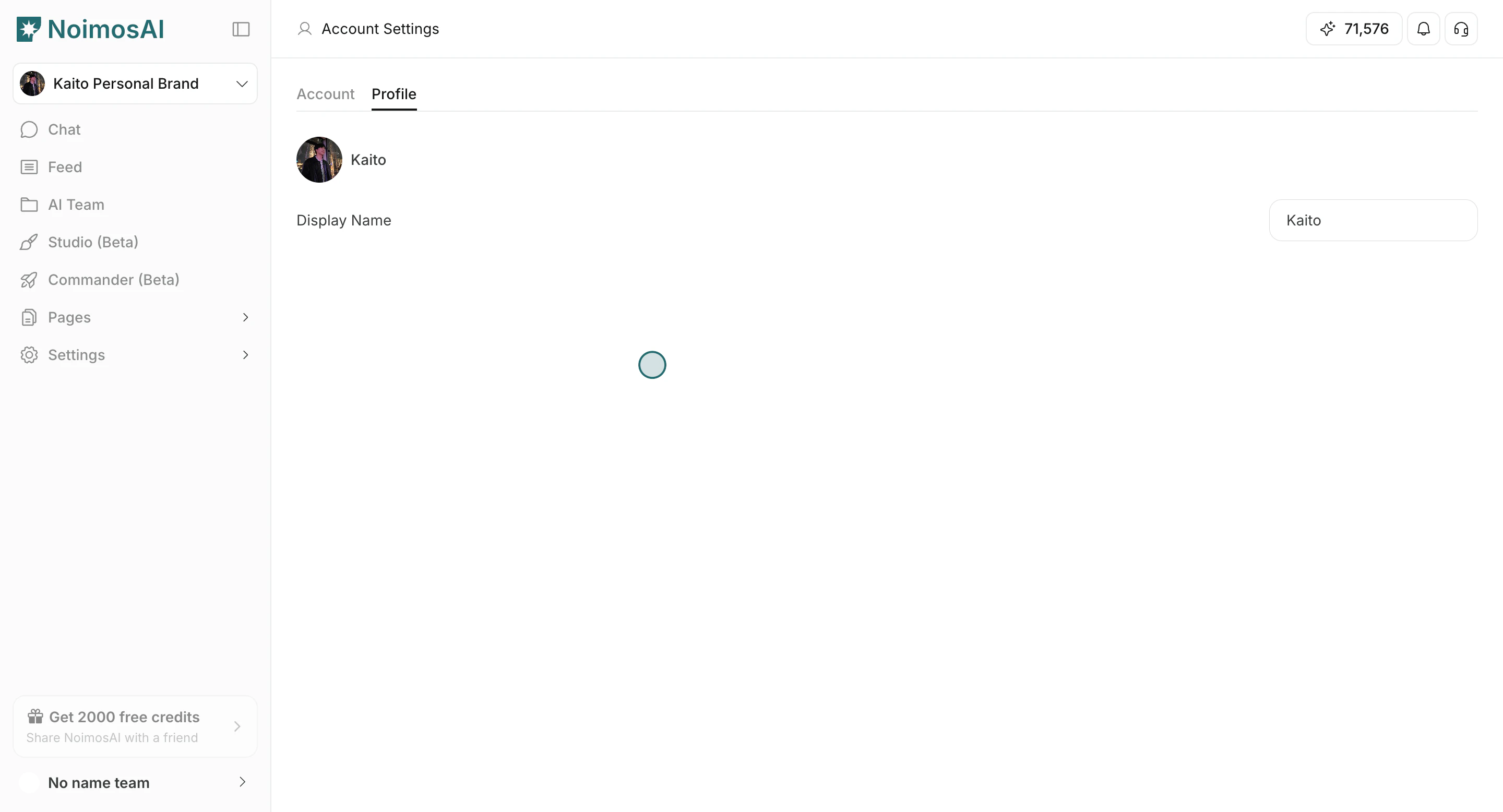
4. Wait for upload to finish and confirm the new image appears.
3. Upload an image file from your device.
4. Wait for upload to finish and confirm the new image appears.
 ## Tips
Use these tips to improve consistency and output quality.
* Use a clear square image for better visibility in small UI areas.
* Keep your profile image distinct from workspace and team icons.
## Related
Use these related pages for deeper guidance.
* [Account Basics](/help-center/account/account-basics)
* [Change Account Name](/help-center/account/change-account-name)
## Tips
Use these tips to improve consistency and output quality.
* Use a clear square image for better visibility in small UI areas.
* Keep your profile image distinct from workspace and team icons.
## Related
Use these related pages for deeper guidance.
* [Account Basics](/help-center/account/account-basics)
* [Change Account Name](/help-center/account/change-account-name)