> ## Documentation Index
> Fetch the complete documentation index at: https://docs.noimosai.com/llms.txt
> Use this file to discover all available pages before exploring further.
# Advisor Agent Basics
> Learn how to review prioritized actions from workspace data and run them in a task chat.
## Overview
The Advisor Agent is a built-in agent that analyzes the marketing data in your workspace and recommends the next actions to take, ordered by priority.
Each workspace has one Advisor Agent. Unlike regular agents that users create, it does not need to be created or deleted. When you review a recommendation and click `Run`, a task chat for that recommendation opens, and the prompt for execution is placed in the input box.
Clicking `Run` does not send the prompt or publish any content. Review the content, then send it from the chat to start the task.
 ## When to use it
Use the Advisor Agent when you want to narrow down the marketing tasks that should be prioritized now before comparing multiple data sources yourself.
For example, you can use it for decisions and execution such as:
* Improving website conversion paths based on Google Analytics data
* Finding queries where rankings or CTR can be improved based on Google Search Console data
* Deciding what social post to create next based on recent posting volume and engagement
* Expanding a theme that is getting traction on one channel into another social post or short video
* Deciding whether to prioritize traffic acquisition or conversion based on the traffic status of a website created in NoimosAI
## Information used for recommendations
Recommendations are generated from the brand information saved in the workspace and the data from apps or websites configured as analysis targets.
The main inputs include:
* Workspace name and onboarding goals
* Brand name, products or services, value proposition, target audience, and business goals
* Google Analytics data such as sessions, users, and key events
* Google Search Console clicks, impressions, CTR, position, and search queries
* Recent social posting volume, impressions, and engagement
* Account information such as X follower count
* Published status, traffic, viewed pages, and referrers for websites created in NoimosAI
* Priorities saved in `Advisor Agent instructions (optional)`
The more connected apps and accumulated data you have, the easier it is to generate recommendations based on actual performance. If there is not enough data, recommendations may be based on brand information and channel usage.
## Review recommended actions
Recommended actions can be reviewed from the home screen or from `Agents`.
### Review from the home screen
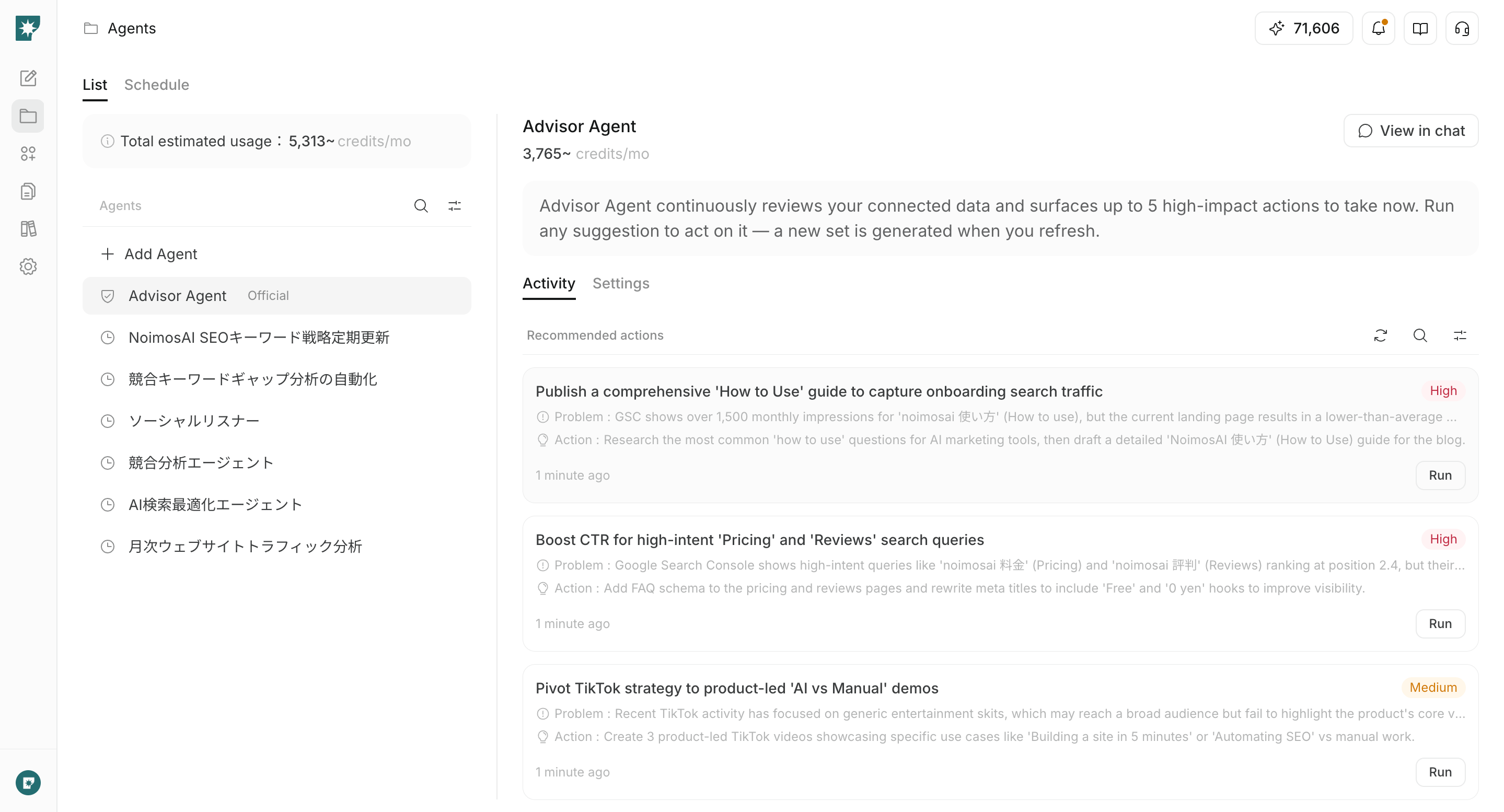
`Advisor Agent recommendations` on the home screen shows the actions that currently have high priority.
To review all recommendations, click `View all`. The Advisor Agent chat opens, and the right panel shows active recommendations.
## When to use it
Use the Advisor Agent when you want to narrow down the marketing tasks that should be prioritized now before comparing multiple data sources yourself.
For example, you can use it for decisions and execution such as:
* Improving website conversion paths based on Google Analytics data
* Finding queries where rankings or CTR can be improved based on Google Search Console data
* Deciding what social post to create next based on recent posting volume and engagement
* Expanding a theme that is getting traction on one channel into another social post or short video
* Deciding whether to prioritize traffic acquisition or conversion based on the traffic status of a website created in NoimosAI
## Information used for recommendations
Recommendations are generated from the brand information saved in the workspace and the data from apps or websites configured as analysis targets.
The main inputs include:
* Workspace name and onboarding goals
* Brand name, products or services, value proposition, target audience, and business goals
* Google Analytics data such as sessions, users, and key events
* Google Search Console clicks, impressions, CTR, position, and search queries
* Recent social posting volume, impressions, and engagement
* Account information such as X follower count
* Published status, traffic, viewed pages, and referrers for websites created in NoimosAI
* Priorities saved in `Advisor Agent instructions (optional)`
The more connected apps and accumulated data you have, the easier it is to generate recommendations based on actual performance. If there is not enough data, recommendations may be based on brand information and channel usage.
## Review recommended actions
Recommended actions can be reviewed from the home screen or from `Agents`.
### Review from the home screen
`Advisor Agent recommendations` on the home screen shows the actions that currently have high priority.
To review all recommendations, click `View all`. The Advisor Agent chat opens, and the right panel shows active recommendations.
 ### Review from the Agents screen
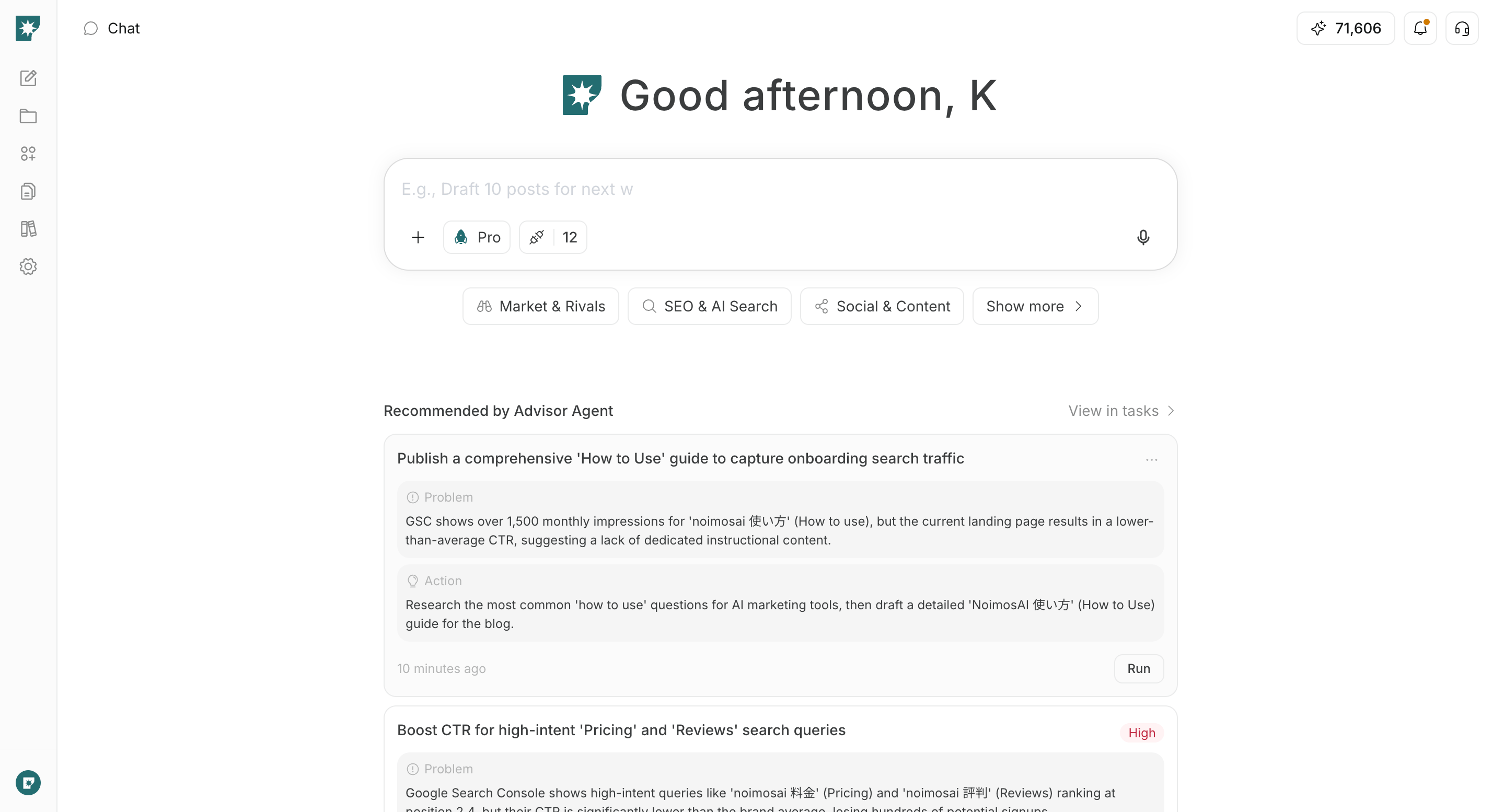
Select `Advisor Agent` in `Agents`, then open `Recommendations` to search recommendations, switch status, and refresh them.
Recommendations are grouped into the following statuses:
* `Active`: Recommendations that have not been handled yet or are in progress
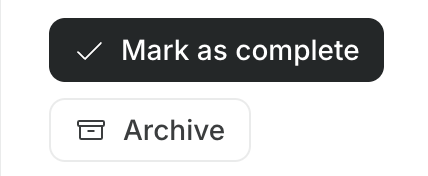
* `Completed`: Recommendations marked as completed
* `Archived`: Recommendations you decided not to handle, or recommendations that were replaced by a refresh
## Review recommendation details
Each card shows the priority and the information needed for judgment and execution.
* **Priority**: `High`, `Medium`, or `Low`, based on the expected impact on traffic or conversion
* **Title**: The specific task to do next
* **Problem**: A problem, opportunity, or unaddressed area identified from the data
* **Action**: What to do in response to the problem
* **Status**: Whether the recommendation is active, completed, or archived
* **Running state**: If the recommendation is in progress, the avatar of the member who started the task and `Running` are shown
* **Run / Open task**: Start a new task chat, or return to a task chat that has already been started
Multiple members in the same workspace can also run the same recommendation in their own task chats.
## Run a recommendation
After choosing a recommendation, review it in the dedicated task chat before running it.
1. Click `Run` on the recommendation you want to execute.
### Review from the Agents screen
Select `Advisor Agent` in `Agents`, then open `Recommendations` to search recommendations, switch status, and refresh them.
Recommendations are grouped into the following statuses:
* `Active`: Recommendations that have not been handled yet or are in progress
* `Completed`: Recommendations marked as completed
* `Archived`: Recommendations you decided not to handle, or recommendations that were replaced by a refresh
## Review recommendation details
Each card shows the priority and the information needed for judgment and execution.
* **Priority**: `High`, `Medium`, or `Low`, based on the expected impact on traffic or conversion
* **Title**: The specific task to do next
* **Problem**: A problem, opportunity, or unaddressed area identified from the data
* **Action**: What to do in response to the problem
* **Status**: Whether the recommendation is active, completed, or archived
* **Running state**: If the recommendation is in progress, the avatar of the member who started the task and `Running` are shown
* **Run / Open task**: Start a new task chat, or return to a task chat that has already been started
Multiple members in the same workspace can also run the same recommendation in their own task chats.
## Run a recommendation
After choosing a recommendation, review it in the dedicated task chat before running it.
1. Click `Run` on the recommendation you want to execute.
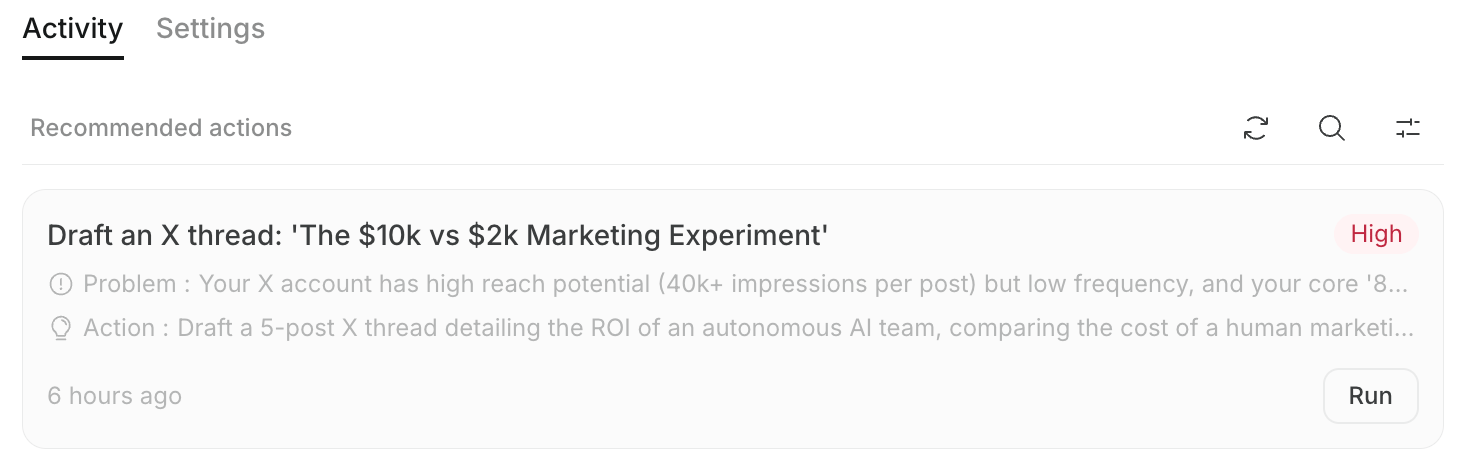 2. When the dedicated task chat opens, review the prompt placed in the input box.
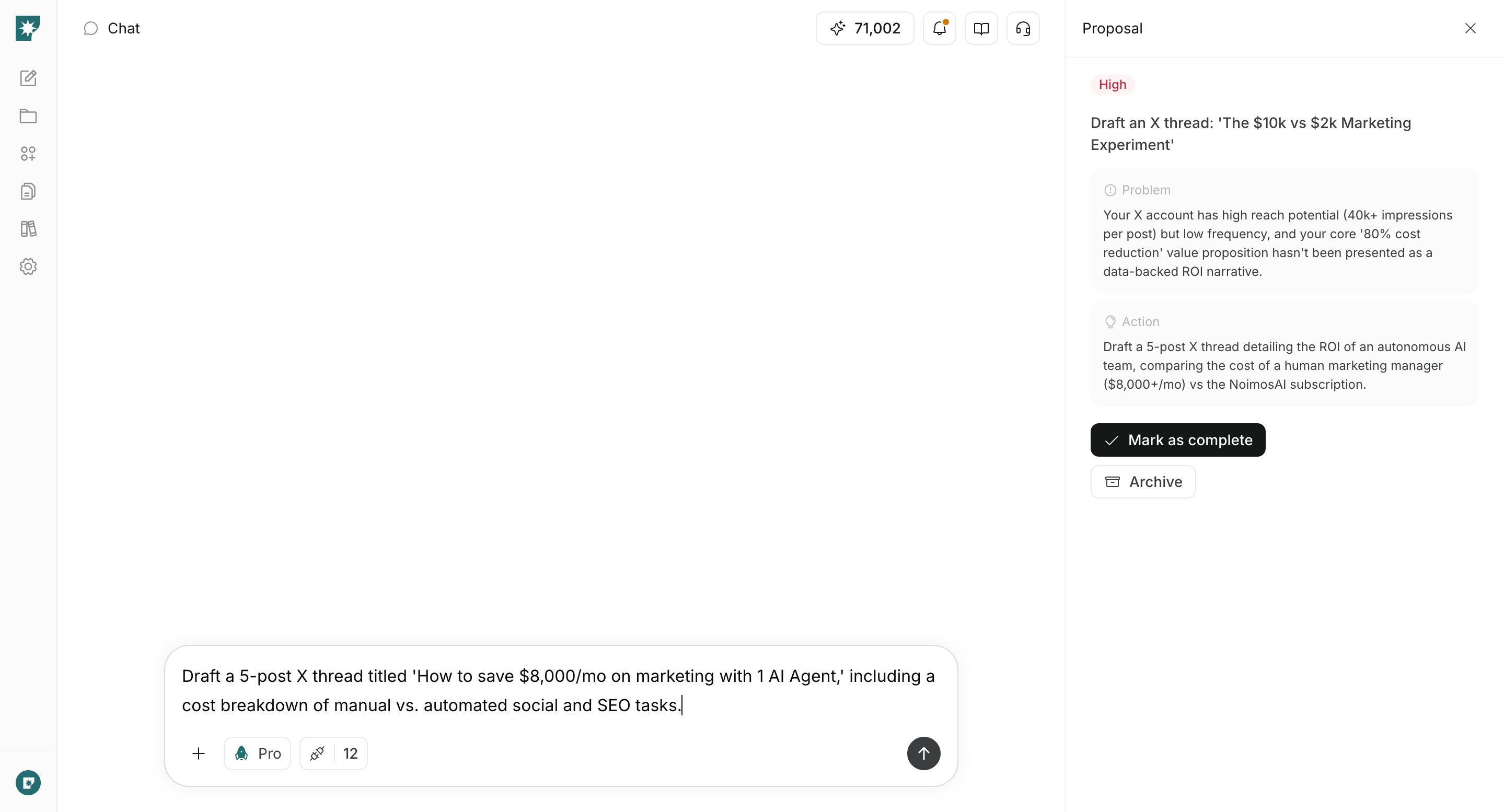 3. Edit the prompt if needed, then send it.
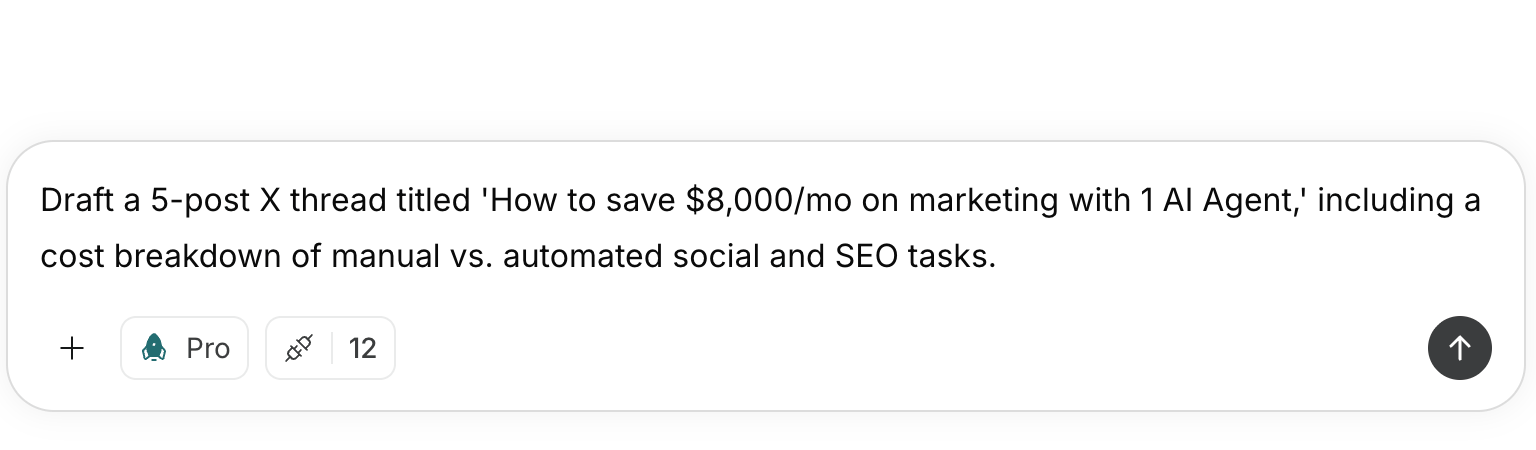 4. Continue the task in chat, such as generation, analysis, or website improvement.
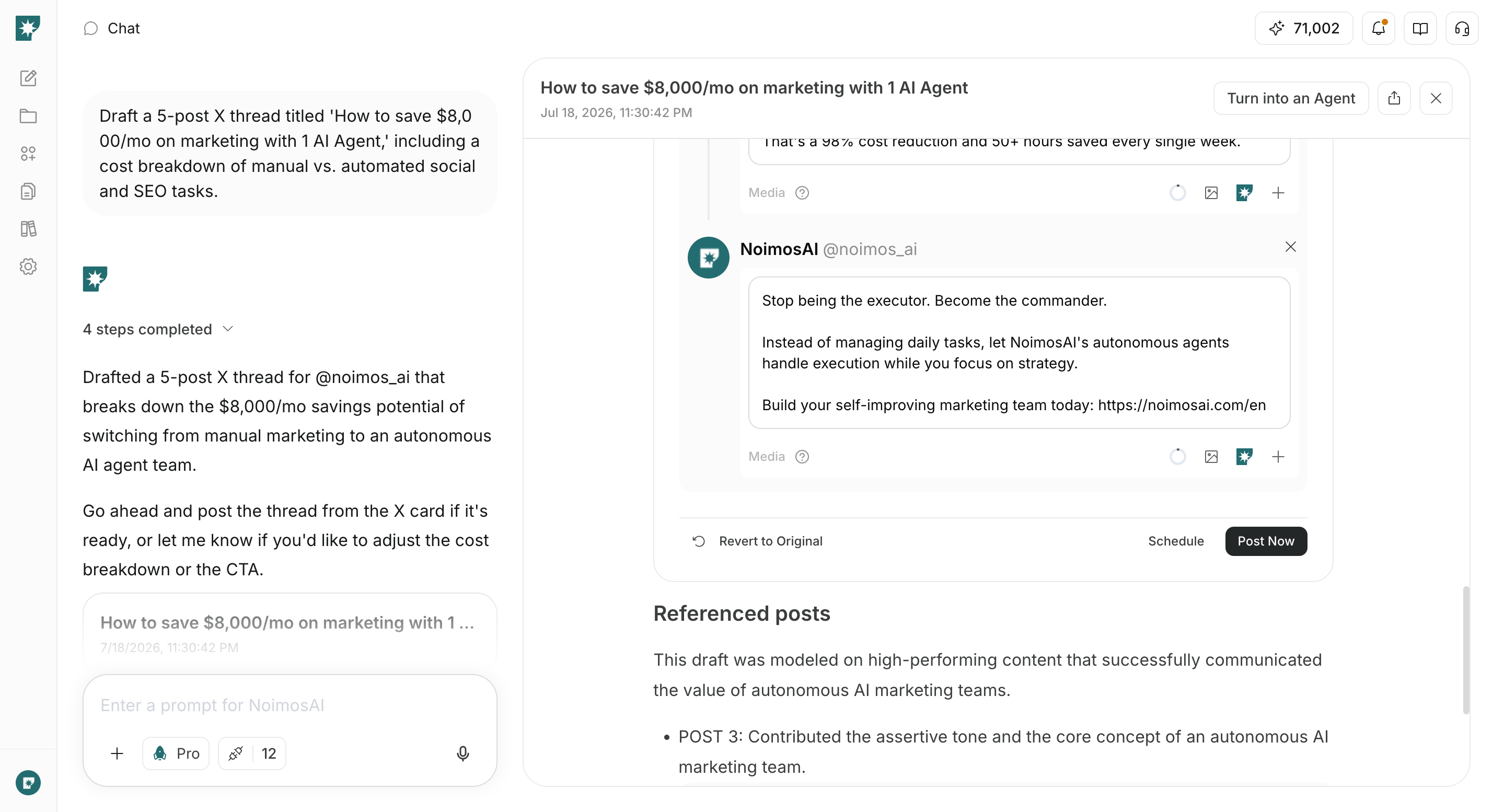 5. Review the result, then select `Mark as complete` or `Archive` from the recommendation panel.
 After a task has been started, you can return to the same chat from `Open task`. You can also send additional instructions in the chat to adjust the output.
## Refresh recommendations
If the current recommendations no longer fit the situation, or if you want to reflect changes in connected data, you can manually generate new recommendations.
Click `Refresh recommendations` in `Recommendations` or in the Advisor Agent chat. Active recommendations are replaced with new recommendations based on the latest workspace information and target data.
You can also run `Refresh recommendations` from the latest recommendation block shown inside the Advisor Agent chat.
After a task has been started, you can return to the same chat from `Open task`. You can also send additional instructions in the chat to adjust the output.
## Refresh recommendations
If the current recommendations no longer fit the situation, or if you want to reflect changes in connected data, you can manually generate new recommendations.
Click `Refresh recommendations` in `Recommendations` or in the Advisor Agent chat. Active recommendations are replaced with new recommendations based on the latest workspace information and target data.
You can also run `Refresh recommendations` from the latest recommendation block shown inside the Advisor Agent chat.
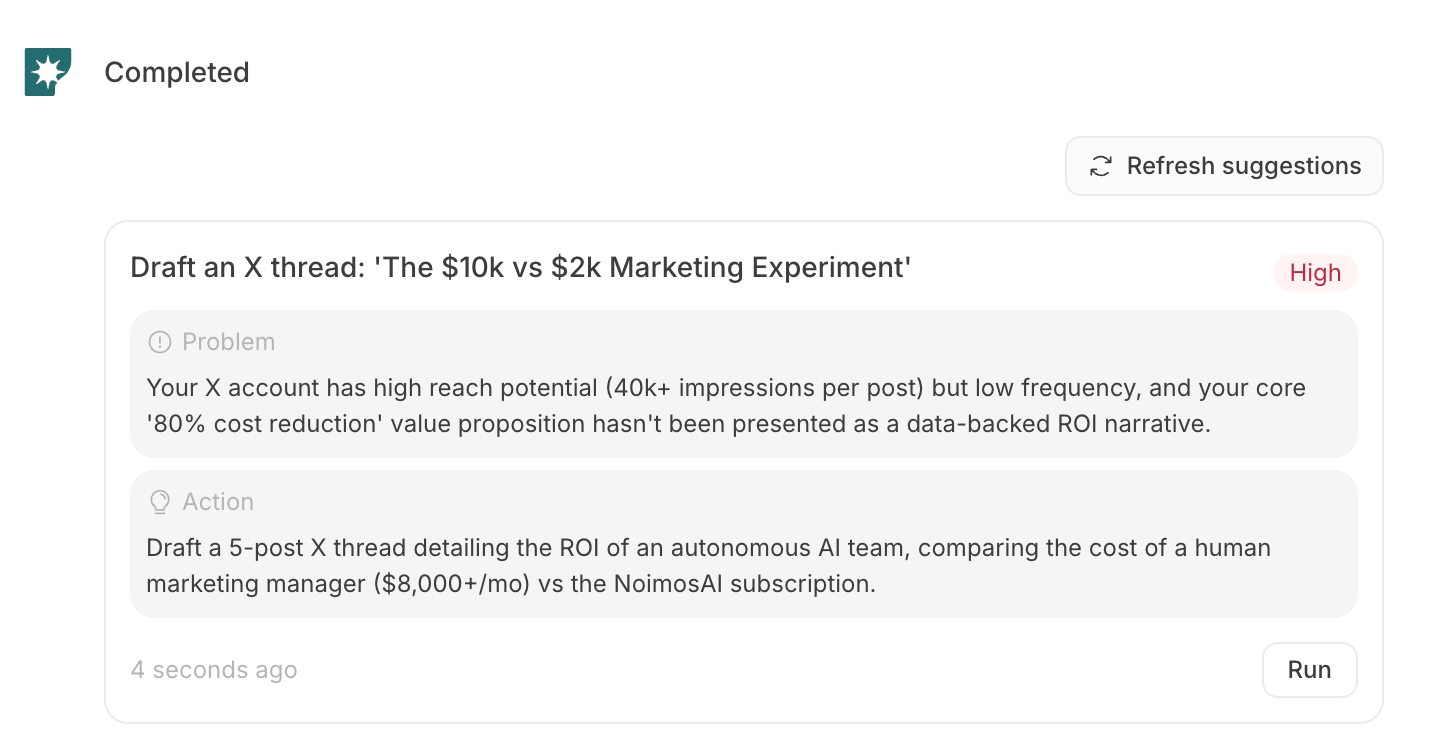 When you click `Refresh recommendations`, recommendations that have not been handled and recommendations that are in progress are archived. If you have an ongoing task, check the content and task chat before refreshing.
Recommendations are also generated or replenished at the following times:
* When workspace setup is complete and apps that can be analyzed are connected
* When you select `Mark as complete` or `Archive` for a recommendation and an active recommendation slot becomes available
The current Advisor Agent does not have a setting for execution frequency like a regular agent. If you want to run the latest analysis at a specific time, use `Refresh recommendations`.
Usually, up to 5 active recommendations are shown. `Refresh recommendations` generates a new batch of recommendations, while `Mark as complete` or `Archive` may generate 1 new recommendation to fill the available slot.
## Credit usage
The Advisor Agent uses credits when it generates recommendations.
Credit usage is not fixed. It is settled based on the actual AI model usage required for recommendation generation. The more connected apps and accounts included in the analysis, the more data and tool calls may need to be checked, which can increase usage.
Credits may be used mainly for the following operations:
* Initial recommendation generation
* Regenerating recommendations with `Refresh recommendations`
* Replenishing recommendations after selecting `Mark as complete` or `Archive`
Clicking `Run` only opens the task chat and does not send the recommendation prompt. Analysis, generation, website improvement, and other work after you send the prompt in the task chat use credits separately, in the same way as normal chat or agent execution.
## Configure the Advisor Agent
Open the Advisor Agent `Settings` from `Agents` to adjust the analysis targets and recommendation policy.
When you click `Refresh recommendations`, recommendations that have not been handled and recommendations that are in progress are archived. If you have an ongoing task, check the content and task chat before refreshing.
Recommendations are also generated or replenished at the following times:
* When workspace setup is complete and apps that can be analyzed are connected
* When you select `Mark as complete` or `Archive` for a recommendation and an active recommendation slot becomes available
The current Advisor Agent does not have a setting for execution frequency like a regular agent. If you want to run the latest analysis at a specific time, use `Refresh recommendations`.
Usually, up to 5 active recommendations are shown. `Refresh recommendations` generates a new batch of recommendations, while `Mark as complete` or `Archive` may generate 1 new recommendation to fill the available slot.
## Credit usage
The Advisor Agent uses credits when it generates recommendations.
Credit usage is not fixed. It is settled based on the actual AI model usage required for recommendation generation. The more connected apps and accounts included in the analysis, the more data and tool calls may need to be checked, which can increase usage.
Credits may be used mainly for the following operations:
* Initial recommendation generation
* Regenerating recommendations with `Refresh recommendations`
* Replenishing recommendations after selecting `Mark as complete` or `Archive`
Clicking `Run` only opens the task chat and does not send the recommendation prompt. Analysis, generation, website improvement, and other work after you send the prompt in the task chat use credits separately, in the same way as normal chat or agent execution.
## Configure the Advisor Agent
Open the Advisor Agent `Settings` from `Agents` to adjust the analysis targets and recommendation policy.
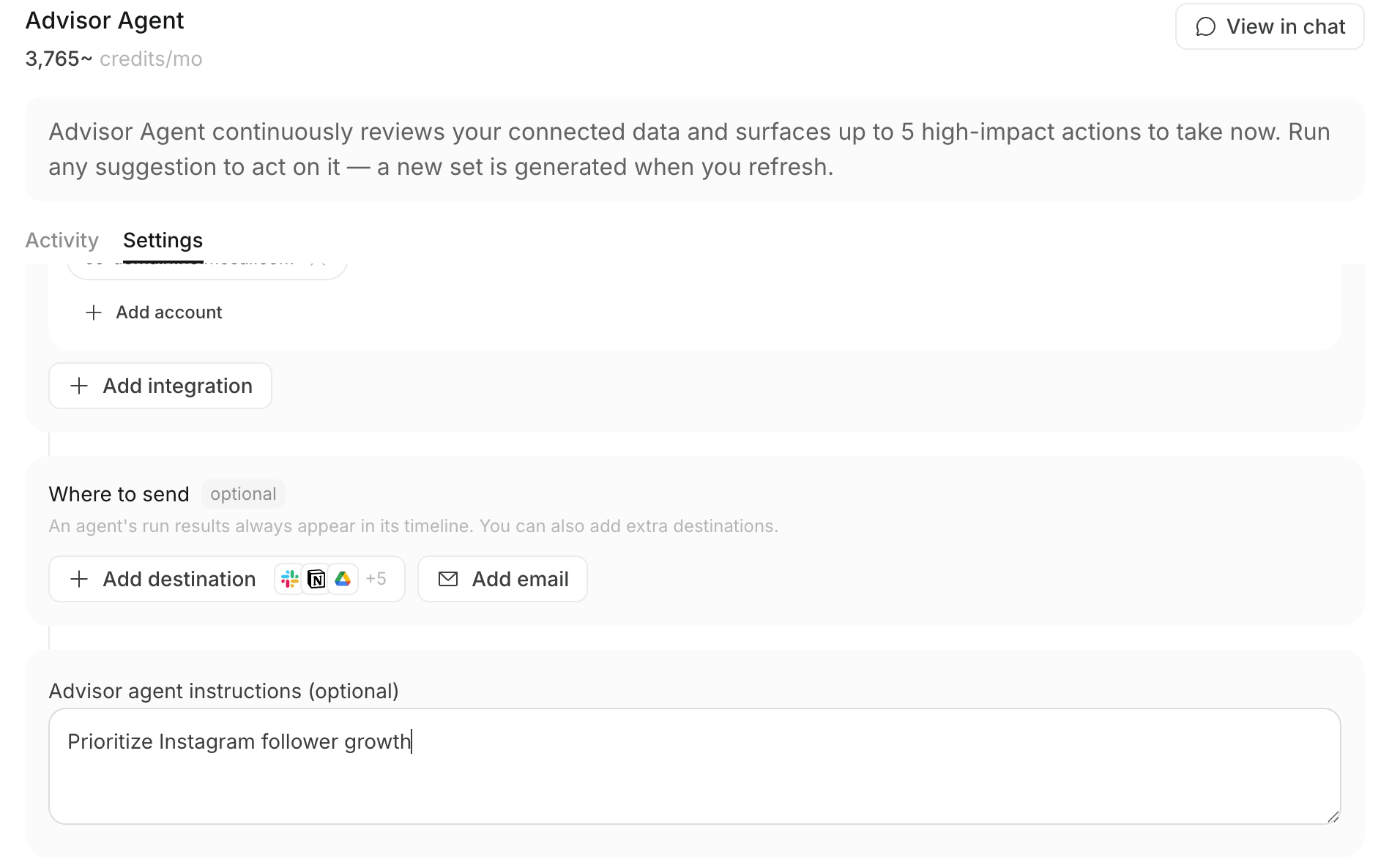 You can configure the following items:
* **Integrations**: Apps and connected accounts to analyze
* **Destinations**: Places where newly generated recommendations are delivered
* **Advisor Agent instructions (optional)**: Preferred channels and goals
For example, if you enter “Prioritize Instagram follower growth,” that policy is reflected in Instagram-related recommendations and priority when the data supports it. If the instruction does not match the actual data, actions with higher expected impact may be prioritized.
When you configure destinations, newly generated recommendations can be delivered to the corresponding destinations. This is not a feature for approving recommendations or running tasks from the destination.
### Change instructions from chat
In the Advisor Agent chat, you can ask to change `Advisor Agent instructions (optional)` by entering requests such as “Prioritize Instagram” or “Show more SEO improvement recommendations.”
The change appears as a confirmation card. After you confirm it, the setting is updated. Changing the instructions does not automatically replace existing recommendations. To regenerate recommendations with the new focus, click `Refresh recommendations`.
You can configure the following items:
* **Integrations**: Apps and connected accounts to analyze
* **Destinations**: Places where newly generated recommendations are delivered
* **Advisor Agent instructions (optional)**: Preferred channels and goals
For example, if you enter “Prioritize Instagram follower growth,” that policy is reflected in Instagram-related recommendations and priority when the data supports it. If the instruction does not match the actual data, actions with higher expected impact may be prioritized.
When you configure destinations, newly generated recommendations can be delivered to the corresponding destinations. This is not a feature for approving recommendations or running tasks from the destination.
### Change instructions from chat
In the Advisor Agent chat, you can ask to change `Advisor Agent instructions (optional)` by entering requests such as “Prioritize Instagram” or “Show more SEO improvement recommendations.”
The change appears as a confirmation card. After you confirm it, the setting is updated. Changing the instructions does not automatically replace existing recommendations. To regenerate recommendations with the new focus, click `Refresh recommendations`.
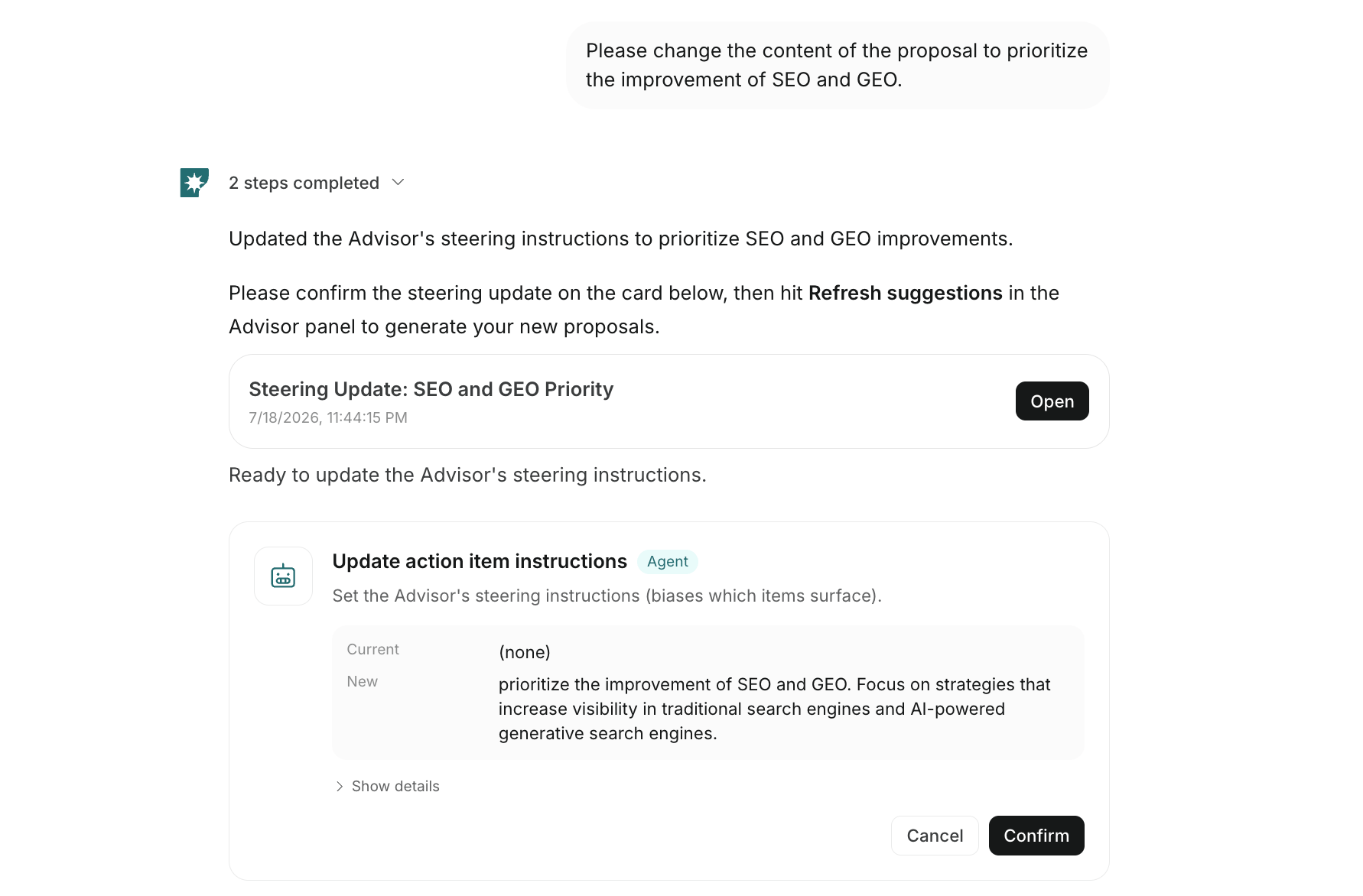 Chat changes mainly update the instructions that adjust recommendation policy. To change the connected apps or accounts used for analysis, or the destinations for recommendations, save those changes from the Advisor Agent `Settings`.
## Language of recommendation text
The language used for recommendation titles, problems, actions, and similar text is determined separately from the app display language.
The language is decided in this order:
1. The language used in `Advisor Agent instructions (optional)`
2. The brand operating language inferred from the brand description, products or services, value proposition, target audience, business goals, and related fields
3. English, if the language cannot be determined from either source
If you want to receive recommendations in English, prepare your brand information in English and write the Advisor Agent instructions in English.
## Notes when reviewing results
The Advisor Agent helps you decide priority tasks and start execution, but it does not automatically guarantee the accuracy of generated results or published content.
Before publishing a website, article, social post, or other content externally, check the following:
* Whether the period and numbers used for analysis match your purpose
* Whether the recommended action matches your current business goals
* Whether the generated text, image, video, or website content contains errors
* Whether a human is making the final decision for external publishing, sending, budget changes, and similar actions
## Related pages
For app connections and agent operations, see also:
* [What Is NoimosAI?](/help-center/getting-started/what-is-noimosai)
* [Quickstart Guide](/help-center/getting-started/quickstart-guide)
* [AI Agent Basics](/help-center/ai-team/ai-agent-basics)
* [Agent Capabilities](/help-center/ai-team/agent-types)
* [Connect Apps to a Workspace](/help-center/workspace/integrate-apps)
Chat changes mainly update the instructions that adjust recommendation policy. To change the connected apps or accounts used for analysis, or the destinations for recommendations, save those changes from the Advisor Agent `Settings`.
## Language of recommendation text
The language used for recommendation titles, problems, actions, and similar text is determined separately from the app display language.
The language is decided in this order:
1. The language used in `Advisor Agent instructions (optional)`
2. The brand operating language inferred from the brand description, products or services, value proposition, target audience, business goals, and related fields
3. English, if the language cannot be determined from either source
If you want to receive recommendations in English, prepare your brand information in English and write the Advisor Agent instructions in English.
## Notes when reviewing results
The Advisor Agent helps you decide priority tasks and start execution, but it does not automatically guarantee the accuracy of generated results or published content.
Before publishing a website, article, social post, or other content externally, check the following:
* Whether the period and numbers used for analysis match your purpose
* Whether the recommended action matches your current business goals
* Whether the generated text, image, video, or website content contains errors
* Whether a human is making the final decision for external publishing, sending, budget changes, and similar actions
## Related pages
For app connections and agent operations, see also:
* [What Is NoimosAI?](/help-center/getting-started/what-is-noimosai)
* [Quickstart Guide](/help-center/getting-started/quickstart-guide)
* [AI Agent Basics](/help-center/ai-team/ai-agent-basics)
* [Agent Capabilities](/help-center/ai-team/agent-types)
* [Connect Apps to a Workspace](/help-center/workspace/integrate-apps)