> ## Documentation Index
> Fetch the complete documentation index at: https://docs.noimosai.com/llms.txt
> Use this file to discover all available pages before exploring further.
# AI Agent Basics
> Understand the basics of agent operations and the decisions people should own.
## Overview
NoimosAI `Agents` let you design autonomous execution by setting execution conditions, workflow instructions, and integrations. You can also specify destinations when needed.
Execution results are saved to the related chat session by default. When you set `Destinations`, you can also notify Slack, LINE, Discord, and other channels.
## Two ways to use agents
### 1. Run work autonomously with an agent
Use `Agents` when you want work to run on a schedule or condition.
Select `Add Agent` to configure conditions, instructions, and integrations so the task can run autonomously. You can also specify destinations when needed.
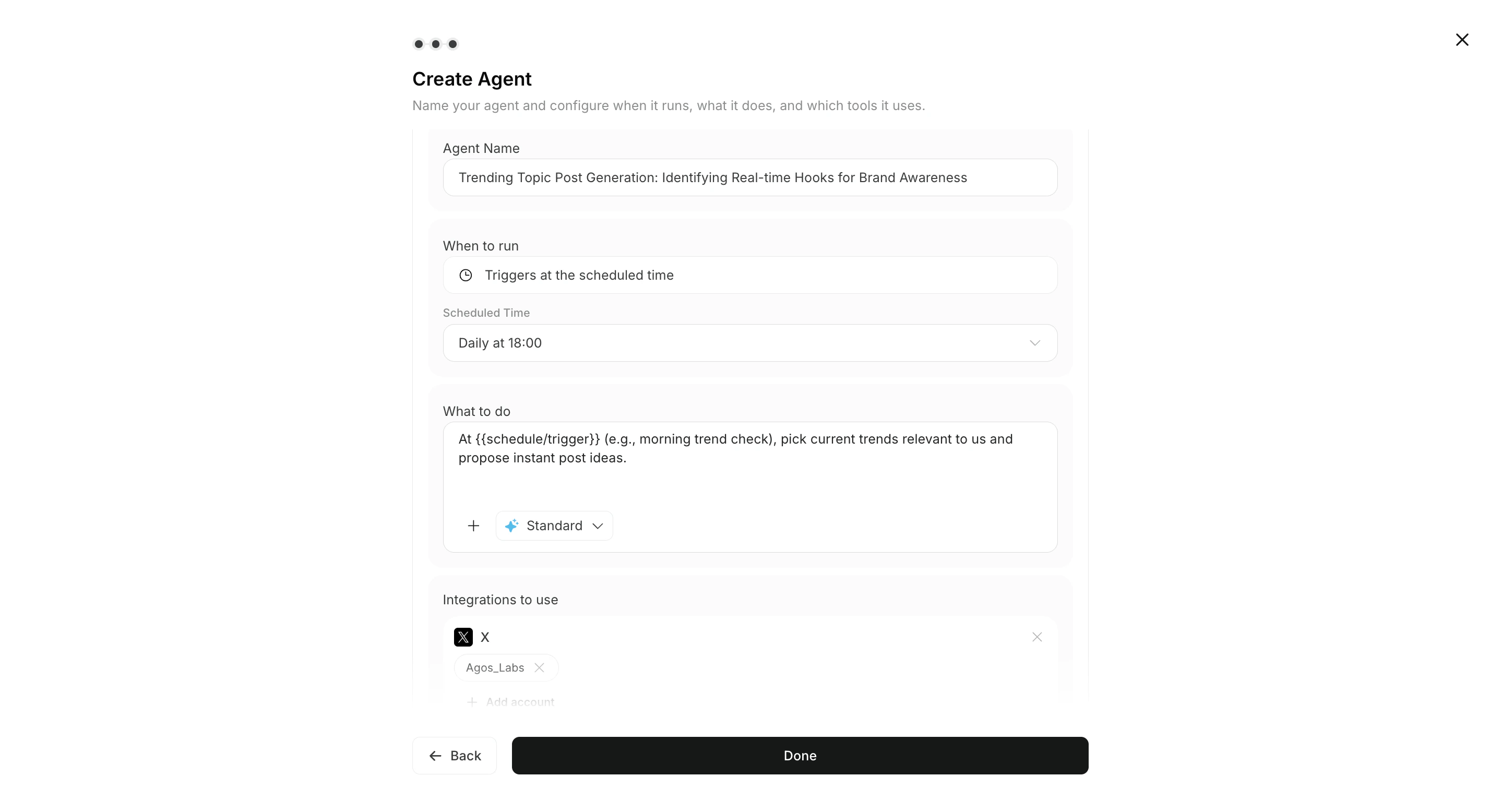 ### 2. Give direct instructions in Chat
Use `Chat` for one-off requests and iteration.
After reviewing the output, you can move useful work into ongoing operations with `Create Agent`.
### 2. Give direct instructions in Chat
Use `Chat` for one-off requests and iteration.
After reviewing the output, you can move useful work into ongoing operations with `Create Agent`.
 ### 3. Start from Advisor Agent recommendations
In addition to creating regular agents or giving direct instructions in Chat, each workspace includes an Advisor Agent by default. The Advisor Agent analyzes connected data and brand information, then recommends prioritized actions. Click `Run` on a recommendation to open a dedicated task chat and review the execution prompt before sending it.
See [Advisor Agent Basics](/help-center/ai-team/advisor-agent-basics) for details.
## Responsibilities
### What agents do
* Run tasks autonomously under the configured conditions.
* Use approved integrations and connected accounts.
* Save execution results to the related chat session and notify configured `Destinations` when needed.
* Reference images and Knowledge Bases attached to the workflow.
* Return execution results and context.
## Destinations and output formats
`Destinations` are optional. Choose supported destinations and formats based on the workflow.
* Destinations: Slack, LINE, Discord, Telegram, WhatsApp, email, Notion, Google Drive
* Output formats: link, summary, PDF
### What people do
* Define the goal, quality bar, and restrictions.
* Review whether the output is appropriate.
* Make the final decision to approve, revise, or publish.
## Related pages
* [Agent capabilities](/help-center/ai-team/agent-types)
* [Create an agent from a template](/help-center/ai-team/create-an-agent-from-a-template)
* [Create an agent from scratch](/help-center/ai-team/create-an-agent-from-scratch)
## Website and goal-based use cases
If you want to start from a concrete goal, continue with the Website guides or the channel-based use cases.
* [Website Basics](/help-center/website/website-basics)
* [Create and Edit a Website](/help-center/website/create-and-edit-website)
* [Channel and Goal Use Cases](/help-center/use-cases/channels/overview)
### 3. Start from Advisor Agent recommendations
In addition to creating regular agents or giving direct instructions in Chat, each workspace includes an Advisor Agent by default. The Advisor Agent analyzes connected data and brand information, then recommends prioritized actions. Click `Run` on a recommendation to open a dedicated task chat and review the execution prompt before sending it.
See [Advisor Agent Basics](/help-center/ai-team/advisor-agent-basics) for details.
## Responsibilities
### What agents do
* Run tasks autonomously under the configured conditions.
* Use approved integrations and connected accounts.
* Save execution results to the related chat session and notify configured `Destinations` when needed.
* Reference images and Knowledge Bases attached to the workflow.
* Return execution results and context.
## Destinations and output formats
`Destinations` are optional. Choose supported destinations and formats based on the workflow.
* Destinations: Slack, LINE, Discord, Telegram, WhatsApp, email, Notion, Google Drive
* Output formats: link, summary, PDF
### What people do
* Define the goal, quality bar, and restrictions.
* Review whether the output is appropriate.
* Make the final decision to approve, revise, or publish.
## Related pages
* [Agent capabilities](/help-center/ai-team/agent-types)
* [Create an agent from a template](/help-center/ai-team/create-an-agent-from-a-template)
* [Create an agent from scratch](/help-center/ai-team/create-an-agent-from-scratch)
## Website and goal-based use cases
If you want to start from a concrete goal, continue with the Website guides or the channel-based use cases.
* [Website Basics](/help-center/website/website-basics)
* [Create and Edit a Website](/help-center/website/create-and-edit-website)
* [Channel and Goal Use Cases](/help-center/use-cases/channels/overview)