> ## Documentation Index
> Fetch the complete documentation index at: https://docs.noimosai.com/llms.txt
> Use this file to discover all available pages before exploring further.
# Analyze Campaign Progress and Results
> Learn how to read campaign status and results, and ask the agent to make improvements.
## Overview
When you open a campaign, you can see whether it is running, what results it is producing, and whether any issue needs attention. This page explains how to read its status and results, start or pause it, and request improvements.
## Check the Current Campaign Status
Open the campaign to determine whether it is running, whether it can be edited, and whether it needs attention.
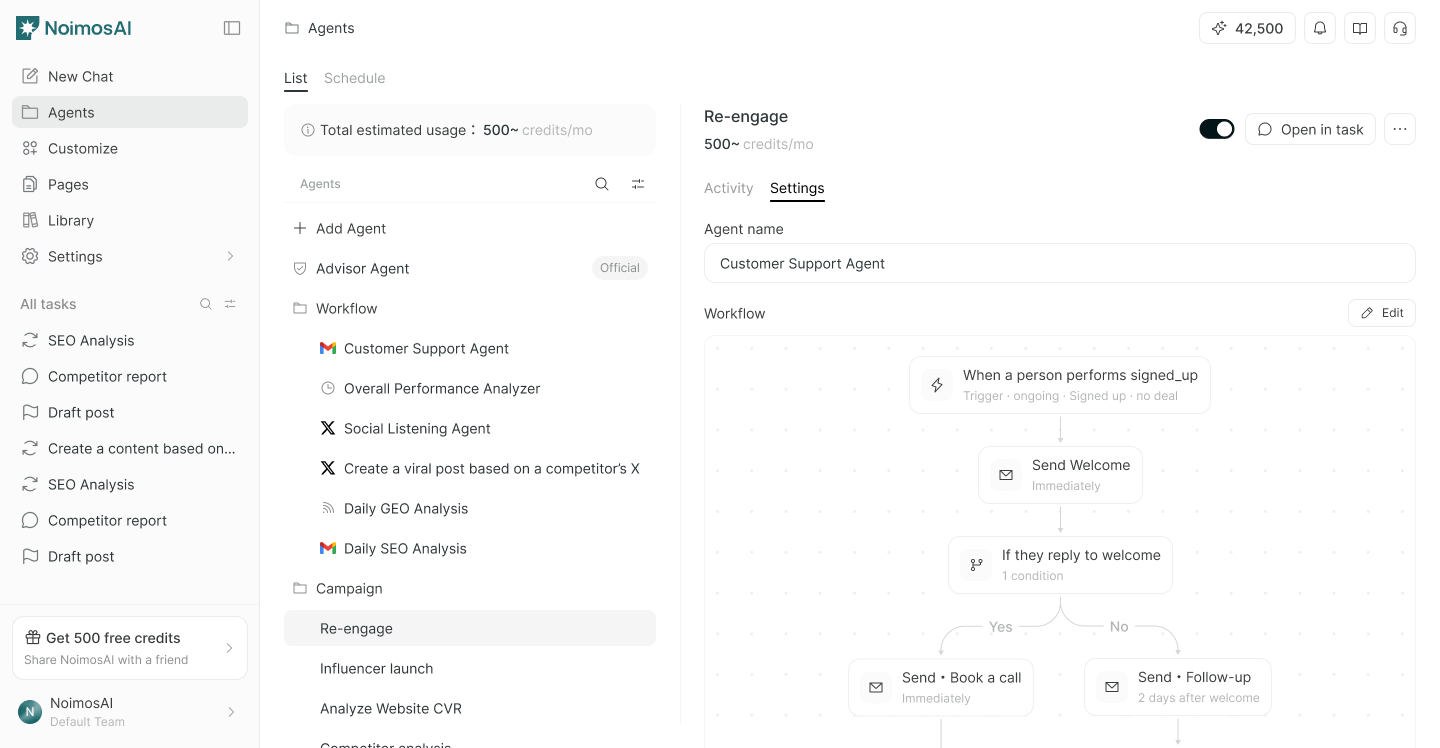 The main campaign statuses are as follows.
| Status | Meaning |
| --------- | ------------------------------------------------------------------------------------------ |
| Draft | The campaign is being created or edited. It does not begin taking action for the audience. |
| Scheduled | The campaign is ready to start at the specified time. |
| Running | The agent is carrying out the approved actions for customers who meet the conditions. |
| Paused | New runs are stopped so that you can review or edit the settings. |
| Completed | The campaign has ended. |
| Archived | The campaign is removed from the set of campaigns managed in normal operations. |
`Running` and `Scheduled` campaigns appear as active campaigns. You cannot start a `Completed` or `Archived` campaign again.
## View Progress and Results in Activity
The campaign's `Activity` shows results against the goal and issues that require attention.
The main campaign statuses are as follows.
| Status | Meaning |
| --------- | ------------------------------------------------------------------------------------------ |
| Draft | The campaign is being created or edited. It does not begin taking action for the audience. |
| Scheduled | The campaign is ready to start at the specified time. |
| Running | The agent is carrying out the approved actions for customers who meet the conditions. |
| Paused | New runs are stopped so that you can review or edit the settings. |
| Completed | The campaign has ended. |
| Archived | The campaign is removed from the set of campaigns managed in normal operations. |
`Running` and `Scheduled` campaigns appear as active campaigns. You cannot start a `Completed` or `Archived` campaign again.
## View Progress and Results in Activity
The campaign's `Activity` shows results against the goal and issues that require attention.
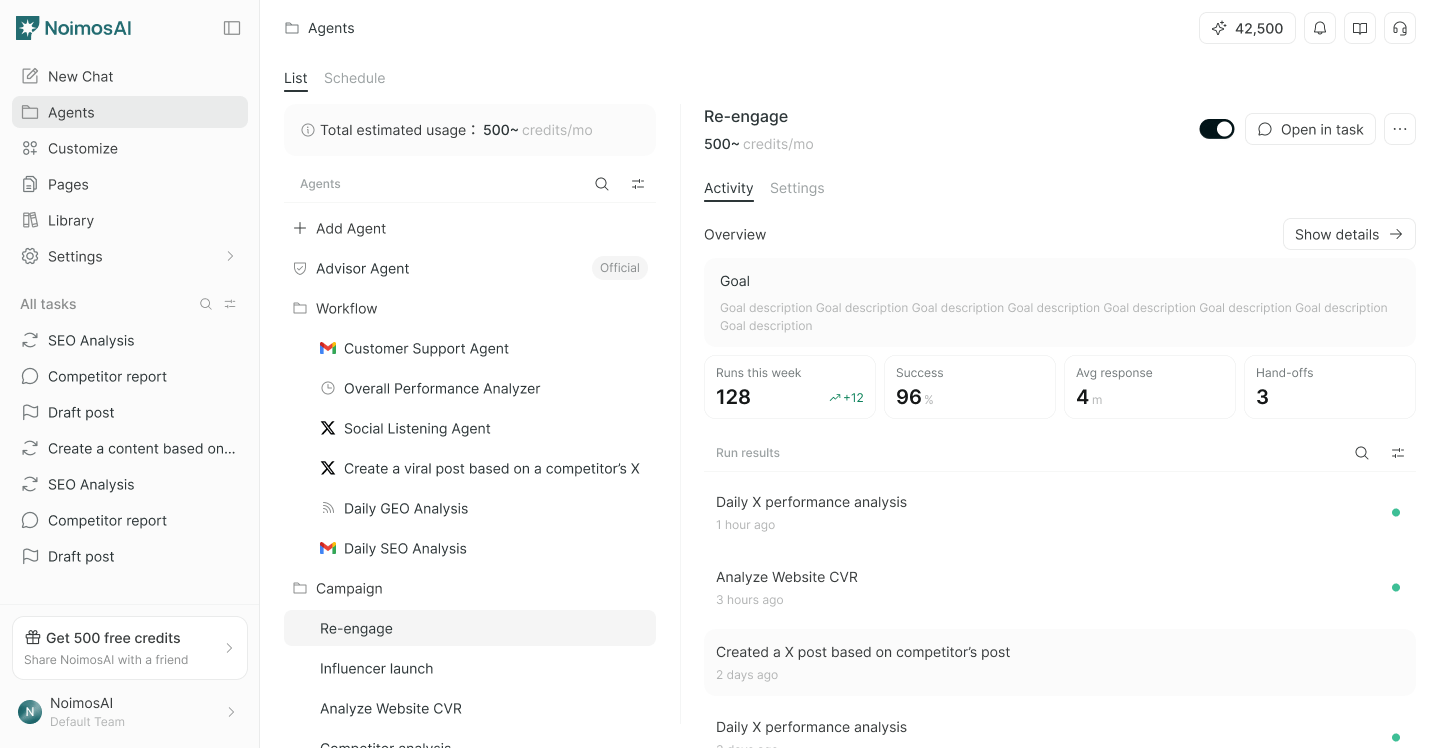 The goal you set appears at the top of Activity. Track the following metrics to measure results against that goal.
* Number of people enrolled in the campaign audience
* Number of people whose campaign actions are complete
* Number of people who reached the goal
Warnings and errors appear separately from results if there is a delivery or execution problem.
## Request Analysis and Improvements in Tasks
To analyze detailed results, select `View details` and open the task associated with the campaign.
In the task, you can ask the agent to summarize results or revise the campaign. For example, ask it to analyze the share of customers who reached the goal, messages with low engagement, or stages where many customers stop progressing.
When you make a change, review the revision the agent created before saving it.
## Review the Goal and Approach in Settings
The campaign's `Settings` displays the following information.
* Campaign name
* Campaign goal
* Target customers and entry conditions
* Senders and integrations used
* Actions performed for the audience and their order
You cannot edit the approach of a running campaign. Pause the campaign before changing it.
## Start or Pause a Campaign
Use the toggle at the top of the campaign to start or pause it.
Starting a campaign may begin enrolling customers or sending content externally.
## Fix the Cause of a Warning or Error
If a campaign displays a warning or error, fix the setting required to start or run it.
Review these five common causes of problems.
* The target audience and entry conditions are configured.
* Required senders and integrations are available.
* Every campaign step is fully configured.
* Every branch connects to another step or an end point.
* Connections to external services are still active.
After you fix the settings, save them and start the campaign again.
## Related Pages
The following pages explain campaign basics and how to get started with customer engagement.
* [Understand How Campaigns Work](/help-center/ai-team/campaigns/campaign-basics)
* [Customer Engagement Basics](/help-center/ai-team/campaigns/customer-engagement/customer-engagement-basics)
* [Test, Approve, and Start a Campaign](/help-center/ai-team/campaigns/customer-engagement/test-approve-and-start-campaign)
The goal you set appears at the top of Activity. Track the following metrics to measure results against that goal.
* Number of people enrolled in the campaign audience
* Number of people whose campaign actions are complete
* Number of people who reached the goal
Warnings and errors appear separately from results if there is a delivery or execution problem.
## Request Analysis and Improvements in Tasks
To analyze detailed results, select `View details` and open the task associated with the campaign.
In the task, you can ask the agent to summarize results or revise the campaign. For example, ask it to analyze the share of customers who reached the goal, messages with low engagement, or stages where many customers stop progressing.
When you make a change, review the revision the agent created before saving it.
## Review the Goal and Approach in Settings
The campaign's `Settings` displays the following information.
* Campaign name
* Campaign goal
* Target customers and entry conditions
* Senders and integrations used
* Actions performed for the audience and their order
You cannot edit the approach of a running campaign. Pause the campaign before changing it.
## Start or Pause a Campaign
Use the toggle at the top of the campaign to start or pause it.
Starting a campaign may begin enrolling customers or sending content externally.
## Fix the Cause of a Warning or Error
If a campaign displays a warning or error, fix the setting required to start or run it.
Review these five common causes of problems.
* The target audience and entry conditions are configured.
* Required senders and integrations are available.
* Every campaign step is fully configured.
* Every branch connects to another step or an end point.
* Connections to external services are still active.
After you fix the settings, save them and start the campaign again.
## Related Pages
The following pages explain campaign basics and how to get started with customer engagement.
* [Understand How Campaigns Work](/help-center/ai-team/campaigns/campaign-basics)
* [Customer Engagement Basics](/help-center/ai-team/campaigns/customer-engagement/customer-engagement-basics)
* [Test, Approve, and Start a Campaign](/help-center/ai-team/campaigns/customer-engagement/test-approve-and-start-campaign)