> ## Documentation Index
> Fetch the complete documentation index at: https://docs.noimosai.com/llms.txt
> Use this file to discover all available pages before exploring further.
# Create an Agent from Chat
> Convert a successful chat instruction into an agent for ongoing execution.
## Overview
Use this flow when a one-time chat instruction worked and you want to operationalize it as an agent.
NoimosAI reads your chat context, then proposes settings such as agent name, execution timing, instructions, optional destinations, and integrations.
## Where to find
Use the following path to open this action.
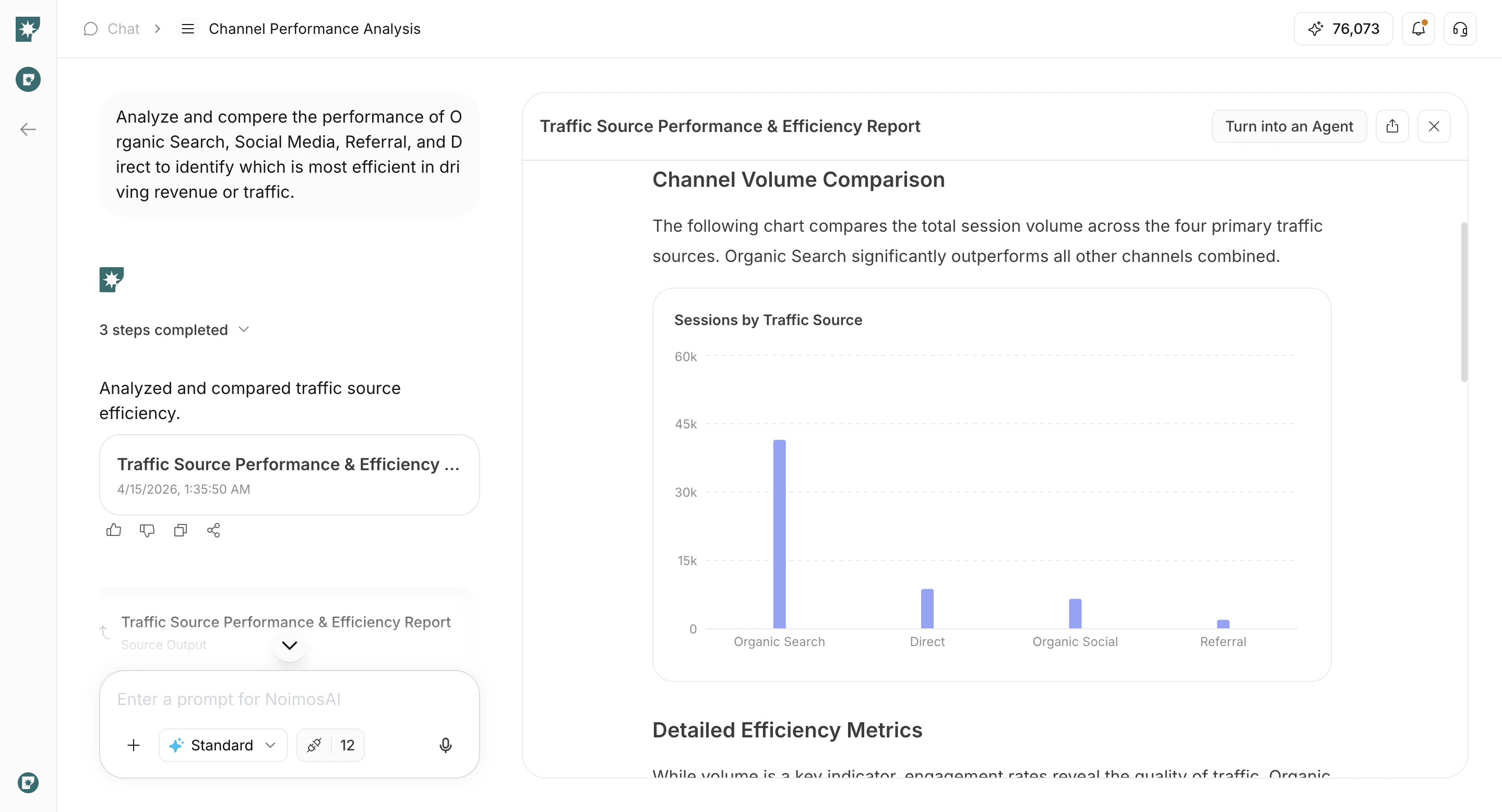
1. Open a chat result you want to repeat.
2. Click `Create Agent from Chat`.
 ## Review AI-Suggested Settings
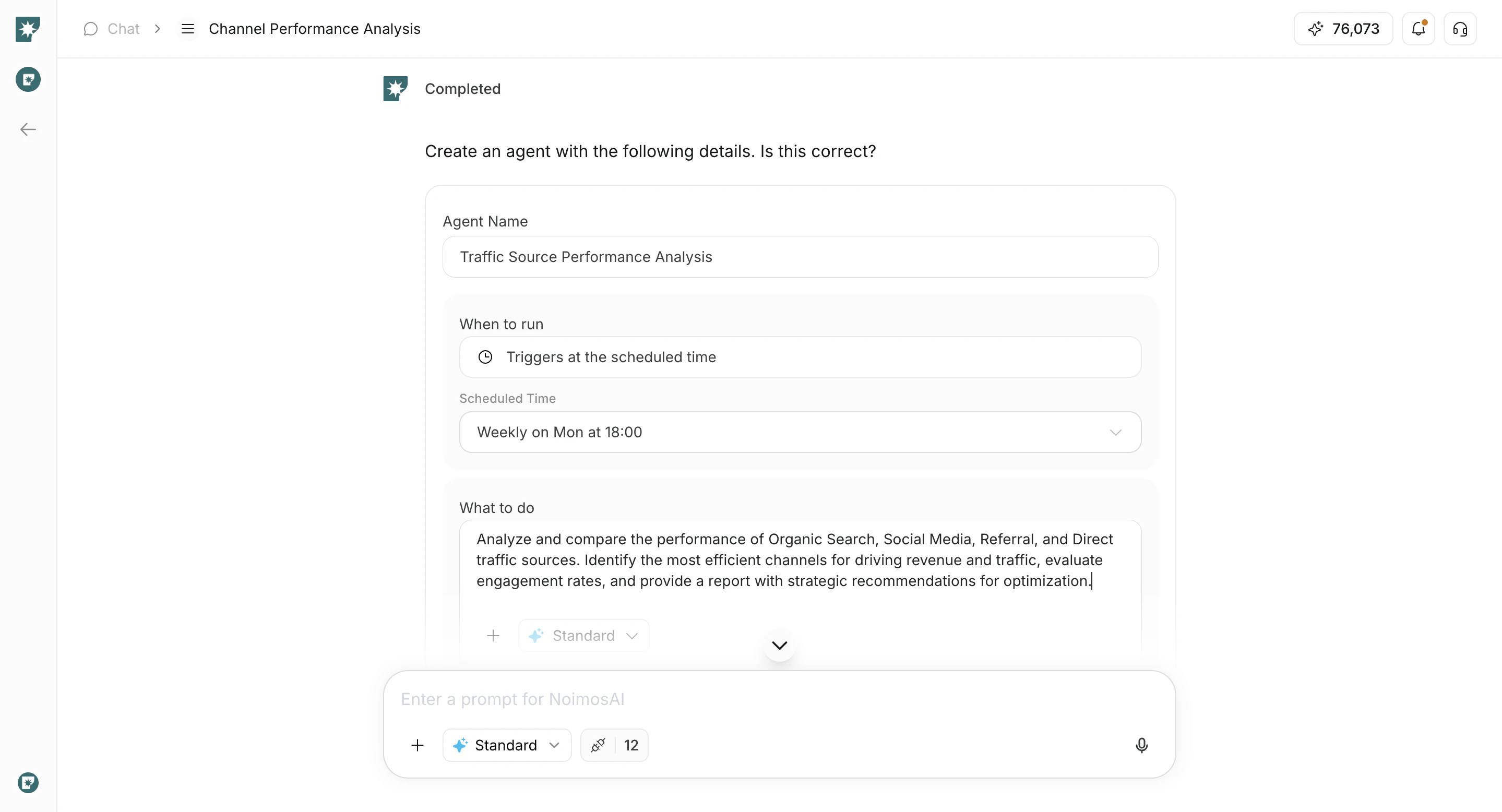
Use this section to review what AI prepared before you create the agent.
1. Edit the agent name if needed.
2. Confirm `When to run`.
3. Review `What to do` and edit when needed.
4. Review `Destinations` when needed.
5. Review integrations and connected accounts.
## Review AI-Suggested Settings
Use this section to review what AI prepared before you create the agent.
1. Edit the agent name if needed.
2. Confirm `When to run`.
3. Review `What to do` and edit when needed.
4. Review `Destinations` when needed.
5. Review integrations and connected accounts.
 ## Create and Verify
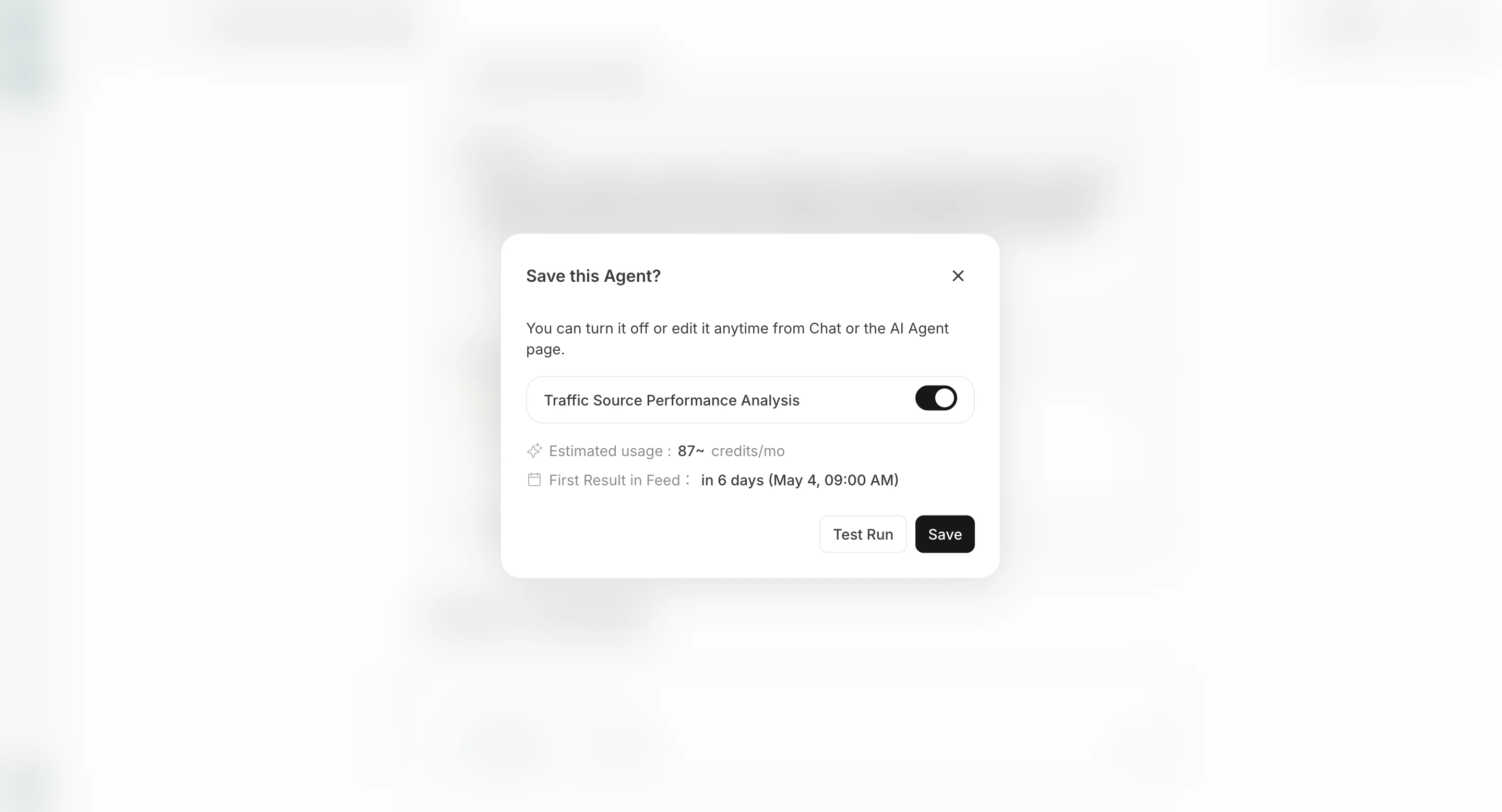
Use this section to finalize creation and verify the new agent.
1. Click `Save Agent`.
## Create and Verify
Use this section to finalize creation and verify the new agent.
1. Click `Save Agent`.
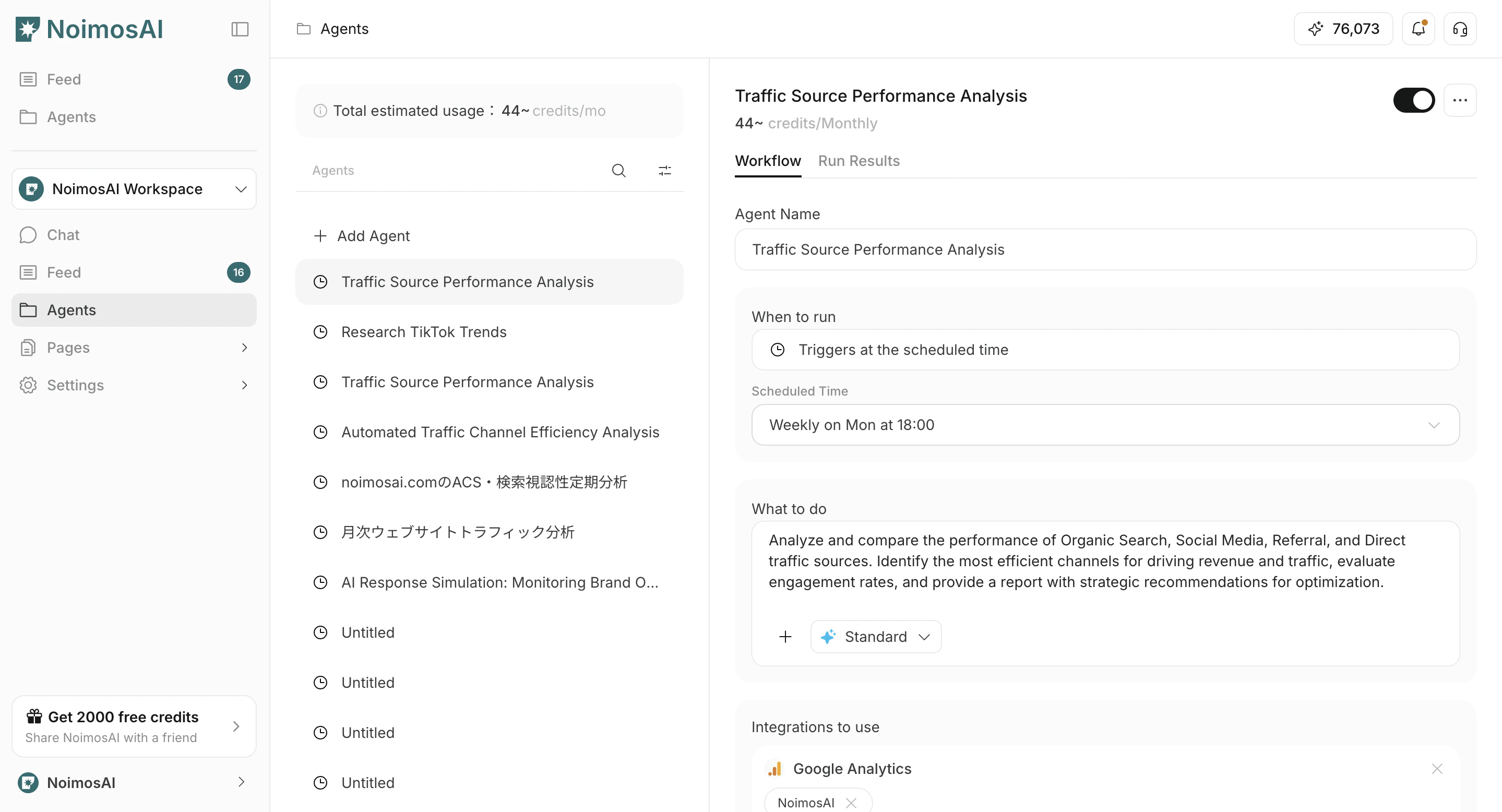
 2. Open `Agents` and confirm the created agent.
 ## Configure destinations
`Destinations` are optional. Results are available from `All Tasks` in the related chat session, but you can add destinations when you also want notifications or shared storage.
There are two main ways to add a destination.
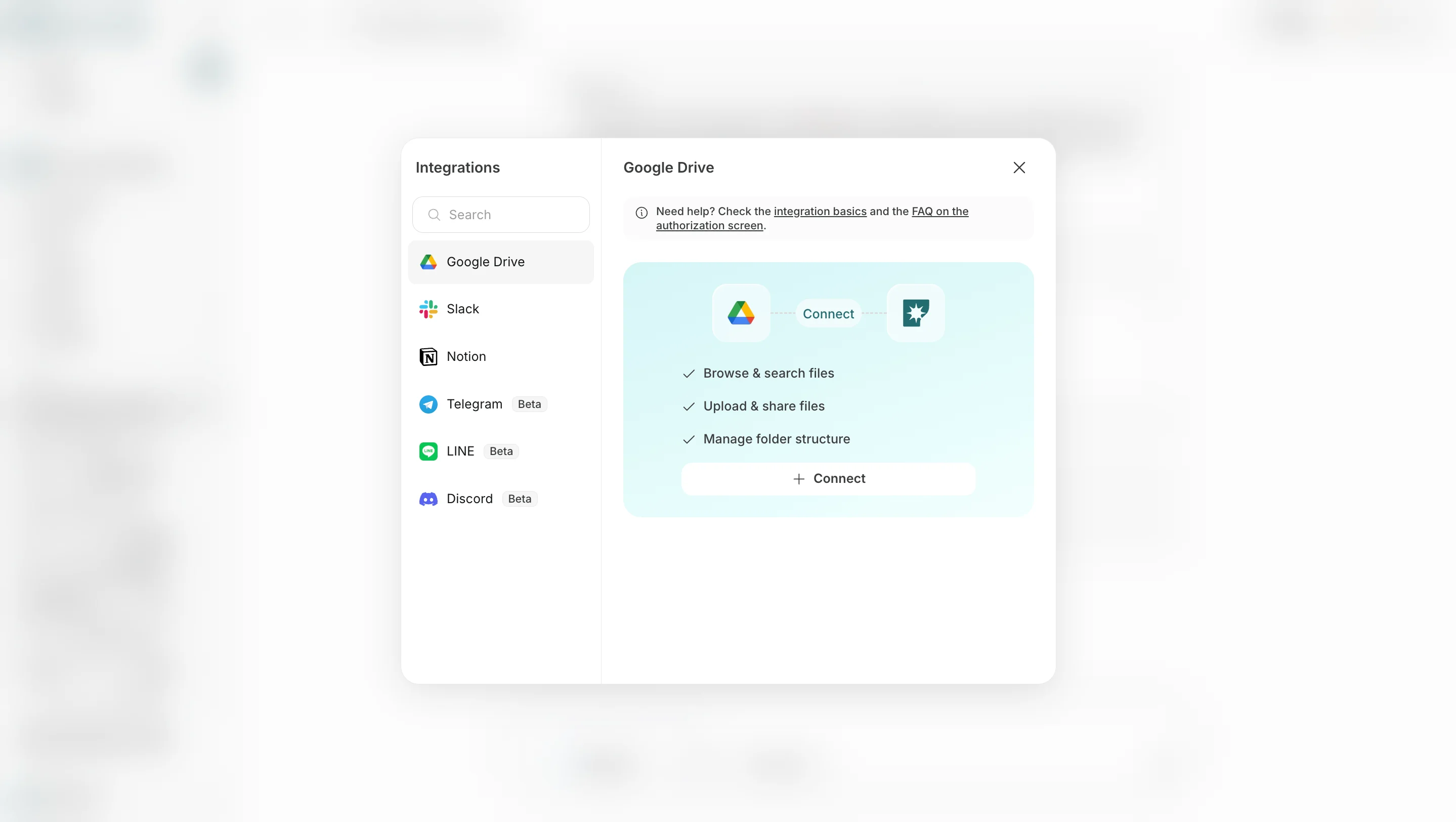
1. **Add destination** lets you choose connected apps or storage destinations such as Slack, LINE, Discord, Telegram, WhatsApp, Notion, and Google Drive.
## Configure destinations
`Destinations` are optional. Results are available from `All Tasks` in the related chat session, but you can add destinations when you also want notifications or shared storage.
There are two main ways to add a destination.
1. **Add destination** lets you choose connected apps or storage destinations such as Slack, LINE, Discord, Telegram, WhatsApp, Notion, and Google Drive.
 2. **Add email** lets you specify an email address so results can also be sent by email.
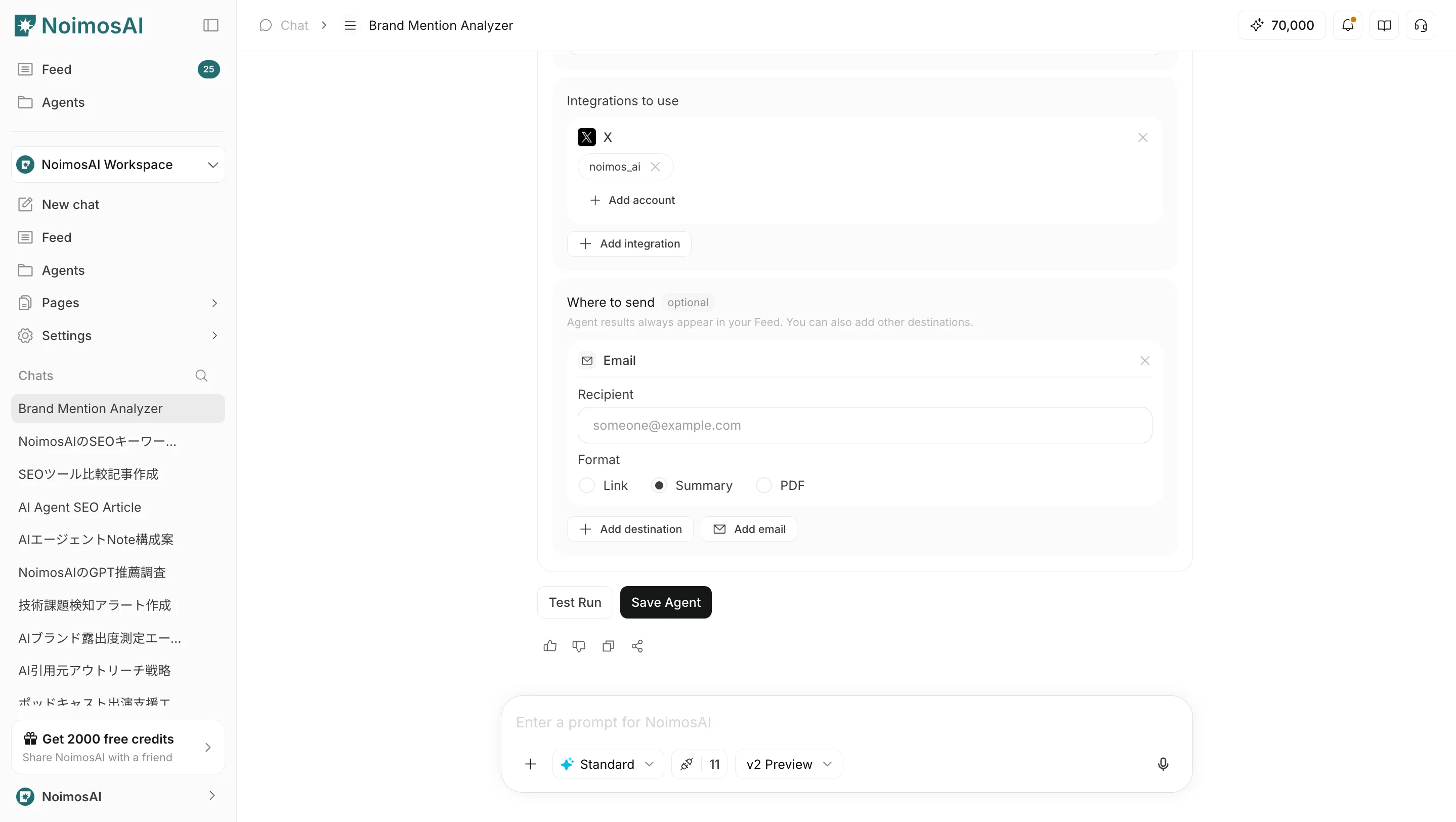 In either case, you can choose the output format from `Link`, `Summary`, or `PDF`.
## Human Responsibility
AI proposes and drafts the agent configuration.
People decide whether to keep defaults, edit settings, enable/disable the agent, and approve ongoing execution.
## Related
Use these related pages for deeper guidance.
* [AI Chat Basics](/help-center/chat/ai-chat-basics)
* [Enter Your Own Prompt](/help-center/chat/enter-your-own-prompt)
* [Create an Agent from a Template](/help-center/ai-team/create-an-agent-from-a-template)
In either case, you can choose the output format from `Link`, `Summary`, or `PDF`.
## Human Responsibility
AI proposes and drafts the agent configuration.
People decide whether to keep defaults, edit settings, enable/disable the agent, and approve ongoing execution.
## Related
Use these related pages for deeper guidance.
* [AI Chat Basics](/help-center/chat/ai-chat-basics)
* [Enter Your Own Prompt](/help-center/chat/enter-your-own-prompt)
* [Create an Agent from a Template](/help-center/ai-team/create-an-agent-from-a-template)