> ## Documentation Index
> Fetch the complete documentation index at: https://docs.noimosai.com/llms.txt
> Use this file to discover all available pages before exploring further.
# Manage Agent Tools
> Connect apps, enable tools, and assign accounts so agents can use external data and actions safely.
## Overview
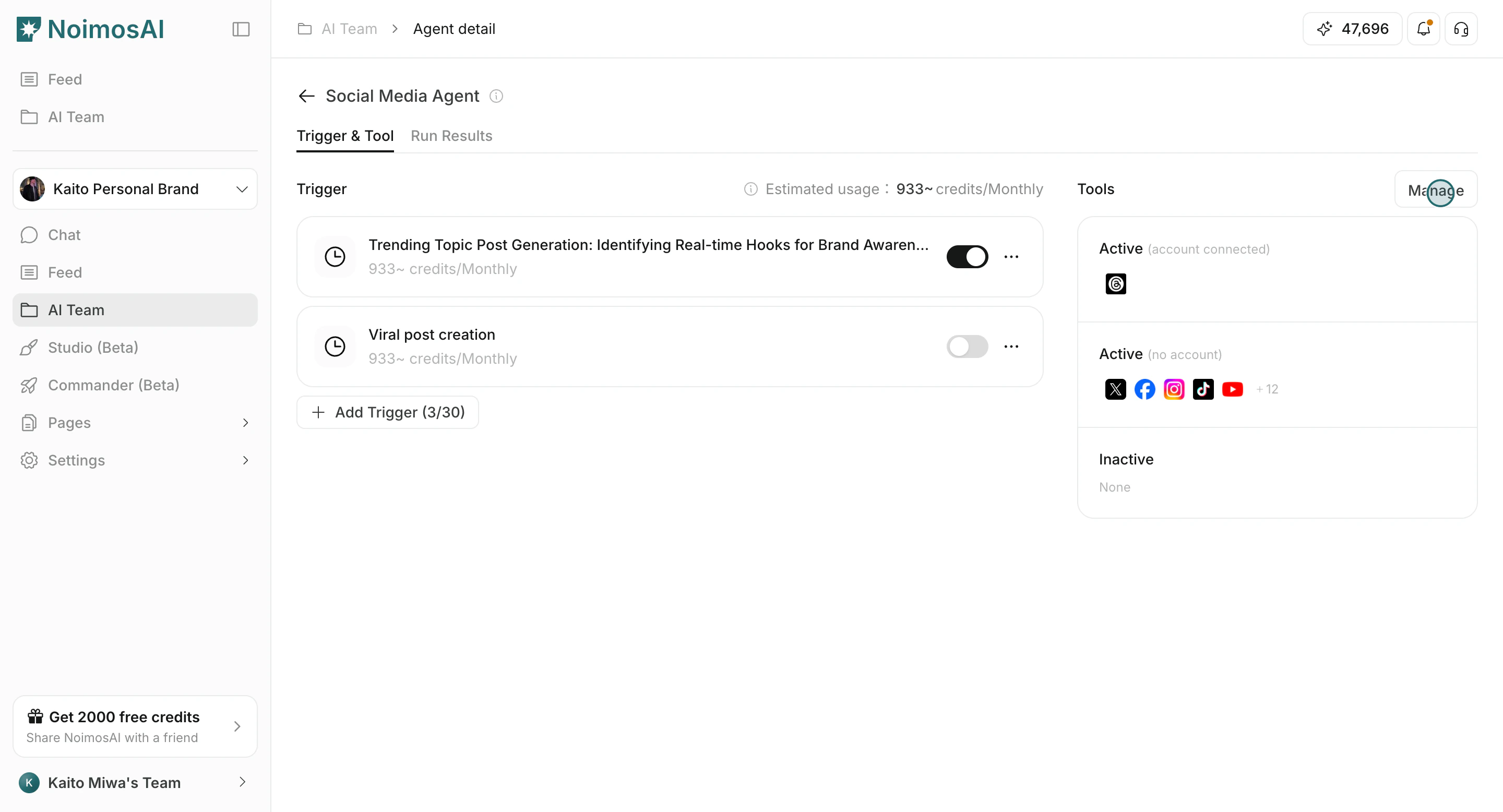
Tools define what external systems an agent can access. In `AI Team -> Agent detail`, you can enable tools, connect accounts, and control which accounts are used.
## Tool States
In the tools panel, they are grouped as:
* **Active (account connected)**: enabled and mapped to at least one account.
* **Active (no account)**: enabled but not yet connected to an account.
* **Inactive**: not enabled for current use.
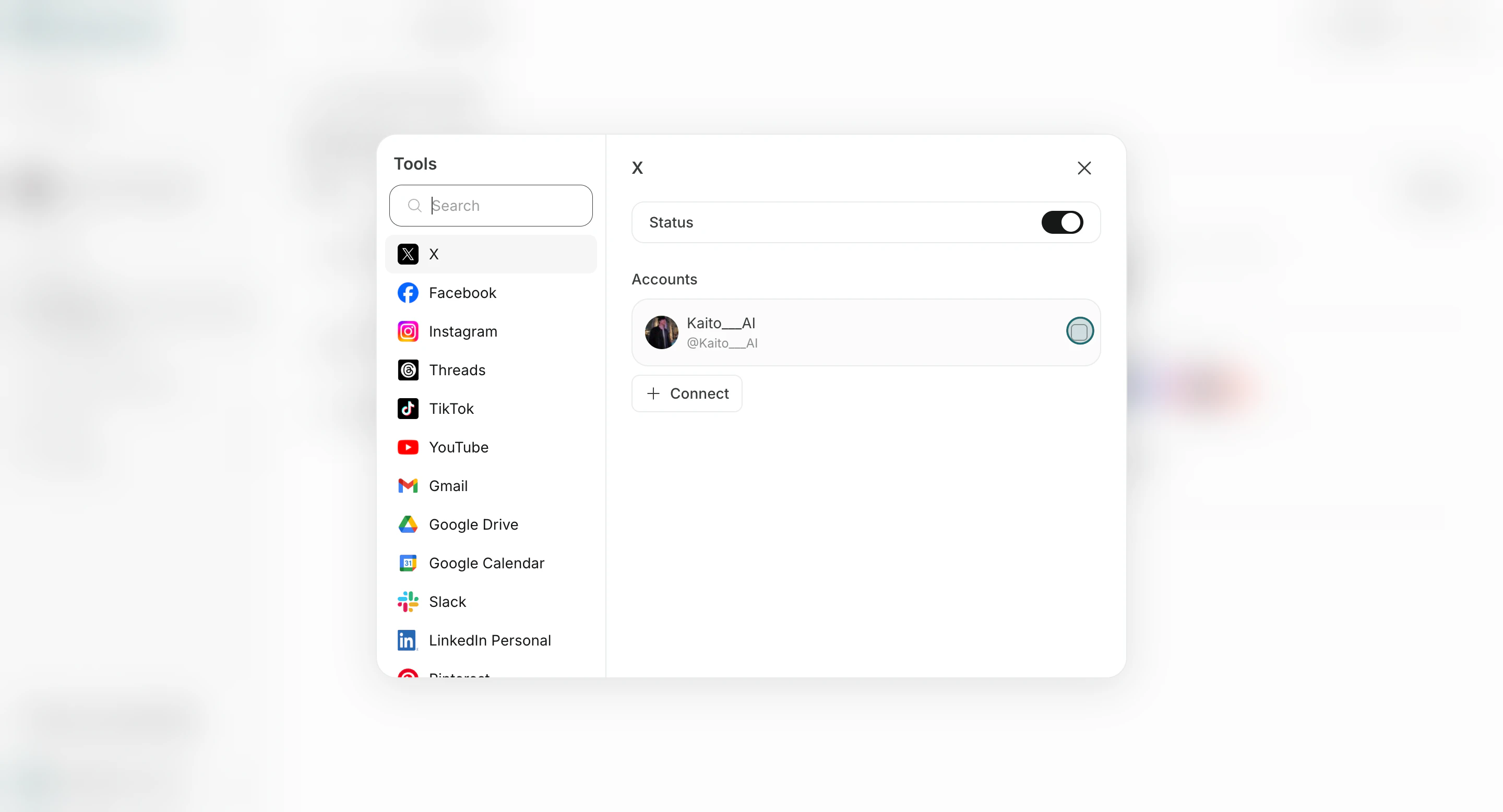
## Connect and Enable a Tool
Use this section to understand connect and enable a tool and what to confirm while completing this part.
1. Open the agent in `AI Team`.
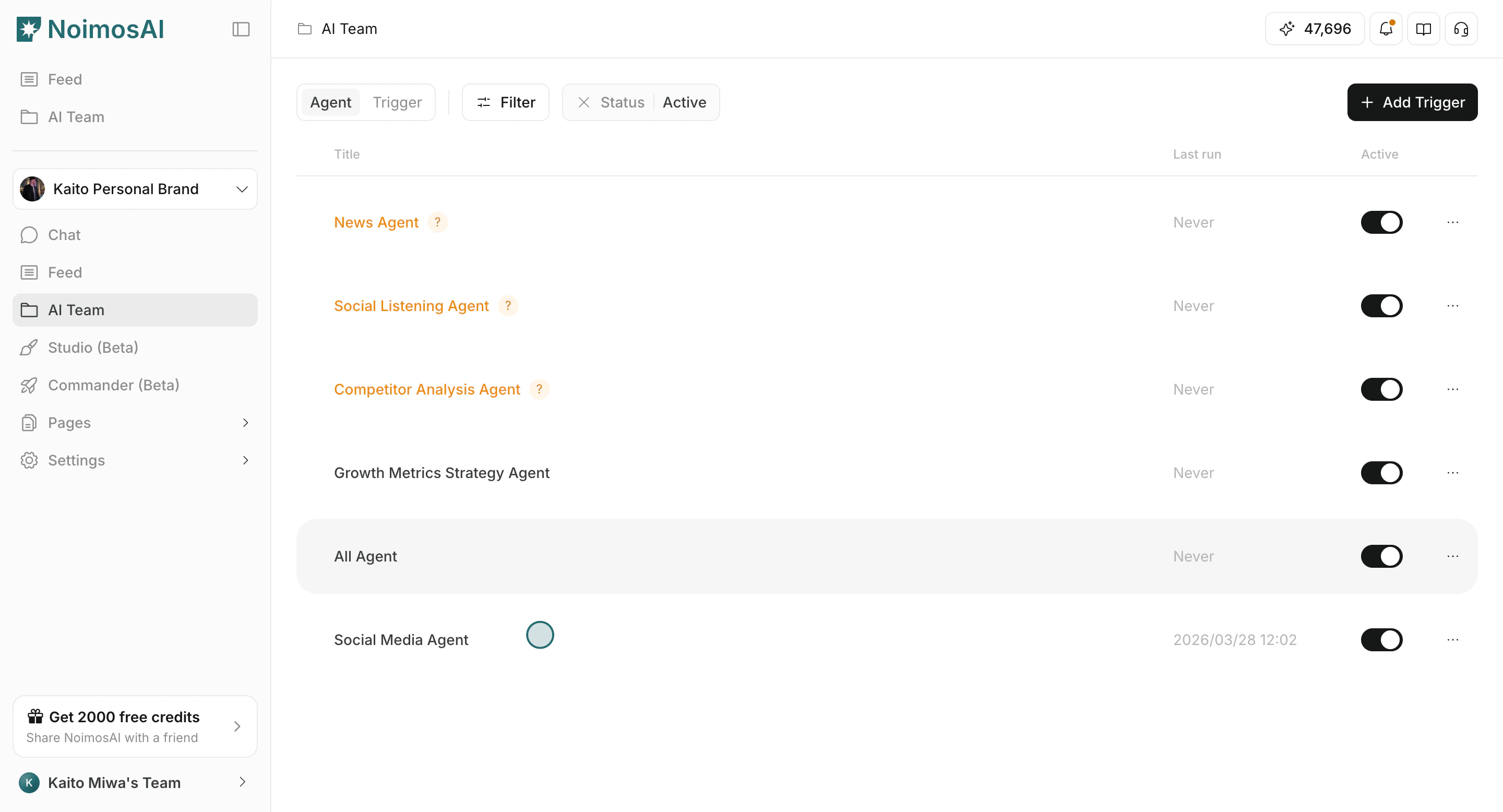 2. Click `Manage` in the tools area.
 3. Turn on the provider/tool you need.
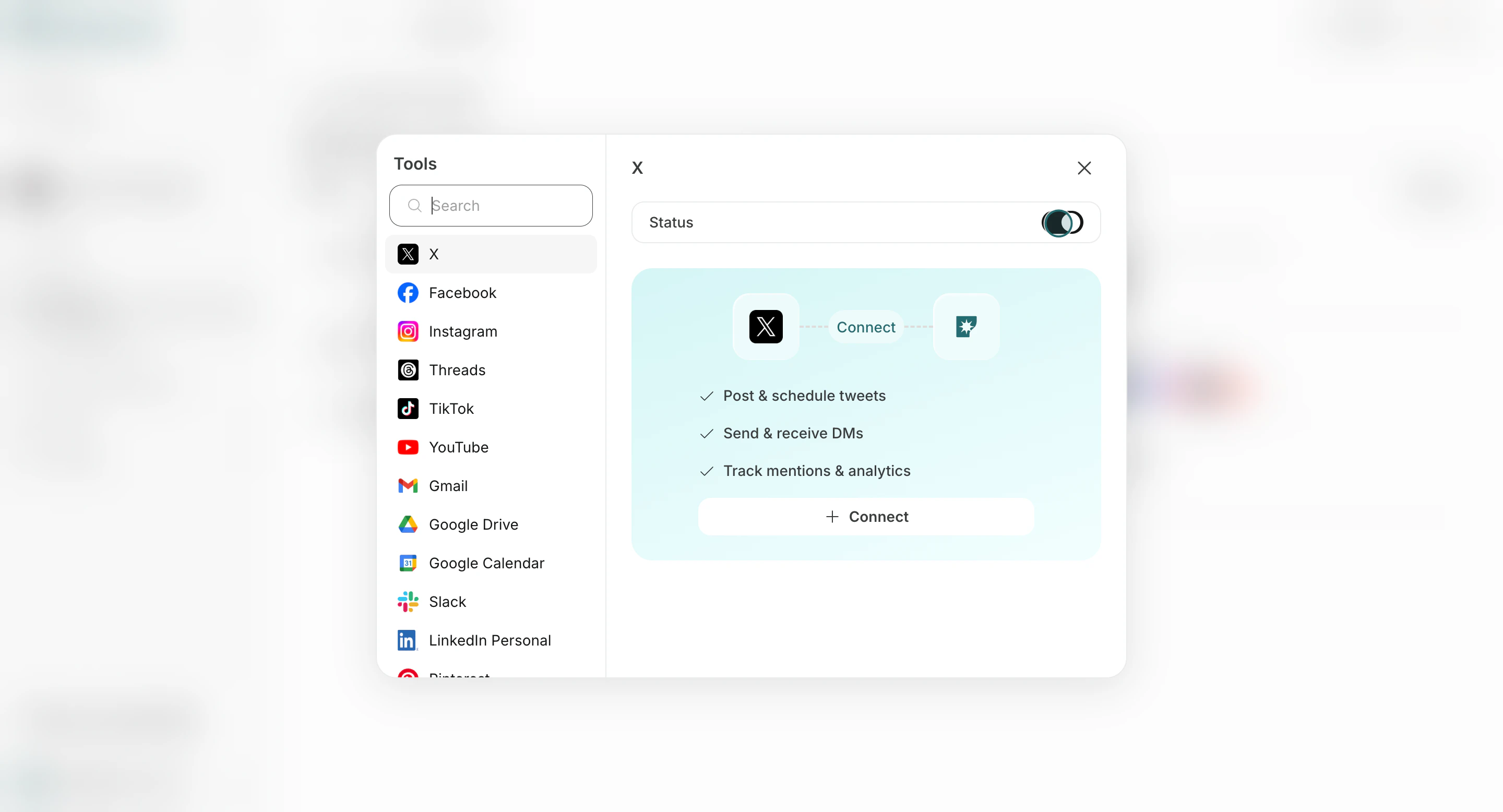 4. Click `Connect` and authorize or select an account.
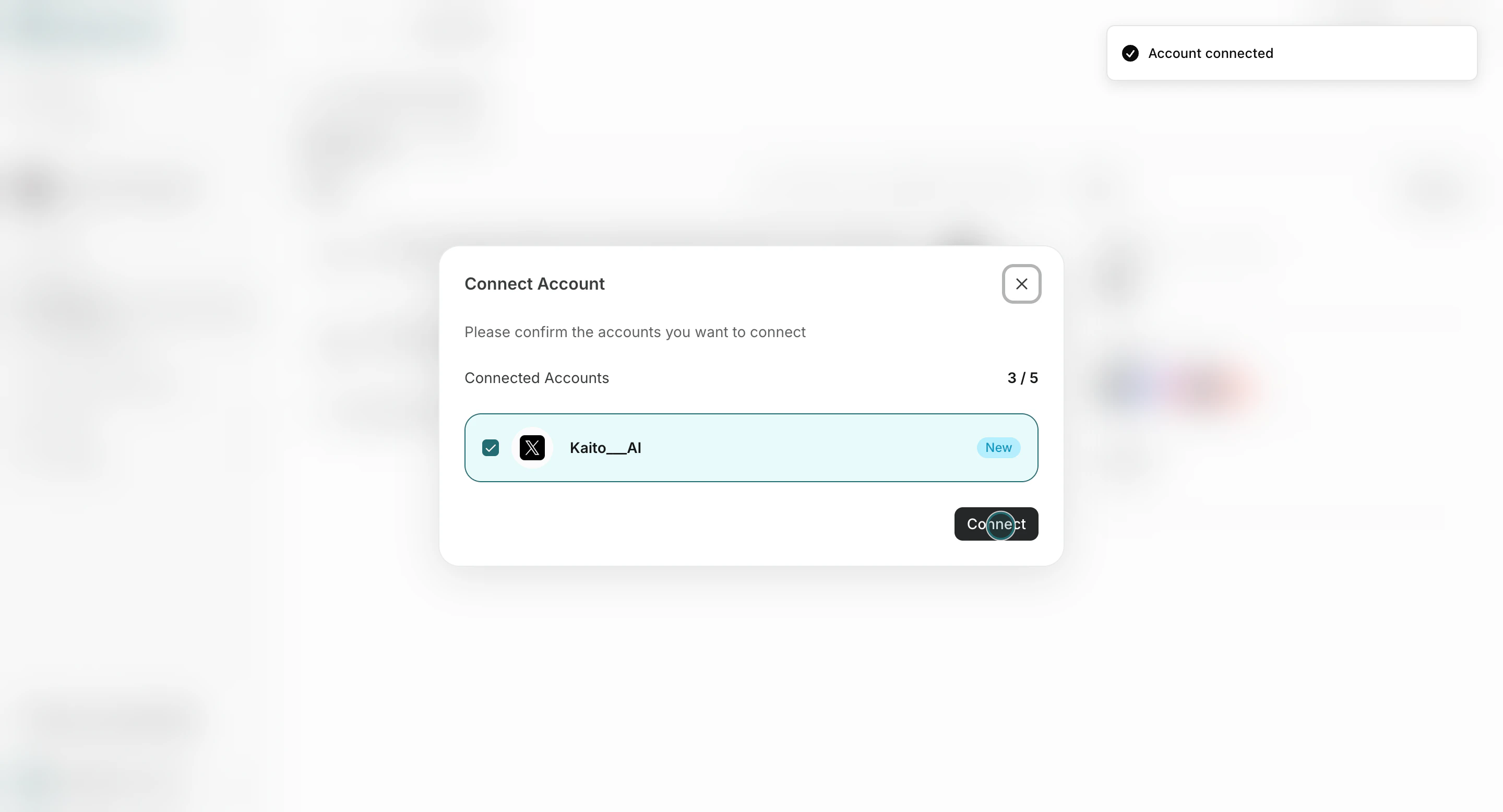 5. Confirm account mapping.
 ## Best Practices
Use these tips to improve consistency and output quality.
* Enable only tools needed for each workflow.
* Verify account mapping before enabling high-frequency triggers.
* Re-check tools when output quality drops or run context changes.
## Related
Use these related pages for deeper guidance.
* [Create a Trigger From a Template](/help-center/ai-team/create-an-agent-from-a-template)
* [Create a Trigger From Scratch](/help-center/ai-team/create-an-agent-from-scratch)
* [Learning Demo: Turn on Tools and Connect Apps](/learning-center/ai-team/turn-on-tools-and-connect-apps)
## Best Practices
Use these tips to improve consistency and output quality.
* Enable only tools needed for each workflow.
* Verify account mapping before enabling high-frequency triggers.
* Re-check tools when output quality drops or run context changes.
## Related
Use these related pages for deeper guidance.
* [Create a Trigger From a Template](/help-center/ai-team/create-an-agent-from-a-template)
* [Create a Trigger From Scratch](/help-center/ai-team/create-an-agent-from-scratch)
* [Learning Demo: Turn on Tools and Connect Apps](/learning-center/ai-team/turn-on-tools-and-connect-apps)