> ## Documentation Index
> Fetch the complete documentation index at: https://docs.noimosai.com/llms.txt
> Use this file to discover all available pages before exploring further.
# Customize Chat Settings
> Adjust AI behavior settings, response mode, integrations, creation modes, and Knowledge Base attachments in Chat.
## Overview
Customize Chat settings to control speed, quality, personalization, creation modes, and reference context.
## Where to find it
1. Open `Chat`.
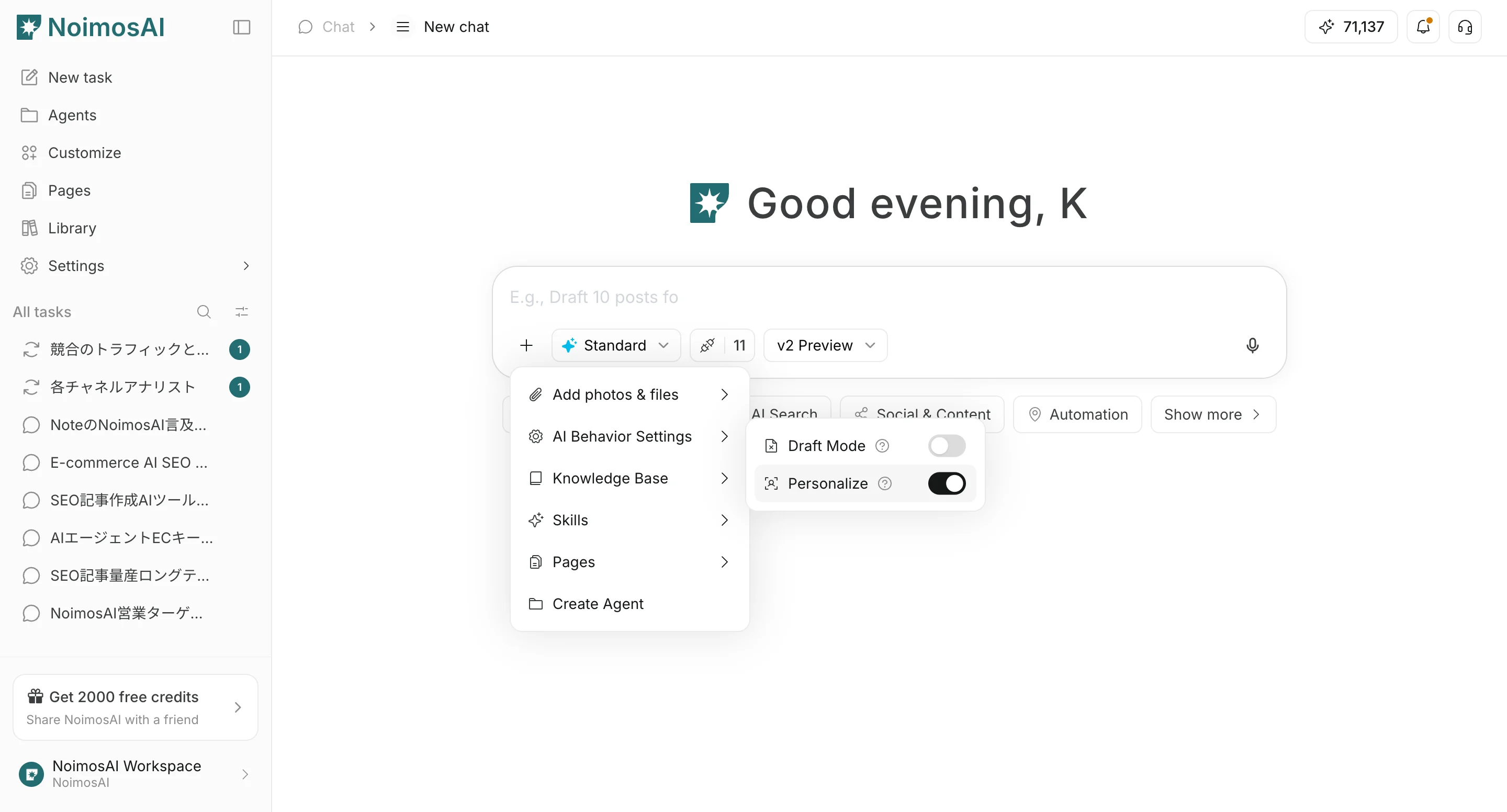
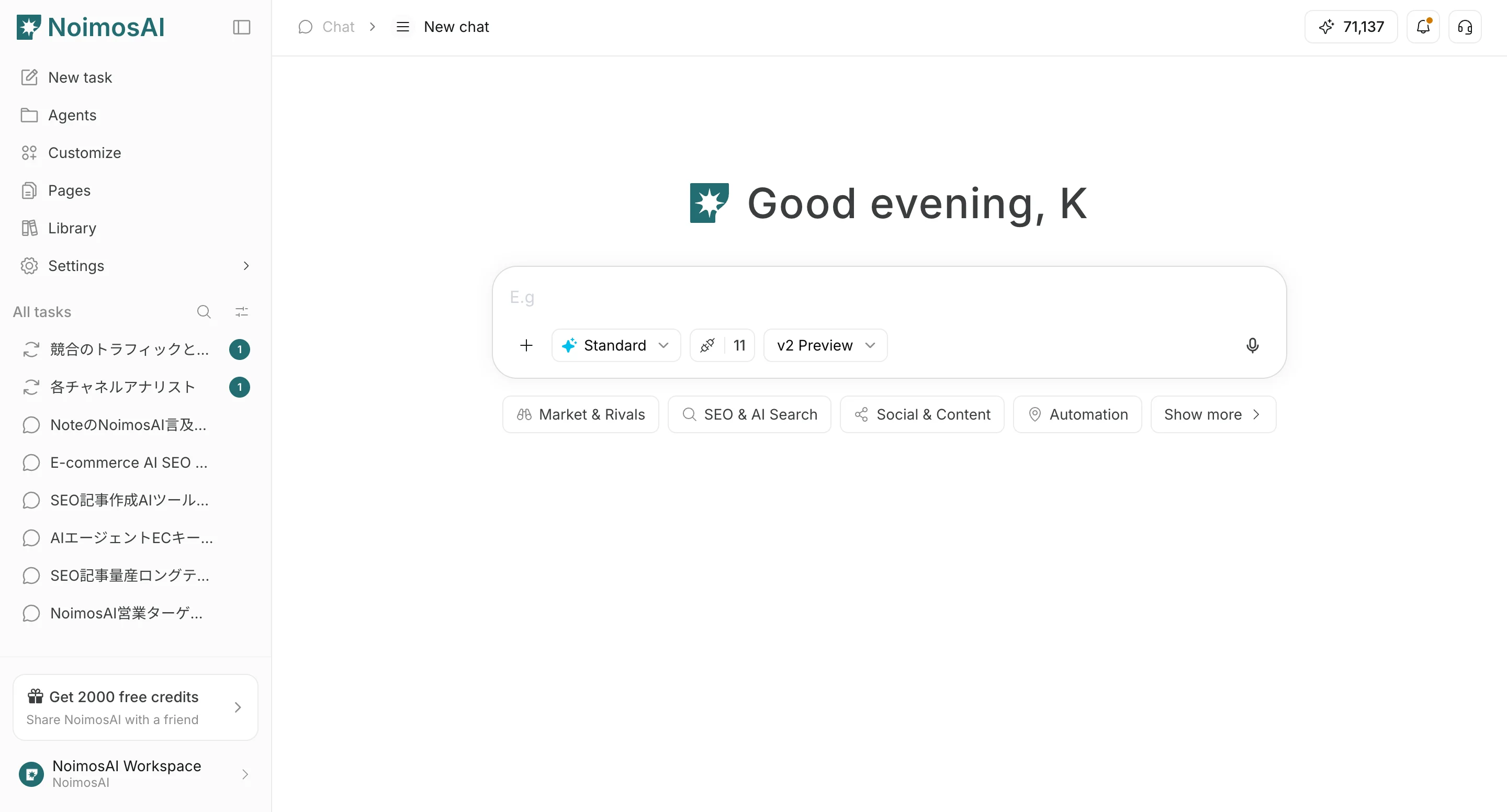 2. Use `+` below the input box to open file actions and `AI Behavior Settings`.
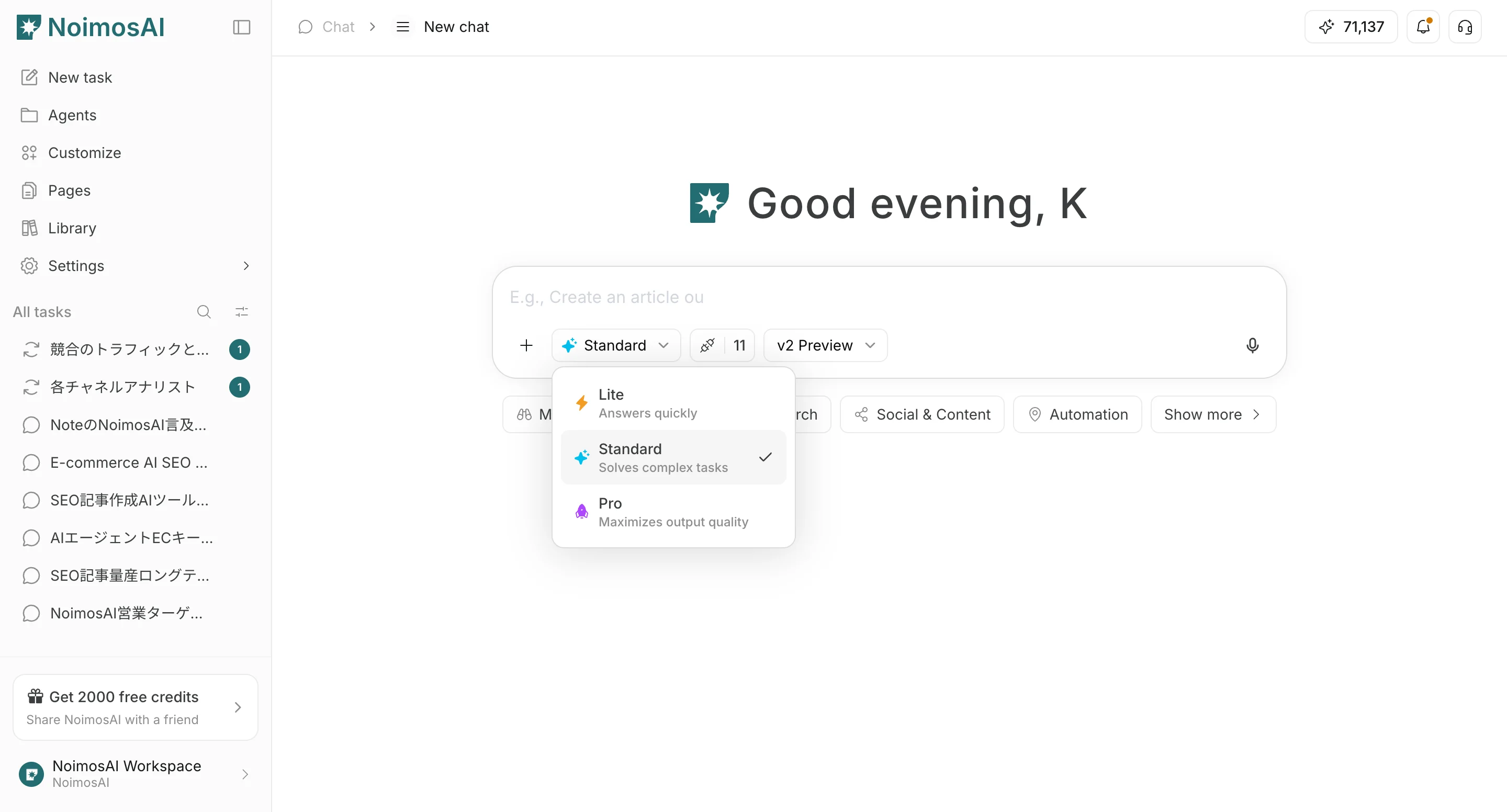
 3. Set the response mode (`Lite` / `Standard` / `Pro`).
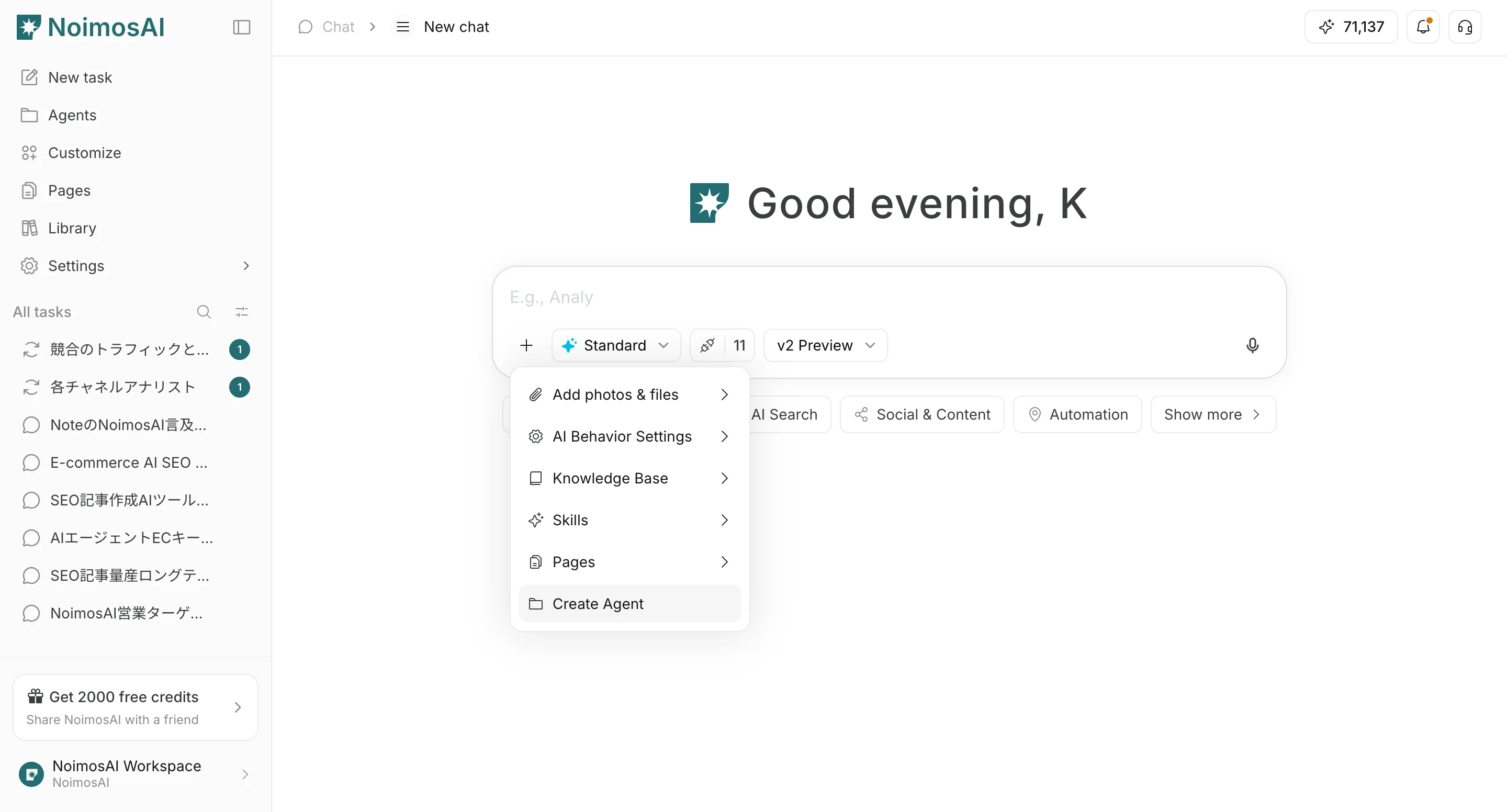
 4. If needed, set `Create Agent` / `Create Page` mode, attach a Knowledge Base, and choose the integrations to use.
 ## Available settings
* `Don't use draft step`: Skip the draft stage and move directly to full generation.
* `Don't personalize`: Do not use saved personalization context.
* `Response mode`: `Lite` is faster, `Standard` balances speed and quality, and `Pro` prioritizes quality.
* `Create Agent`: Create an agent for repeated execution from the chat context.
* `Create Page`: Create a page draft from the chat context.
* `Knowledge Base`: Attach it to the chat instructions as explicit reference context for AI.
* `Integrations`: Control which integrations Chat can use.
## Recommended defaults
* Start with `Standard`.
* Use `Lite` for rough drafts.
* Use `Pro` when final quality matters most.
* Turn on `Don't personalize` only when you need neutral output.
## Related pages
* [Chat basics](/help-center/chat/ai-chat-basics)
* [Upload files](/help-center/chat/upload-files)
* [Check output results](/help-center/chat/check-output-results)
## Available settings
* `Don't use draft step`: Skip the draft stage and move directly to full generation.
* `Don't personalize`: Do not use saved personalization context.
* `Response mode`: `Lite` is faster, `Standard` balances speed and quality, and `Pro` prioritizes quality.
* `Create Agent`: Create an agent for repeated execution from the chat context.
* `Create Page`: Create a page draft from the chat context.
* `Knowledge Base`: Attach it to the chat instructions as explicit reference context for AI.
* `Integrations`: Control which integrations Chat can use.
## Recommended defaults
* Start with `Standard`.
* Use `Lite` for rough drafts.
* Use `Pro` when final quality matters most.
* Turn on `Don't personalize` only when you need neutral output.
## Related pages
* [Chat basics](/help-center/chat/ai-chat-basics)
* [Upload files](/help-center/chat/upload-files)
* [Check output results](/help-center/chat/check-output-results)