> ## Documentation Index
> Fetch the complete documentation index at: https://docs.noimosai.com/llms.txt
> Use this file to discover all available pages before exploring further.
# Create and Edit Skills
> Learn the basic flow for creating and updating Skills.
## Overview
Skills are created and edited from `Customize > Skills`.
Save shared instructions and rules as Skills so they can be invoked and reused in Chat.
## Ways to Create a Skill
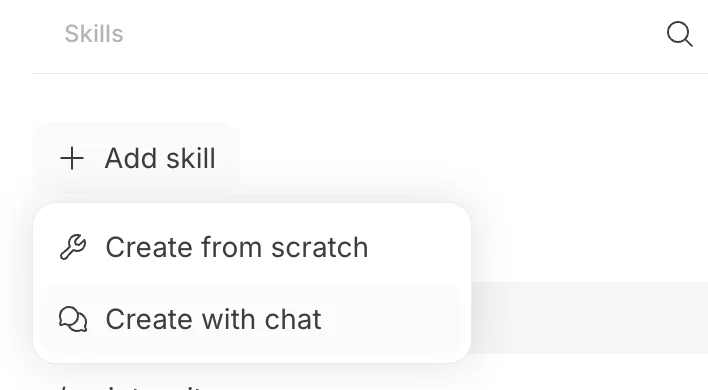
You can create a Skill from `Create from scratch` or `Create with chat`.
 ### Create from Scratch
Use this method to create a Skill manually.
1. In `Customize > Skills`, select `Add Skill`, then select `Create from scratch`.
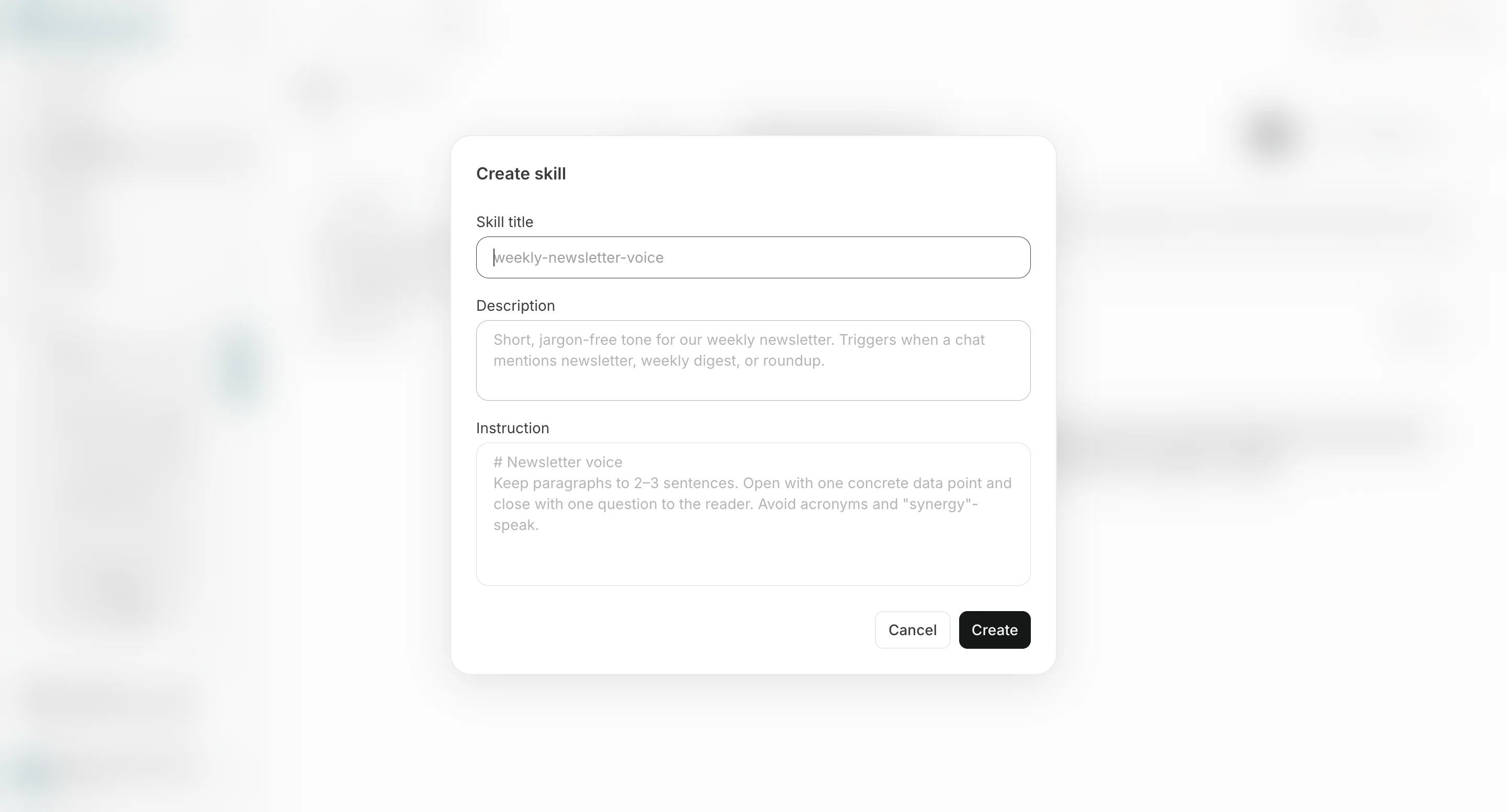
2. Enter the Skill name, description, and instructions.
3. Select `Create`.
### Create from Scratch
Use this method to create a Skill manually.
1. In `Customize > Skills`, select `Add Skill`, then select `Create from scratch`.
2. Enter the Skill name, description, and instructions.
3. Select `Create`.
 ### Create with Chat
Use this method to create Skill content by answering questions in Chat.
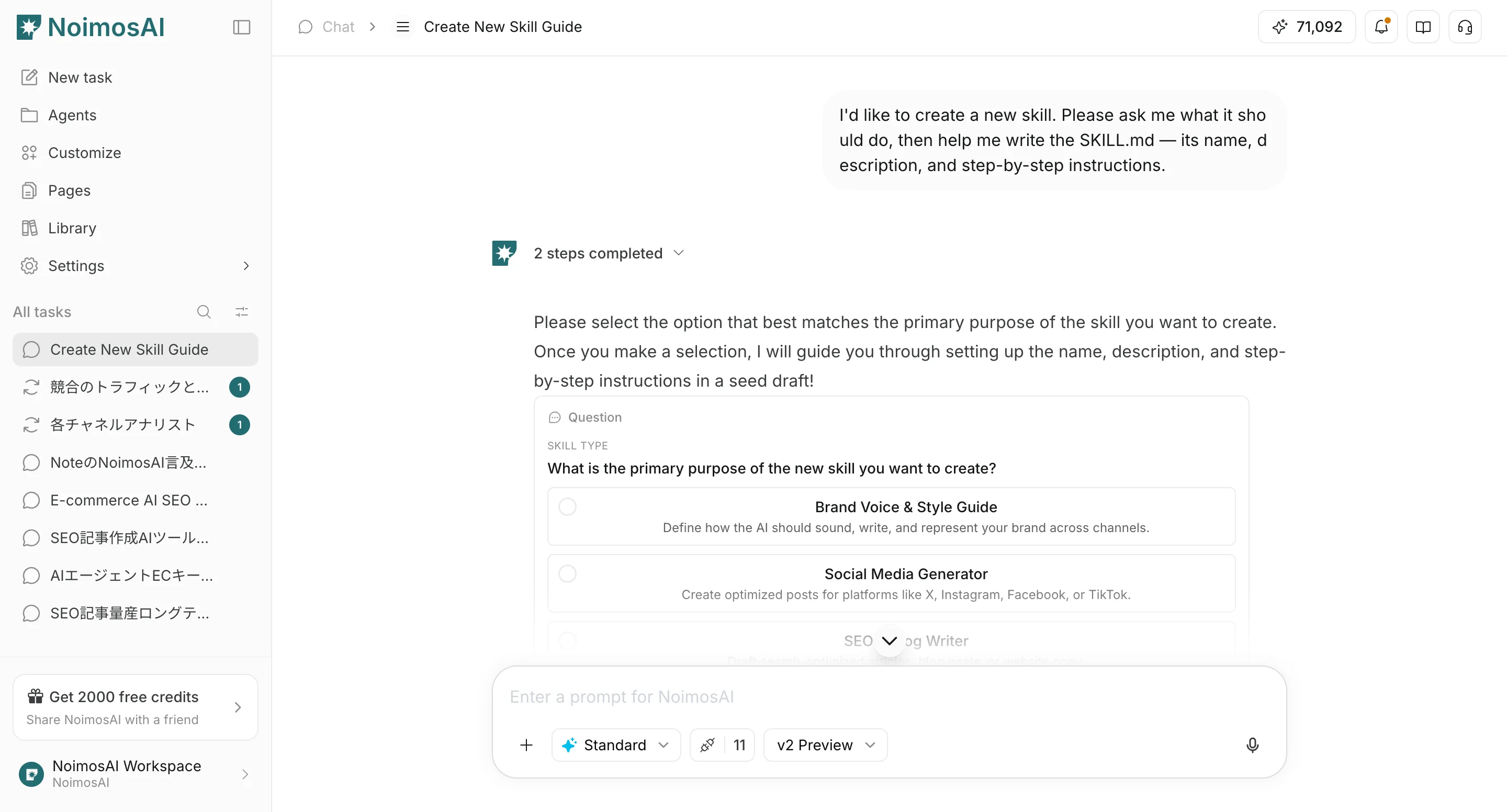
1. In `Customize > Skills`, select `Add Skill`, then select `Create with chat`.
2. When Chat opens, describe what kind of Skill you want to create.
3. Answer Chat's questions to clarify the purpose, use cases, rules to follow, and output format.
4. Review the Skill draft created in Chat, then save it.
### Create with Chat
Use this method to create Skill content by answering questions in Chat.
1. In `Customize > Skills`, select `Add Skill`, then select `Create with chat`.
2. When Chat opens, describe what kind of Skill you want to create.
3. Answer Chat's questions to clarify the purpose, use cases, rules to follow, and output format.
4. Review the Skill draft created in Chat, then save it.
 ## Tips for Writing Skills
Write Skills as reusable instructions for Chat. Like common AI skills, they should make it clear what to do, in what order, and by what standards when invoked.
* Keep the Skill name short and purpose-specific
* Use the description to explain what requests the Skill is for
* Define the Skill's purpose and target task first
* Make required input information explicit
* Write execution steps in order
* Specify constraints, prohibited actions, and tone
* Specify the output format
* Define priorities for ambiguous cases
* Include good output examples or review criteria
For example, for a post review Skill, separate `Purpose`, `Review Criteria`, `Revision Rules`, and `Output Format` so reviews use the same standards every time.
## Edit a Skill
Open an existing Skill to edit it.
On the Skill edit screen, you can update the Skill name, description, and instructions.
You can also update an existing Skill by using `Edit with chat` to consult with Chat while revising it.
## Related Pages
* [Skills Basics](/help-center/customize/skills/skills-basics)
## Tips for Writing Skills
Write Skills as reusable instructions for Chat. Like common AI skills, they should make it clear what to do, in what order, and by what standards when invoked.
* Keep the Skill name short and purpose-specific
* Use the description to explain what requests the Skill is for
* Define the Skill's purpose and target task first
* Make required input information explicit
* Write execution steps in order
* Specify constraints, prohibited actions, and tone
* Specify the output format
* Define priorities for ambiguous cases
* Include good output examples or review criteria
For example, for a post review Skill, separate `Purpose`, `Review Criteria`, `Revision Rules`, and `Output Format` so reviews use the same standards every time.
## Edit a Skill
Open an existing Skill to edit it.
On the Skill edit screen, you can update the Skill name, description, and instructions.
You can also update an existing Skill by using `Edit with chat` to consult with Chat while revising it.
## Related Pages
* [Skills Basics](/help-center/customize/skills/skills-basics)