> ## Documentation Index
> Fetch the complete documentation index at: https://docs.noimosai.com/llms.txt
> Use this file to discover all available pages before exploring further.
# Why Does the Wrong App Account Open During Authorization?
> Troubleshoot cases where authorization opens a different account than the one you want to connect.
## Short Answer
Authorization uses the app account that is already signed in on the same browser.
To connect the correct account, sign in to that account first, then start `Connect` from NoimosAI.
## What to Try
1. In the same browser where NoimosAI is open, open the app you want to connect.
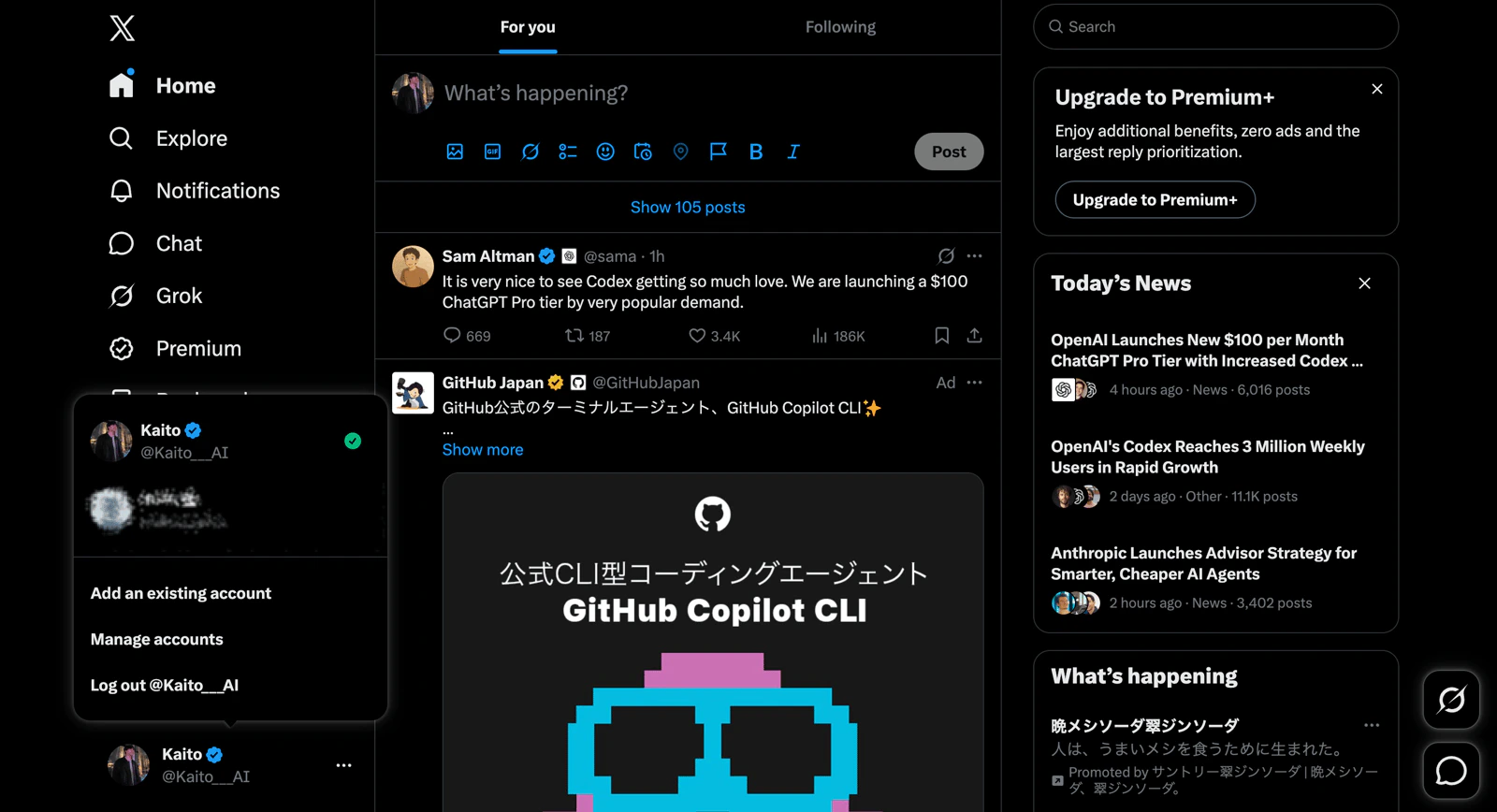
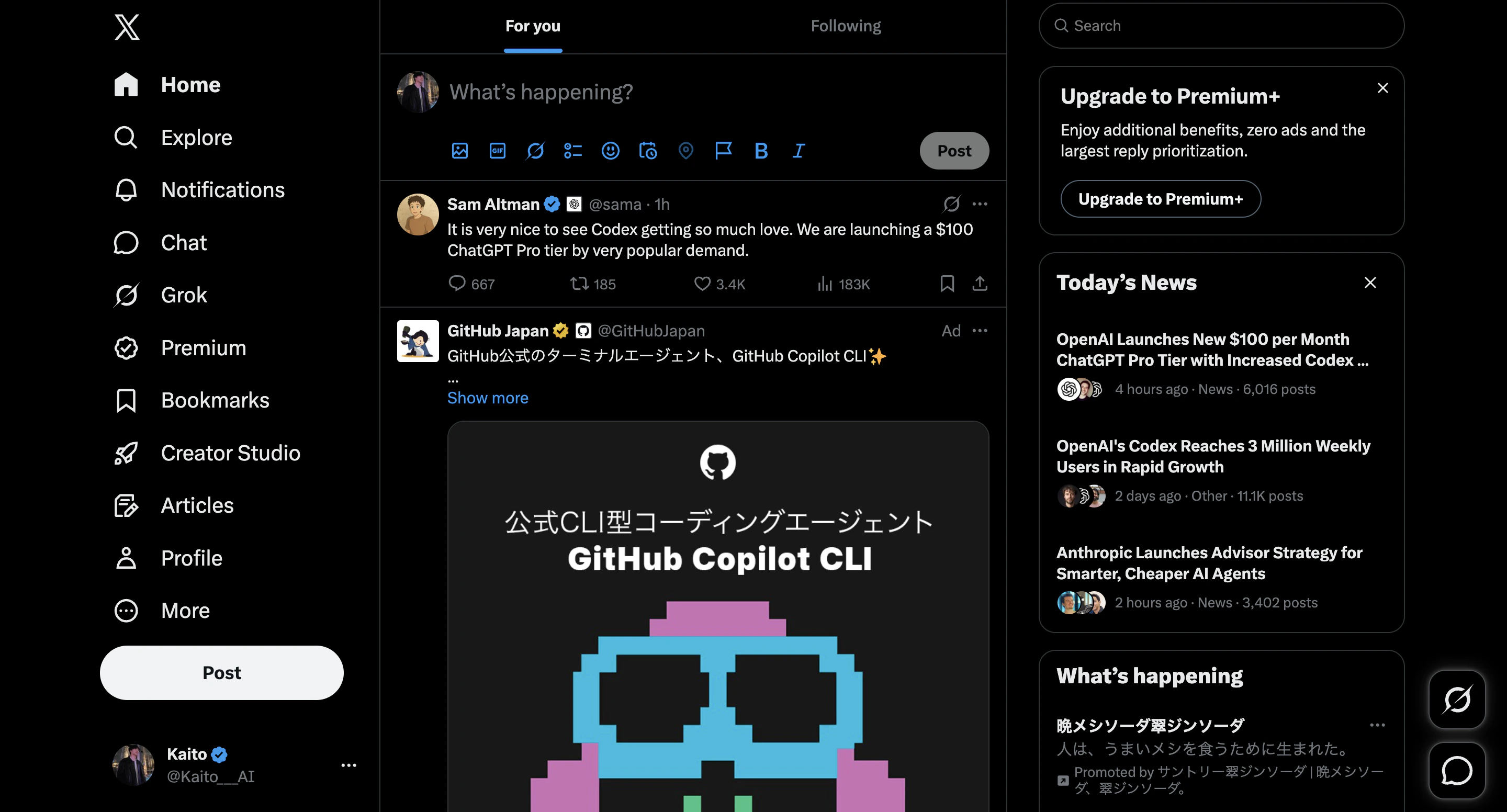 2. Sign in to the exact app account you want to link.
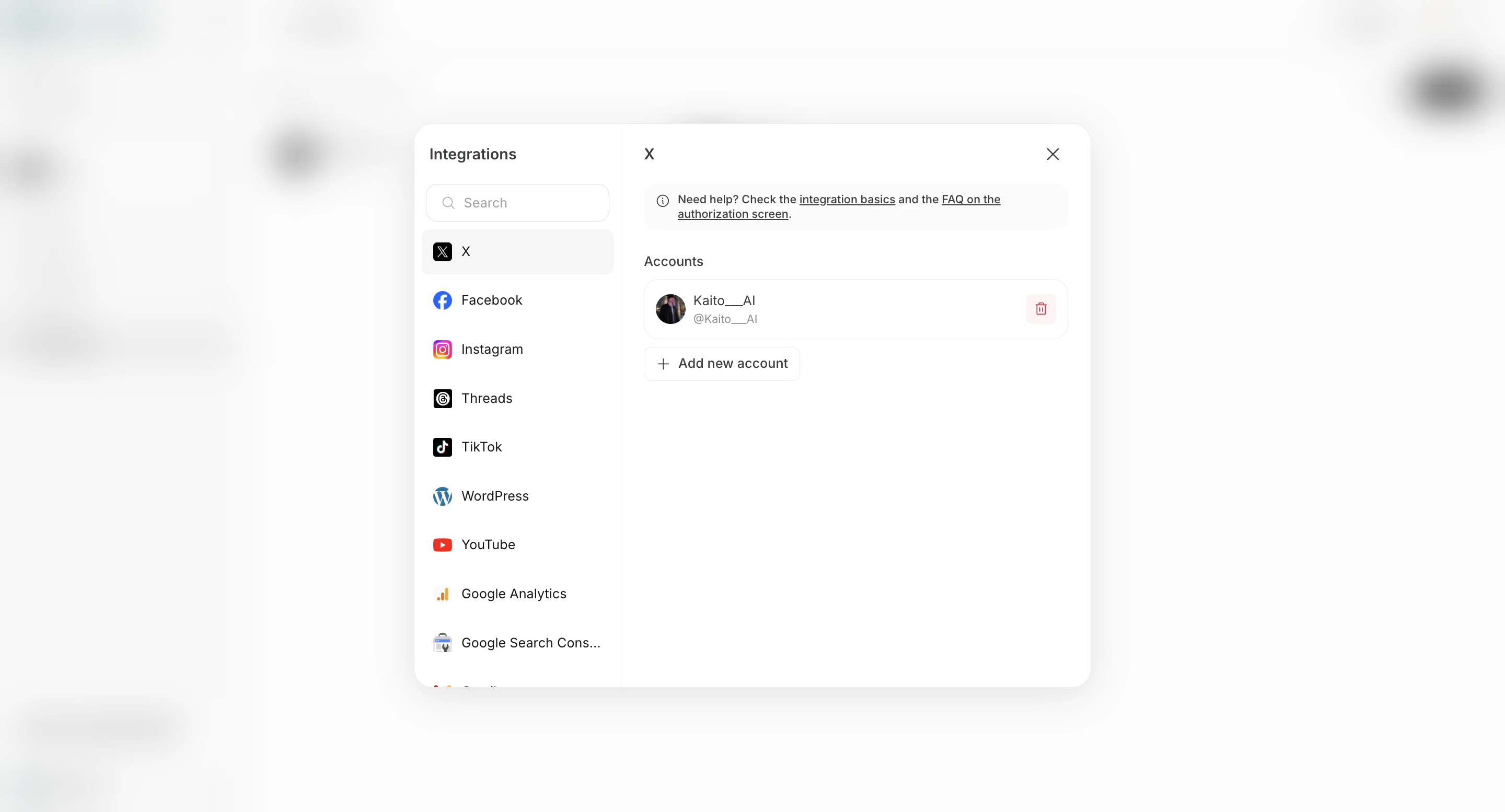
 3. Go back to NoimosAI and click `Connect` for that app.
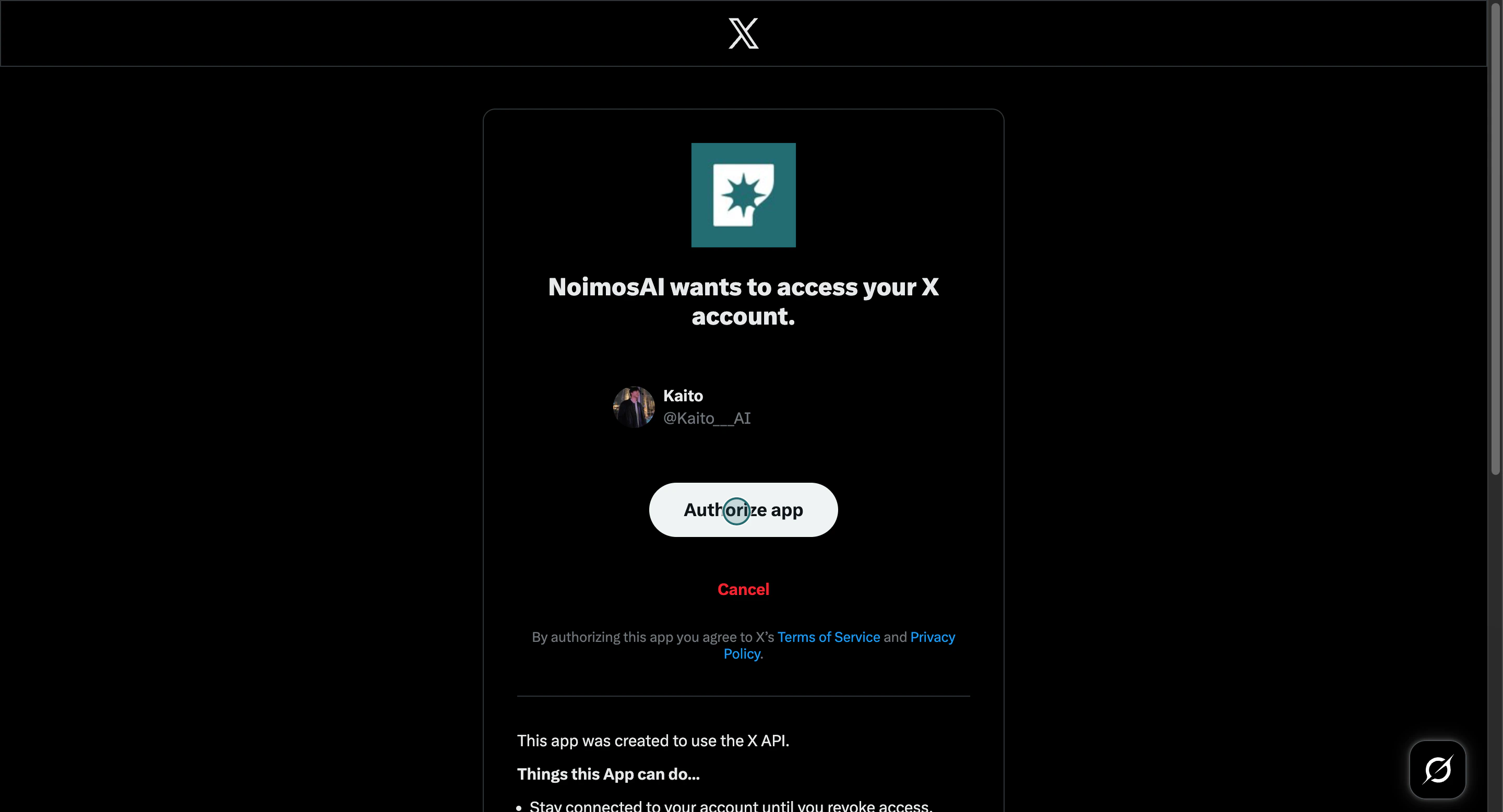
 4. Complete the redirect authorization flow for that signed-in account.
 ## If the Problem Continues
Send support:
* App/provider name
* Team and Workspace name
* The account you intended to connect
* Screenshot of the authorization screen that opened
## Related
* [Integrate Apps](/help-center/workspace/integrate-apps)
* [How Can I Contact Support?](/help-center/faq/support/how-can-i-contact-support)
## If the Problem Continues
Send support:
* App/provider name
* Team and Workspace name
* The account you intended to connect
* Screenshot of the authorization screen that opened
## Related
* [Integrate Apps](/help-center/workspace/integrate-apps)
* [How Can I Contact Support?](/help-center/faq/support/how-can-i-contact-support)