> ## Documentation Index
> Fetch the complete documentation index at: https://docs.noimosai.com/llms.txt
> Use this file to discover all available pages before exploring further.
# Why Is Instagram Integration Not Working?
> Troubleshoot issues when Instagram integration cannot be connected.
## Short Answer
Instagram integration requires an `Instagram Business account` linked to a `Facebook Page`.
Due to Meta restrictions, personal Instagram accounts cannot be connected to external tools like NoimosAI. Creator accounts are professional accounts in Meta, but some capabilities may be limited. If connection fails or some features are unavailable, switch the Instagram account to Business and reconnect.
 ## Checklist
If the Instagram account does not appear or cannot be connected, check these items from top to bottom. A successful Facebook connection does not always mean the Instagram requirements are also met.
NoimosAI can connect Instagram Business accounts that are linked to a Facebook Page. Personal accounts cannot be connected due to Meta restrictions. Creator accounts are professional accounts in Meta, but some capabilities may be limited.
Open the target account in the Instagram app and check the account type from `Edit profile` or account settings. If it is a personal or Creator account, switch it to Business and reconnect in NoimosAI.
Instagram integration detects the target Instagram account through Facebook authorization. The Instagram Business account must be linked to the Facebook Page you want to connect in NoimosAI.
If Instagram is linked to a different Facebook Page, it may appear linked there, but NoimosAI cannot detect it from the Page you select. To check from Facebook, switch to the target Page and follow these steps.
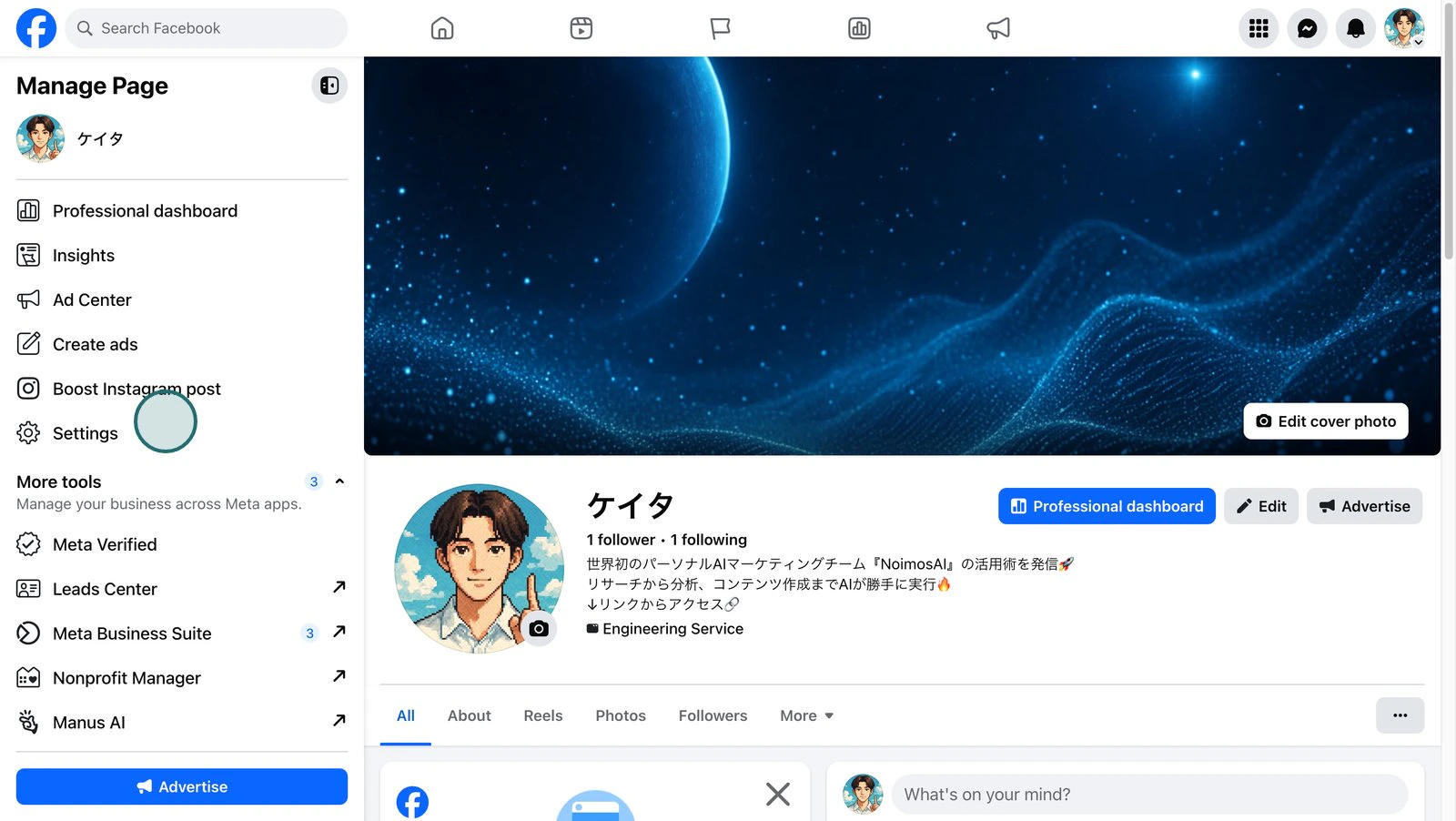
1. Open `Settings` on the Facebook Page.
## Checklist
If the Instagram account does not appear or cannot be connected, check these items from top to bottom. A successful Facebook connection does not always mean the Instagram requirements are also met.
NoimosAI can connect Instagram Business accounts that are linked to a Facebook Page. Personal accounts cannot be connected due to Meta restrictions. Creator accounts are professional accounts in Meta, but some capabilities may be limited.
Open the target account in the Instagram app and check the account type from `Edit profile` or account settings. If it is a personal or Creator account, switch it to Business and reconnect in NoimosAI.
Instagram integration detects the target Instagram account through Facebook authorization. The Instagram Business account must be linked to the Facebook Page you want to connect in NoimosAI.
If Instagram is linked to a different Facebook Page, it may appear linked there, but NoimosAI cannot detect it from the Page you select. To check from Facebook, switch to the target Page and follow these steps.
1. Open `Settings` on the Facebook Page.
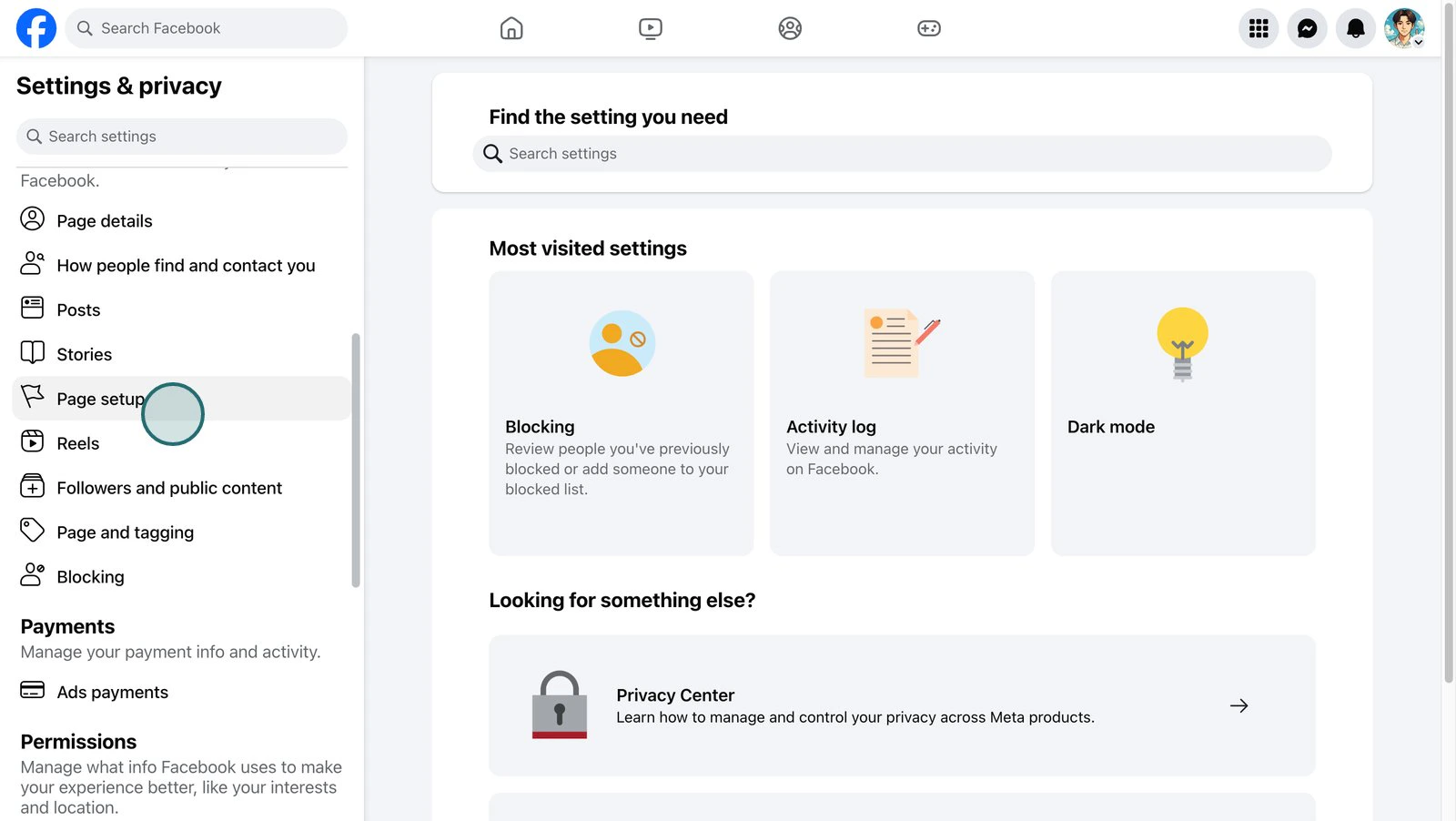
 2. Open `Page setup`.
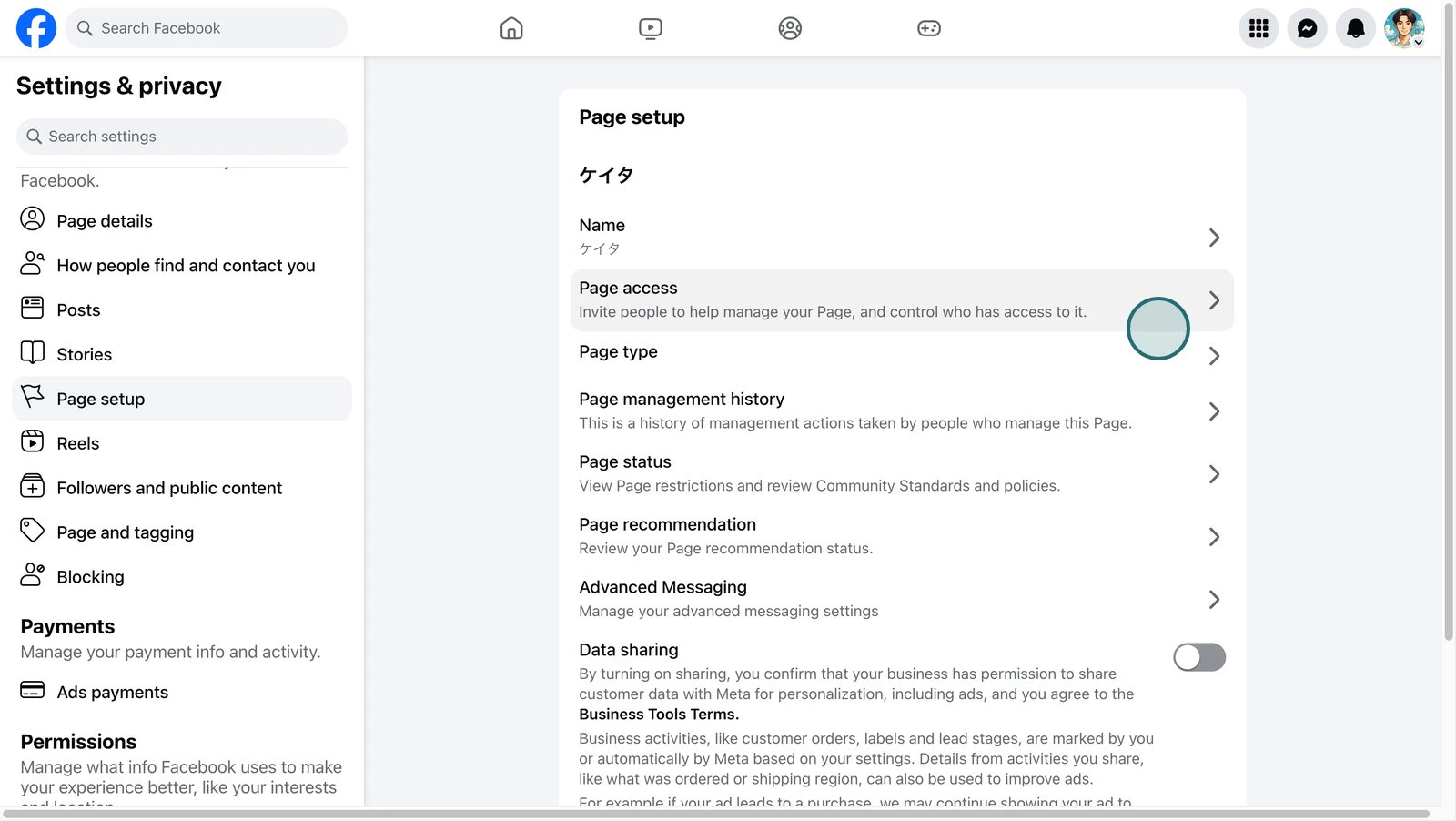
 3. Open `Page access`.
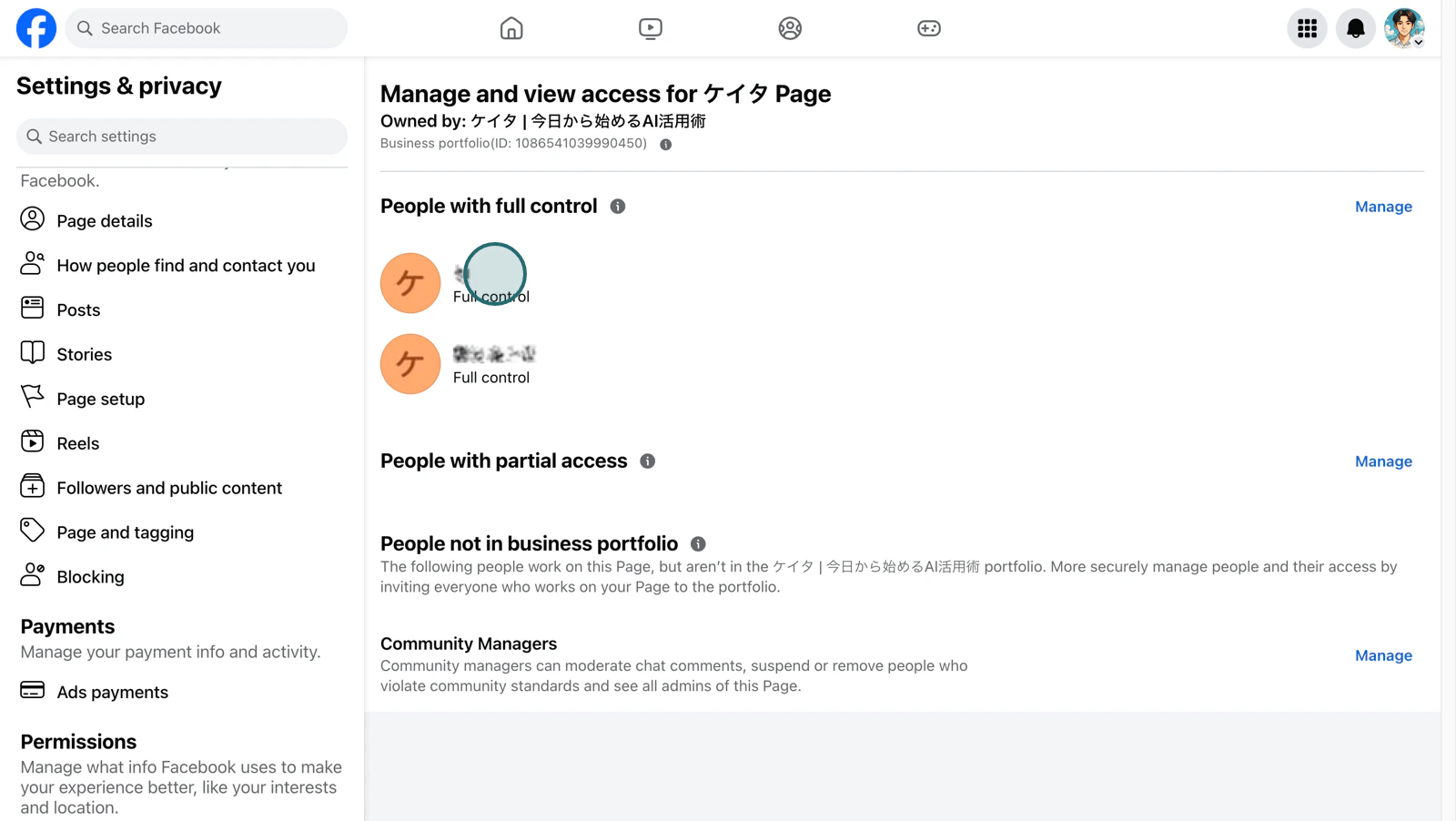
 4. Confirm which Facebook personal accounts have access to the Page.
 5. Next, select `Linked accounts`.
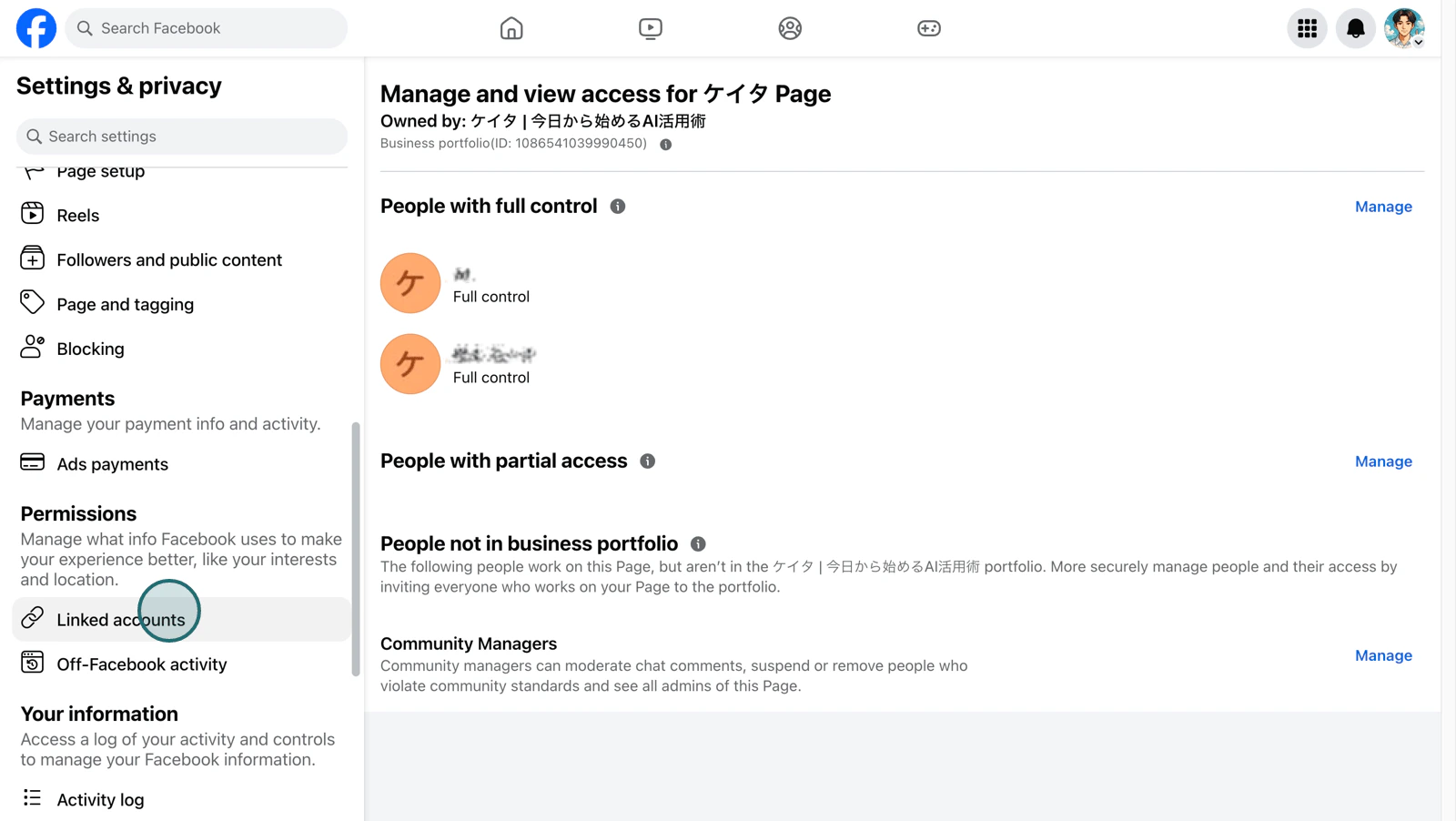 6. Select `Instagram`.
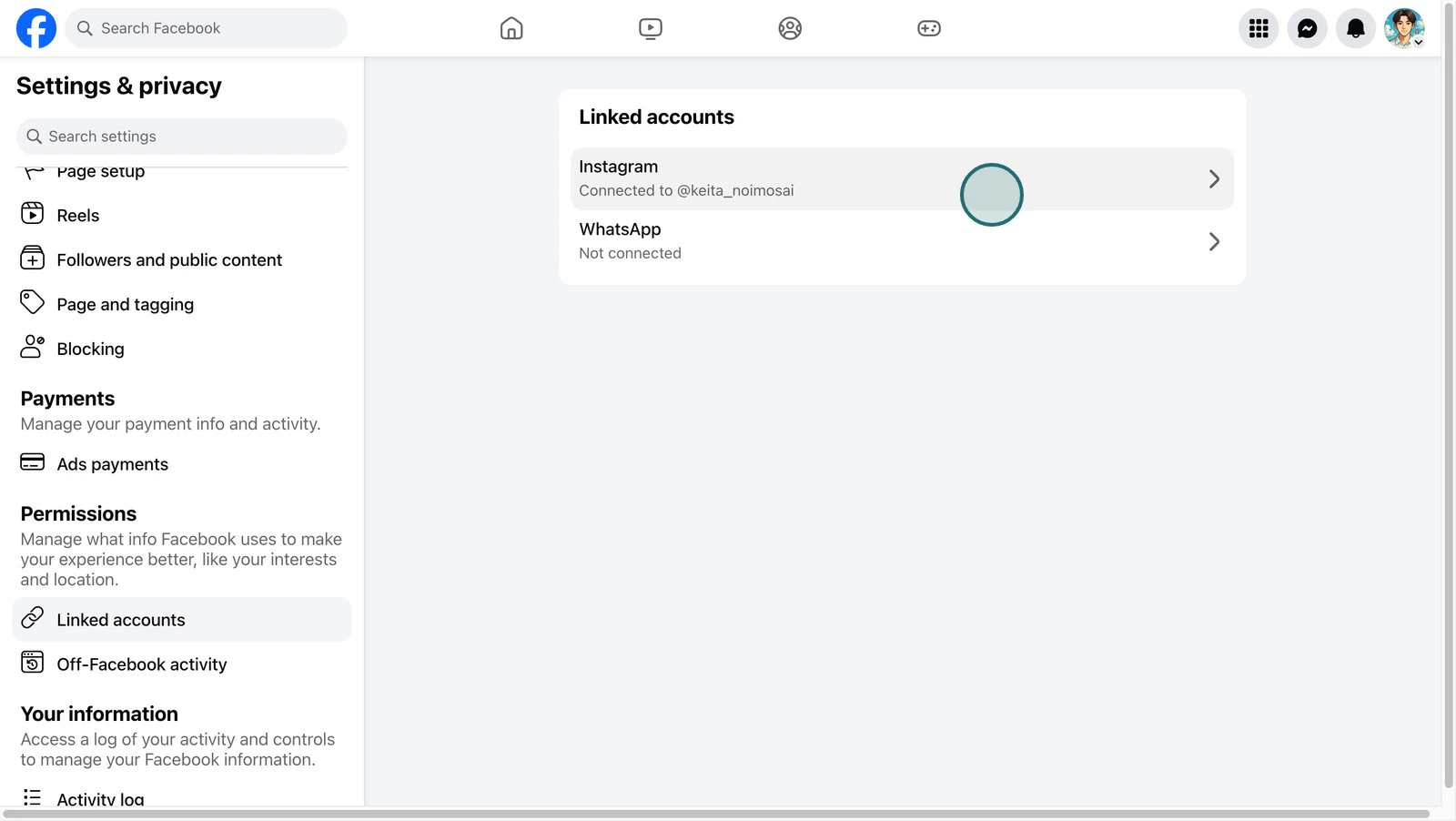 7. Confirm that the Instagram account you want to connect appears under `Connected Instagram`.
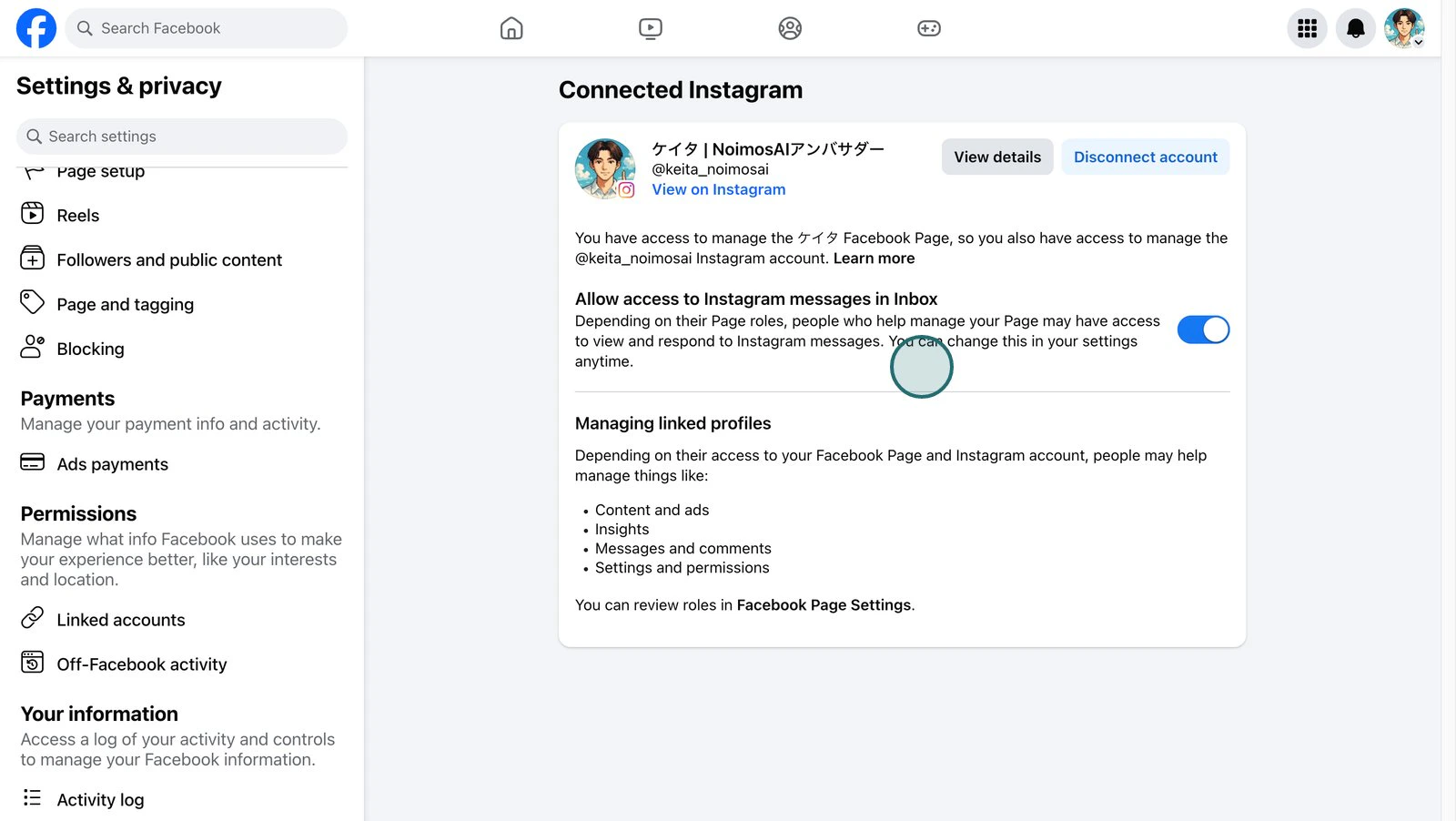 If it does not appear, open `Edit profile > Page` in the Instagram app and confirm the connected Facebook Page. If a different Page is selected, change it to the Facebook Page you want to connect in NoimosAI and reconnect.
Even if Instagram appears connected on the Facebook Page side, there may still be a confirmation step remaining on Instagram or Facebook. In that state, the Instagram account may not appear in NoimosAI authorization.
Check both `Linked accounts > Instagram` on the Facebook Page and `Edit profile > Page` in the Instagram app. If Meta asks you to confirm, log in again, or complete a prompt, finish that confirmation before reconnecting.
Instagram integration uses the Facebook personal account currently signed in to the browser for Meta authorization. If the browser is signed in to an account that cannot manage the target Facebook Page, the Page or Instagram account may not appear.
Log out of Facebook once, then sign in with the personal account that can manage the Facebook Page you want to connect. After that, restart the Instagram connection flow in NoimosAI.
The Facebook personal account used for authorization needs management access to the Facebook Page linked to Instagram.
* Classic Pages: the account has the `Admin` or `Editor` Page role.
* New Pages experience: the account has full or partial control through `Facebook access`.
* Business Manager Pages: the account has access to the target Page as a business asset.
On the Facebook Page, open `Settings > Page setup > Page access` and confirm that the Facebook personal account used for connection has access.
If a Facebook Page or Instagram account is managed in Business Manager / Business Portfolio, access to the Facebook Page alone may not be enough. Confirm that the Facebook personal account used for connection is assigned to both the target Facebook Page and Instagram account as business assets.
Open `Business settings` in Meta Business Suite, select the Facebook personal account under `Users > People`, and confirm that assigned assets include both:
* The Facebook Page you select in NoimosAI
* The Instagram account linked to that Facebook Page
If it does not appear, open `Edit profile > Page` in the Instagram app and confirm the connected Facebook Page. If a different Page is selected, change it to the Facebook Page you want to connect in NoimosAI and reconnect.
Even if Instagram appears connected on the Facebook Page side, there may still be a confirmation step remaining on Instagram or Facebook. In that state, the Instagram account may not appear in NoimosAI authorization.
Check both `Linked accounts > Instagram` on the Facebook Page and `Edit profile > Page` in the Instagram app. If Meta asks you to confirm, log in again, or complete a prompt, finish that confirmation before reconnecting.
Instagram integration uses the Facebook personal account currently signed in to the browser for Meta authorization. If the browser is signed in to an account that cannot manage the target Facebook Page, the Page or Instagram account may not appear.
Log out of Facebook once, then sign in with the personal account that can manage the Facebook Page you want to connect. After that, restart the Instagram connection flow in NoimosAI.
The Facebook personal account used for authorization needs management access to the Facebook Page linked to Instagram.
* Classic Pages: the account has the `Admin` or `Editor` Page role.
* New Pages experience: the account has full or partial control through `Facebook access`.
* Business Manager Pages: the account has access to the target Page as a business asset.
On the Facebook Page, open `Settings > Page setup > Page access` and confirm that the Facebook personal account used for connection has access.
If a Facebook Page or Instagram account is managed in Business Manager / Business Portfolio, access to the Facebook Page alone may not be enough. Confirm that the Facebook personal account used for connection is assigned to both the target Facebook Page and Instagram account as business assets.
Open `Business settings` in Meta Business Suite, select the Facebook personal account under `Users > People`, and confirm that assigned assets include both:
* The Facebook Page you select in NoimosAI
* The Instagram account linked to that Facebook Page
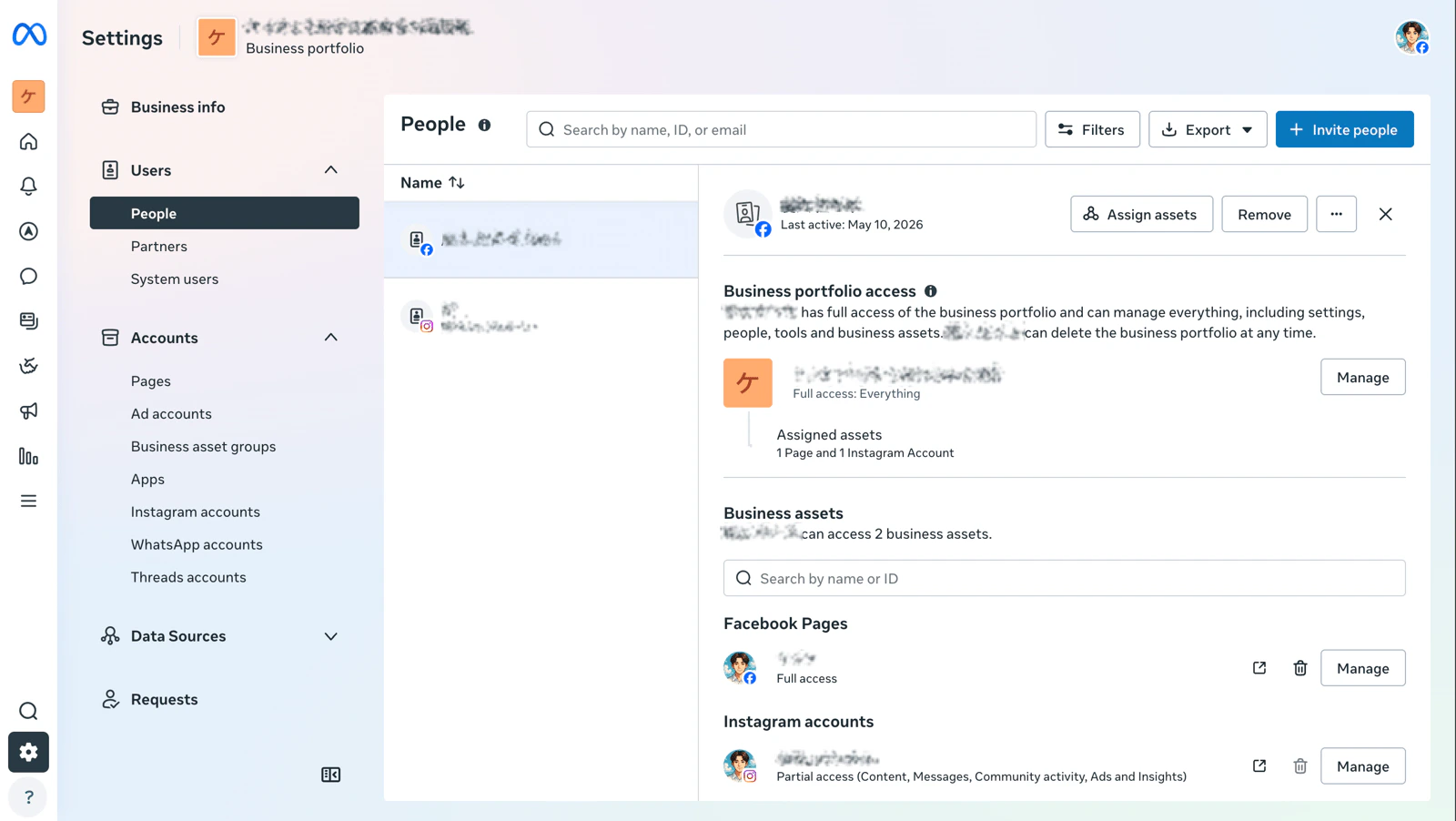 The Facebook Page and Instagram account may appear as separate assets in Business Portfolio. If only the Facebook Page is assigned, NoimosAI may not show Instagram during authorization because access to the Instagram account itself is missing.
If the Instagram account does not appear, ask a Business Manager / Business Portfolio admin to add access to the target Instagram account. If the Facebook Page and Instagram account are in different Business Portfolios, they need to be managed as compatible business assets or access needs to be requested.
If you deselect the target Instagram account, Facebook Page, business asset, or permission items in the Meta authorization screen, the Instagram account may not appear or may not work after connection.
In Facebook, open `Settings and privacy > Settings > Business integrations`, select NoimosAI, and confirm that access to the target Page and Instagram account is allowed. If you may have allowed only partial access before, remove the NoimosAI connection and reconnect, selecting the target Instagram account, Facebook Page, and business assets in the Meta authorization screen.
## Step-by-Step
1. Confirm your Instagram account is a Business account and linked to a Facebook Page.
2. In the integrations list, click `Connect` next to Instagram.
The Facebook Page and Instagram account may appear as separate assets in Business Portfolio. If only the Facebook Page is assigned, NoimosAI may not show Instagram during authorization because access to the Instagram account itself is missing.
If the Instagram account does not appear, ask a Business Manager / Business Portfolio admin to add access to the target Instagram account. If the Facebook Page and Instagram account are in different Business Portfolios, they need to be managed as compatible business assets or access needs to be requested.
If you deselect the target Instagram account, Facebook Page, business asset, or permission items in the Meta authorization screen, the Instagram account may not appear or may not work after connection.
In Facebook, open `Settings and privacy > Settings > Business integrations`, select NoimosAI, and confirm that access to the target Page and Instagram account is allowed. If you may have allowed only partial access before, remove the NoimosAI connection and reconnect, selecting the target Instagram account, Facebook Page, and business assets in the Meta authorization screen.
## Step-by-Step
1. Confirm your Instagram account is a Business account and linked to a Facebook Page.
2. In the integrations list, click `Connect` next to Instagram.
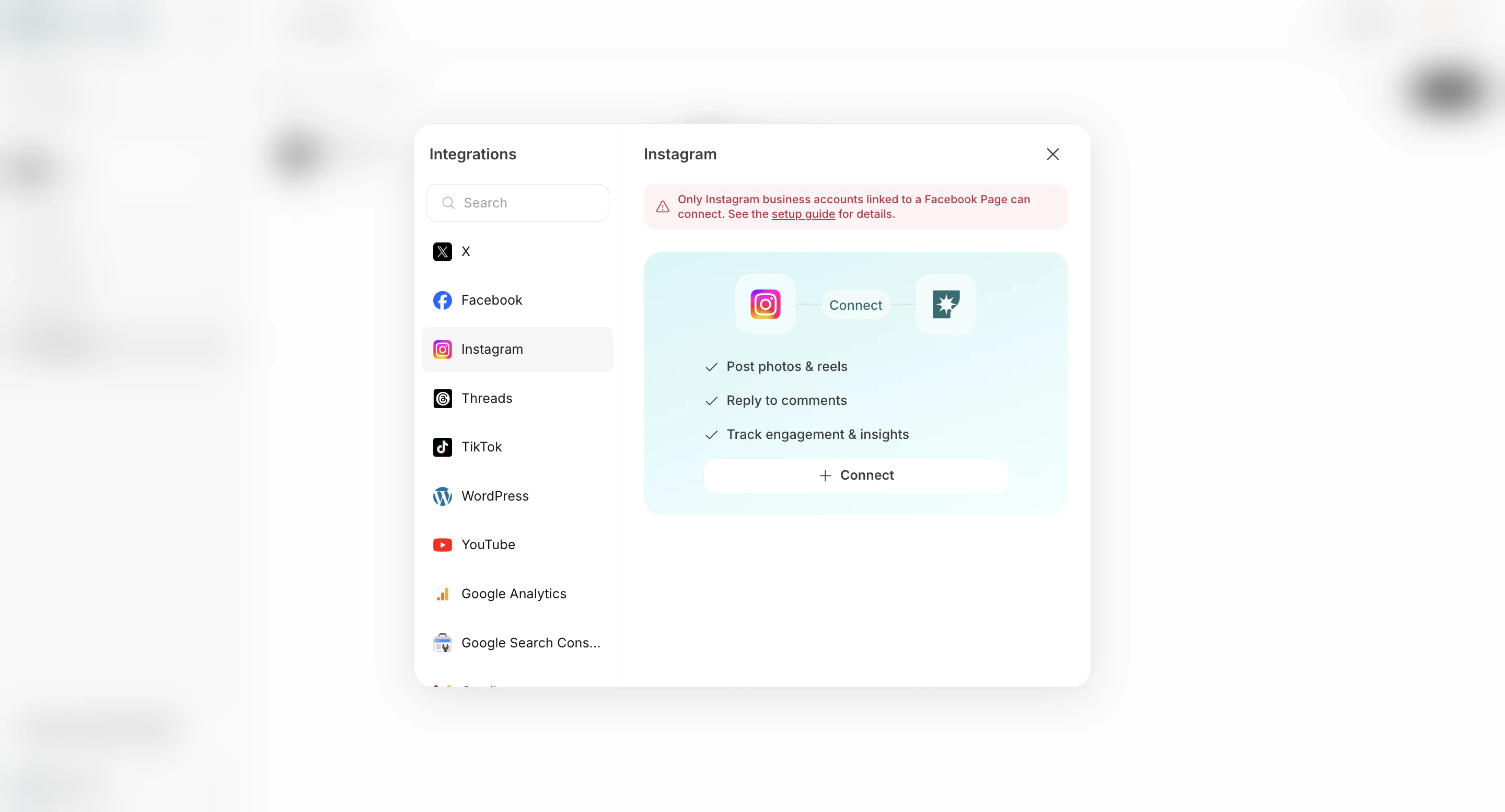 3. Select the Facebook profile to use for this connection.
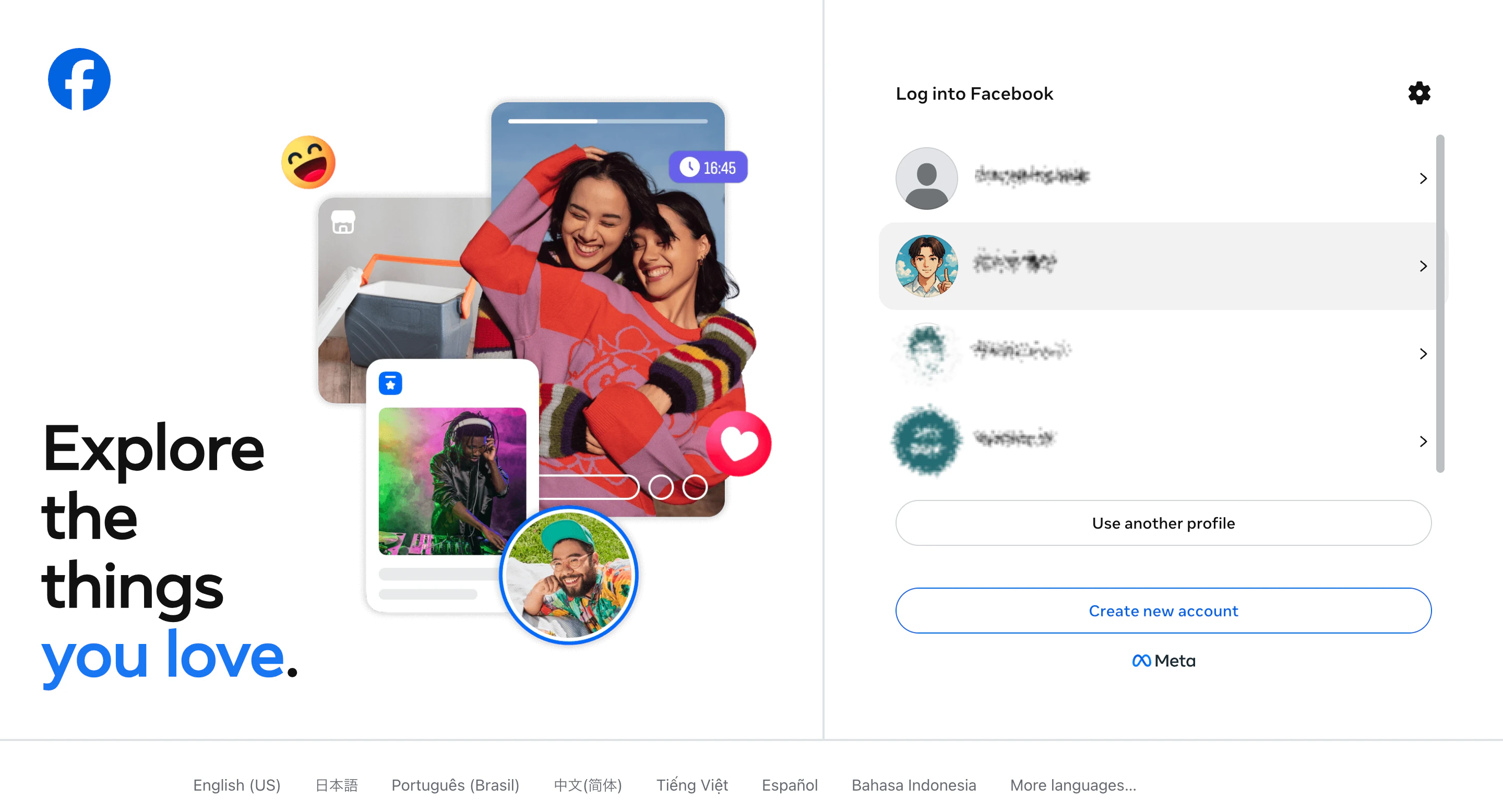 4. Click `Continue` to confirm the selected Facebook account.
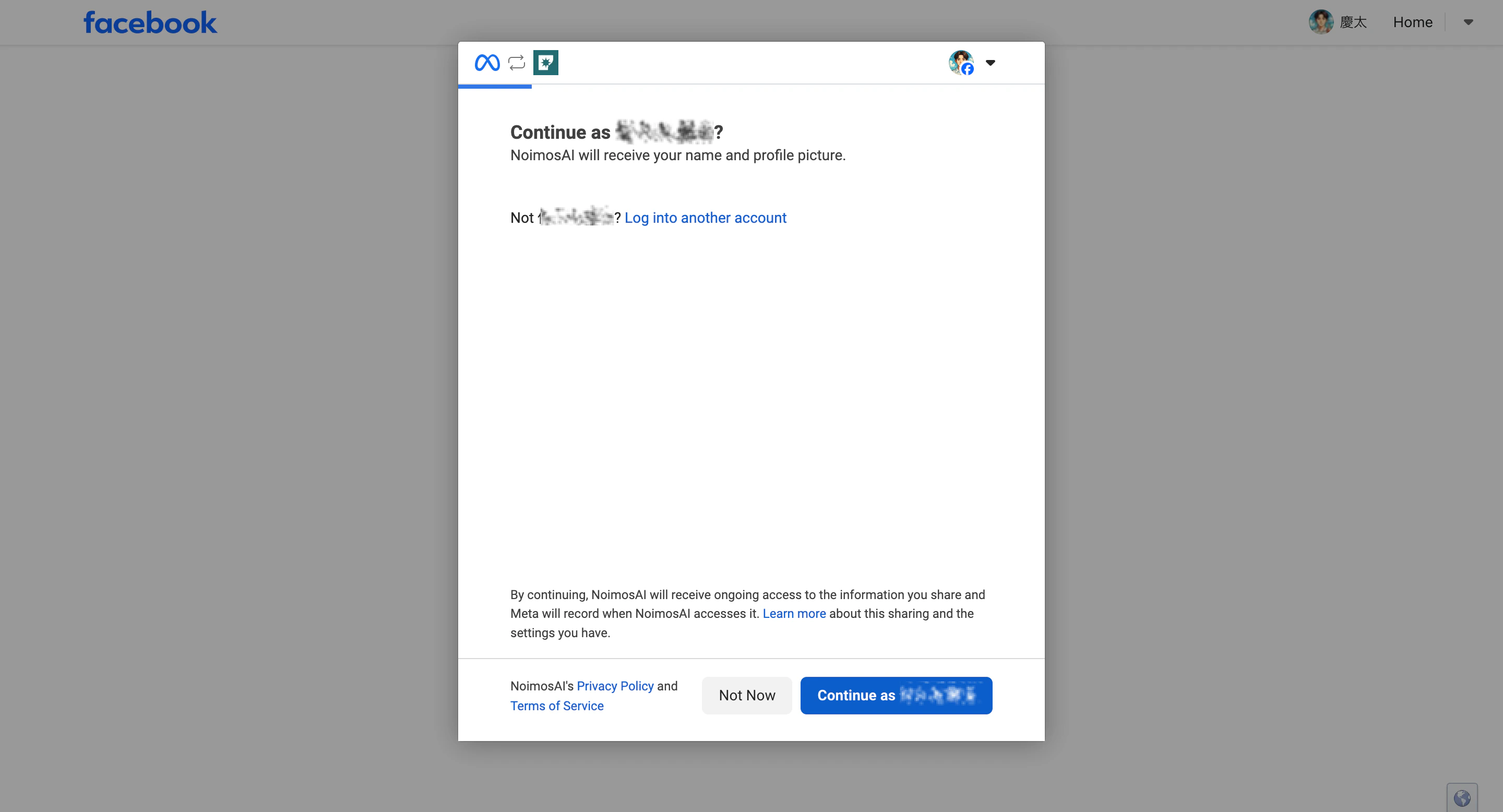 5. Click `Get started`.
 6. Choose the Instagram profile you want to connect.
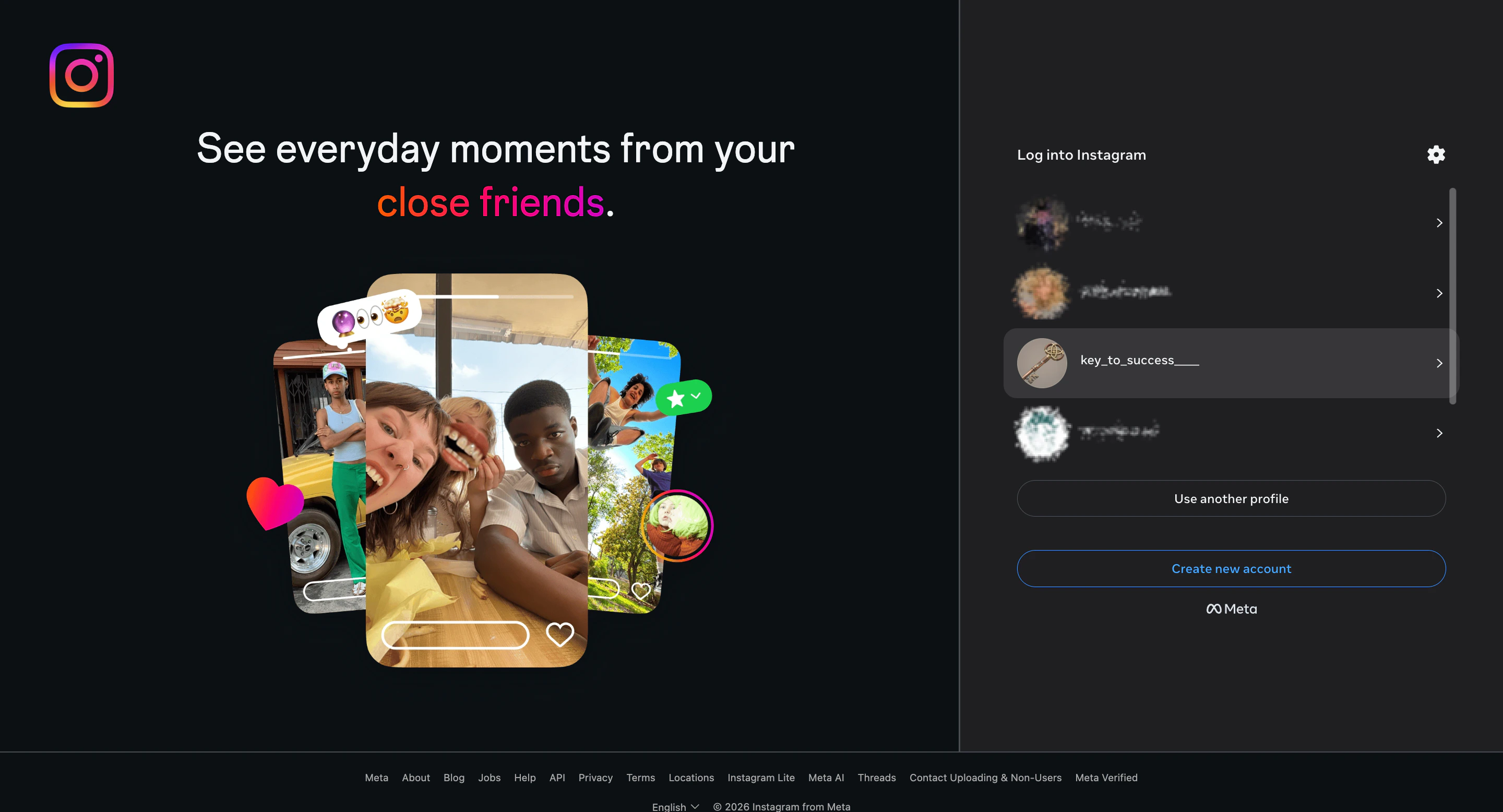 7. If an Instagram screen opens, choose whether to save your login information in the browser or not. Selecting either option lets the connection flow continue to the next screen.
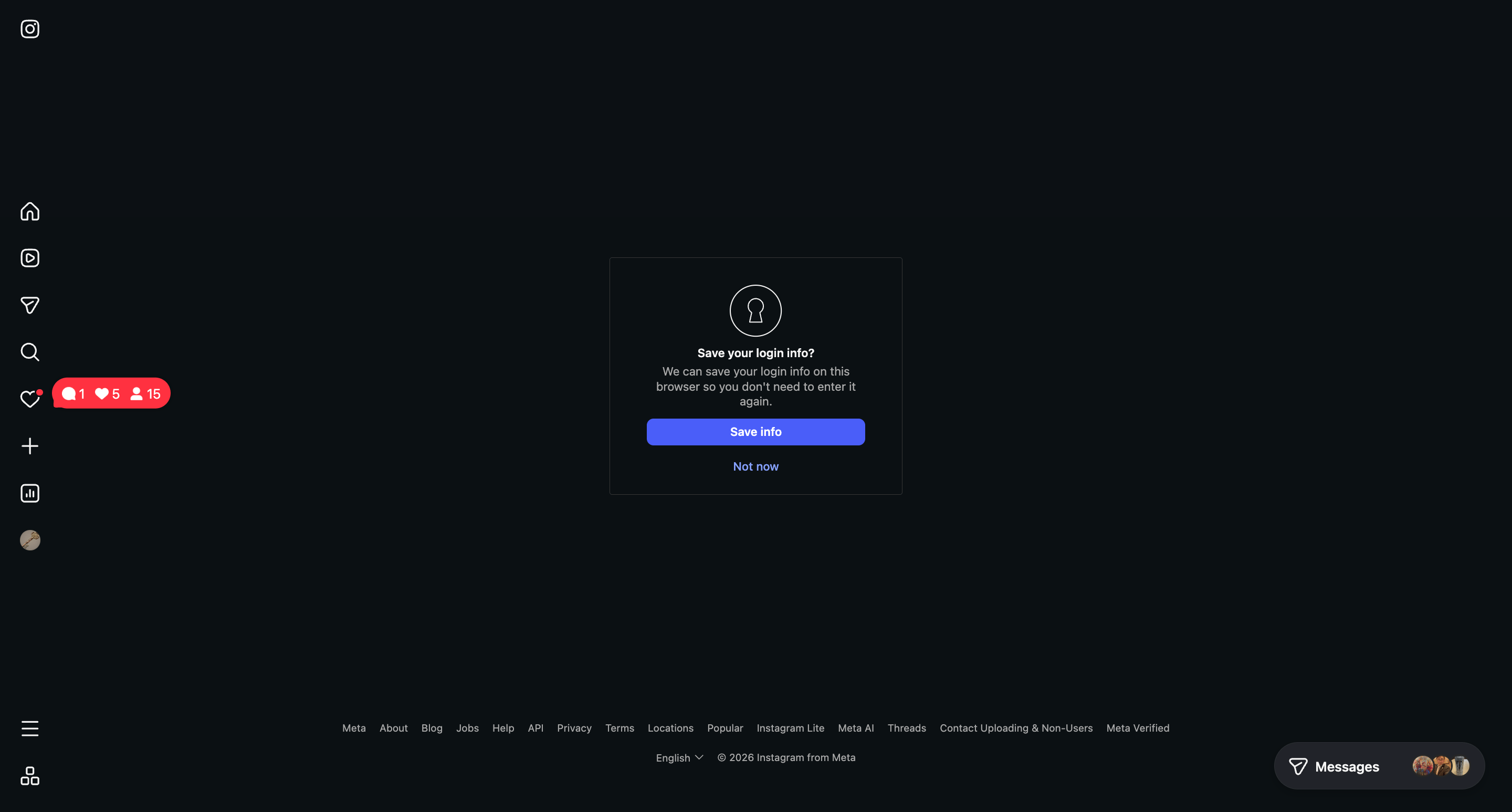 8. Select the Facebook Page NoimosAI can access.
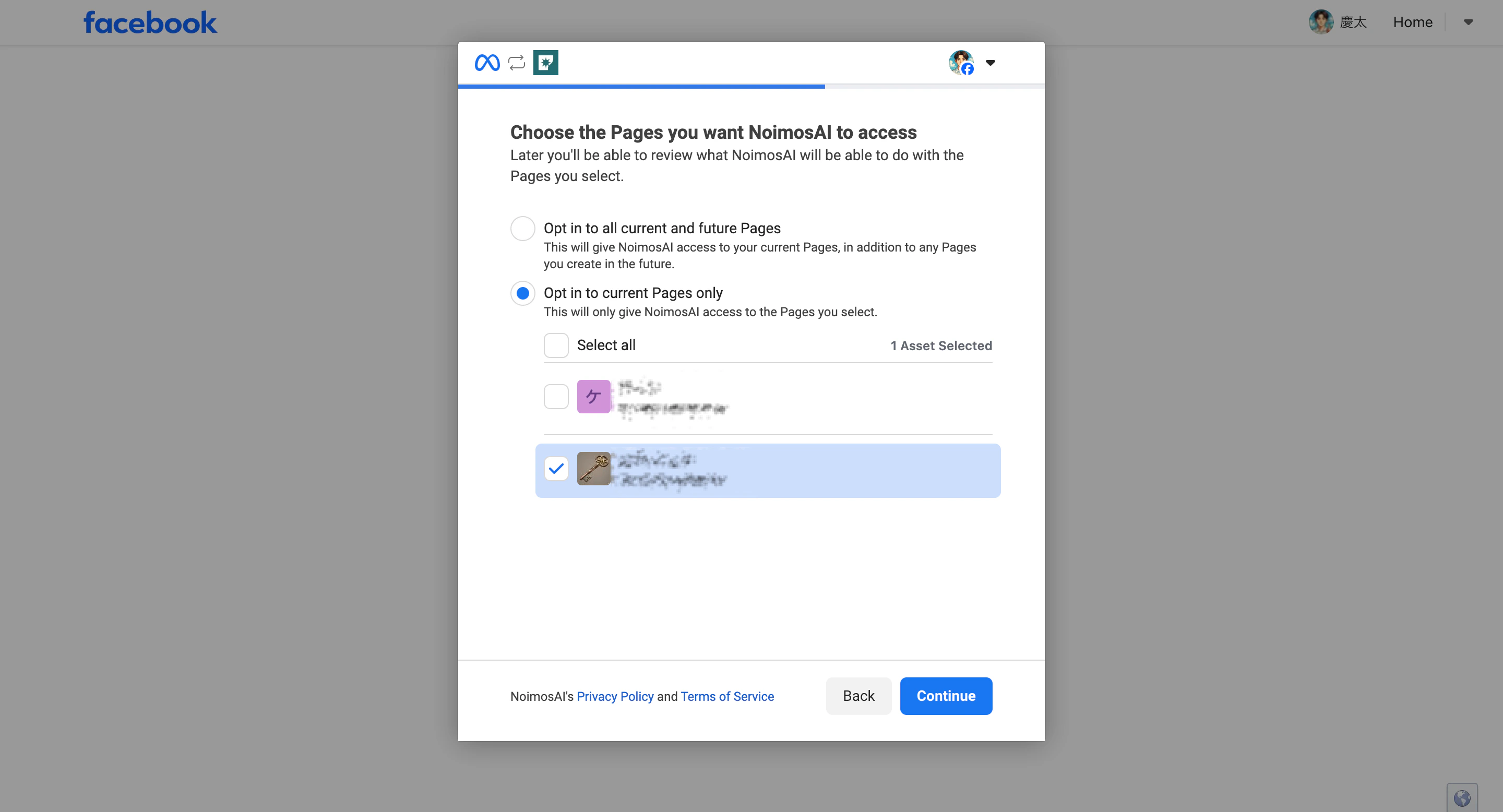 9. Click `Continue` to grant access to the selected Facebook business asset.
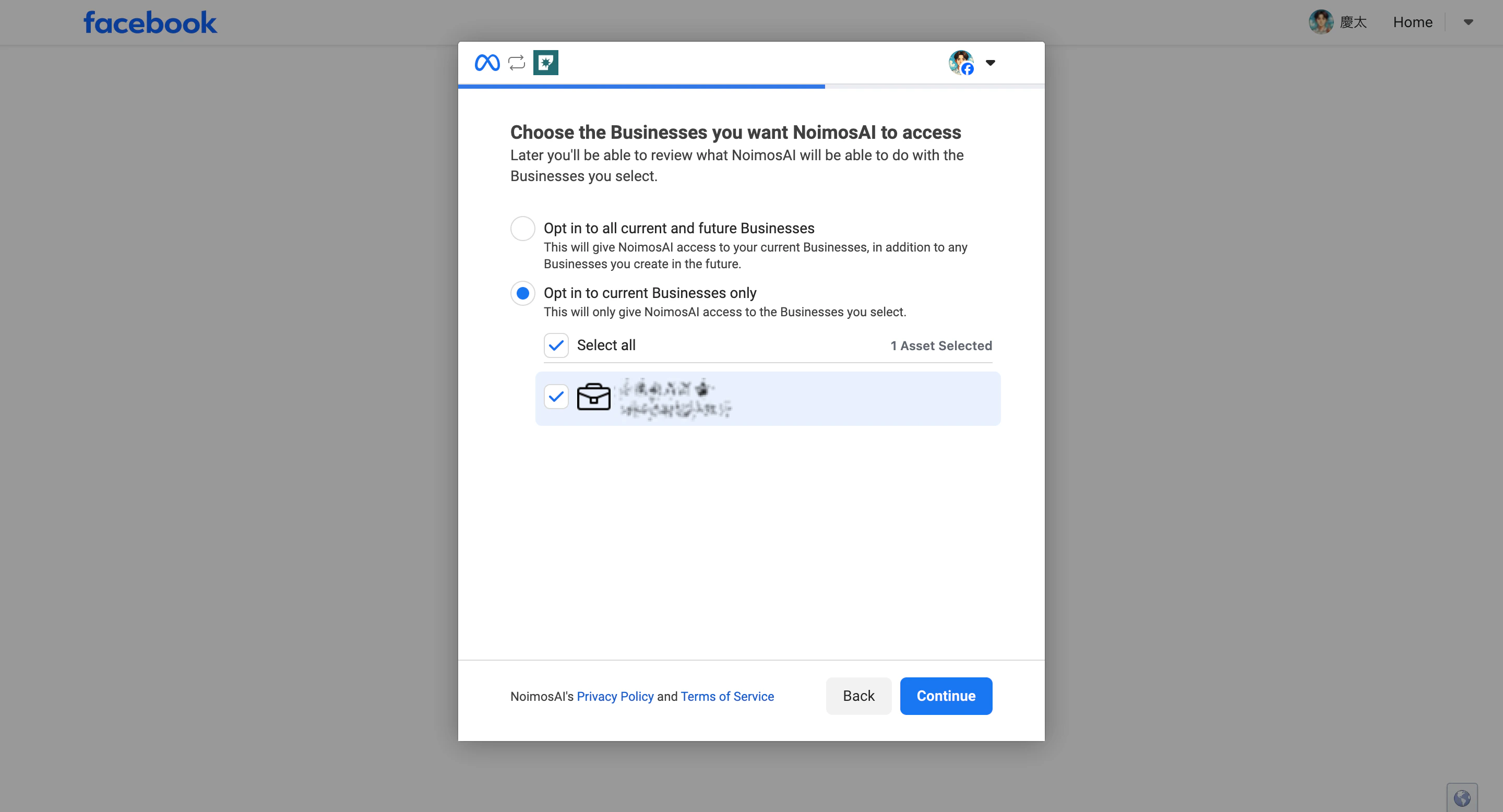 10. Click `Continue` after selecting which Instagram account access to allow.
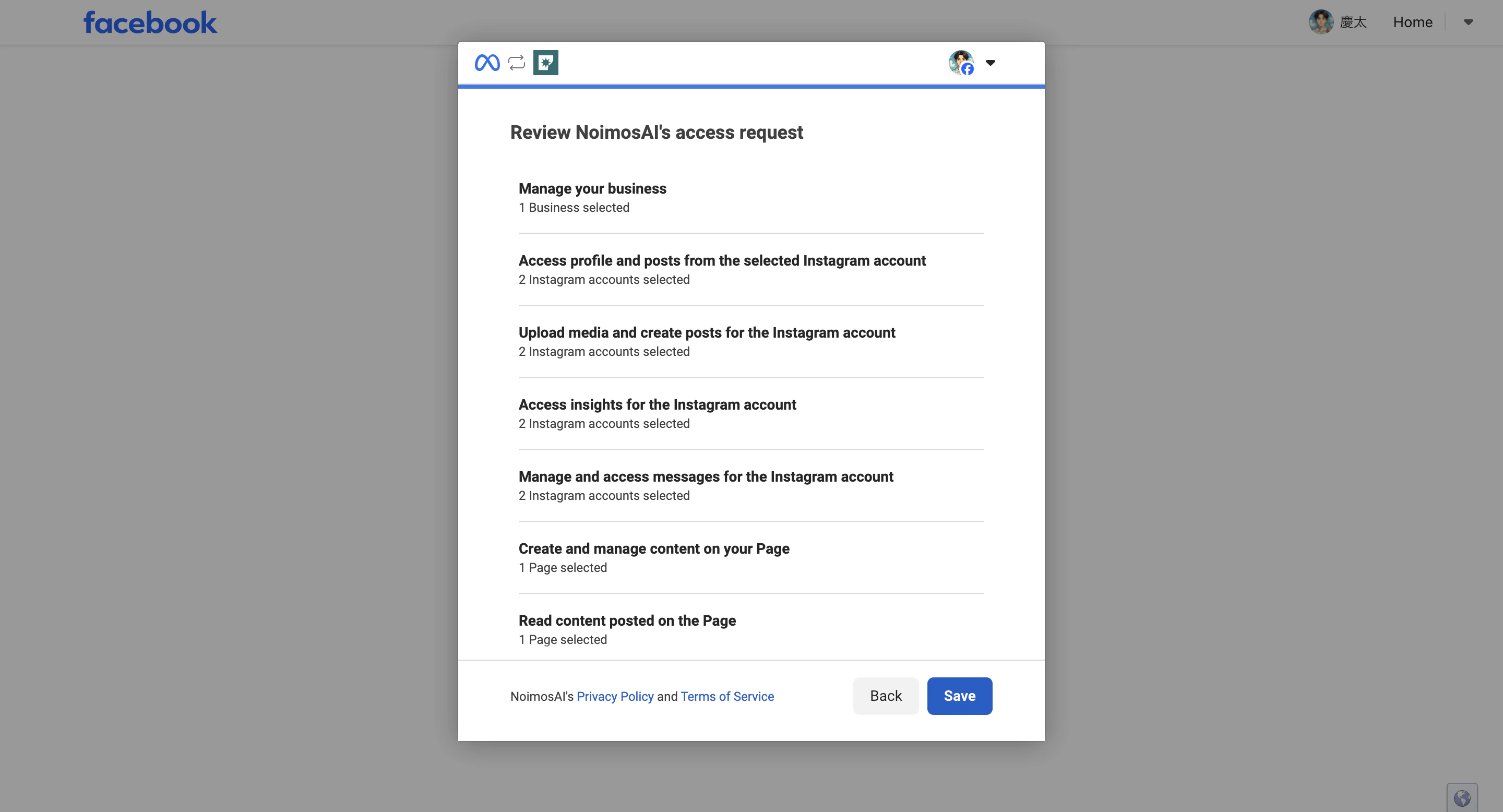
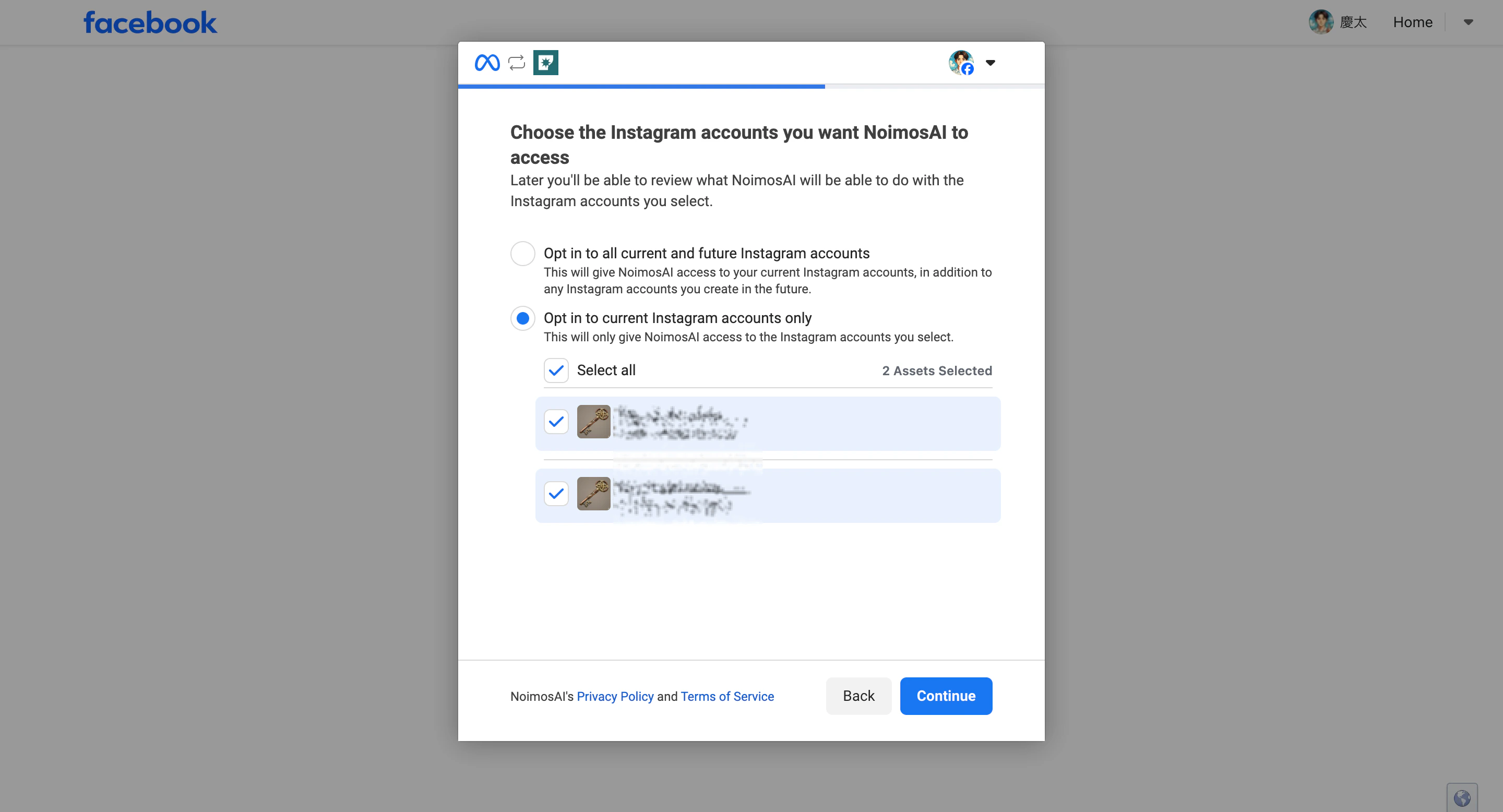 11. Confirm the target Instagram account, Facebook Page, and business asset are selected, then click `Save` to finalize permissions.
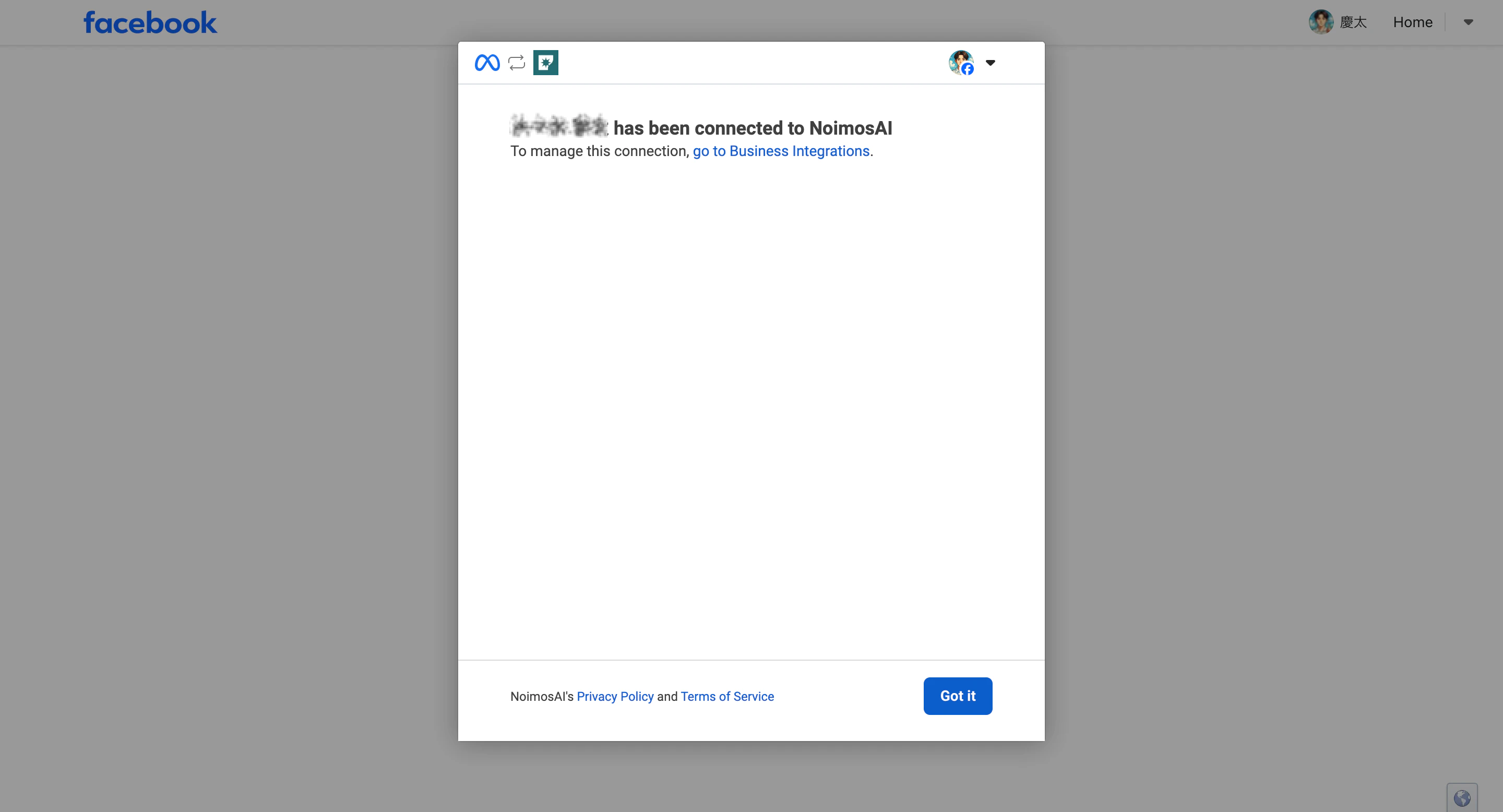
 12. Click `Got it` to complete setup and return to NoimosAI.
 ## Common Errors
### If you see “Invalid request / Invalid redirect URL”
Even if Meta shows this message during authorization, it does not always mean the redirect URL setting on NoimosAI is the cause. Meta may block the authorization when the combination of Instagram account, Facebook Page, Facebook personal account, and Business Portfolio permissions is not valid.
First, use the checklist above to confirm that the target Instagram account is linked to the correct Facebook Page, and that the Facebook personal account used for connection has access to both the Page and the Instagram account.
If the error says that no Instagram Business profile linked to a Facebook Page was found, the most common causes are below. Use the checklist above to verify the account type, Facebook Page link, and pending confirmation state.
* Instagram is not linked to the Facebook Page.
* The linked Instagram account is a personal account.
* The Instagram and Facebook Page connection has not been confirmed in Meta.
## If Connection Still Fails
Share with support:
* Exact error message
* Team and Workspace name
* Instagram account name
* Facebook Page name
* Screenshot of the failed step
## Reference
* [Meta for Developers: Instagram API with Facebook Login](https://developers.facebook.com/docs/instagram-platform/instagram-api-with-facebook-login/get-started)
* [Meta Help Center: Connect or disconnect a Facebook Page and Instagram account](https://www.facebook.com/help/1148909221857370)
* [Meta Help Center: Add or change the Facebook Page connected to an Instagram professional account](https://www.facebook.com/help/570895513091465)
* [Meta Help Center: Manage roles on a shared Instagram business account](https://www.facebook.com/help/218638451837962)
## Related
* [Why Is Facebook Integration Not Working?](/help-center/faq/integrations/facebook-integration-not-working)
* [How Can I Contact Support?](/help-center/faq/support/how-can-i-contact-support)
## Common Errors
### If you see “Invalid request / Invalid redirect URL”
Even if Meta shows this message during authorization, it does not always mean the redirect URL setting on NoimosAI is the cause. Meta may block the authorization when the combination of Instagram account, Facebook Page, Facebook personal account, and Business Portfolio permissions is not valid.
First, use the checklist above to confirm that the target Instagram account is linked to the correct Facebook Page, and that the Facebook personal account used for connection has access to both the Page and the Instagram account.
If the error says that no Instagram Business profile linked to a Facebook Page was found, the most common causes are below. Use the checklist above to verify the account type, Facebook Page link, and pending confirmation state.
* Instagram is not linked to the Facebook Page.
* The linked Instagram account is a personal account.
* The Instagram and Facebook Page connection has not been confirmed in Meta.
## If Connection Still Fails
Share with support:
* Exact error message
* Team and Workspace name
* Instagram account name
* Facebook Page name
* Screenshot of the failed step
## Reference
* [Meta for Developers: Instagram API with Facebook Login](https://developers.facebook.com/docs/instagram-platform/instagram-api-with-facebook-login/get-started)
* [Meta Help Center: Connect or disconnect a Facebook Page and Instagram account](https://www.facebook.com/help/1148909221857370)
* [Meta Help Center: Add or change the Facebook Page connected to an Instagram professional account](https://www.facebook.com/help/570895513091465)
* [Meta Help Center: Manage roles on a shared Instagram business account](https://www.facebook.com/help/218638451837962)
## Related
* [Why Is Facebook Integration Not Working?](/help-center/faq/integrations/facebook-integration-not-working)
* [How Can I Contact Support?](/help-center/faq/support/how-can-i-contact-support)