> ## Documentation Index
> Fetch the complete documentation index at: https://docs.noimosai.com/llms.txt
> Use this file to discover all available pages before exploring further.
# Create and Edit Pages
> Learn how to create and edit pages manually, and how to use Chat and Page Chat.
## Overview
This page explains how to create and edit pages yourself, and how to create or edit pages with Chat and Page Chat.
## Before you start
Confirm the following before working on a page.
* You are in the correct workspace.
* The page purpose is clear, such as KPI review or production management.
## Create a page manually
Add a page from the sidebar when you want to build the structure yourself from a blank page.
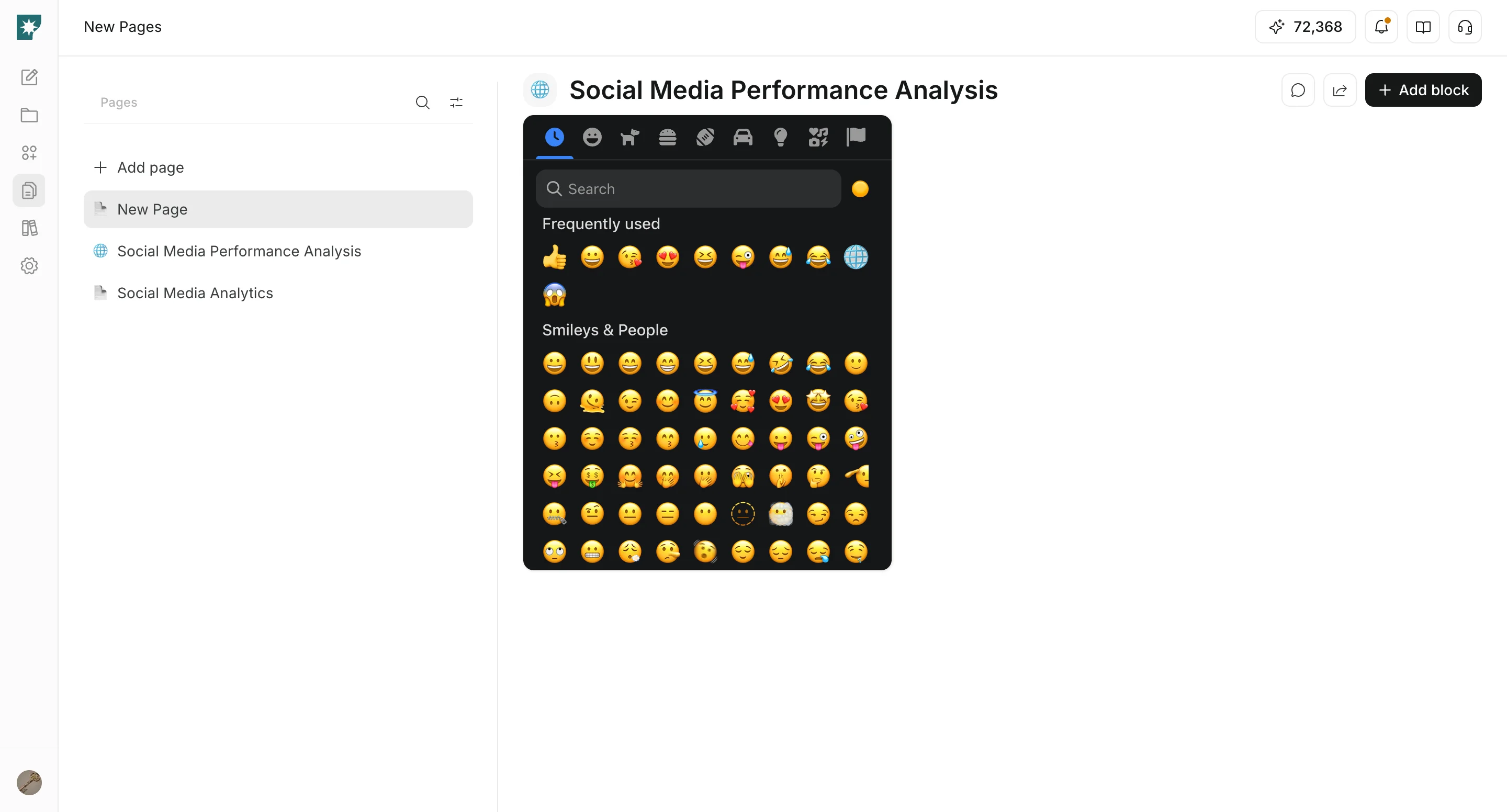
1. Open `Pages` in the sidebar, then click `Create Page`.
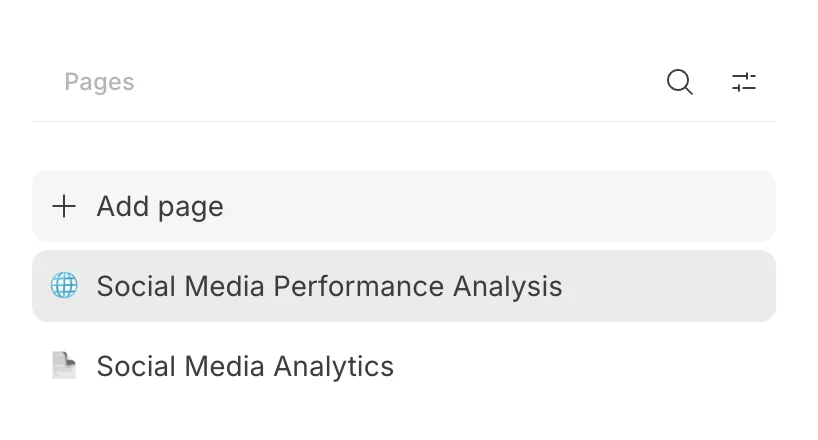 2. Change the icon and page name.
 ## Create a page with Chat
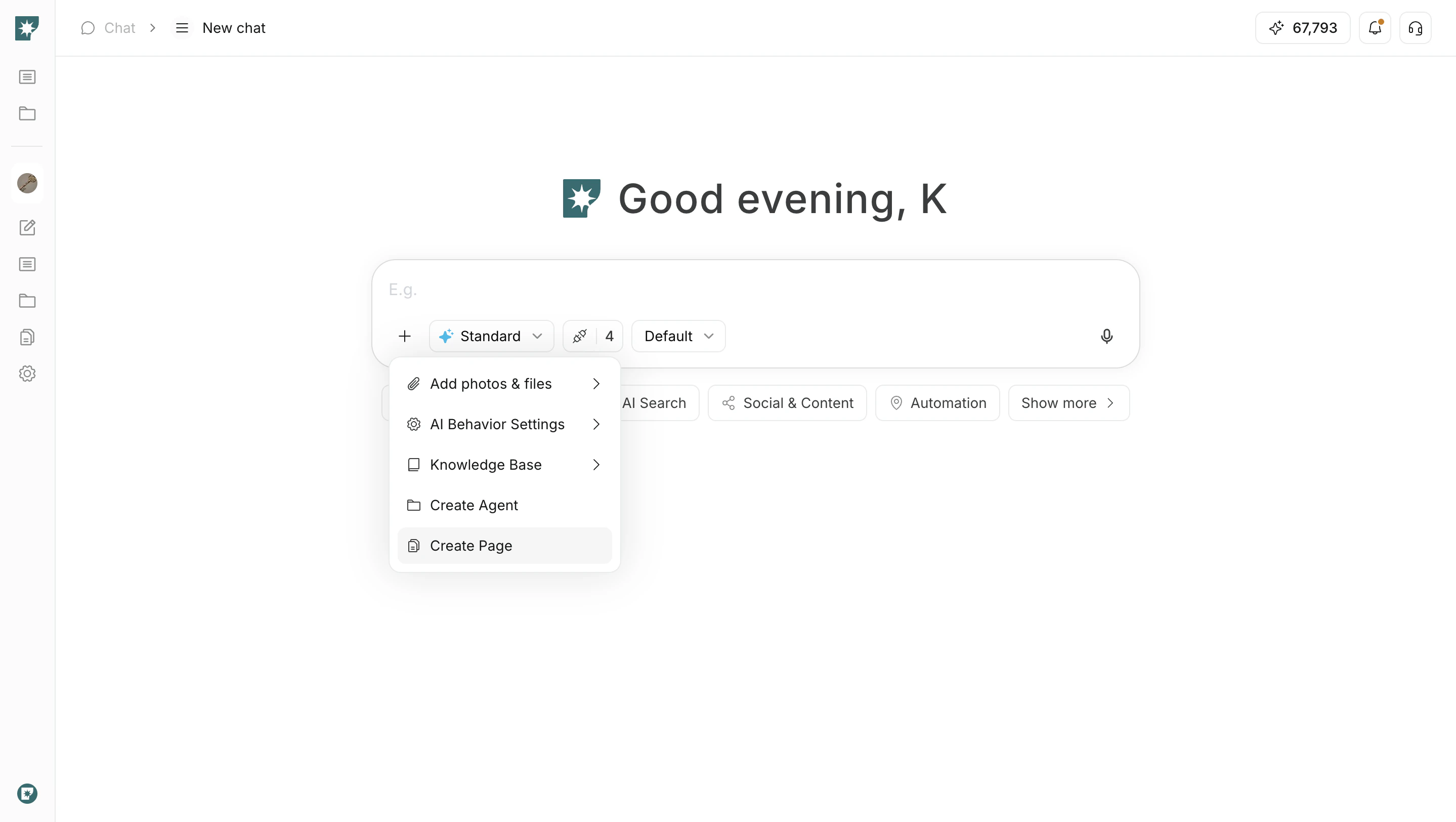
Tell Chat what kind of page you want to create, and it can generate a page draft.
1. In Chat mode selection, choose page creation mode.
## Create a page with Chat
Tell Chat what kind of page you want to create, and it can generate a page draft.
1. In Chat mode selection, choose page creation mode.
 2. Describe the page you want in specific text.
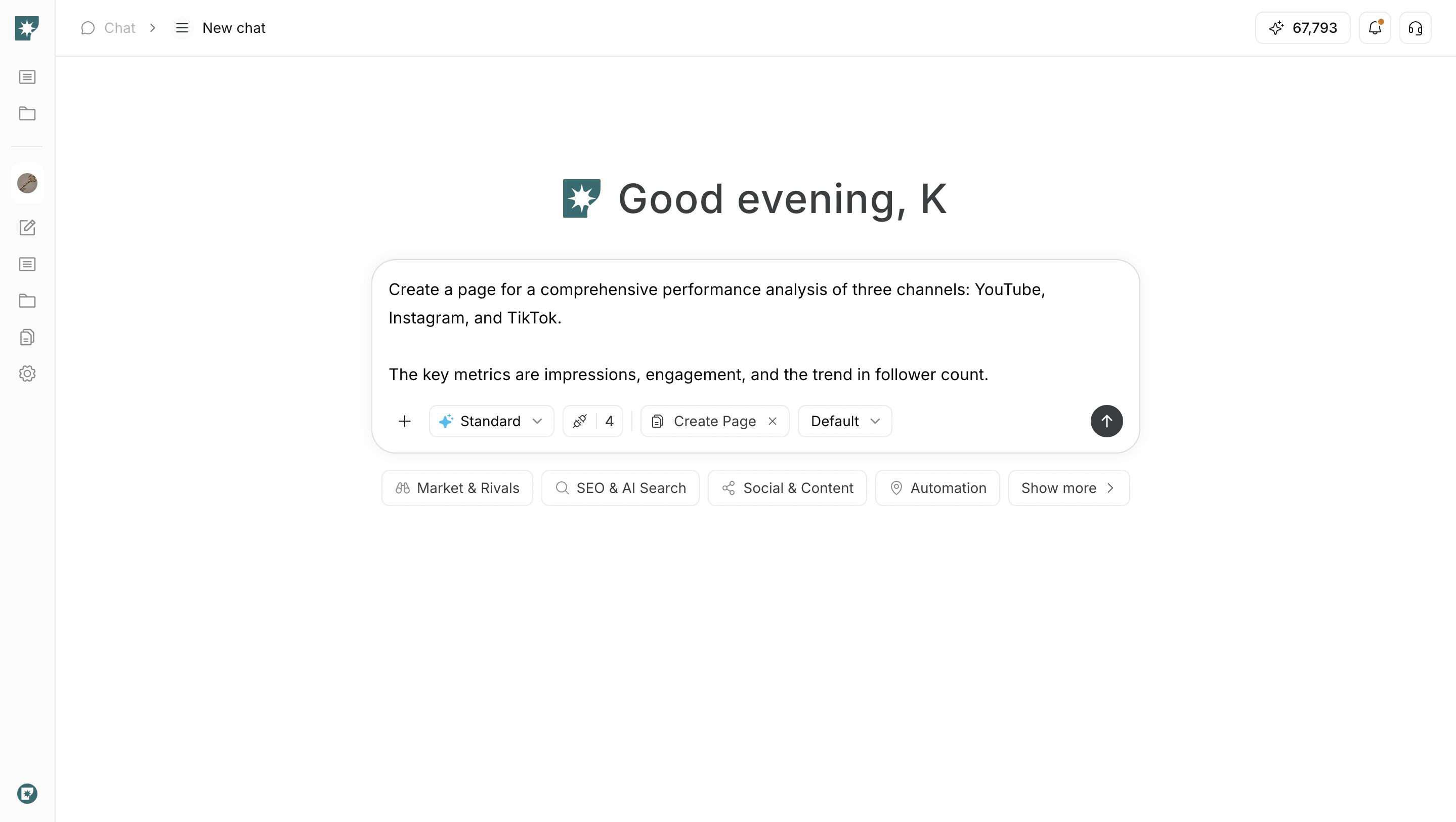 3. Review the created page and add or move blocks as needed.
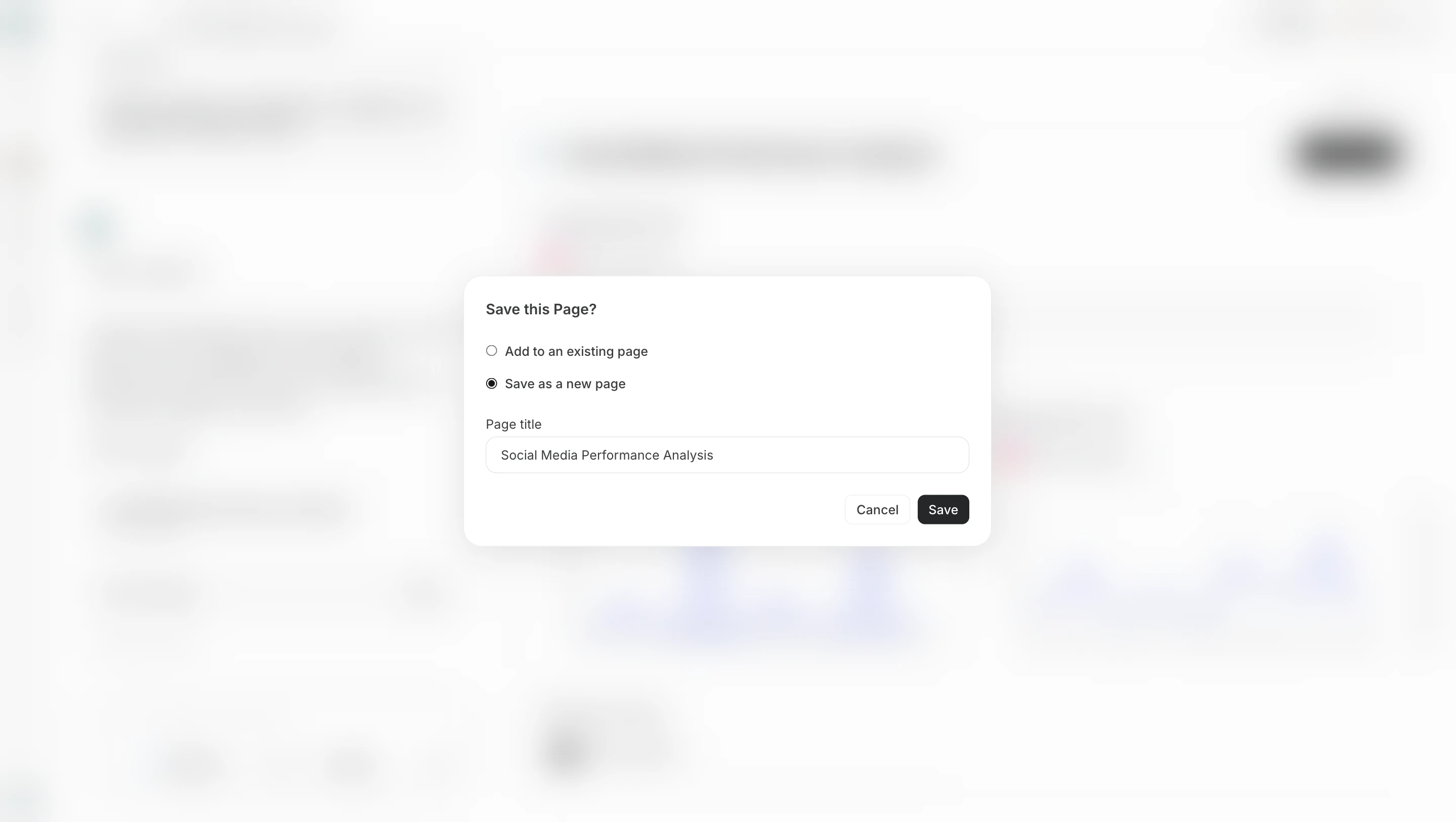
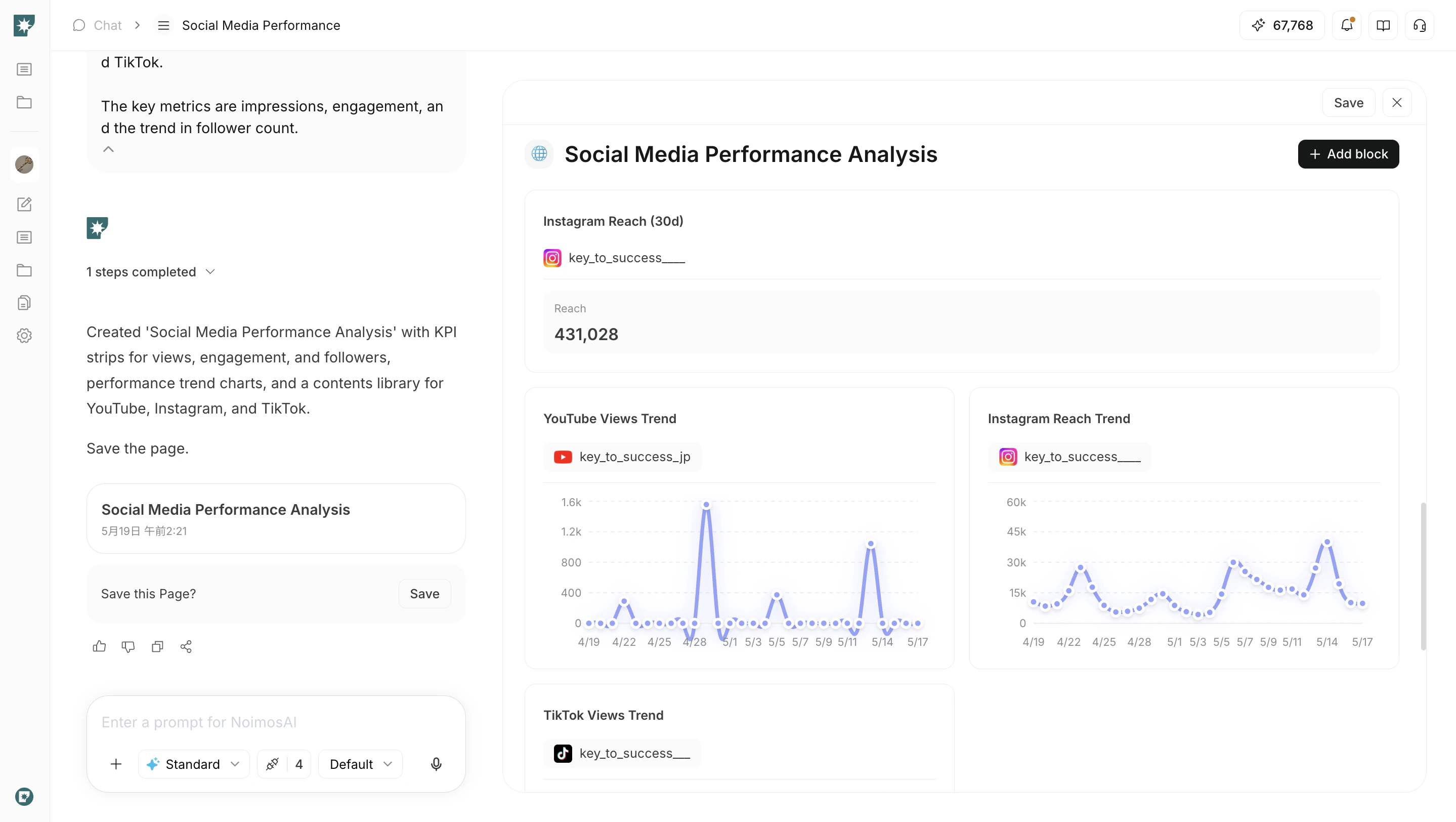 4. Save the created page.
 ## Edit a page manually
Build the page structure and layout yourself by adding blocks.
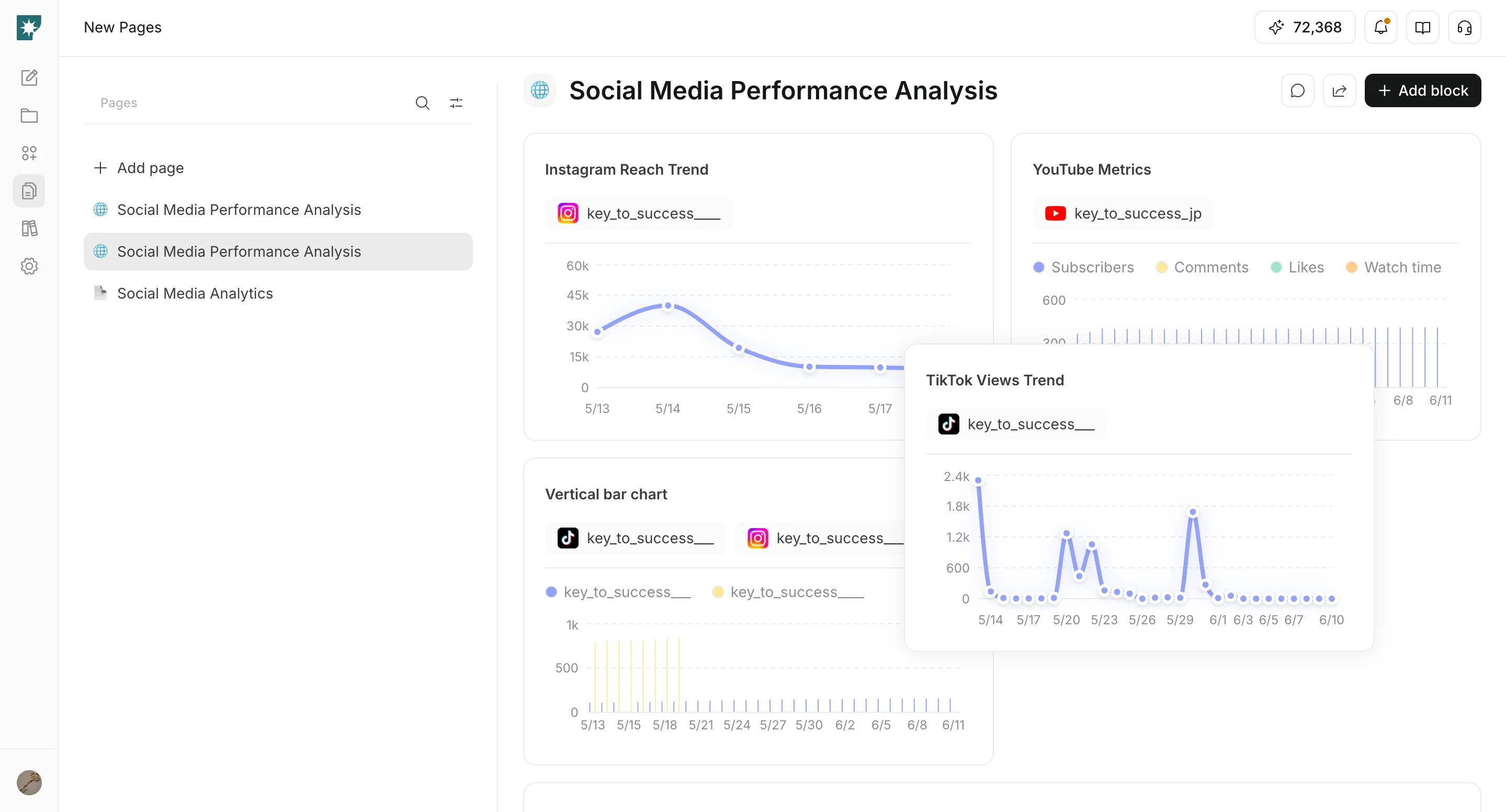
1. Click `Add block`, then choose a block from `Basic`, `Data`, `Analysis`, `Function`, or `Embed`.
## Edit a page manually
Build the page structure and layout yourself by adding blocks.
1. Click `Add block`, then choose a block from `Basic`, `Data`, `Analysis`, `Function`, or `Embed`.
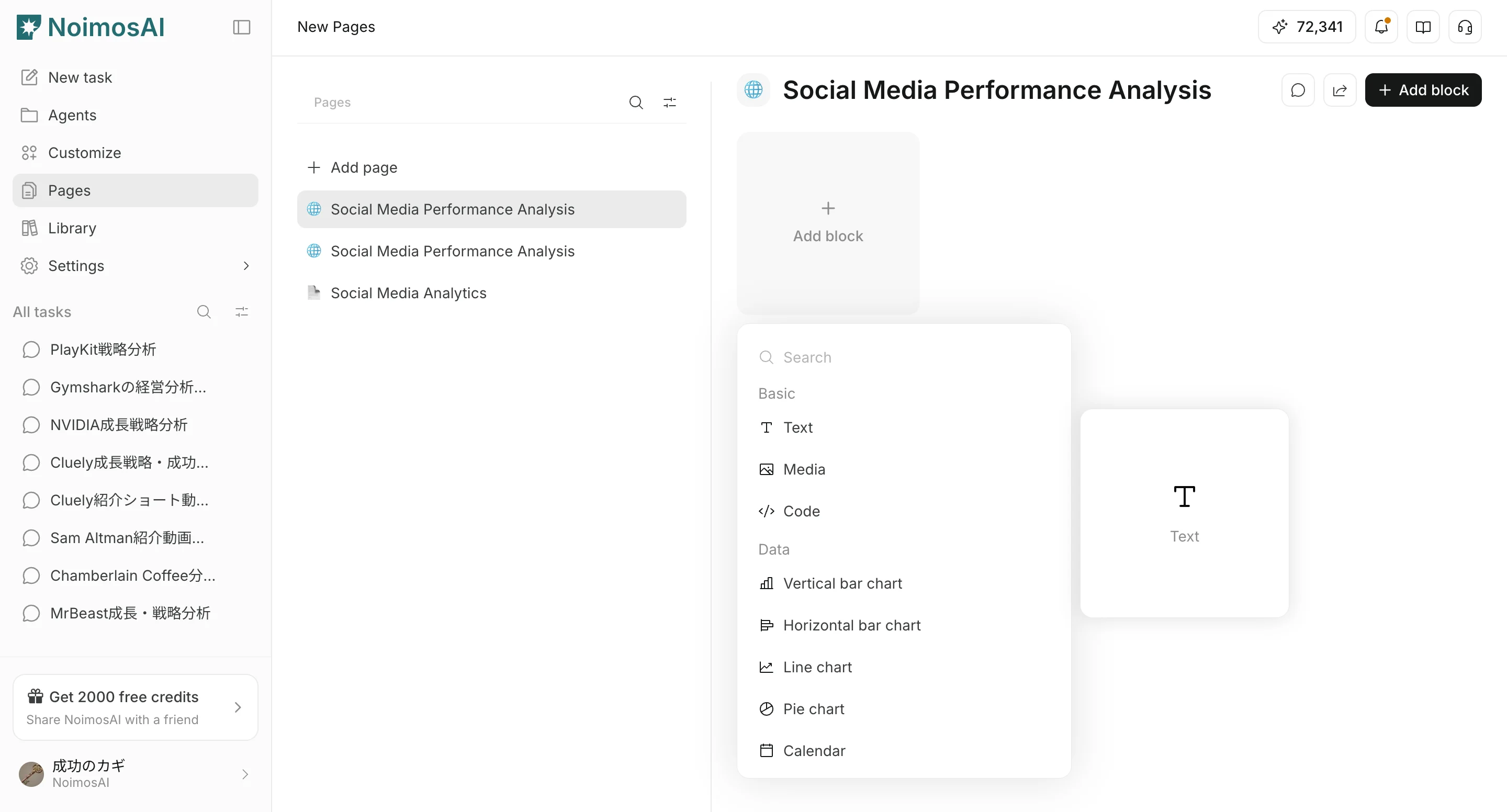 2. Enter content, choose data sources, select displayed fields, and configure display settings.
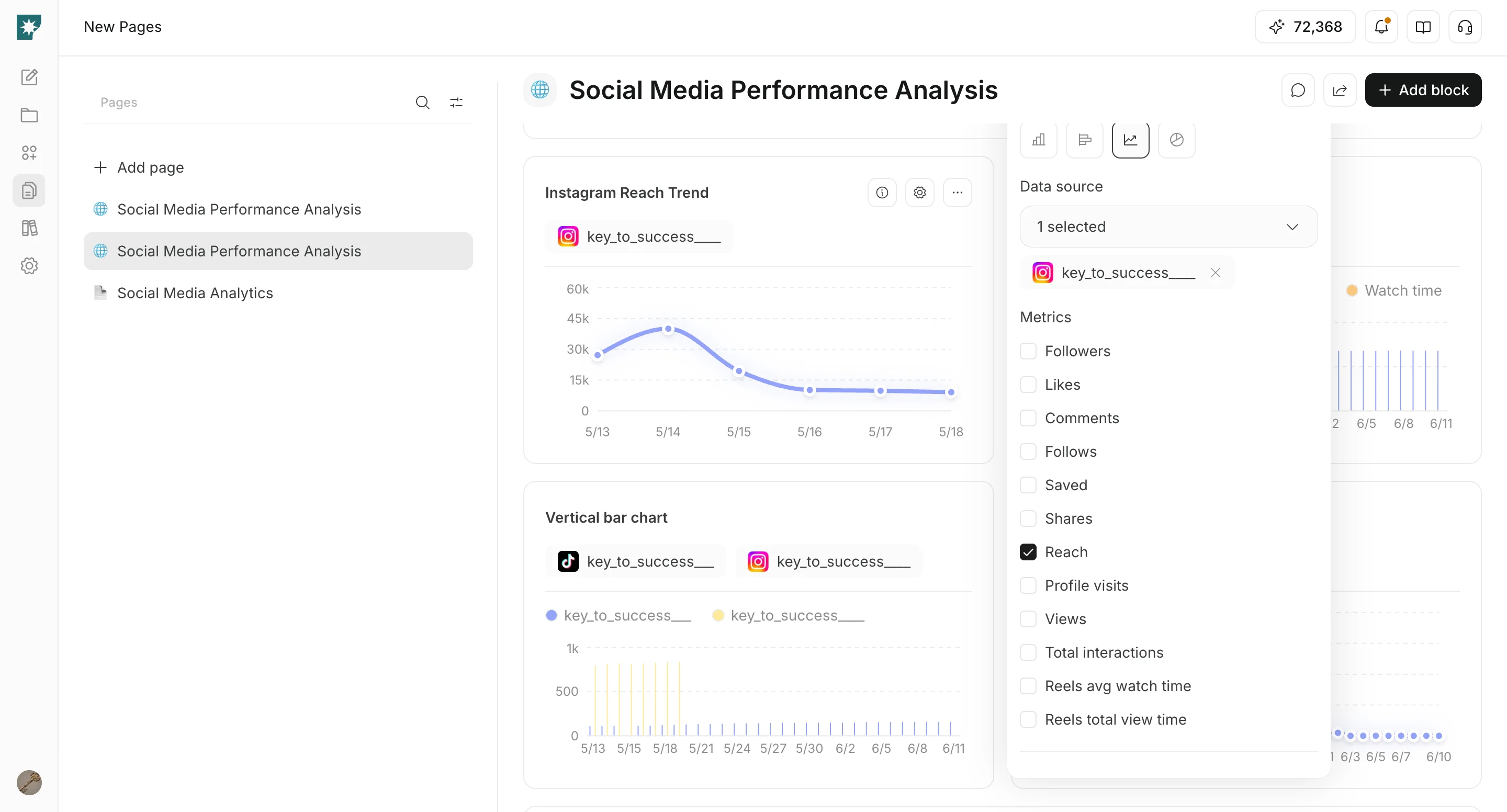 3. Drag blocks to arrange the page layout.
 ## Add tables generated in Chat to a Page
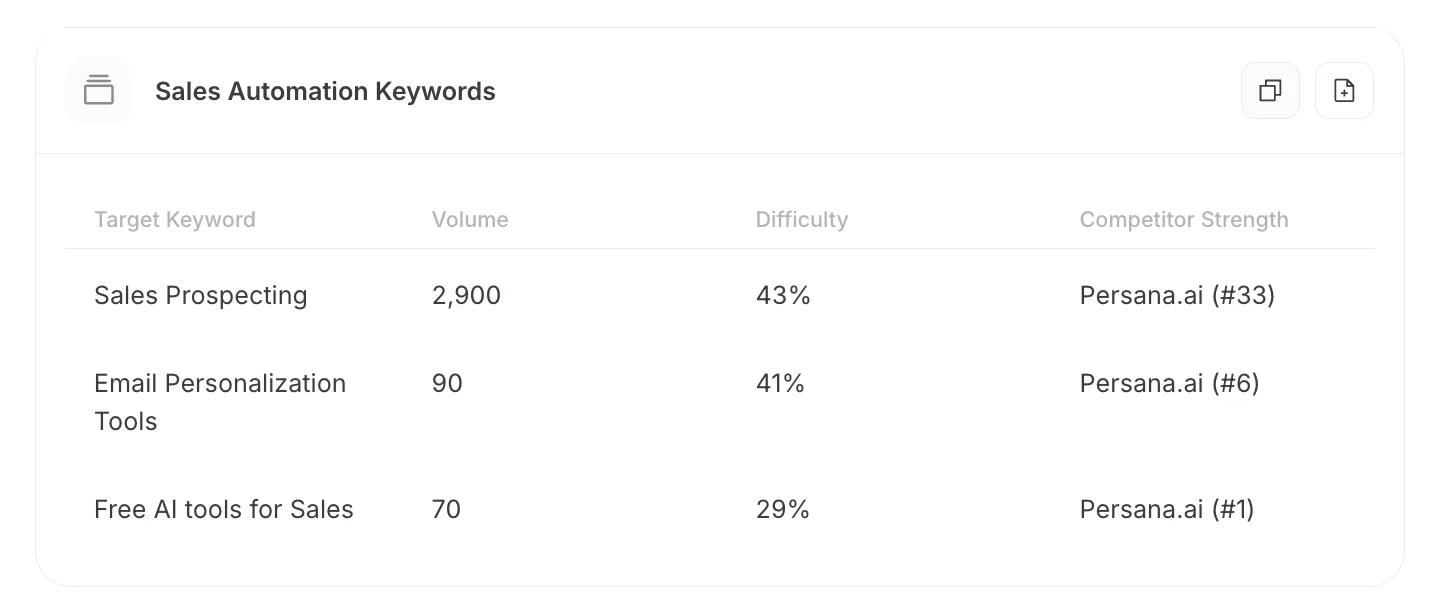
When Chat generates a table, you can copy it to the clipboard or add it to a Page for reuse.
1. Choose `Copy to clipboard` or the action for saving it to a Page.
2. If you add it to a Page, choose the destination Page.
3. In the Page, choose whether to add the table as a new table or merge it into an existing table.
## Add tables generated in Chat to a Page
When Chat generates a table, you can copy it to the clipboard or add it to a Page for reuse.
1. Choose `Copy to clipboard` or the action for saving it to a Page.
2. If you add it to a Page, choose the destination Page.
3. In the Page, choose whether to add the table as a new table or merge it into an existing table.
 There are two ways to add the table inside a Page.
* **Add as a new table**: Add the table generated in Chat as its own new table. Use this when you want to manage it separately from existing tables.
There are two ways to add the table inside a Page.
* **Add as a new table**: Add the table generated in Chat as its own new table. Use this when you want to manage it separately from existing tables.
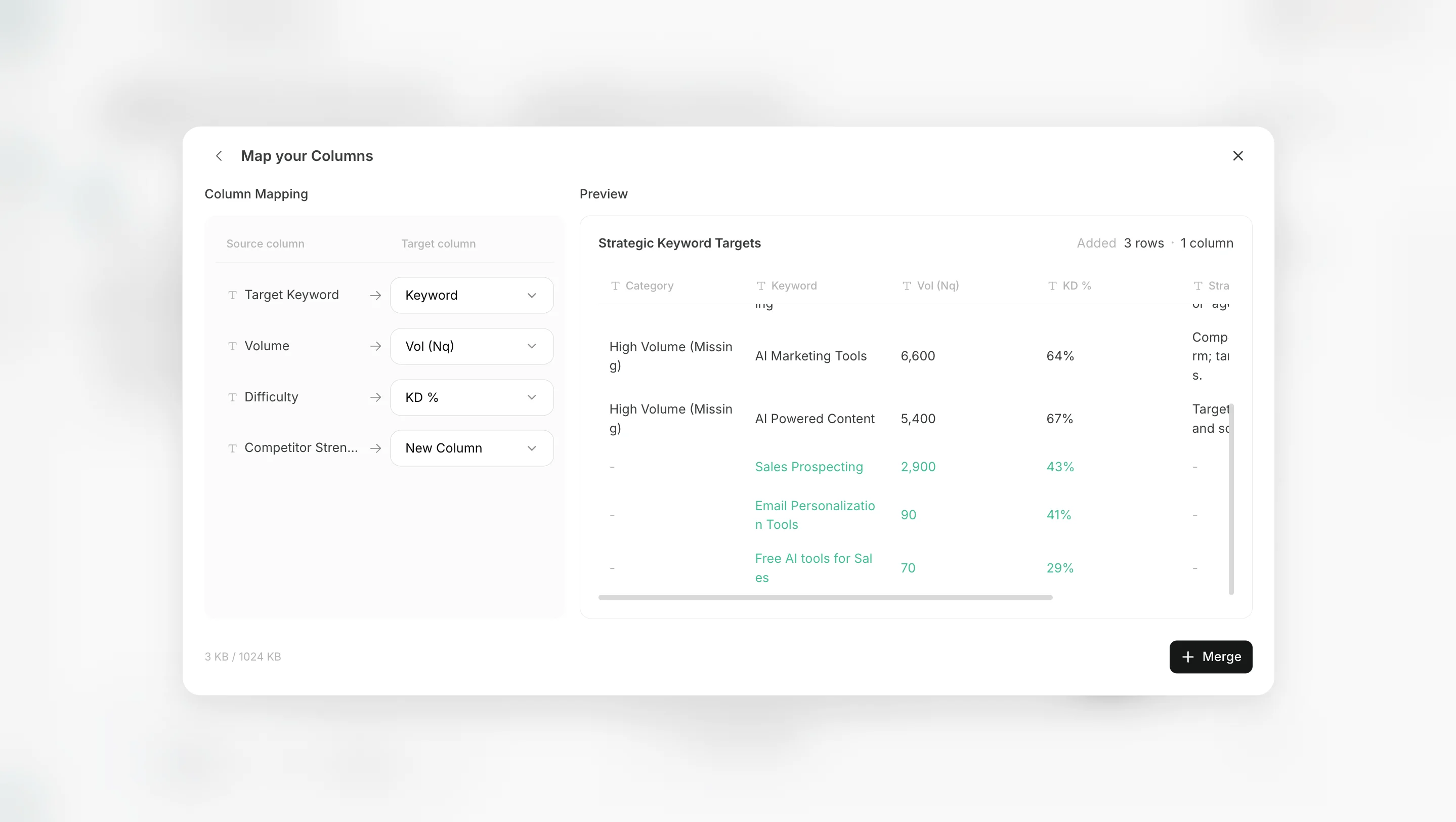
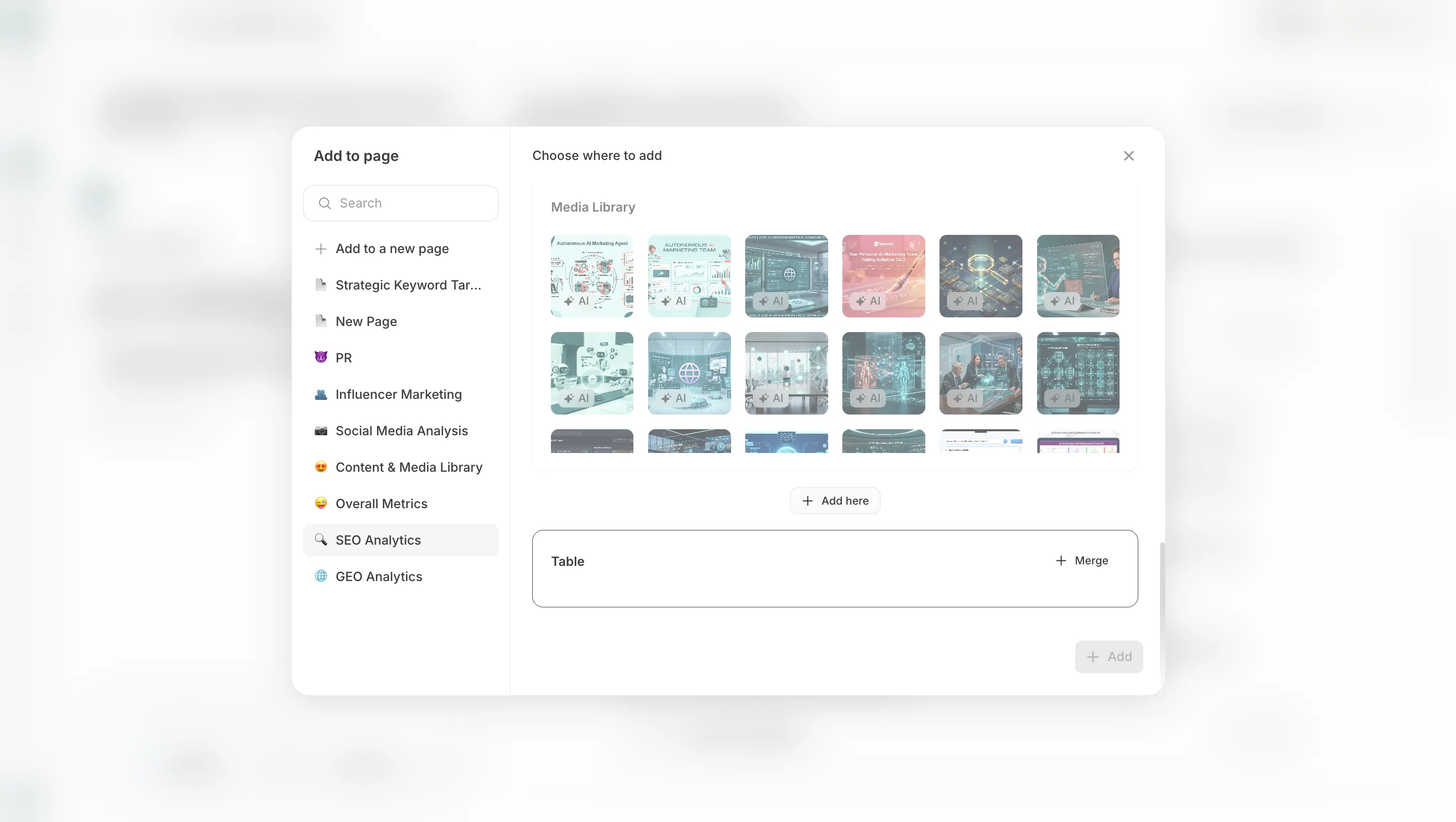 * **Merge into an existing table**: Choose an existing table in the Page and add the rows or columns generated in Chat. Use this when you want to keep the same type of data in one table. Confirm column mapping before adding when needed.
 ## Import CSV into a table
When you have an existing CSV, you can import it into a `Table` block in a Page.
1. Open the CSV import action from the table block and choose a CSV file.
## Import CSV into a table
When you have an existing CSV, you can import it into a `Table` block in a Page.
1. Open the CSV import action from the table block and choose a CSV file.
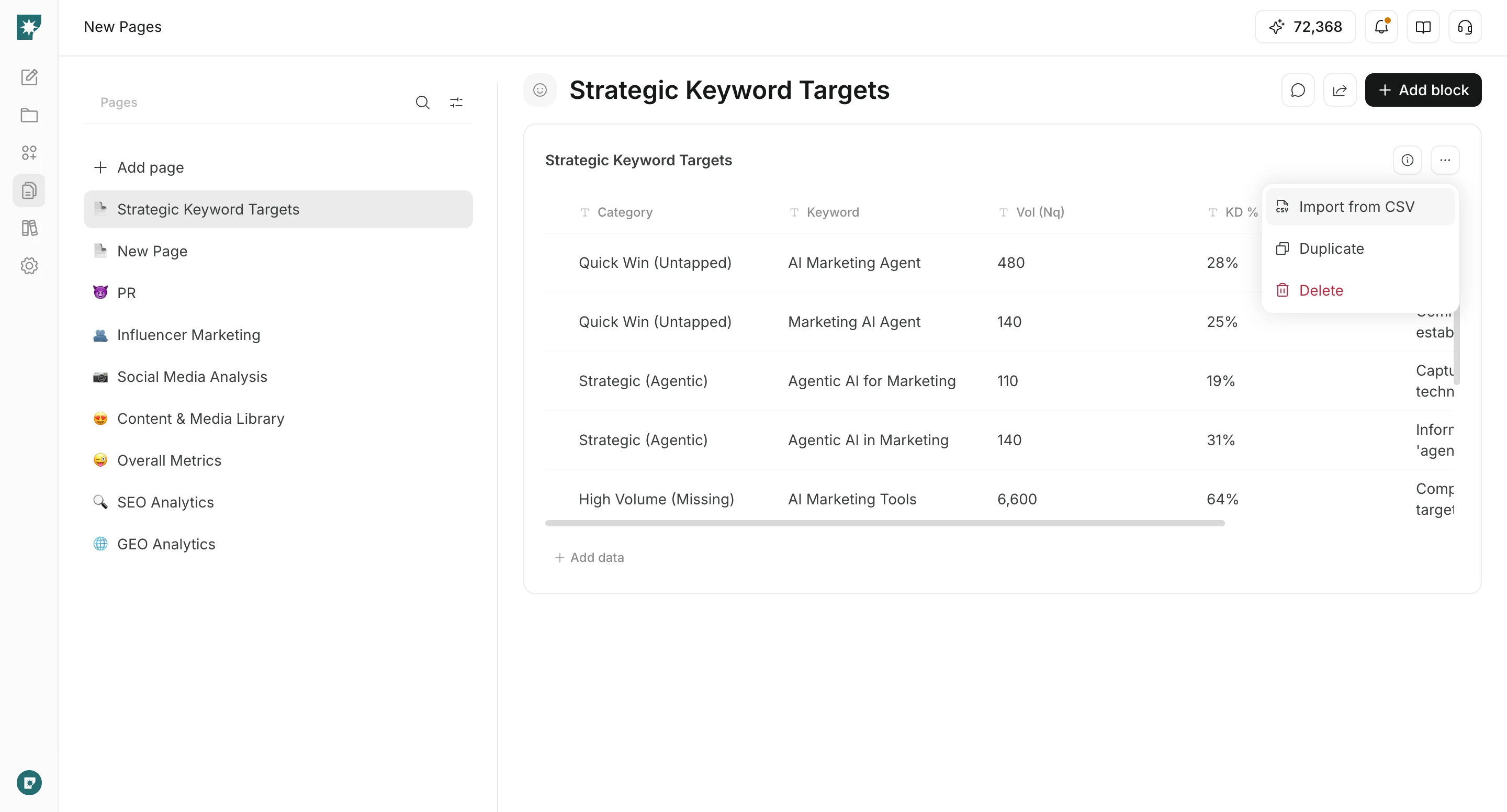 2. Map CSV columns to existing columns or add them as new columns.
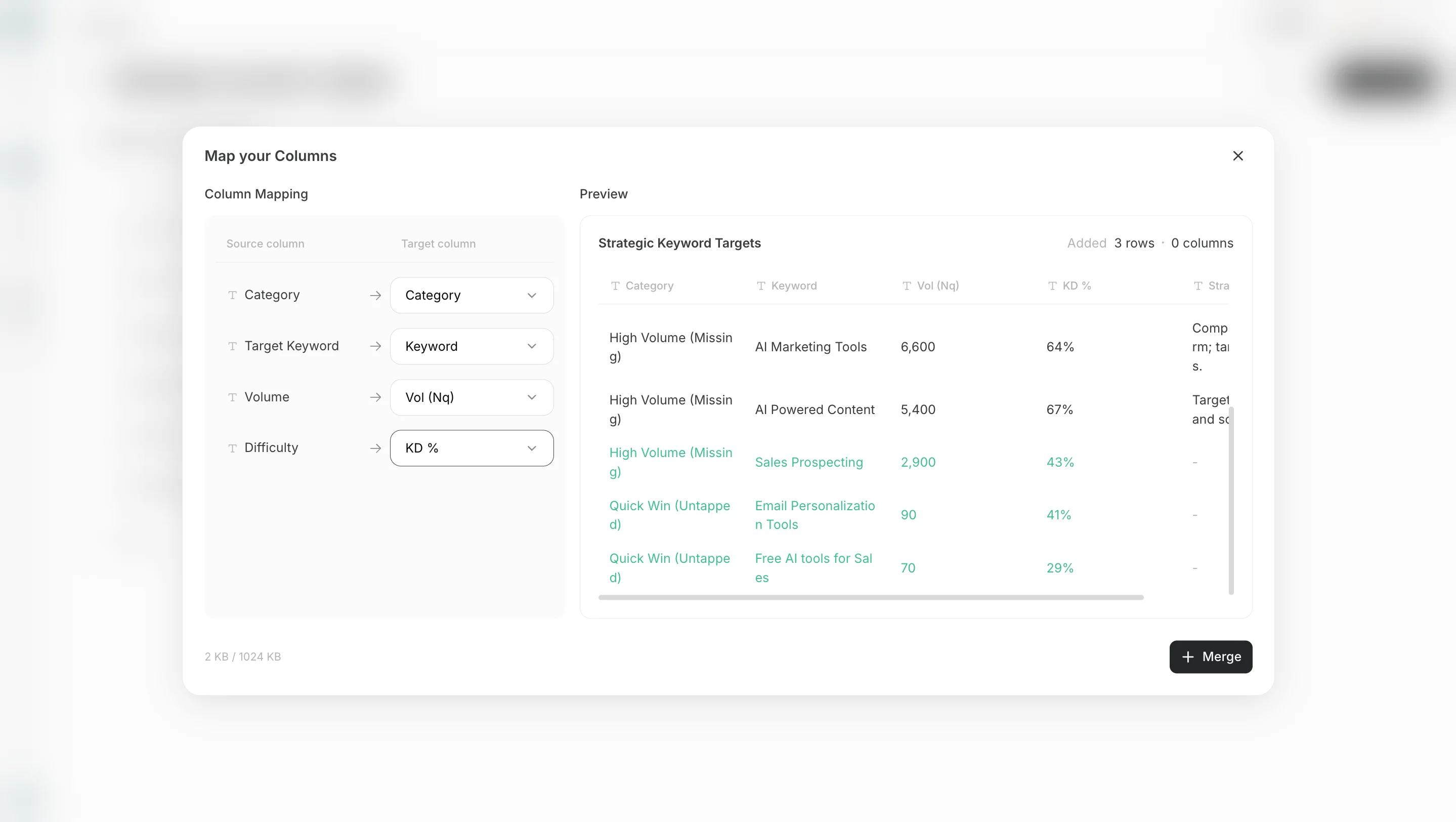 CSV import supports UTF-8, UTF-16, and Shift-JIS. Large CSV files may fail to import, so split files that exceed roughly 5,000 rows.
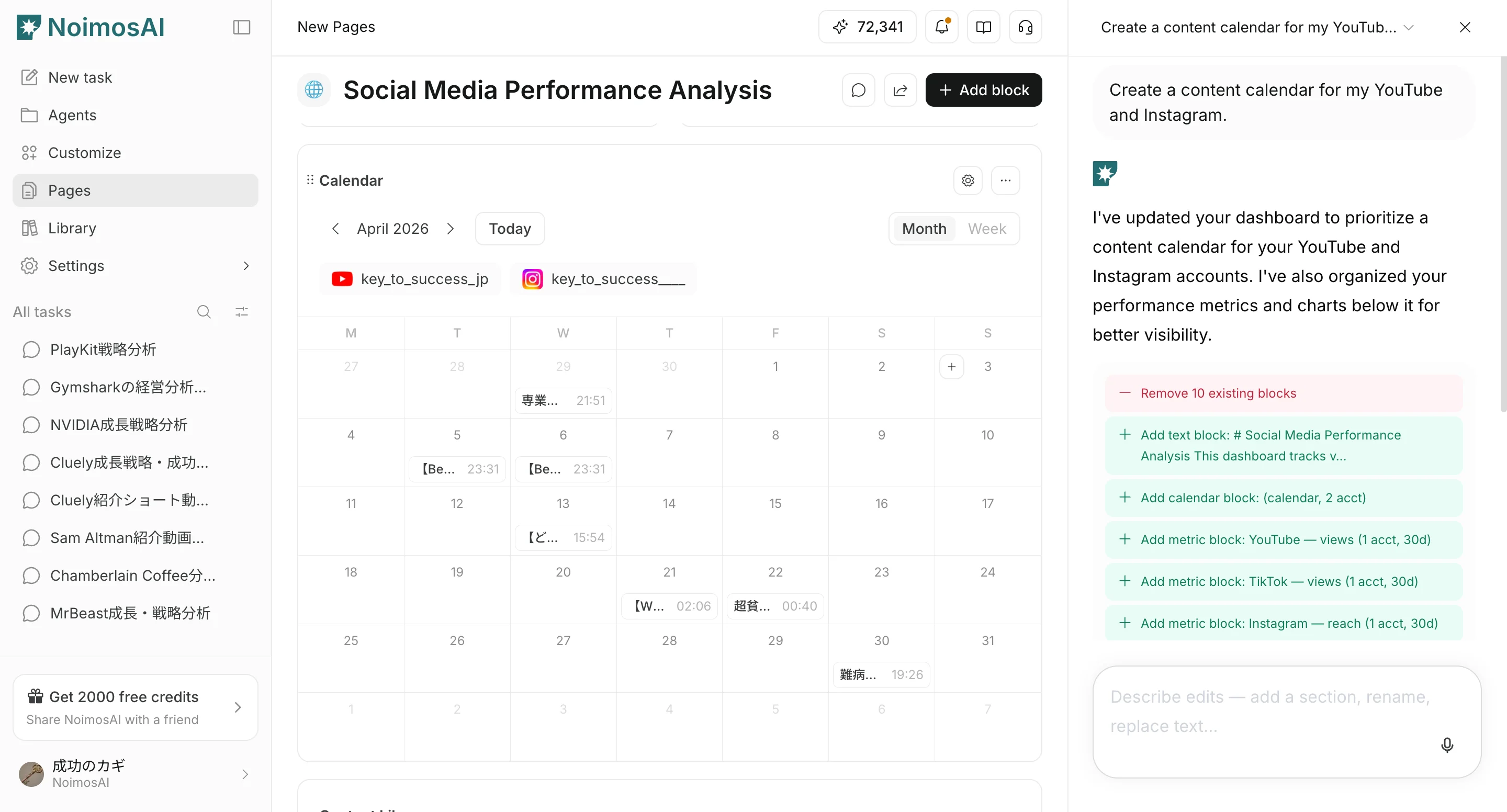
## Edit with Page Chat
`Page Chat` lets you request natural-language edits for the open page.
1. Open `Page Chat` on the right side of the page.
CSV import supports UTF-8, UTF-16, and Shift-JIS. Large CSV files may fail to import, so split files that exceed roughly 5,000 rows.
## Edit with Page Chat
`Page Chat` lets you request natural-language edits for the open page.
1. Open `Page Chat` on the right side of the page.
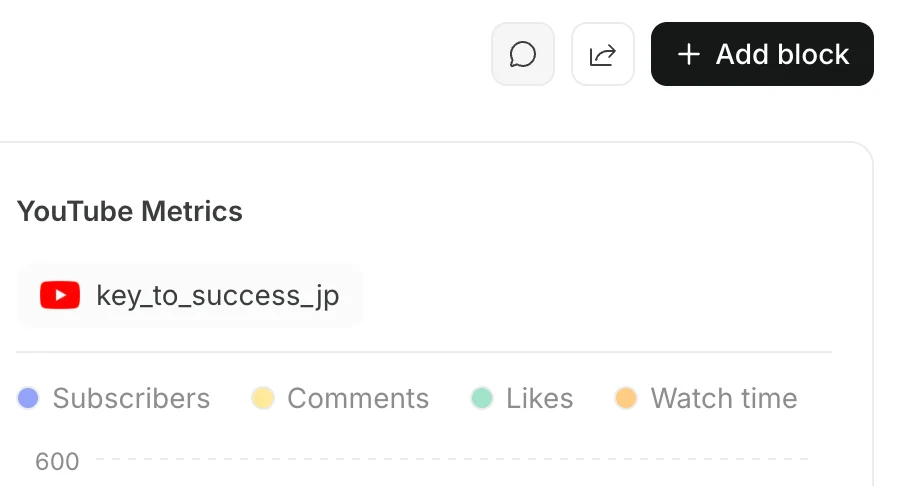 2. Enter what you want to add or change.
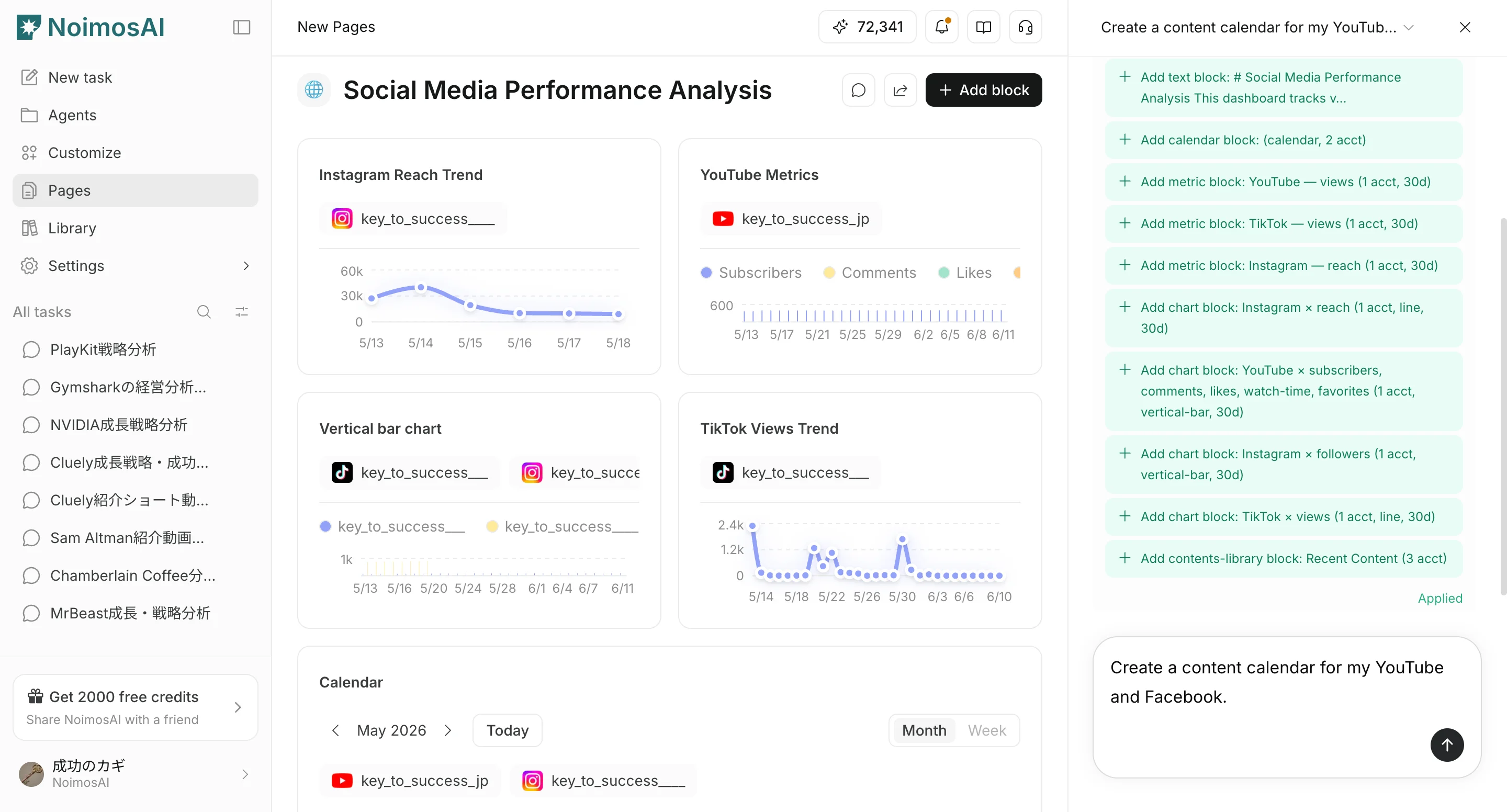 3. `Apply` or discard the proposed changes.
 ## Related pages
* [Block types](/help-center/pages/block-types)
* [Table block](/help-center/pages/table-block)
* [Share and publish pages](/help-center/pages/share-and-publish-pages)
## Related pages
* [Block types](/help-center/pages/block-types)
* [Table block](/help-center/pages/table-block)
* [Share and publish pages](/help-center/pages/share-and-publish-pages)