> ## Documentation Index
> Fetch the complete documentation index at: https://docs.noimosai.com/llms.txt
> Use this file to discover all available pages before exploring further.
# Add and Edit Team Members
> Invite members, update roles, and remove members from your Team.
## Overview
Use this page to manage team access and assign the correct role at Team scope.
In NoimosAI, each person belongs to a Team role first, then gets assigned to one or more Workspaces as needed.
## Before You Start
Confirm access conditions before managing members.
* Open `Team Settings` > `Members`.
* `Admin` and `Member` can invite people.
* `Guest` cannot invite members or create Workspaces.
 ## Team Role Definitions
Use this role model as the baseline before inviting anyone.
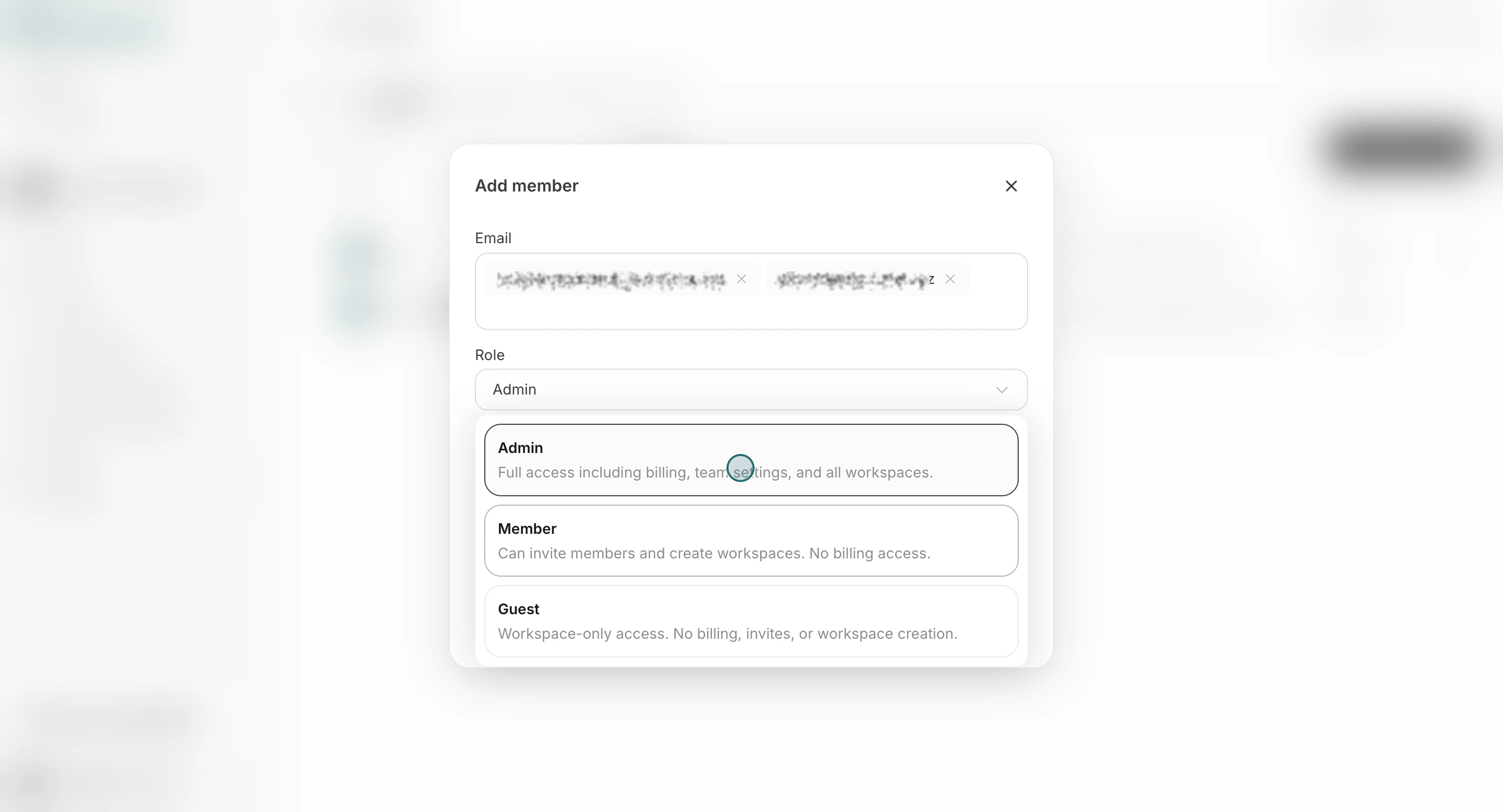
* `Admin`: full Team access, including billing, member management, and Workspace management.
* `Member`: can invite members and create Workspaces, but cannot access billing.
* `Guest`: can access only assigned Workspaces, and cannot access billing, invite members, or create Workspaces.
* If someone is invited as Workspace `Editor` or `Viewer`, they appear as `Guest` at Team level.
## Invite New Members
Use this flow to send invitations with the correct Team role and Workspace assignment.
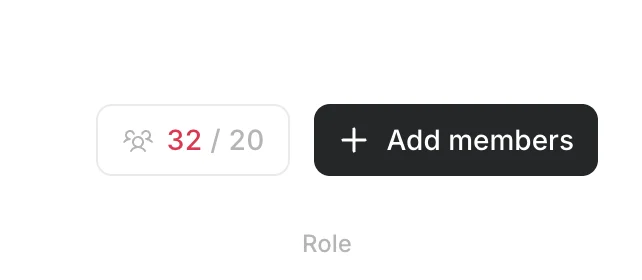
1. Click `Add members`.
2. Enter the member's email address. You can invite multiple people at once when they share the same role and workspace assignment.
## Team Role Definitions
Use this role model as the baseline before inviting anyone.
* `Admin`: full Team access, including billing, member management, and Workspace management.
* `Member`: can invite members and create Workspaces, but cannot access billing.
* `Guest`: can access only assigned Workspaces, and cannot access billing, invite members, or create Workspaces.
* If someone is invited as Workspace `Editor` or `Viewer`, they appear as `Guest` at Team level.
## Invite New Members
Use this flow to send invitations with the correct Team role and Workspace assignment.
1. Click `Add members`.
2. Enter the member's email address. You can invite multiple people at once when they share the same role and workspace assignment.
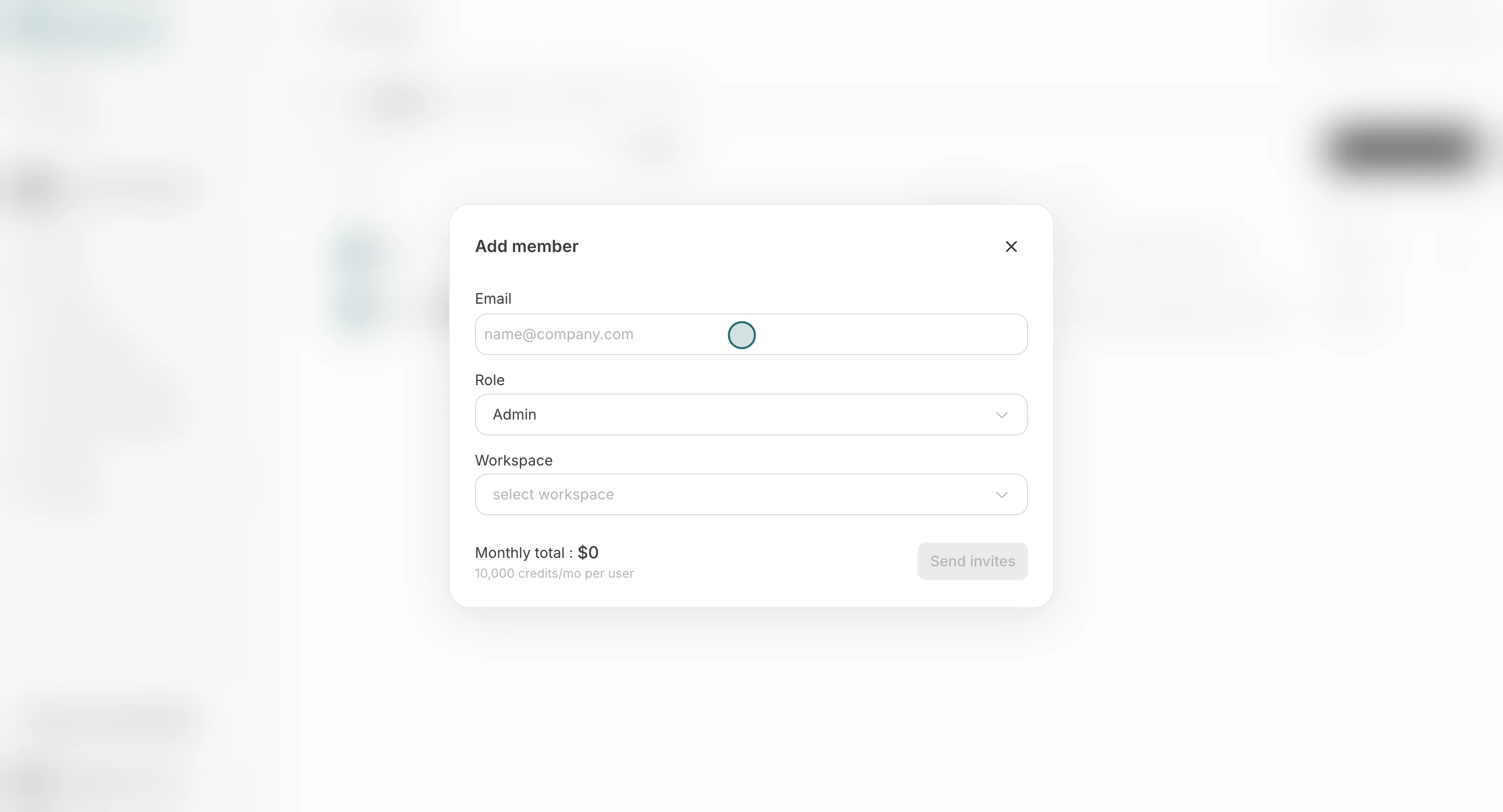 3. Select a Team role (`Admin`, `Member`, or `Guest`).
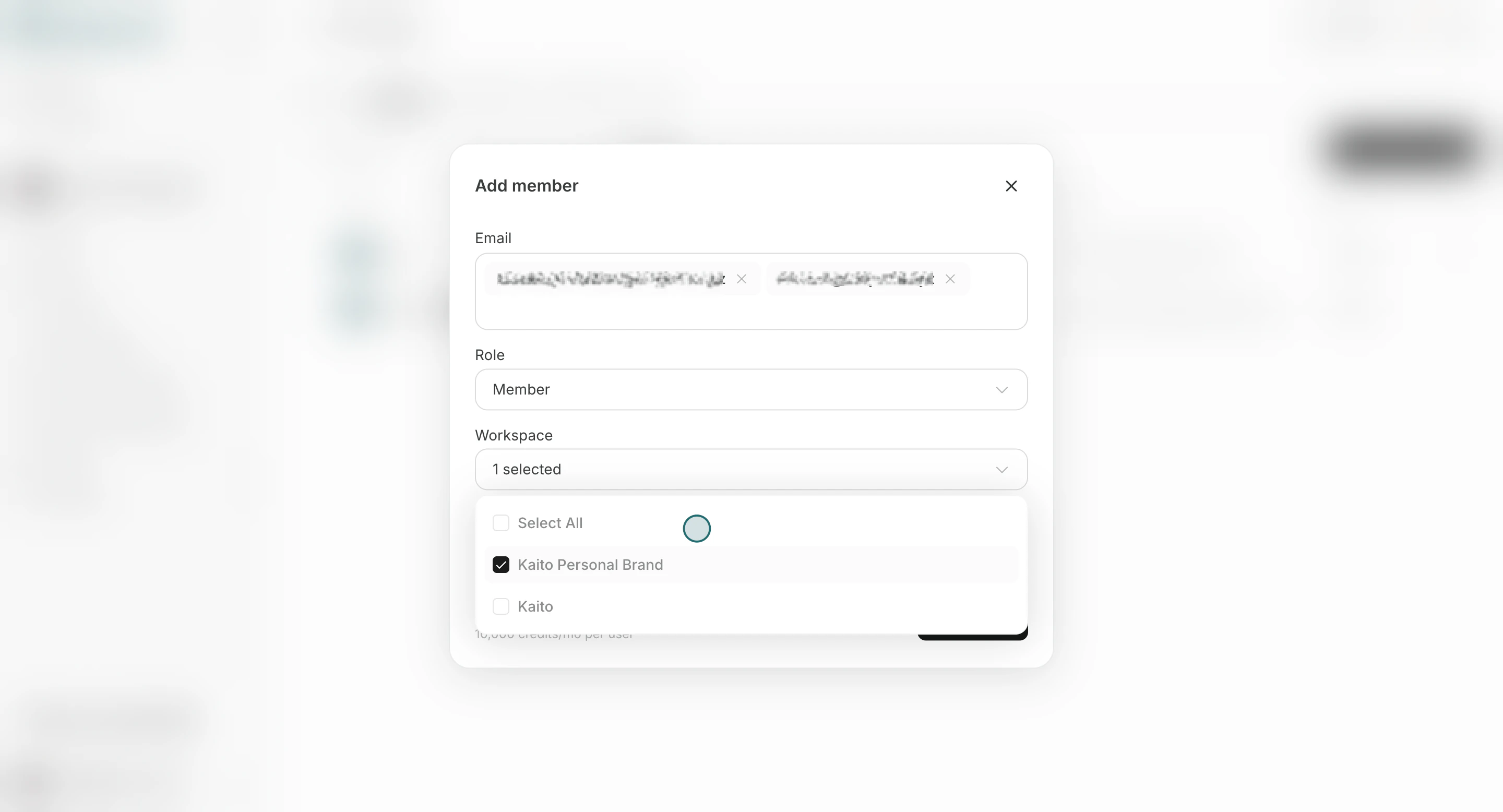
 4. Select which Workspaces the member should join.
 5. Click `Send invites`.
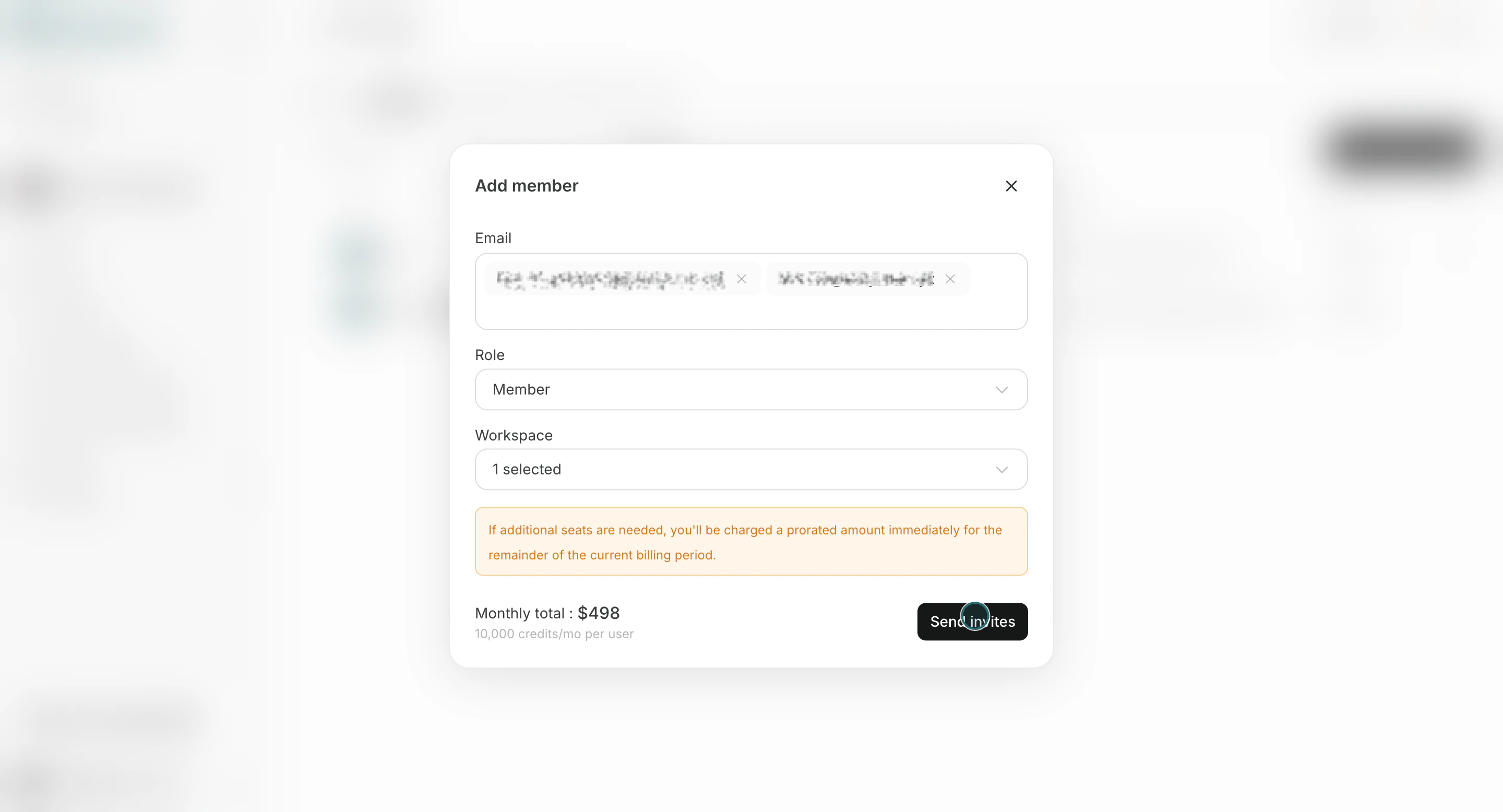 Invited users appear in the member list until they join.
## Change Member's Role
Use this section to update access level when responsibilities change.
1. Open the row menu and click `Manage role`.
Invited users appear in the member list until they join.
## Change Member's Role
Use this section to update access level when responsibilities change.
1. Open the row menu and click `Manage role`.
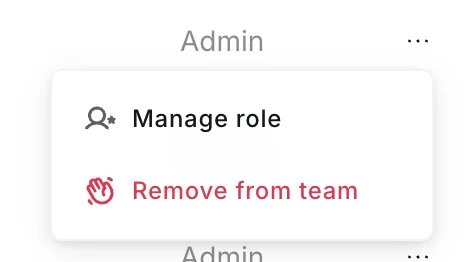 2. Change the role and click `Save`.
You cannot change your own role from the role editor.
## Remove Member
Use this section when someone should no longer access the Team.
1. Open the row menu and click `Remove from team`.
2. Change the role and click `Save`.
You cannot change your own role from the role editor.
## Remove Member
Use this section when someone should no longer access the Team.
1. Open the row menu and click `Remove from team`.
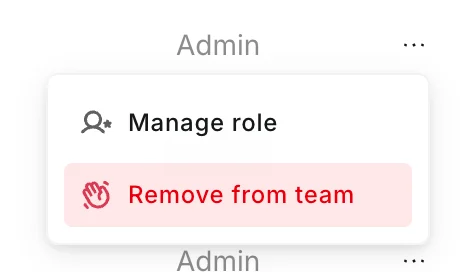 2. Confirm deletion.
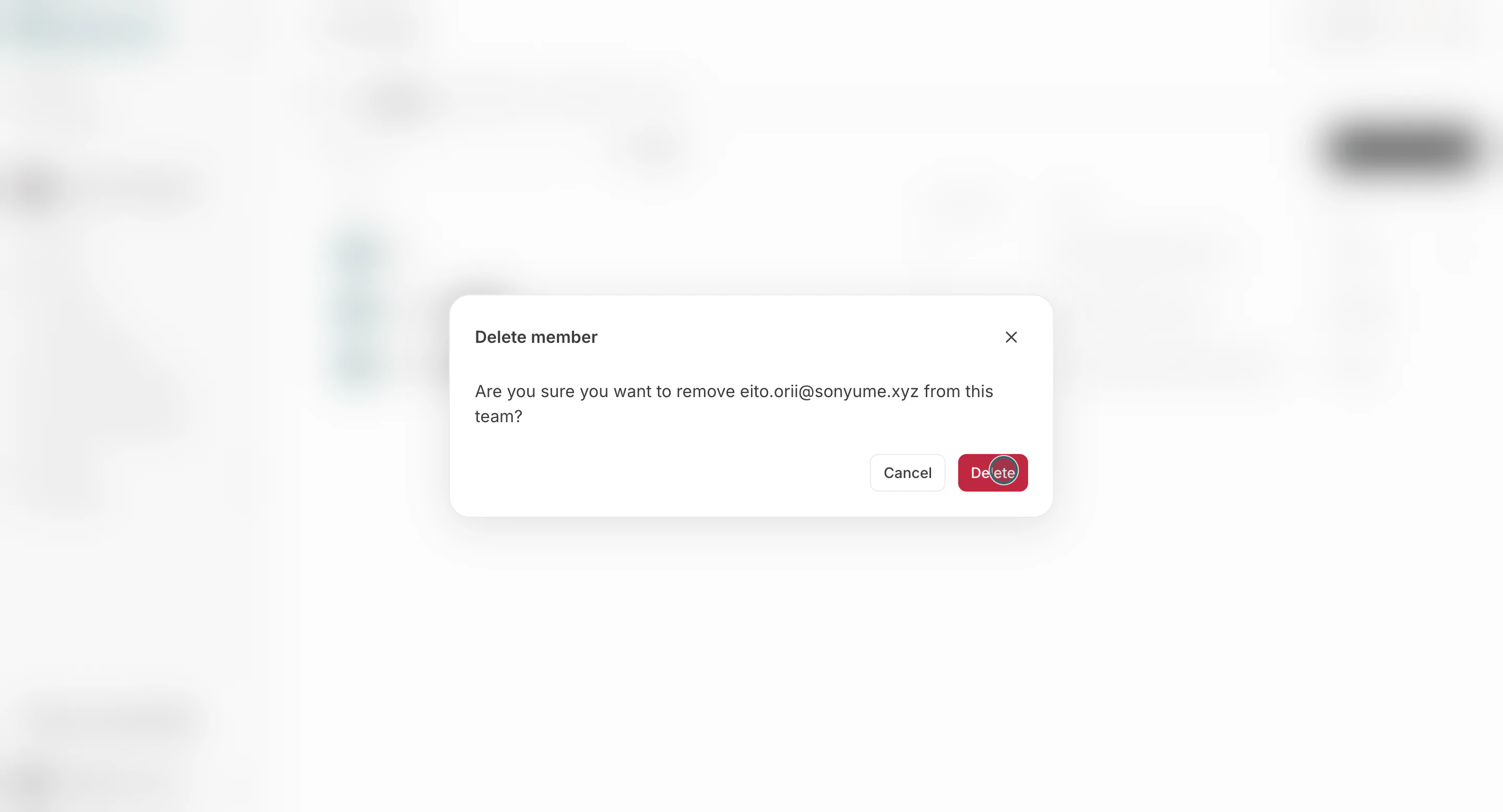 If the member is an admin, reassign responsibilities before removal.
## Notes
Review these constraints before finalizing changes.
* Team seat limits can prevent additional invitations.
* Removing a member from the Team also removes their Team-level access.
## Related
Use these related pages for deeper guidance.
* [Team Basics](/help-center/team/team-basics)
* [Change Team Name and Profile Image](/help-center/team/change-team-name-and-profile-image)
If the member is an admin, reassign responsibilities before removal.
## Notes
Review these constraints before finalizing changes.
* Team seat limits can prevent additional invitations.
* Removing a member from the Team also removes their Team-level access.
## Related
Use these related pages for deeper guidance.
* [Team Basics](/help-center/team/team-basics)
* [Change Team Name and Profile Image](/help-center/team/change-team-name-and-profile-image)