> ## Documentation Index
> Fetch the complete documentation index at: https://docs.noimosai.com/llms.txt
> Use this file to discover all available pages before exploring further.
# Change Team Name and Profile Image
> Update your Team name and profile image from Team Settings.
## Overview
Use Team identity settings to keep multiple Teams easy to distinguish in the sidebar and settings screens.
## Where To Find
Use the following path to open this area.
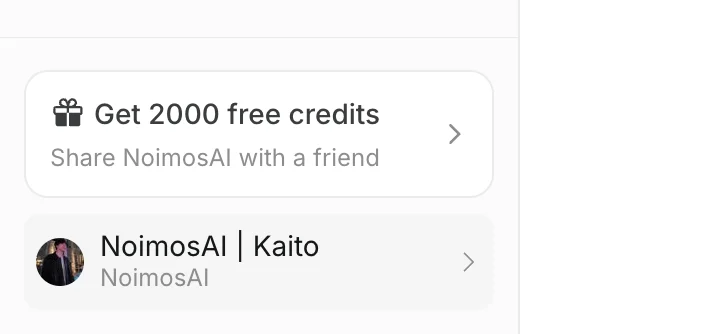
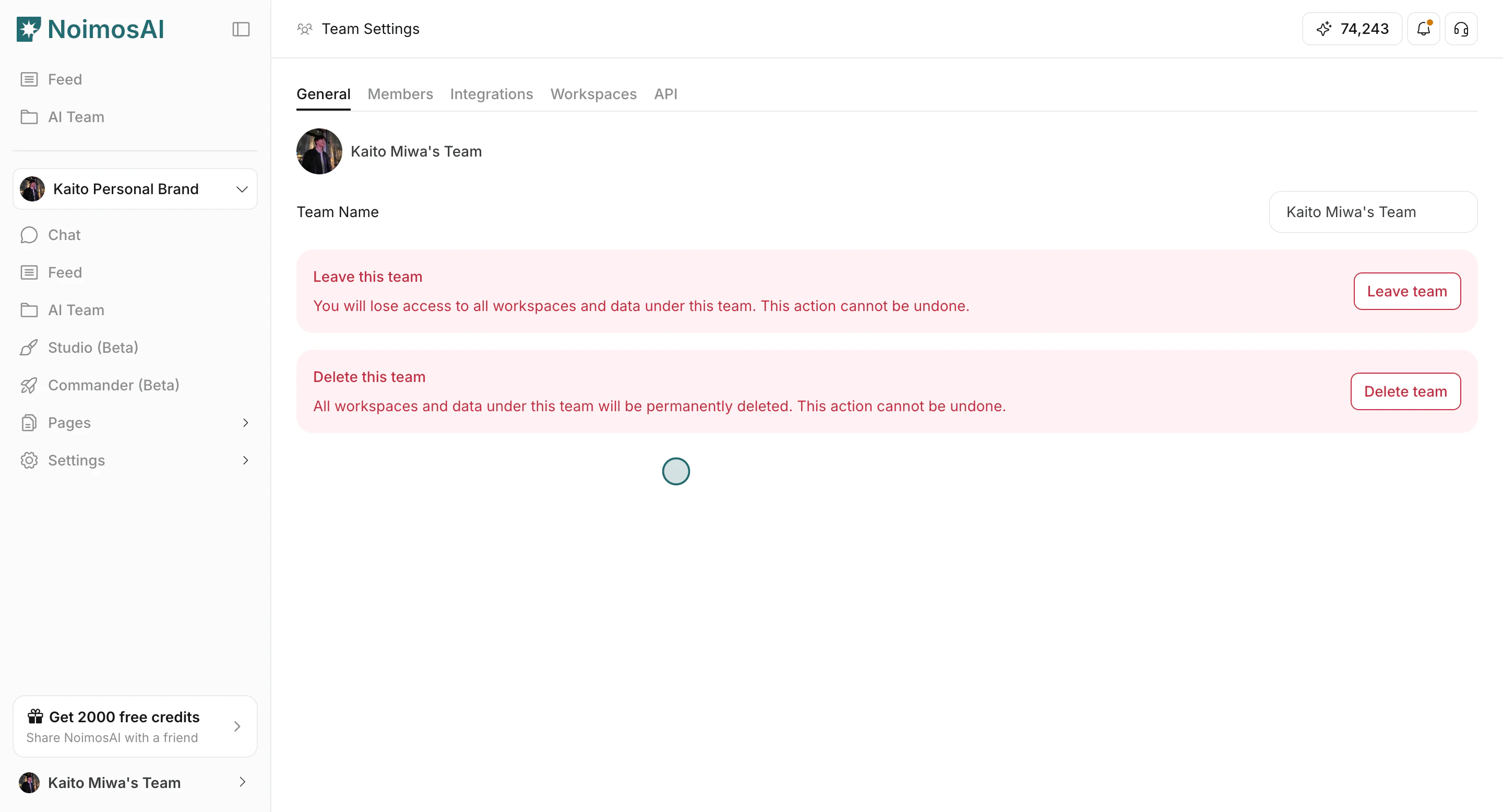
1. Select a Team from the left sidebar.
2. Open `Team Settings`.
3. Go to `General`.
 ## Change Team Name
Use this section to understand change team name and what to confirm while completing this part.
1. Edit the `Team Name` field.
## Change Team Name
Use this section to understand change team name and what to confirm while completing this part.
1. Edit the `Team Name` field.
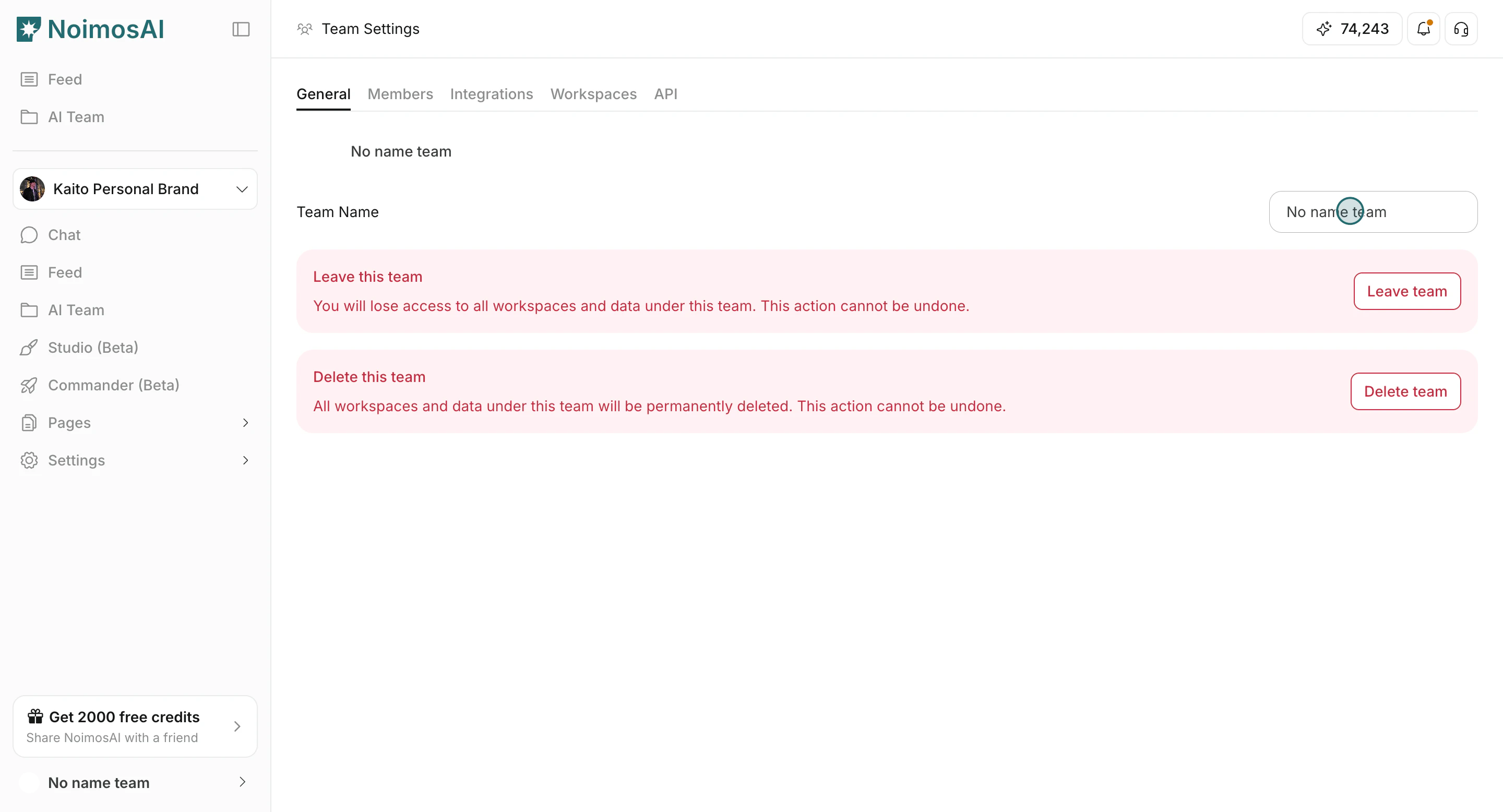 2. Click outside the input to apply the change.
 ## Change Team Profile Image
Use this section to understand change team profile image and what to confirm while completing this part.
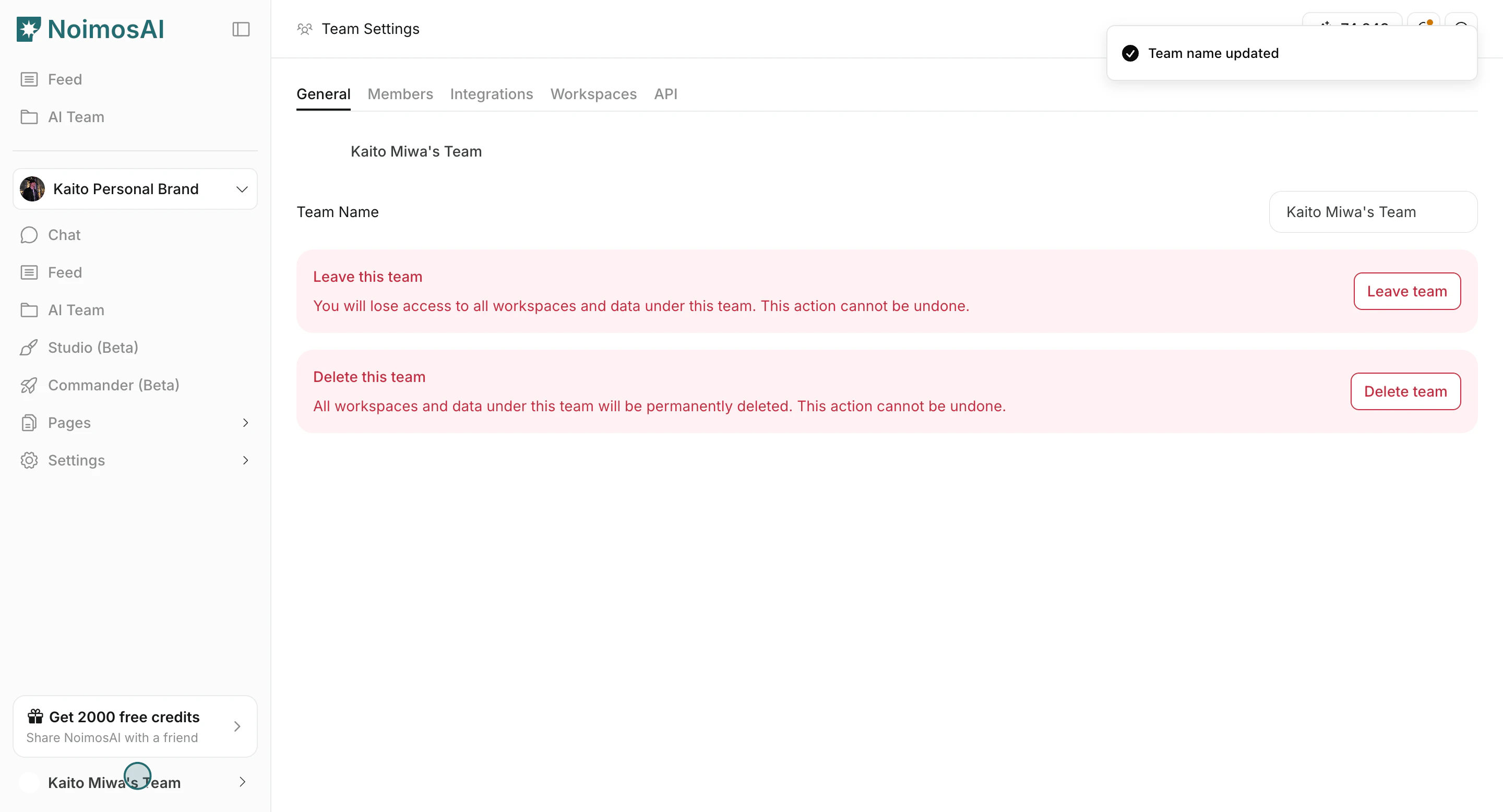
1. Click the Team profile image icon in `General`.
## Change Team Profile Image
Use this section to understand change team profile image and what to confirm while completing this part.
1. Click the Team profile image icon in `General`.
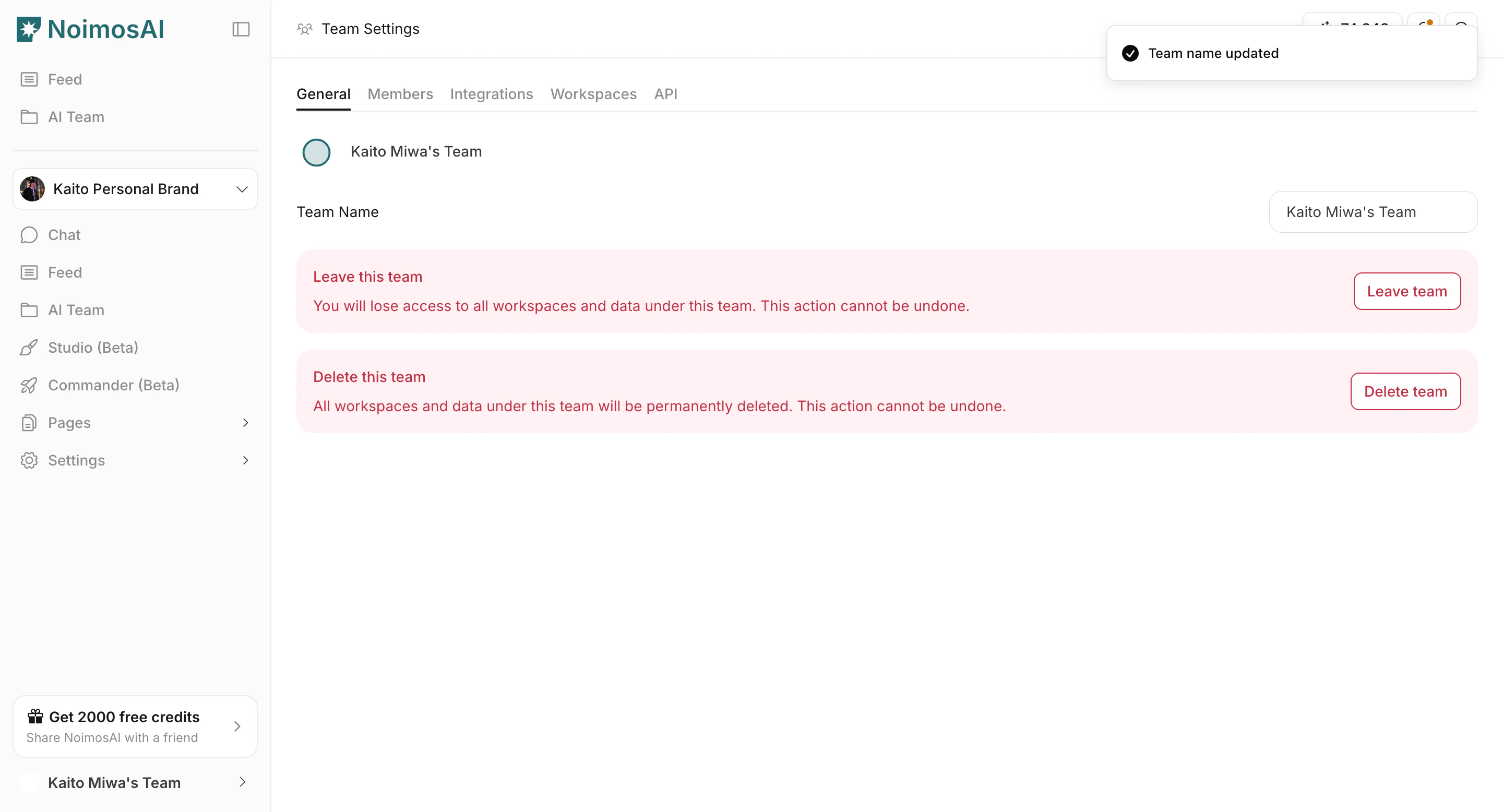 2. Upload a new image file.
 ## File Requirements
Use this section to understand file requirements and what to confirm while completing this part.
* Use an image file format.
* Maximum file size is 5 MB.
## Tips
Use these tips to improve consistency and output quality.
* Use clear team names, especially when you operate multiple Teams.
* Keep profile image icons visually distinct so members can switch context quickly.
## Related
Use these related pages for deeper guidance.
* [Team Basics](/help-center/team/team-basics)
* [Leave or Delete a Team](/help-center/team/leave-or-delete-a-team)
## File Requirements
Use this section to understand file requirements and what to confirm while completing this part.
* Use an image file format.
* Maximum file size is 5 MB.
## Tips
Use these tips to improve consistency and output quality.
* Use clear team names, especially when you operate multiple Teams.
* Keep profile image icons visually distinct so members can switch context quickly.
## Related
Use these related pages for deeper guidance.
* [Team Basics](/help-center/team/team-basics)
* [Leave or Delete a Team](/help-center/team/leave-or-delete-a-team)