> ## Documentation Index
> Fetch the complete documentation index at: https://docs.noimosai.com/llms.txt
> Use this file to discover all available pages before exploring further.
# Publishing and Updating Your Website
> This explains the process of publishing the website you created and updating an already published site.
## Overview
You can publish your website after reviewing its content in preview.
With NoimosAI, you can create, edit, publish, and improve your website all in one place, enabling efficient management.
 ## Things to Check Before Publishing
Before publishing, at minimum, check the following:
* There are no errors in the text
* CTAs and link destinations are as intended
* There are no major layout issues on smartphone displays
* SEO and GEO measures are sufficient
Minor improvements can be made after publishing. For the pre-publish check, prioritize verifying misinformation, broken links, and publishing scope issues.
## Deciding the Publishing URL and Domain
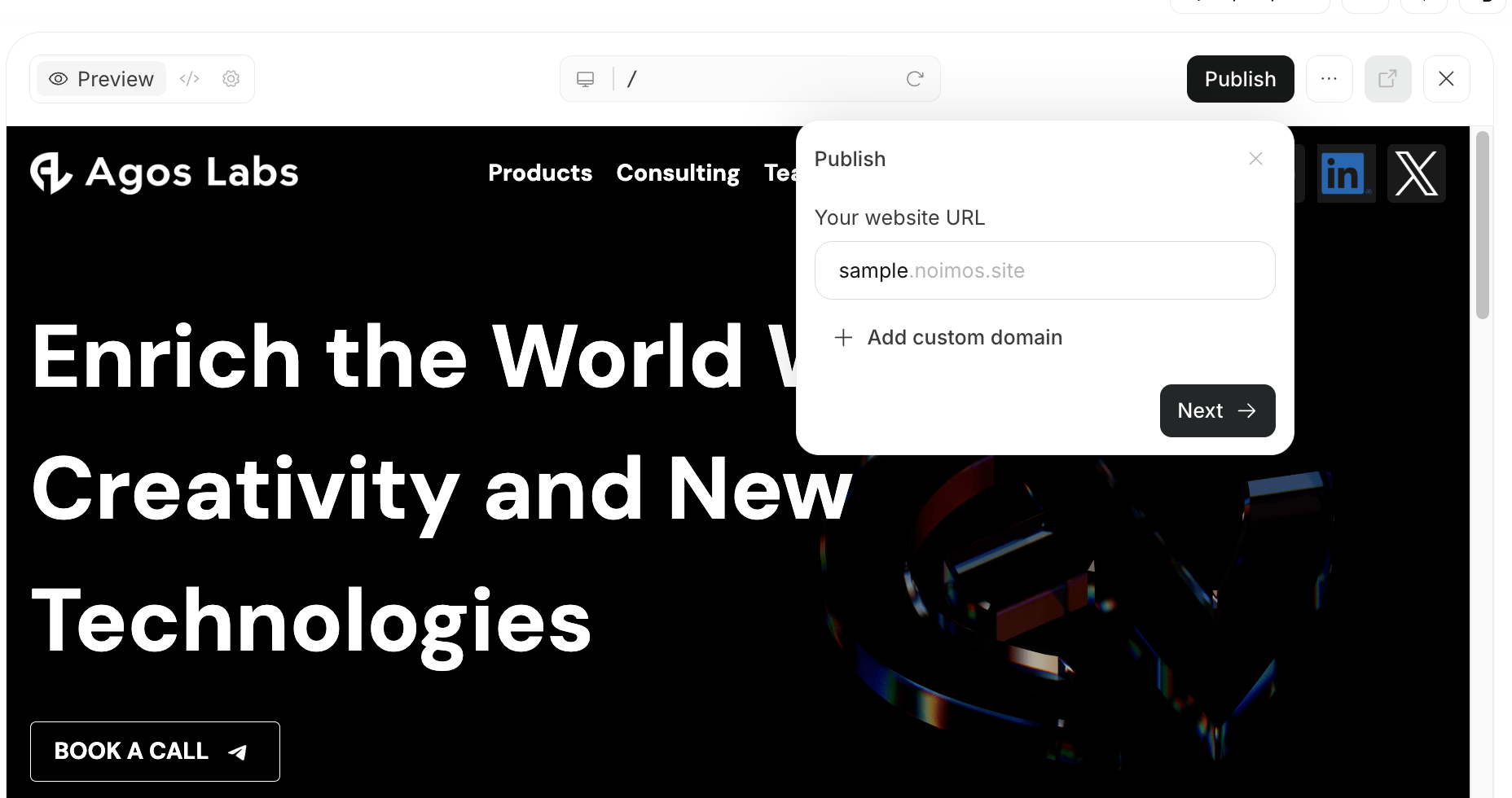
When publishing your website, you decide the URL that external users will access.
If you are not yet using a custom domain, you can publish using a NoimosAI subdomain. You can publish first to review the content and switch to a custom domain later.
If you want to publish with a URL matching your brand or service name, connect a custom domain. If you already have a domain, enter it and configure DNS settings as needed.
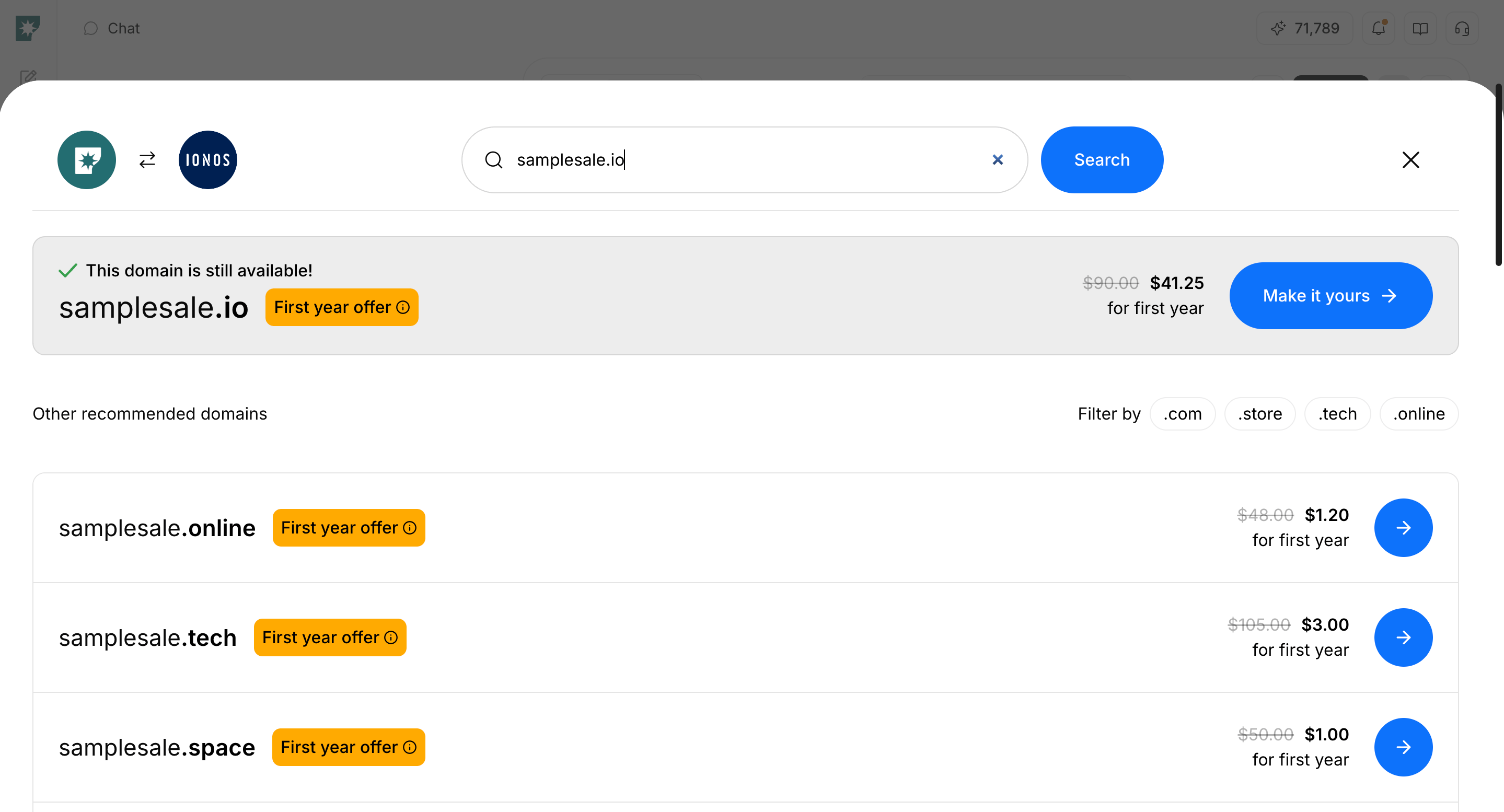
If you do not have a new domain, you can purchase one within NoimosAI. Domains purchased through NoimosAI allow connection and DNS setup to be handled on the NoimosAI side, reducing manual configuration and making publishing preparation easier.
| Usage | Suitable Scenario |
| --------------------------------- | ------------------------------------------------------------------------------ |
| Publish with NoimosAI subdomain | When you want to publish quickly first and check the content |
| Connect an existing custom domain | When you want to publish using a domain you already own for your brand/service |
| Purchase a new domain | When you want to prepare a domain specifically for your website |
## Things to Check Before Publishing
Before publishing, at minimum, check the following:
* There are no errors in the text
* CTAs and link destinations are as intended
* There are no major layout issues on smartphone displays
* SEO and GEO measures are sufficient
Minor improvements can be made after publishing. For the pre-publish check, prioritize verifying misinformation, broken links, and publishing scope issues.
## Deciding the Publishing URL and Domain
When publishing your website, you decide the URL that external users will access.
If you are not yet using a custom domain, you can publish using a NoimosAI subdomain. You can publish first to review the content and switch to a custom domain later.
If you want to publish with a URL matching your brand or service name, connect a custom domain. If you already have a domain, enter it and configure DNS settings as needed.
If you do not have a new domain, you can purchase one within NoimosAI. Domains purchased through NoimosAI allow connection and DNS setup to be handled on the NoimosAI side, reducing manual configuration and making publishing preparation easier.
| Usage | Suitable Scenario |
| --------------------------------- | ------------------------------------------------------------------------------ |
| Publish with NoimosAI subdomain | When you want to publish quickly first and check the content |
| Connect an existing custom domain | When you want to publish using a domain you already own for your brand/service |
| Purchase a new domain | When you want to prepare a domain specifically for your website |
 ## Publishing a New Website
1. Open the target website
2. Check the display in `Preview`
3. Request corrections via chat if needed
4. Open `Publish`
5. Confirm the subdomain to use for the publishing URL
6. If using a custom domain, connect the domain or purchase a new one
7. Execute `Publish`
8. Verify the display at the publishing URL
## Updating a Published Website
When you edit a published website, review the changes before publishing the update.
1. Open the target website
2. Request corrections via chat or make necessary edits
3. Check the changes in `Preview`
4. If there are no issues, `Publish Update`
5. Confirm the changes are reflected at the publishing URL
## Difference Between Preview and Publishing URL
`Preview` is a screen within NoimosAI to check the website you are editing. It lets you review content before publishing or changes not yet reflected on the published site.
`Publishing URL` is the URL issued after executing `Publish`, which external users can access. If you have not connected a custom domain, it is published on a NoimosAI subdomain. If you have connected a custom domain, it is published at that domain's URL.
## Related Pages
* [Website Basics](/help-center/website/website-basics)
* [Create a New Website](/help-center/website/create-and-edit-website)
* [Edit a Website](/help-center/website/edit-website)
* [Manage Website Settings](/help-center/website/manage-website-settings)
* [Google Analytics](/help-center/integrations/analytics-and-data/google-analytics)
* [Google Search Console](/help-center/integrations/analytics-and-data/google-search-console)
## Publishing a New Website
1. Open the target website
2. Check the display in `Preview`
3. Request corrections via chat if needed
4. Open `Publish`
5. Confirm the subdomain to use for the publishing URL
6. If using a custom domain, connect the domain or purchase a new one
7. Execute `Publish`
8. Verify the display at the publishing URL
## Updating a Published Website
When you edit a published website, review the changes before publishing the update.
1. Open the target website
2. Request corrections via chat or make necessary edits
3. Check the changes in `Preview`
4. If there are no issues, `Publish Update`
5. Confirm the changes are reflected at the publishing URL
## Difference Between Preview and Publishing URL
`Preview` is a screen within NoimosAI to check the website you are editing. It lets you review content before publishing or changes not yet reflected on the published site.
`Publishing URL` is the URL issued after executing `Publish`, which external users can access. If you have not connected a custom domain, it is published on a NoimosAI subdomain. If you have connected a custom domain, it is published at that domain's URL.
## Related Pages
* [Website Basics](/help-center/website/website-basics)
* [Create a New Website](/help-center/website/create-and-edit-website)
* [Edit a Website](/help-center/website/edit-website)
* [Manage Website Settings](/help-center/website/manage-website-settings)
* [Google Analytics](/help-center/integrations/analytics-and-data/google-analytics)
* [Google Search Console](/help-center/integrations/analytics-and-data/google-search-console)