> ## Documentation Index
> Fetch the complete documentation index at: https://docs.noimosai.com/llms.txt
> Use this file to discover all available pages before exploring further.
# Add and Remove Members
> Invite members, assign roles, and remove access for a workspace.
## Overview
Workspace member management controls who can access the workspace and what each member can do.
## Where to find
Use the following path to open this area.
* `Workspace -> Settings -> Add members`
* `Workspace -> Settings -> Basic information -> Members`
## Add Members
Use this section to add members with the correct workspace role.
1. Open `Add members`.
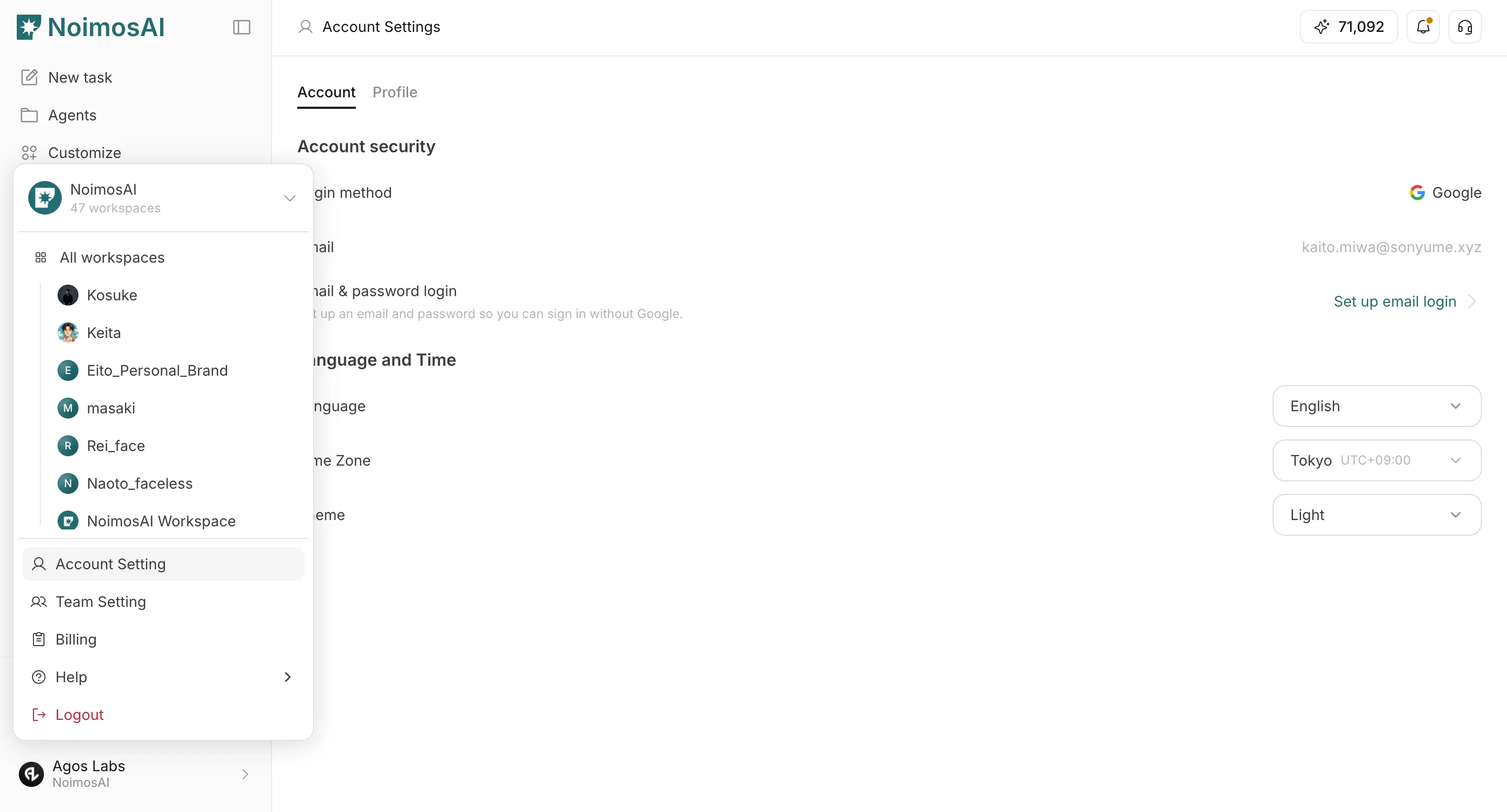 2. Choose `Add team member` or `Invite new member`, then enter the email.
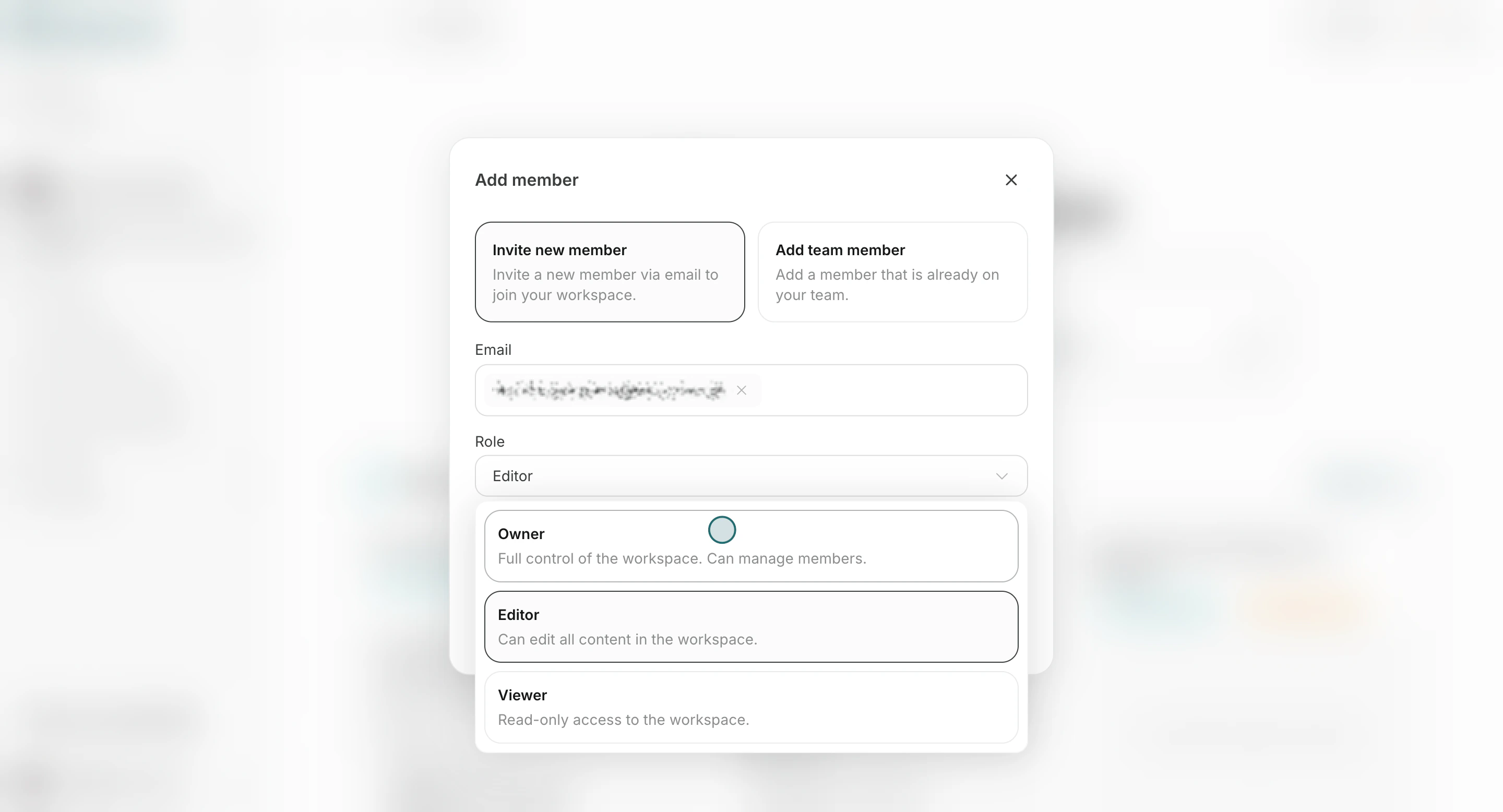
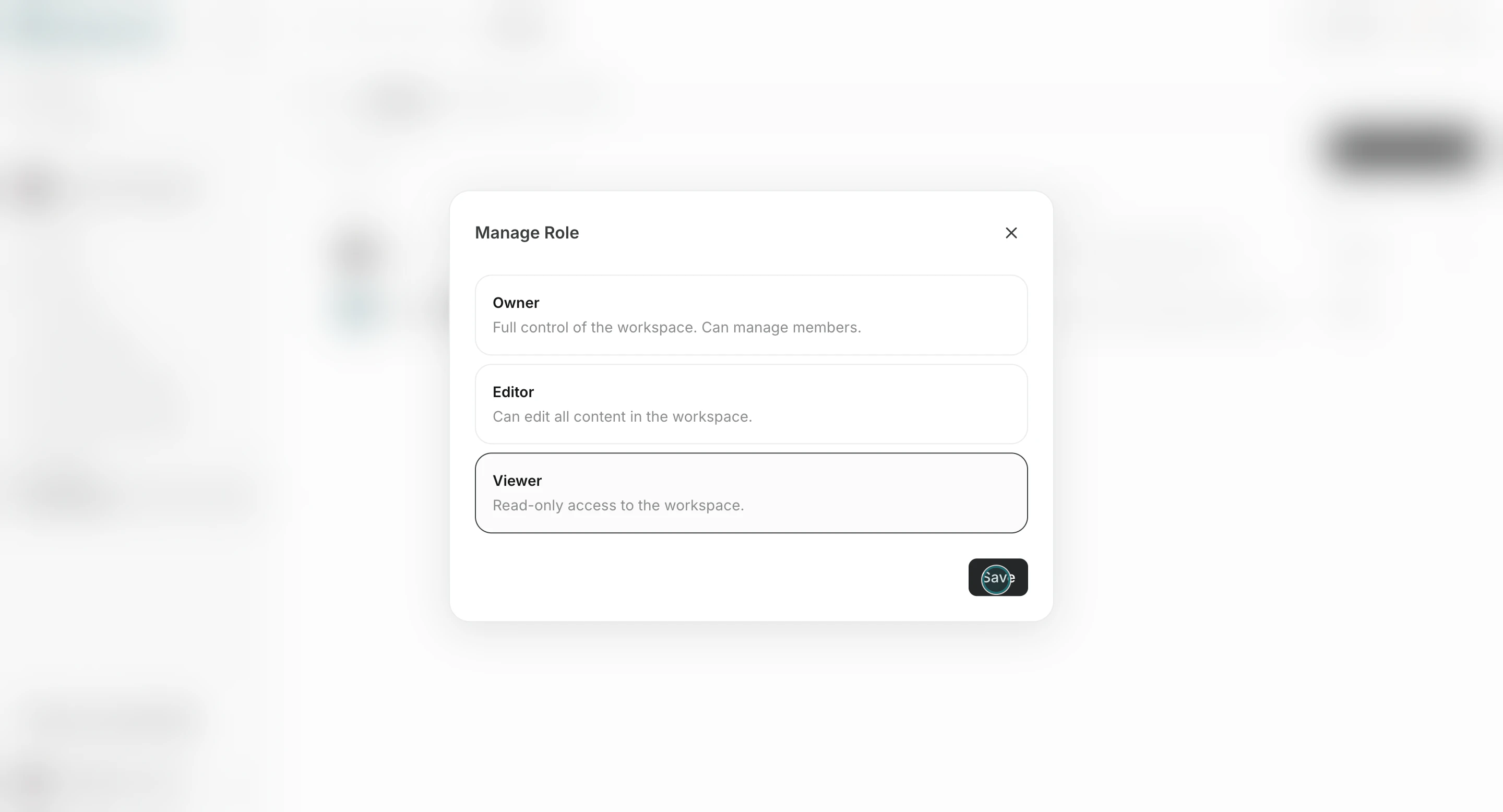
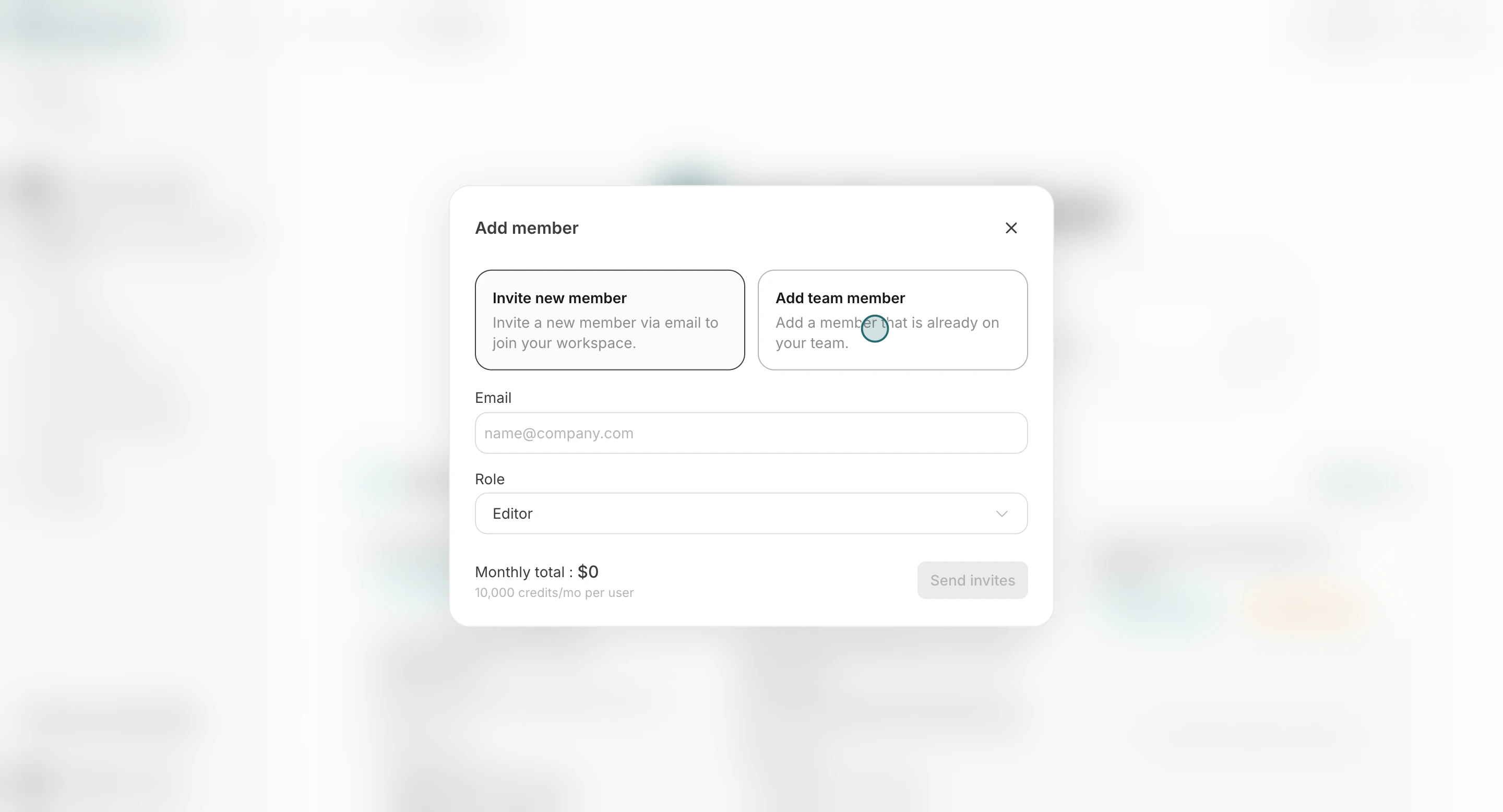 3. Select a role (`Owner`, `Editor`, or `Viewer`).
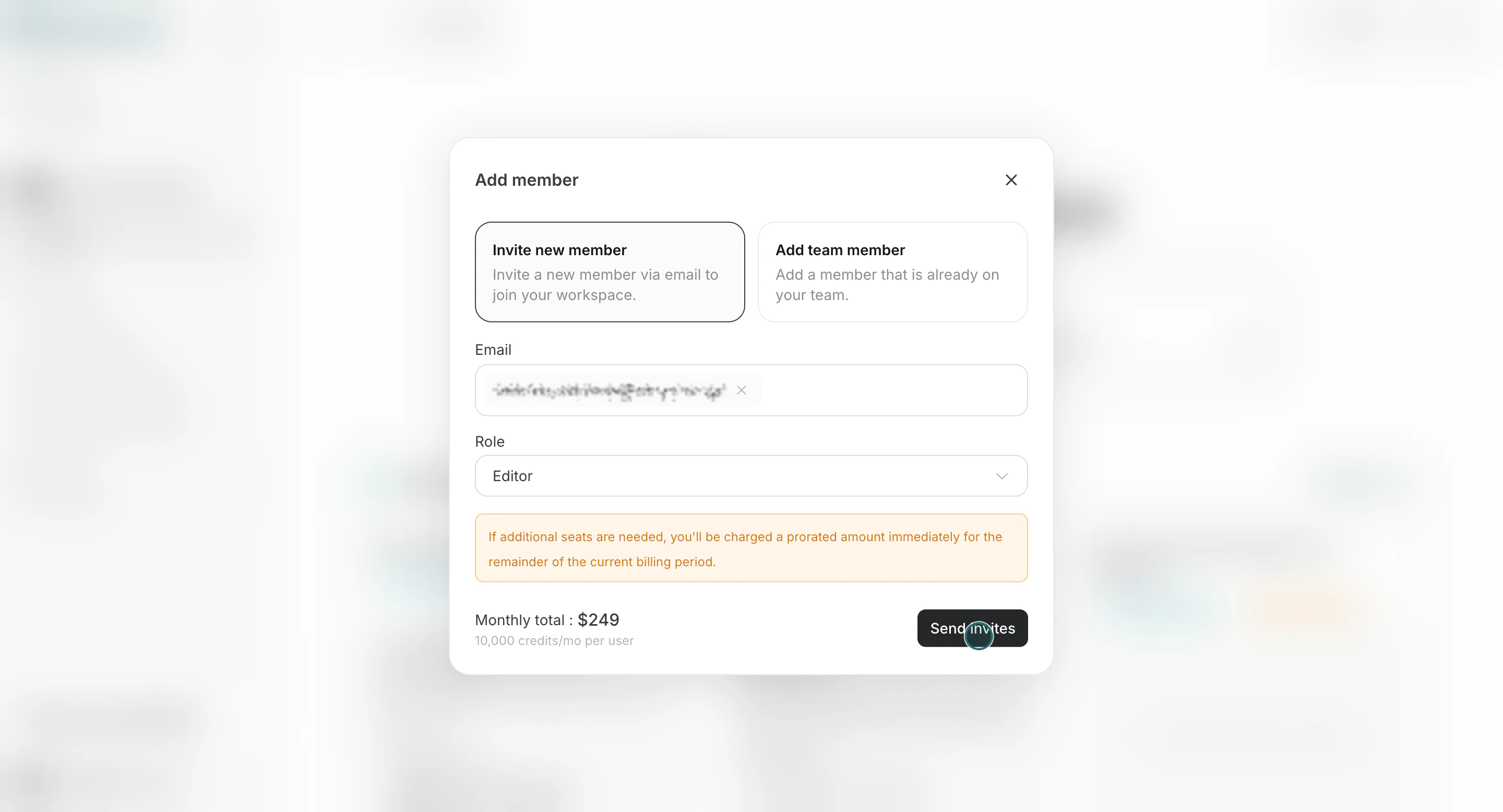
 4. Click `Send invites`.
 Role behavior:
* `Owner`: full control in that workspace, including inviting members.
* `Editor`: can edit workspace content and settings, but cannot invite members.
* `Viewer`: read-only access.
* People invited as Workspace `Editor` or `Viewer` appear as `Guest` at Team level.
## Review, Change, or Remove Members
Use this section to understand review, change, or remove members and what to confirm while completing this part.
1. Open the `Members` tab and select a member from the list.
Role behavior:
* `Owner`: full control in that workspace, including inviting members.
* `Editor`: can edit workspace content and settings, but cannot invite members.
* `Viewer`: read-only access.
* People invited as Workspace `Editor` or `Viewer` appear as `Guest` at Team level.
## Review, Change, or Remove Members
Use this section to understand review, change, or remove members and what to confirm while completing this part.
1. Open the `Members` tab and select a member from the list.
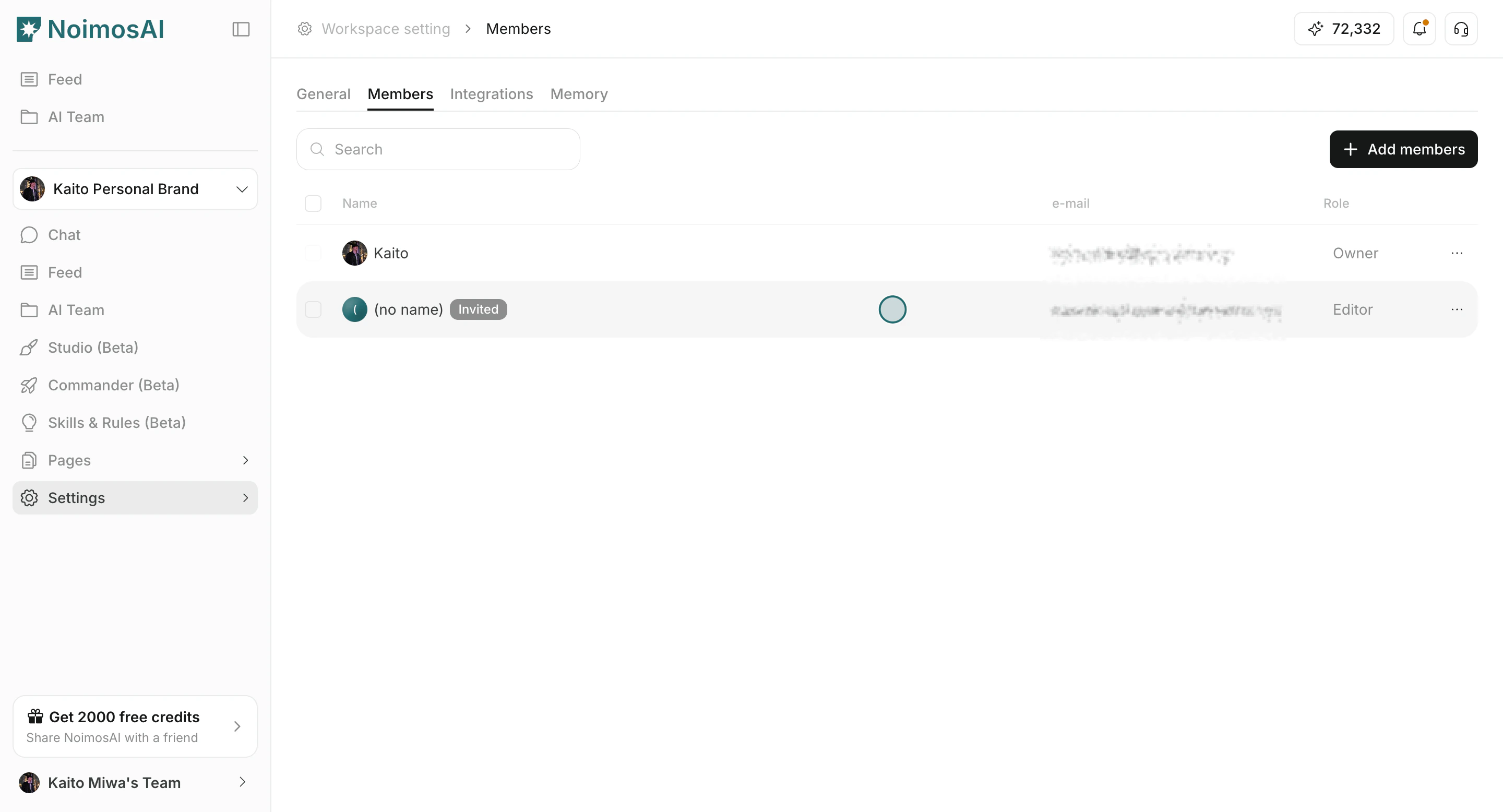 2. Update role or open actions to remove the member.
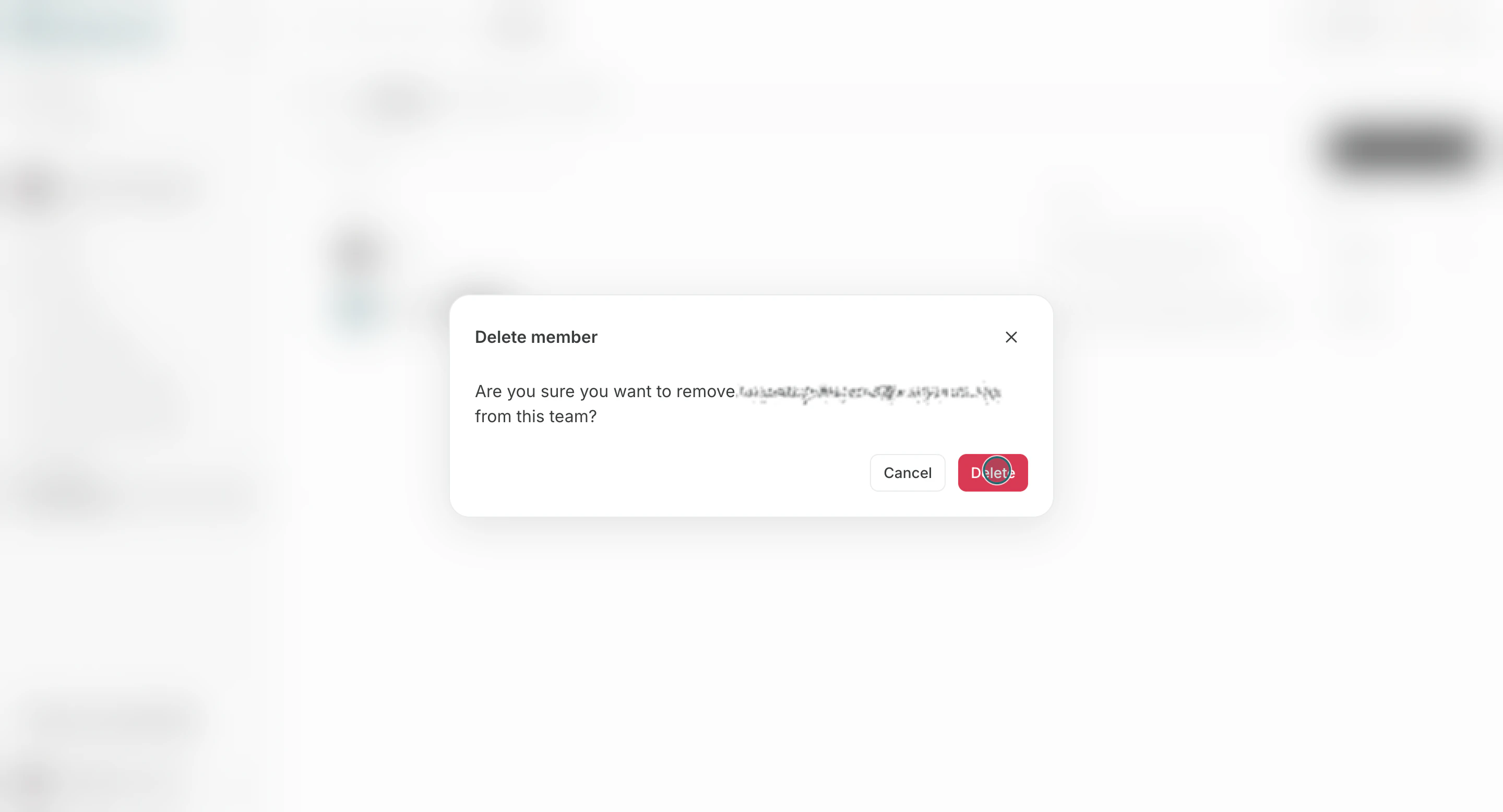
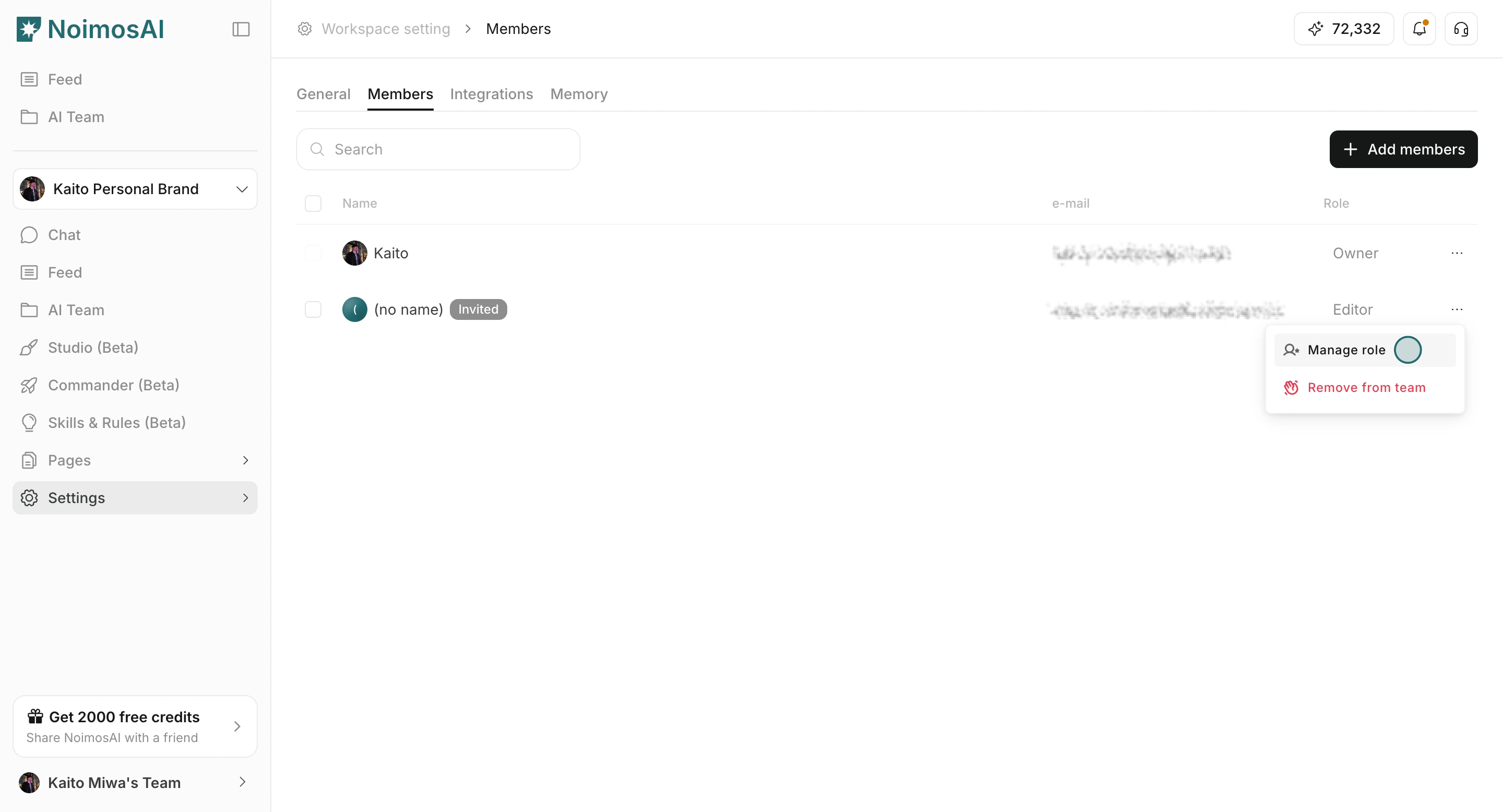 3. Confirm role changes or member removals.
 ## Notes
Review these notes before you proceed.
* Workspace access requires both team membership and workspace assignment.
* If seat limit is reached, increase seats in team billing before inviting more members.
* Role changes and removals are limited to users with member-management permission (typically `Owner`).
## Related
Use these related pages for deeper guidance.
* [Workspace Basics](/help-center/workspace/workspace-basics)
* [Create Workspaces](/help-center/workspace/create-workspaces)
## Notes
Review these notes before you proceed.
* Workspace access requires both team membership and workspace assignment.
* If seat limit is reached, increase seats in team billing before inviting more members.
* Role changes and removals are limited to users with member-management permission (typically `Owner`).
## Related
Use these related pages for deeper guidance.
* [Workspace Basics](/help-center/workspace/workspace-basics)
* [Create Workspaces](/help-center/workspace/create-workspaces)