> ## Documentation Index
> Fetch the complete documentation index at: https://docs.noimosai.com/llms.txt
> Use this file to discover all available pages before exploring further.
# Delete Workspaces
> Permanently delete a workspace when it is no longer required.
## Overview
Deleting a workspace permanently removes all data in that workspace.
This action cannot be undone.
## Where to find
Use the following path to open this area.
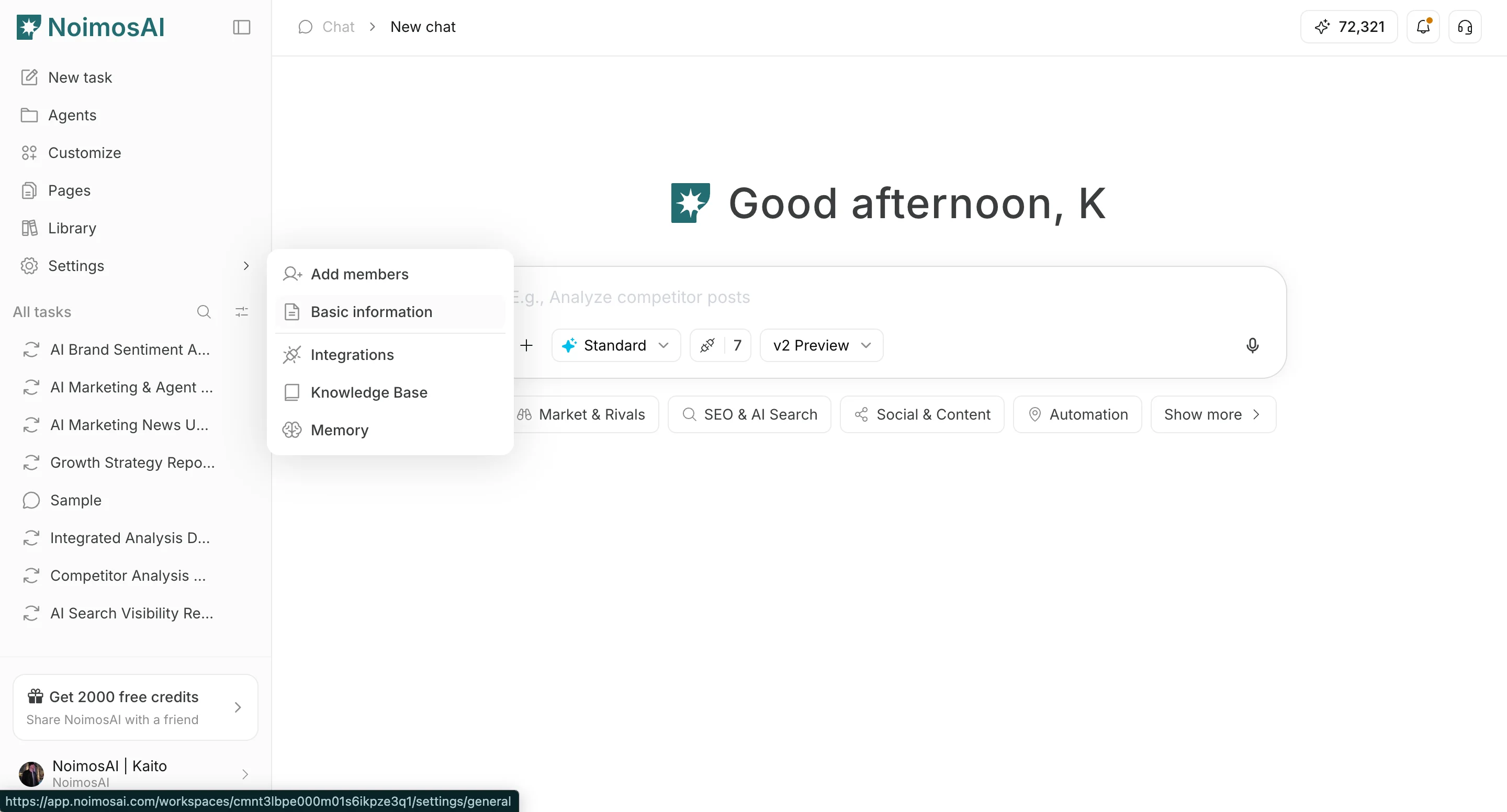
* `Workspace -> Settings -> Basic information -> General`
## How to Delete a Workspace
Follow the steps below to complete this action.
1. Switch to the target workspace.
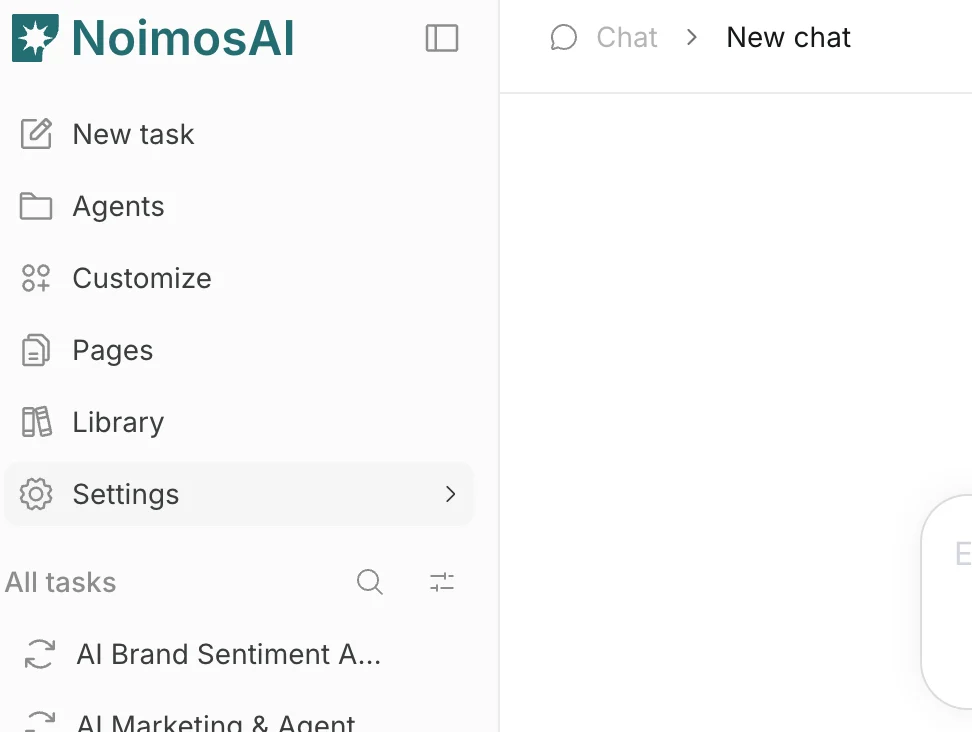 2. Open `Settings -> Basic information -> General`.
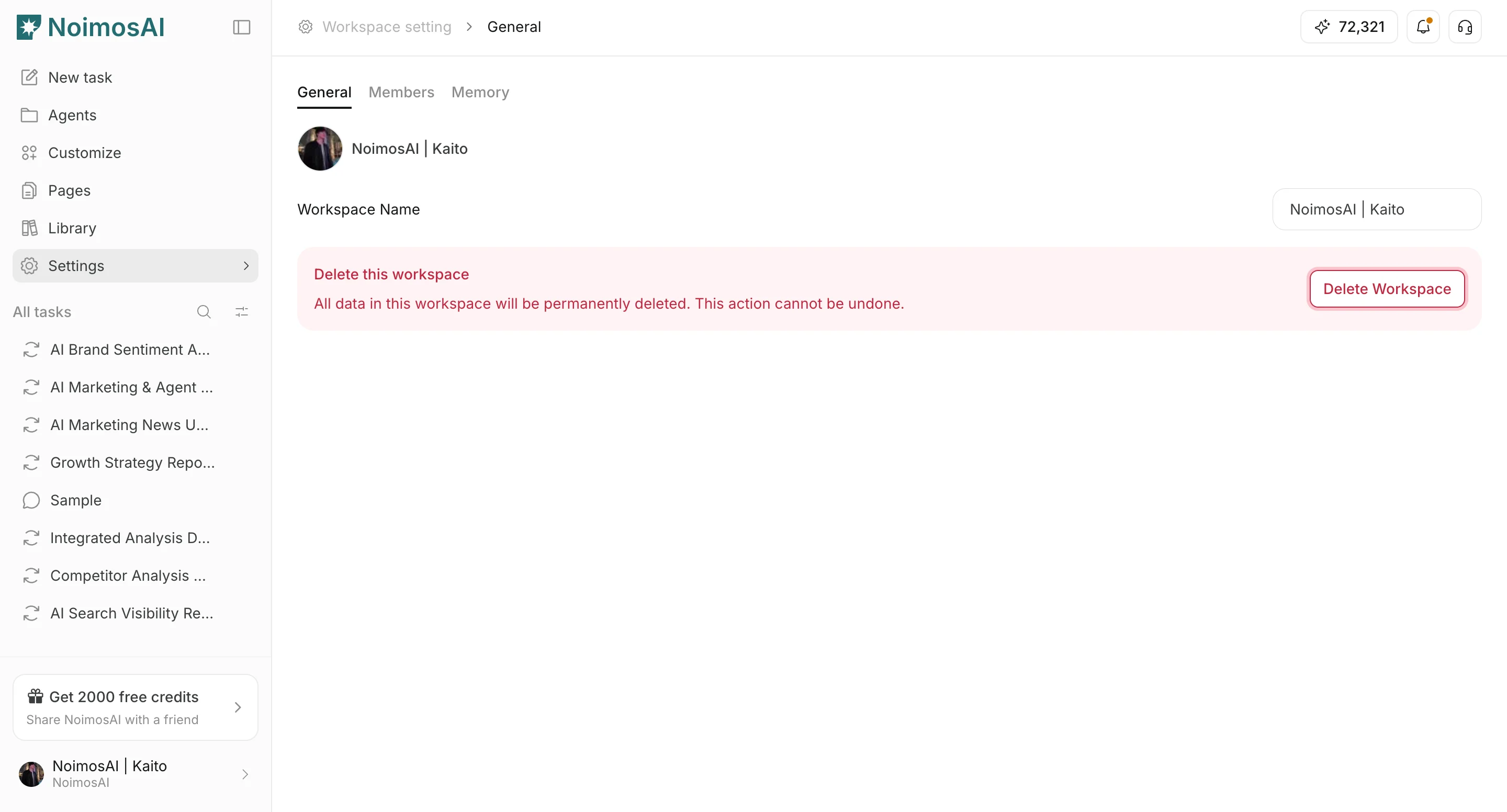
 3. Click `Delete Workspace`.
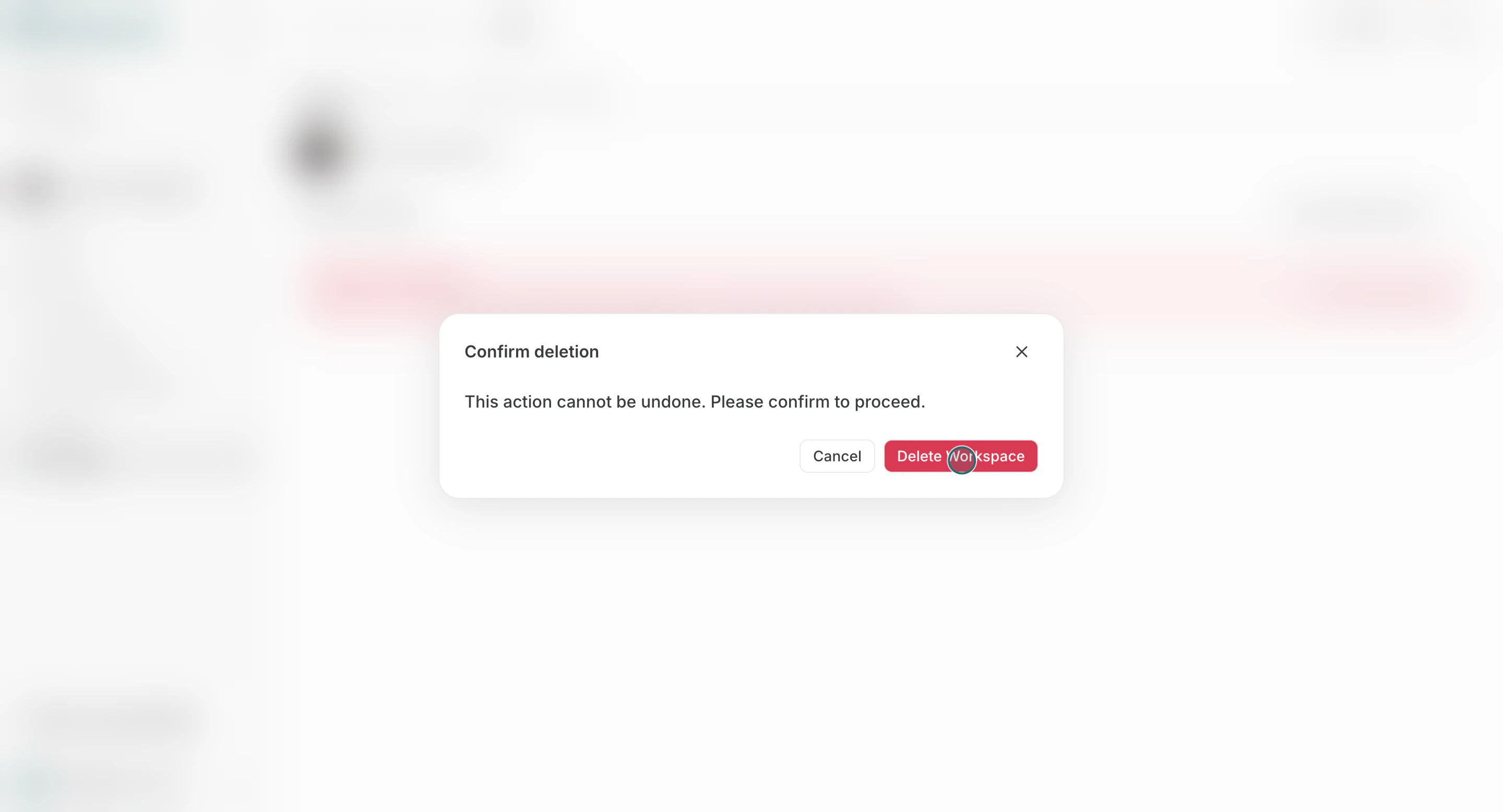
 4. Confirm deletion in the modal.
 ## Before You Delete
Use this section to confirm before you delete so you can proceed without avoidable errors.
* Confirm no active operations depend on this workspace.
* Notify members still using this workspace.
* Check whether this is the last remaining workspace in the team.
## Notes
Review these notes before you proceed.
* A team must keep at least one workspace.
## Related
Use these related pages for deeper guidance.
* [Workspace Basics](/help-center/workspace/workspace-basics)
* [Change the Workspace Name and Profile Image](/help-center/workspace/change-the-workspace-name-and-profile-image)
## Before You Delete
Use this section to confirm before you delete so you can proceed without avoidable errors.
* Confirm no active operations depend on this workspace.
* Notify members still using this workspace.
* Check whether this is the last remaining workspace in the team.
## Notes
Review these notes before you proceed.
* A team must keep at least one workspace.
## Related
Use these related pages for deeper guidance.
* [Workspace Basics](/help-center/workspace/workspace-basics)
* [Change the Workspace Name and Profile Image](/help-center/workspace/change-the-workspace-name-and-profile-image)