> ## Documentation Index
> Fetch the complete documentation index at: https://docs.noimosai.com/llms.txt
> Use this file to discover all available pages before exploring further.
# खाता नाम बदलें
> अपनी प्रोफ़ाइल में उपयोग किए गए डिस्प्ले नाम को अपडेट करें
## सिंहावलोकन
NoimosAI में टीम के साथियों को आपका नाम कैसा दिखाई देगा, इसे नियंत्रित करने के लिए अपना प्रदर्शन नाम बदलें।
## कहां खोजें
इस क्षेत्र को खोलने के लिए निम्नलिखित पथ का उपयोग करें।
* `सेटिंग्स -> प्रोफ़ाइल`.
## कैसे अपडेट करें
इस क्रिया को पूरा करने के लिए नीचे दिए गए चरणों का पालन करें।
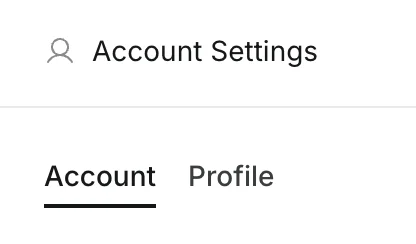
1. खुला `सेटिंग्स`, फिर जाएं `प्रोफ़ाइल`.
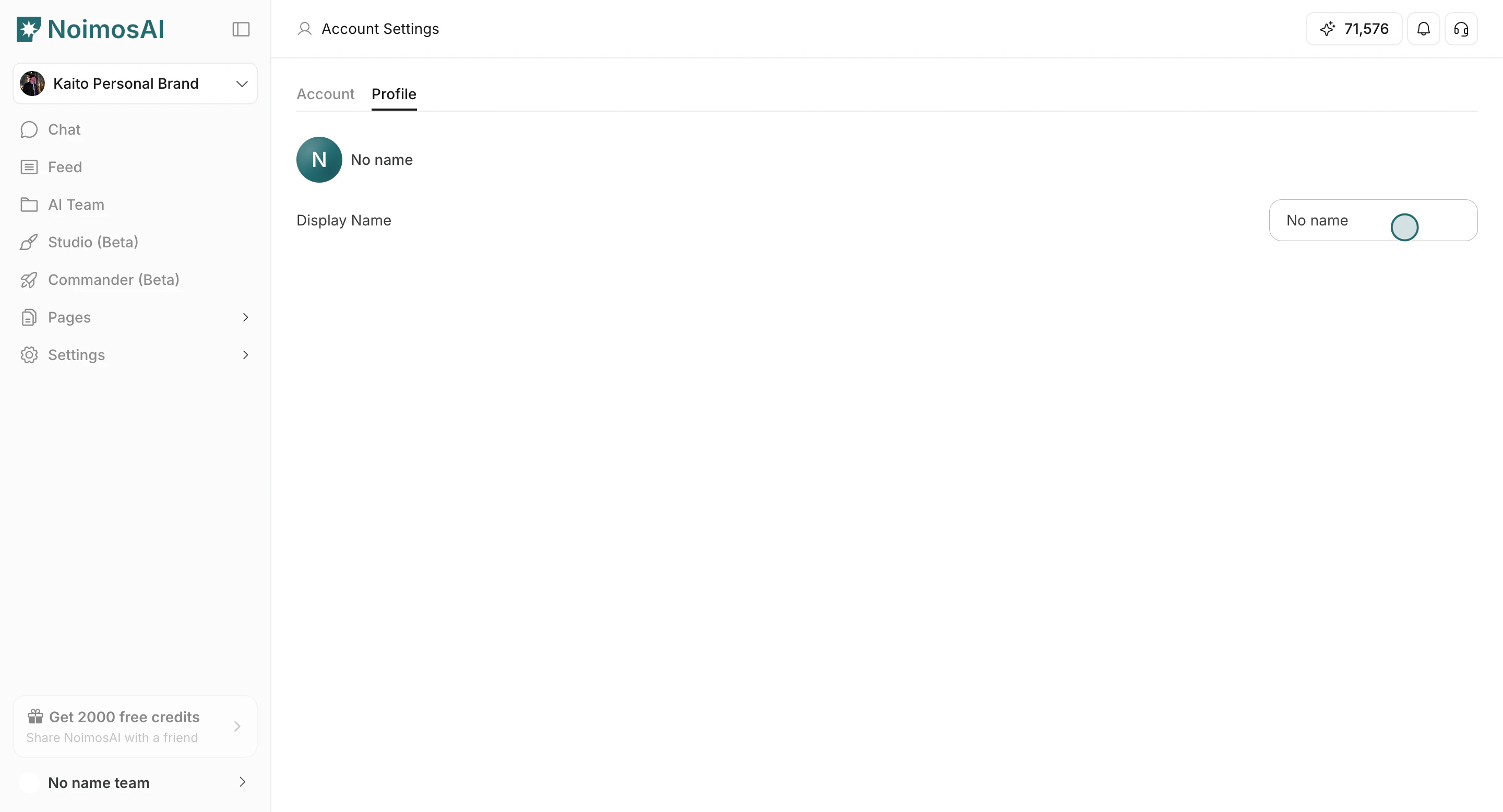
 2. संपादित करें `प्रदर्शन नाम` फ़ील्ड.
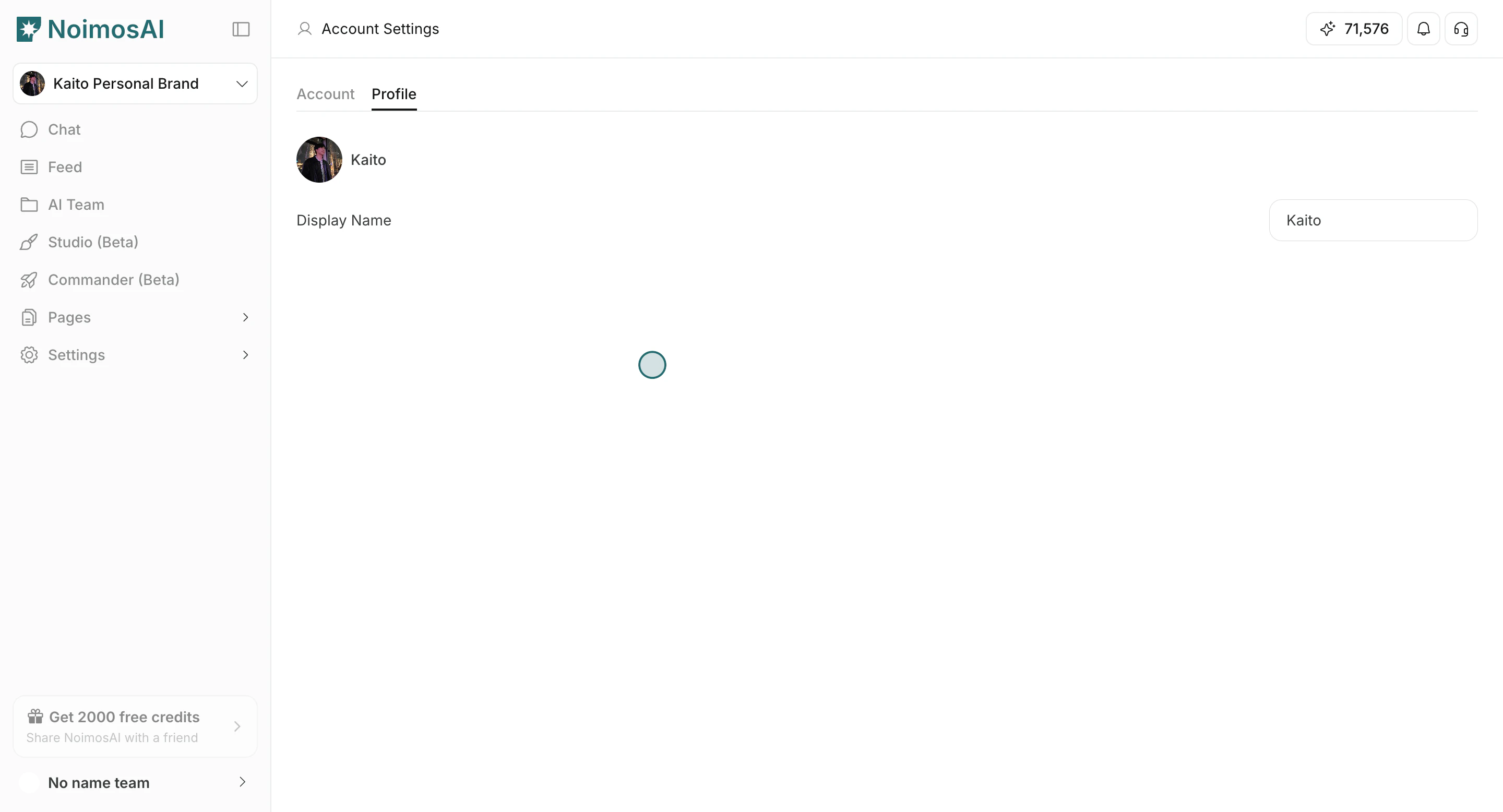
 3. सहेजने के लिए फ़ील्ड के बाहर क्लिक करें.
4. पुष्टि करें कि अद्यतन नाम आपकी प्रोफ़ाइल और टीम-सामना यूआई में दिखाई देता है।
3. सहेजने के लिए फ़ील्ड के बाहर क्लिक करें.
4. पुष्टि करें कि अद्यतन नाम आपकी प्रोफ़ाइल और टीम-सामना यूआई में दिखाई देता है।
 ## युक्तियाँ
स्थिरता और आउटपुट गुणवत्ता में सुधार के लिए इन युक्तियों का उपयोग करें।
* AIसे नाम प्रारूप का उपयोग करें जिसे टीम के साथी तुरंत पहचान सकें।
* अपनी टीमों में नाम छोटा और एक जैसा रखें।
## संबंधित
गहन मार्गदर्शन के लिए इन संबंधित पेजों का उपयोग करें।
* [खाते की मूल बातें](/hi/help-center/account/account-basics)
* [खाता प्रोफ़ाइल छवि बदलें](/hi/help-center/account/change-account-profile-image)
## युक्तियाँ
स्थिरता और आउटपुट गुणवत्ता में सुधार के लिए इन युक्तियों का उपयोग करें।
* AIसे नाम प्रारूप का उपयोग करें जिसे टीम के साथी तुरंत पहचान सकें।
* अपनी टीमों में नाम छोटा और एक जैसा रखें।
## संबंधित
गहन मार्गदर्शन के लिए इन संबंधित पेजों का उपयोग करें।
* [खाते की मूल बातें](/hi/help-center/account/account-basics)
* [खाता प्रोफ़ाइल छवि बदलें](/hi/help-center/account/change-account-profile-image)