> ## Documentation Index
> Fetch the complete documentation index at: https://docs.noimosai.com/llms.txt
> Use this file to discover all available pages before exploring further.

# プロフィール画像を変更する

> アカウントのプロフィール画像をアップロードまたは変更する方法を説明します。

## 概要

プロフィール画像を更新すると、共有ワークスペース内でメンバーがあなたを見分けやすくなります。

## 場所

以下の場所から開きます。

* `設定 -> プロフィール`

## 変更手順

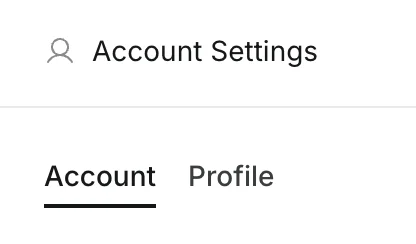
1. `設定` を開き、`プロフィール` に移動する
<img src="https://mintcdn.com/agoslabstechnologiesfzco/LPhU3Zr6jeMvQ4AZ/public/help-center/arcade/account-settings/change-display-name-and-profile-image/step-04.png?fit=max&auto=format&n=LPhU3Zr6jeMvQ4AZ&q=85&s=4929efde789ce3293b3bea1ea4dfcf6f" alt="プロフィールタブを開く" style={{ border: '1px solid #e5e7eb', borderRadius: '8px', marginBottom: '1rem' }} width="416" height="244" data-path="public/help-center/arcade/account-settings/change-display-name-and-profile-image/step-04.png" />

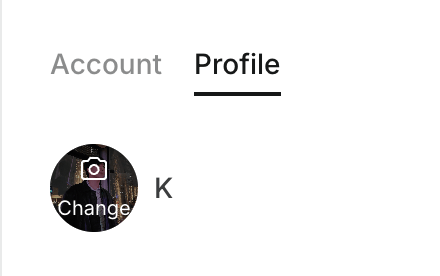
2. 現在のアバター、または追加ボタンをクリックする

<img src="https://mintcdn.com/agoslabstechnologiesfzco/LPhU3Zr6jeMvQ4AZ/public/help-center/account/change-account-profile-image/select-avatar.png?fit=max&auto=format&n=LPhU3Zr6jeMvQ4AZ&q=85&s=9cb1a9d9144608ce9210da3e3c926db7" alt="アバターをクリックする" style={{ border: '1px solid #e5e7eb', borderRadius: '8px', marginBottom: '1rem' }} width="440" height="276" data-path="public/help-center/account/change-account-profile-image/select-avatar.png" />

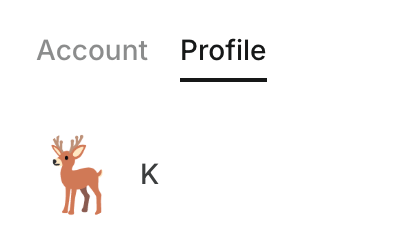
3. デバイスから画像ファイルをアップロードする

<img src="https://mintcdn.com/agoslabstechnologiesfzco/LPhU3Zr6jeMvQ4AZ/public/help-center/account/change-account-profile-image/upload-profile-image.png?fit=max&auto=format&n=LPhU3Zr6jeMvQ4AZ&q=85&s=0fab67d8445d27c43a2ff7ecb3044f99" alt="新しいプロフィール画像をアップロードする" style={{ border: '1px solid #e5e7eb', borderRadius: '8px', marginBottom: '1rem' }} width="394" height="250" data-path="public/help-center/account/change-account-profile-image/upload-profile-image.png" />

## 運用のコツ

* 小さいUIでも見やすい正方形画像を使う
* ワークスペースやチームのアイコンと見分けやすくする

## 関連ページ

* [アカウントの基本](/ja/help-center/account/account-basics)
* [アカウント名を変更する](/ja/help-center/account/change-account-name)