> ## Documentation Index
> Fetch the complete documentation index at: https://docs.noimosai.com/llms.txt
> Use this file to discover all available pages before exploring further.

# プロンプトテンプレートを選択する

> テンプレートを使って、構造化されたプロンプトを素早く利用する方法を説明します。

## 概要

`プロンプトテンプレート`は、すぐに品質の高い結果を得るために役立ちます。
NoimosAIで達成したい目的を選択すると、構造化されたプロンプトの型と、それで得られる結果の例を確認することができます。

## 場所

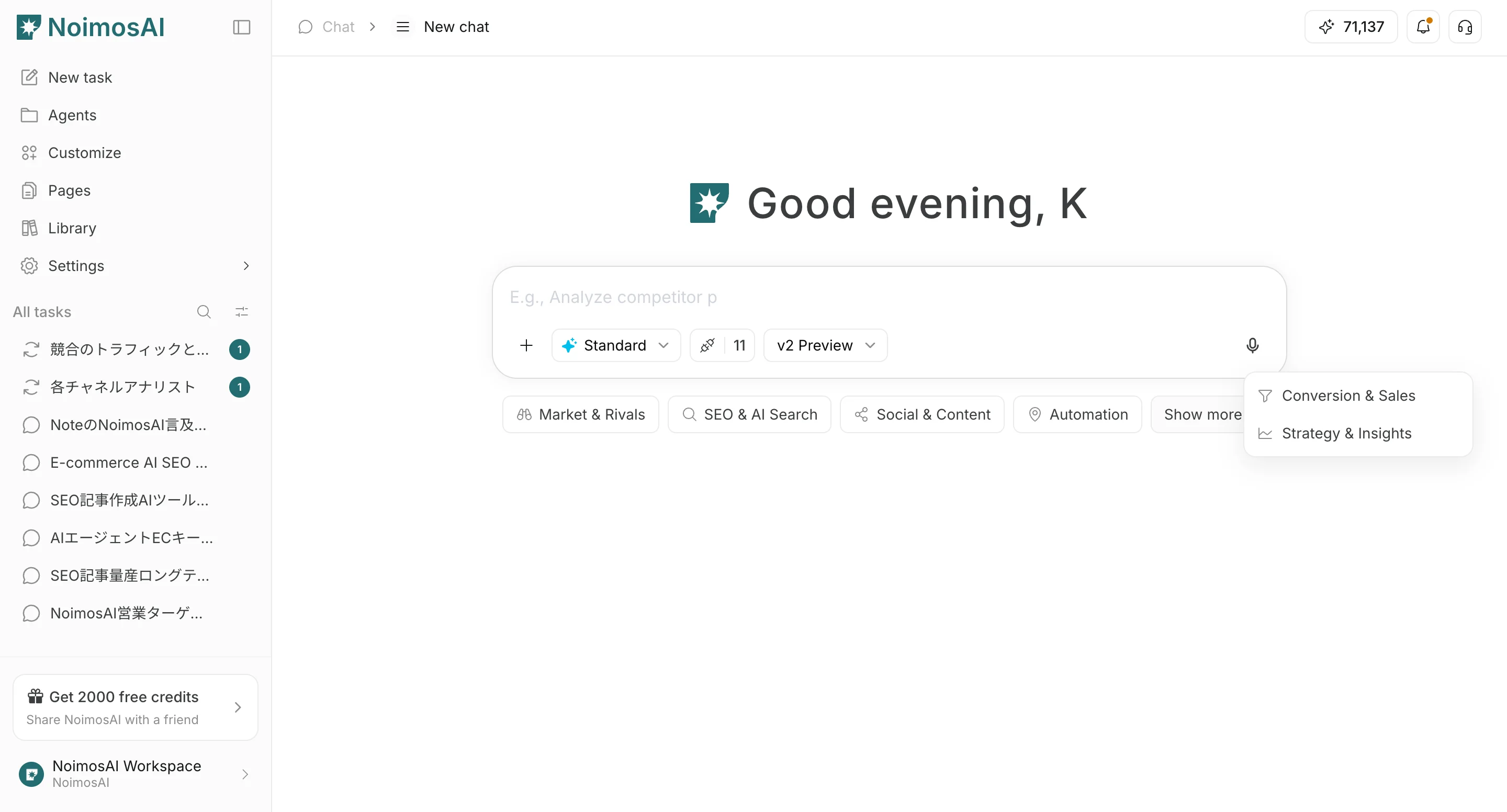
1. `新しいチャット` を開き、チャットボックスの下にある目的を選択する
<img src="https://mintcdn.com/agoslabstechnologiesfzco/0nuIG4hydmUGvox4/public/help-center/chat/select-prompt-templates/select-category.png?fit=max&auto=format&n=0nuIG4hydmUGvox4&q=85&s=24e6b3a8de4ab81c1b98e68fc567a4e6" alt="チャットボックス下の目的カテゴリを選択する" style={{ border: '1px solid #e5e7eb', borderRadius: '8px', marginBottom: '1rem' }} width="2880" height="1552" data-path="public/help-center/chat/select-prompt-templates/select-category.png" />

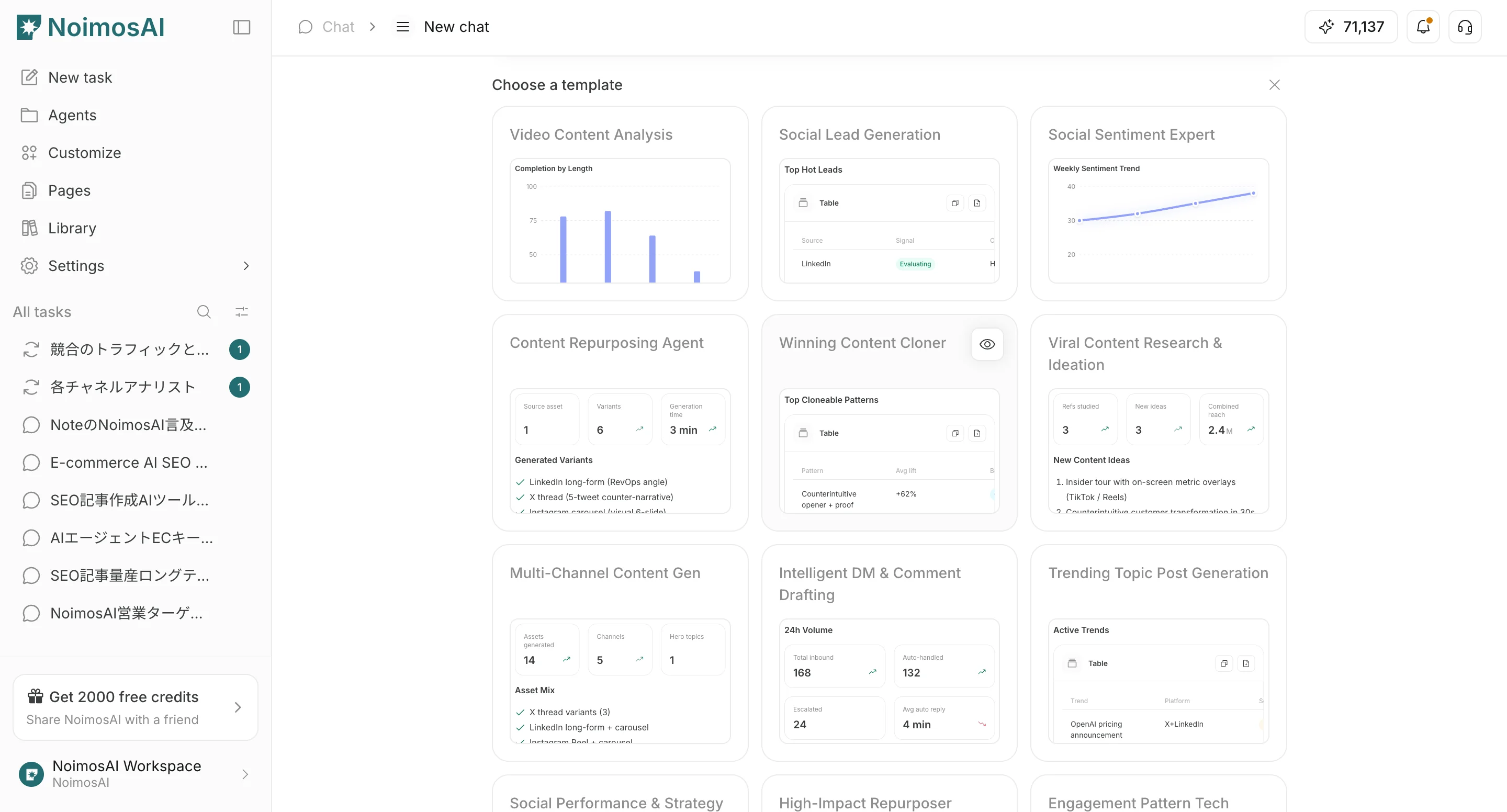
2. 用途に合うプロンプトテンプレートを探す

<img src="https://mintcdn.com/agoslabstechnologiesfzco/0nuIG4hydmUGvox4/public/help-center/chat/select-prompt-templates/select-template.png?fit=max&auto=format&n=0nuIG4hydmUGvox4&q=85&s=dd34b7c4a779f5cc7f68ac2264a97f34" alt="用途に合うプロンプトテンプレートを選択する" style={{ border: '1px solid #e5e7eb', borderRadius: '8px', marginBottom: '1.5rem' }} width="2880" height="1552" data-path="public/help-center/chat/select-prompt-templates/select-template.png" />

## 手順

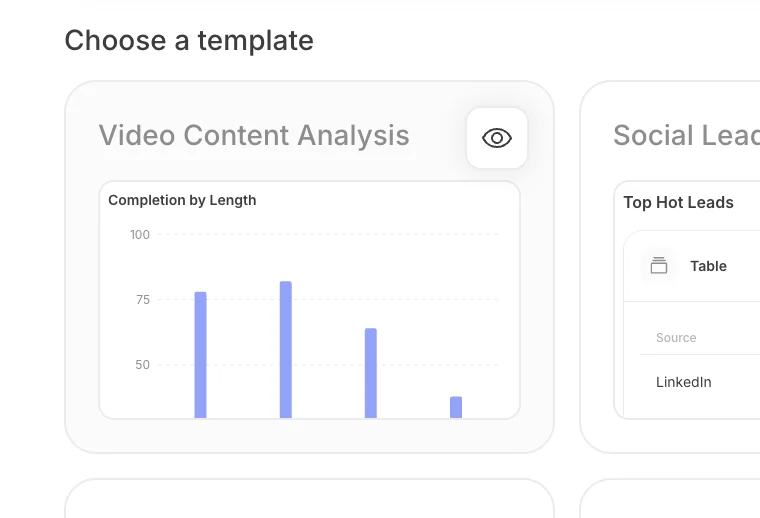
1. 用途に合うテンプレートを見つけ、目のアイコンをクリックして詳細を表示する
<img src="https://mintcdn.com/agoslabstechnologiesfzco/0nuIG4hydmUGvox4/public/help-center/chat/select-prompt-templates/show-details.png?fit=max&auto=format&n=0nuIG4hydmUGvox4&q=85&s=588dbd1bf96d6c09709c19cd5b626bd5" alt="プロンプトテンプレートの詳細を表示する" style={{ border: '1px solid #e5e7eb', borderRadius: '8px', marginBottom: '1rem' }} width="760" height="518" data-path="public/help-center/chat/select-prompt-templates/show-details.png" />

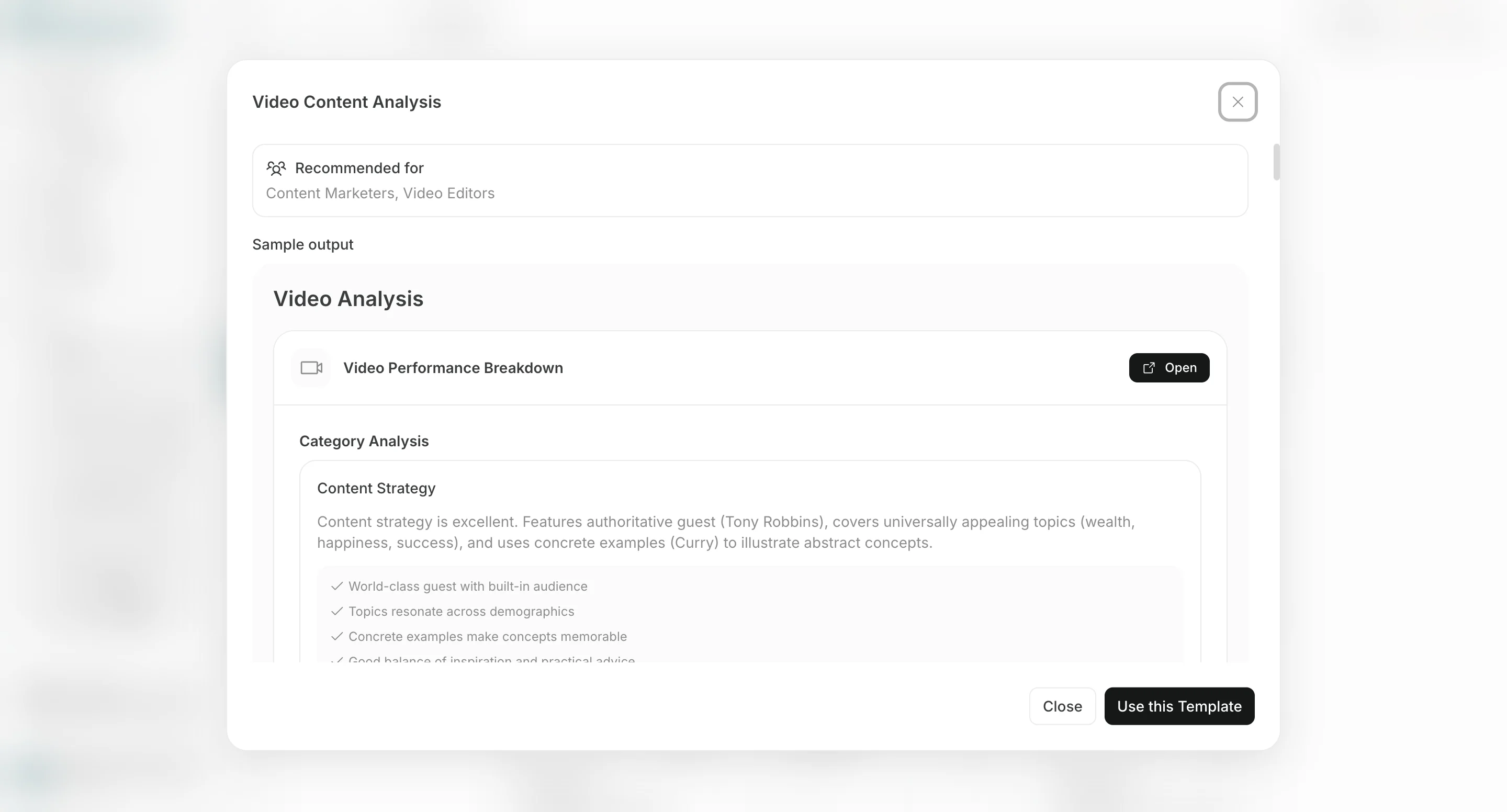
2. そのテンプレートがどんな人におすすめか、どのような出力が得られるのかを確認する。
<img src="https://mintcdn.com/agoslabstechnologiesfzco/0nuIG4hydmUGvox4/public/help-center/chat/select-prompt-templates/details.png?fit=max&auto=format&n=0nuIG4hydmUGvox4&q=85&s=66664379bfc97b960742407fd6eab786" alt="プロンプトテンプレートの詳細を確認する" style={{ border: '1px solid #e5e7eb', borderRadius: '8px', marginBottom: '1rem' }} width="2880" height="1552" data-path="public/help-center/chat/select-prompt-templates/details.png" />

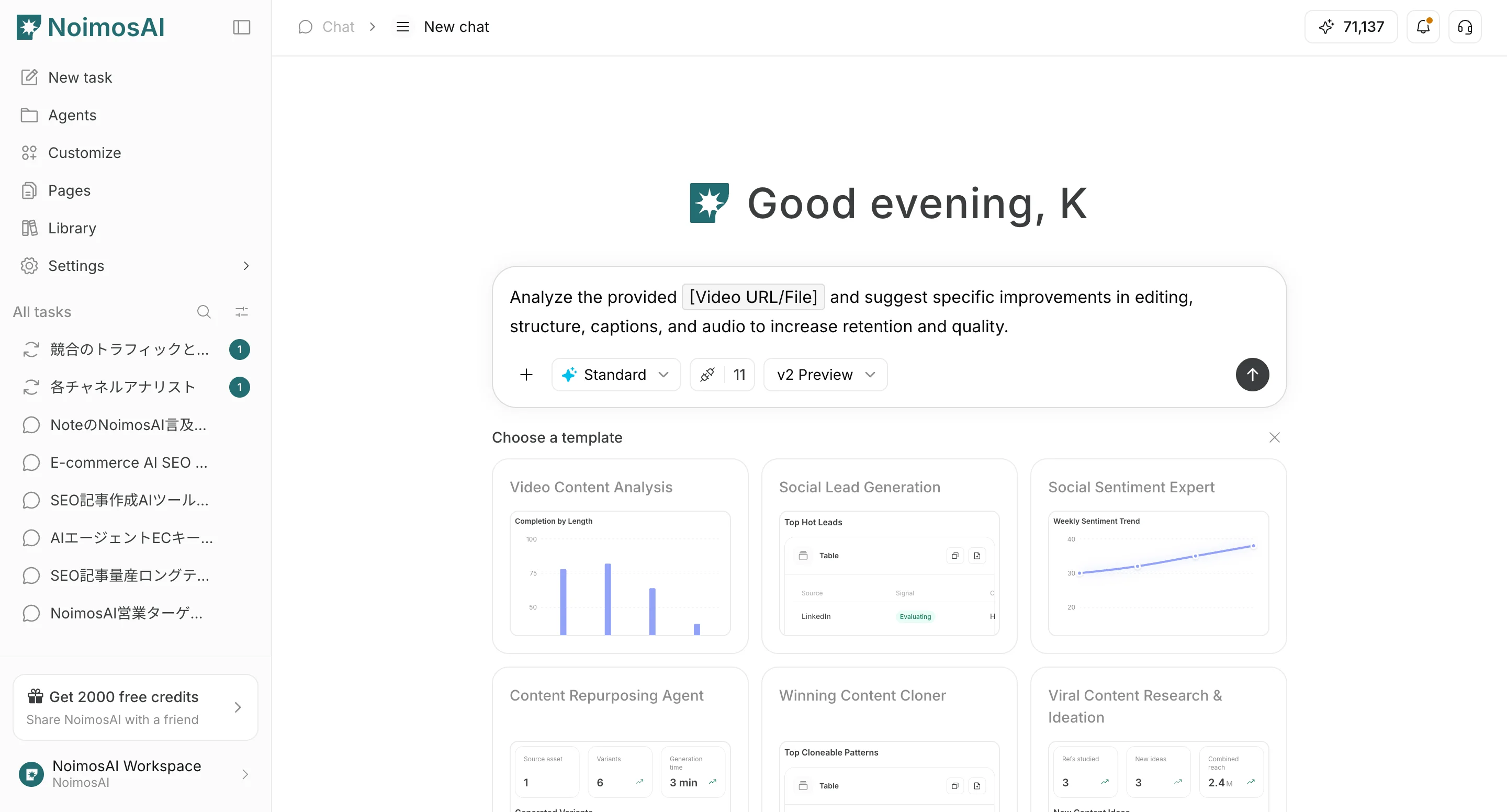
3. `このテンプレートを使う` でチャットへ挿入する

<img src="https://mintcdn.com/agoslabstechnologiesfzco/0nuIG4hydmUGvox4/public/help-center/chat/select-prompt-templates/use-template.png?fit=max&auto=format&n=0nuIG4hydmUGvox4&q=85&s=b48019b080343ff118ebf910a428768d" alt="このテンプレートを使うを選択する" style={{ border: '1px solid #e5e7eb', borderRadius: '8px', marginBottom: '1rem' }} width="2880" height="1552" data-path="public/help-center/chat/select-prompt-templates/use-template.png" />

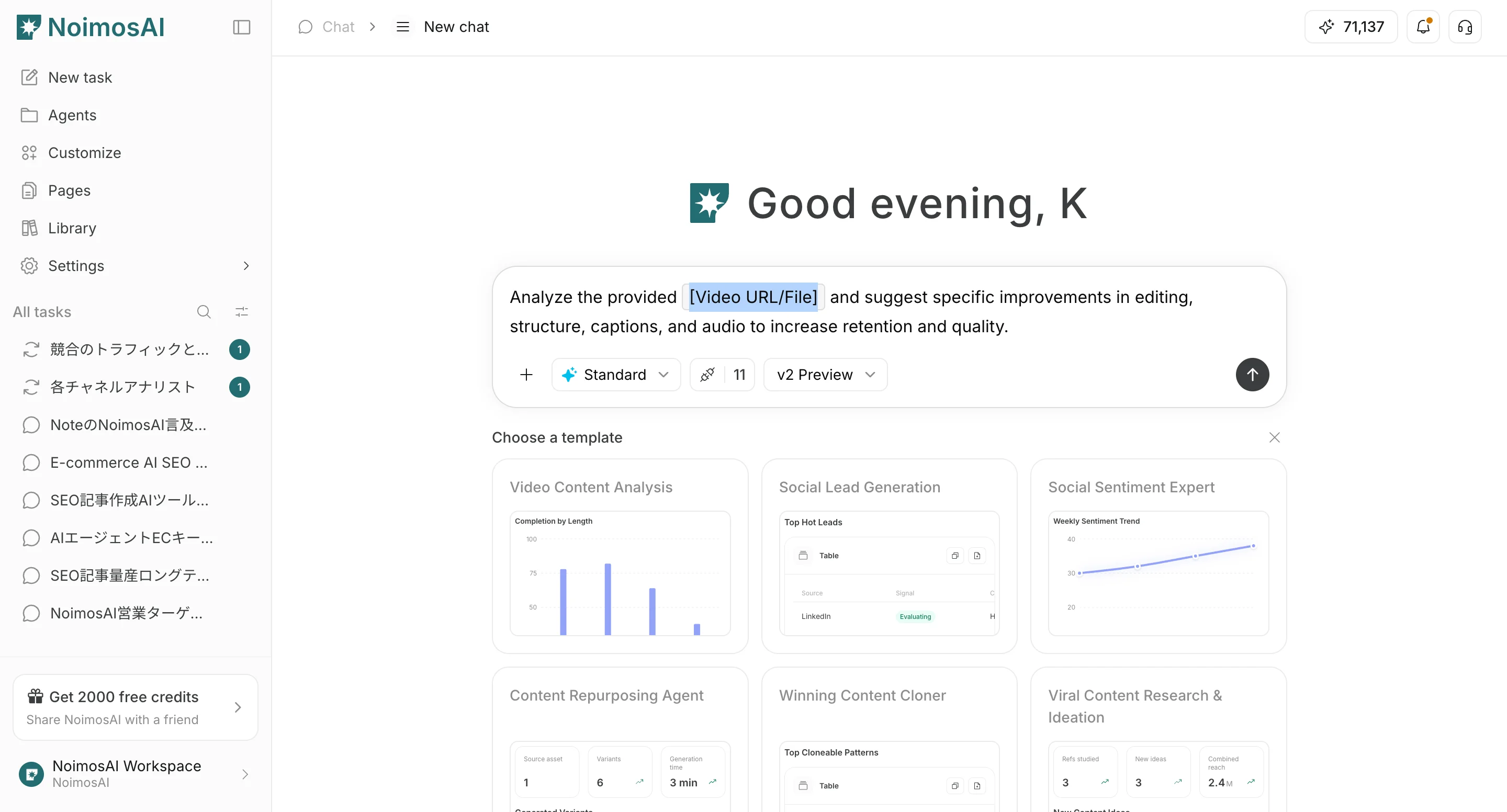
4. `[]` などのプレースホルダを自分の用途に置き換える

<img src="https://mintcdn.com/agoslabstechnologiesfzco/0nuIG4hydmUGvox4/public/help-center/chat/select-prompt-templates/place-holder.png?fit=max&auto=format&n=0nuIG4hydmUGvox4&q=85&s=ee02a271b14d814105d44d8ed22f3aa2" alt="プロンプト内のプレースホルダを置き換える" style={{ border: '1px solid #e5e7eb', borderRadius: '8px', marginBottom: '1rem' }} width="2880" height="1552" data-path="public/help-center/chat/select-prompt-templates/place-holder.png" />

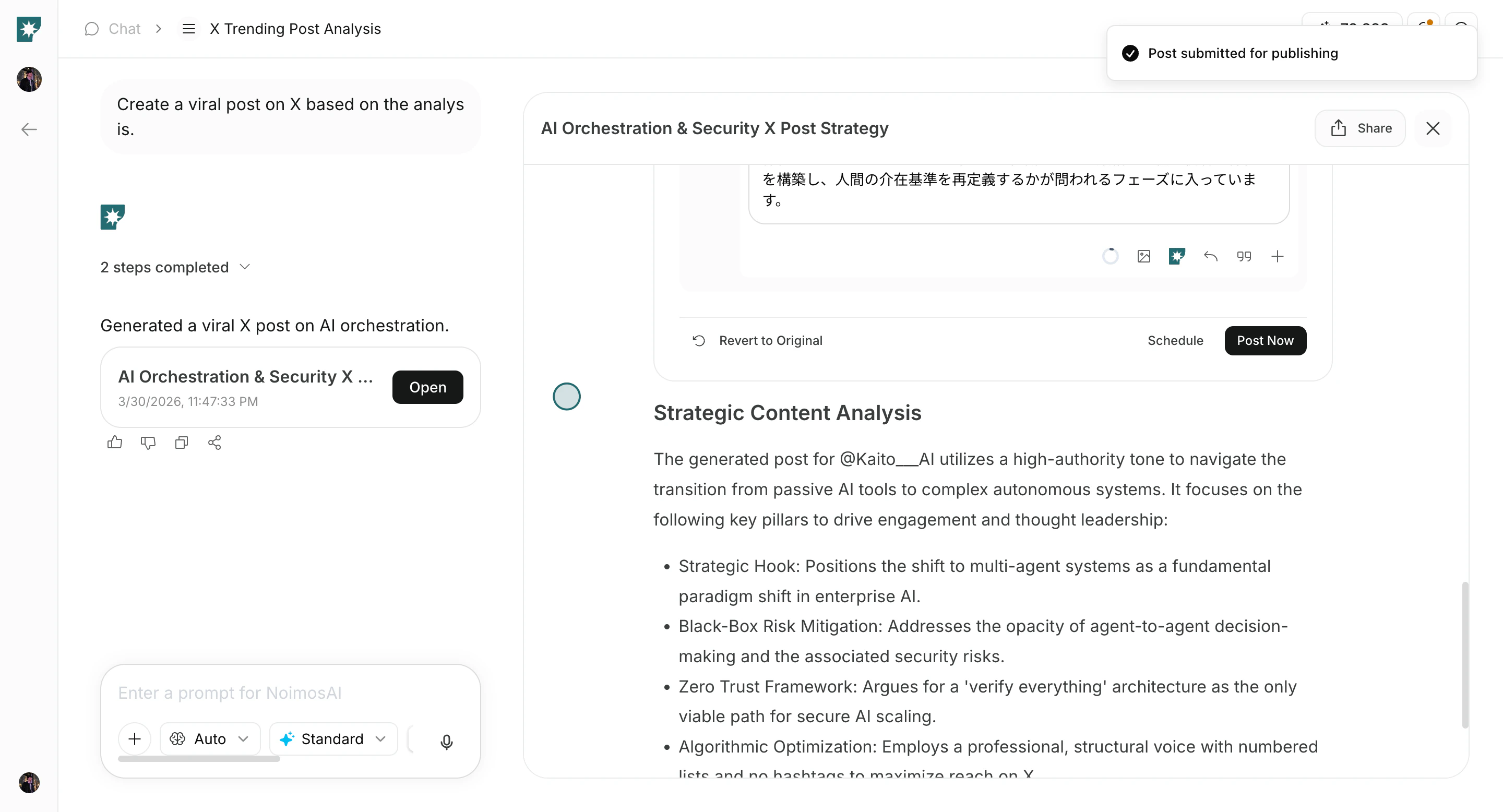
5. 送信後、必要に応じて追加指示で改善する

<img src="https://mintcdn.com/agoslabstechnologiesfzco/Fp8XwoziZBVDha6p/public/help-center/arcade/ai-chat/select-prompt-from-template/step-21.png?fit=max&auto=format&n=Fp8XwoziZBVDha6p&q=85&s=65259ae14987f07f4a2211ef12fc31d1" alt="送信して改善" style={{ border: '1px solid #e5e7eb', borderRadius: '8px', marginBottom: '1.5rem' }} width="2880" height="1556" data-path="public/help-center/arcade/ai-chat/select-prompt-from-template/step-21.png" />

## 運用のコツ

* NoimosAIで具体的に何ができるのかが分からない場合は、プロンプトテンプレートを見ることで入力と出力の対応をイメージ掴むことができます
* 慣れてきたら、自分の独自のプロンプトで指示を与えてみましょう

## 関連ページ

* [AIチャットの基本](/ja/help-center/chat/ai-chat-basics)
* [独自プロンプトを入力する](/ja/help-center/chat/enter-your-own-prompt)
* [チャット設定をカスタマイズする](/ja/help-center/chat/customize-chat-settings)