> ## Documentation Index
> Fetch the complete documentation index at: https://docs.noimosai.com/llms.txt
> Use this file to discover all available pages before exploring further.

# カスタマーサポートに問い合わせる

> 適切な分類と詳細を入力して、サポートリクエストを送信する方法を説明します。

## 概要

NoimosAIのサポートチームに直接問い合わせる必要がある場合に使います。

サポートからの返信は、入力したメールアドレス宛に届きます。現在の画面では、24時間以内の返信目安が案内されています。

## サポートに問い合わせる場面

次のような場合は、サポートへの問い合わせを検討してください。

* AIエージェントの設定や動作が想定どおりに動かない
* 請求やアカウント変更についてサポートの確認が必要
* ログイン問題やプロダクトの不具合など、技術的な問題が発生している
* 機能リクエストや一般的な問い合わせを送りたい
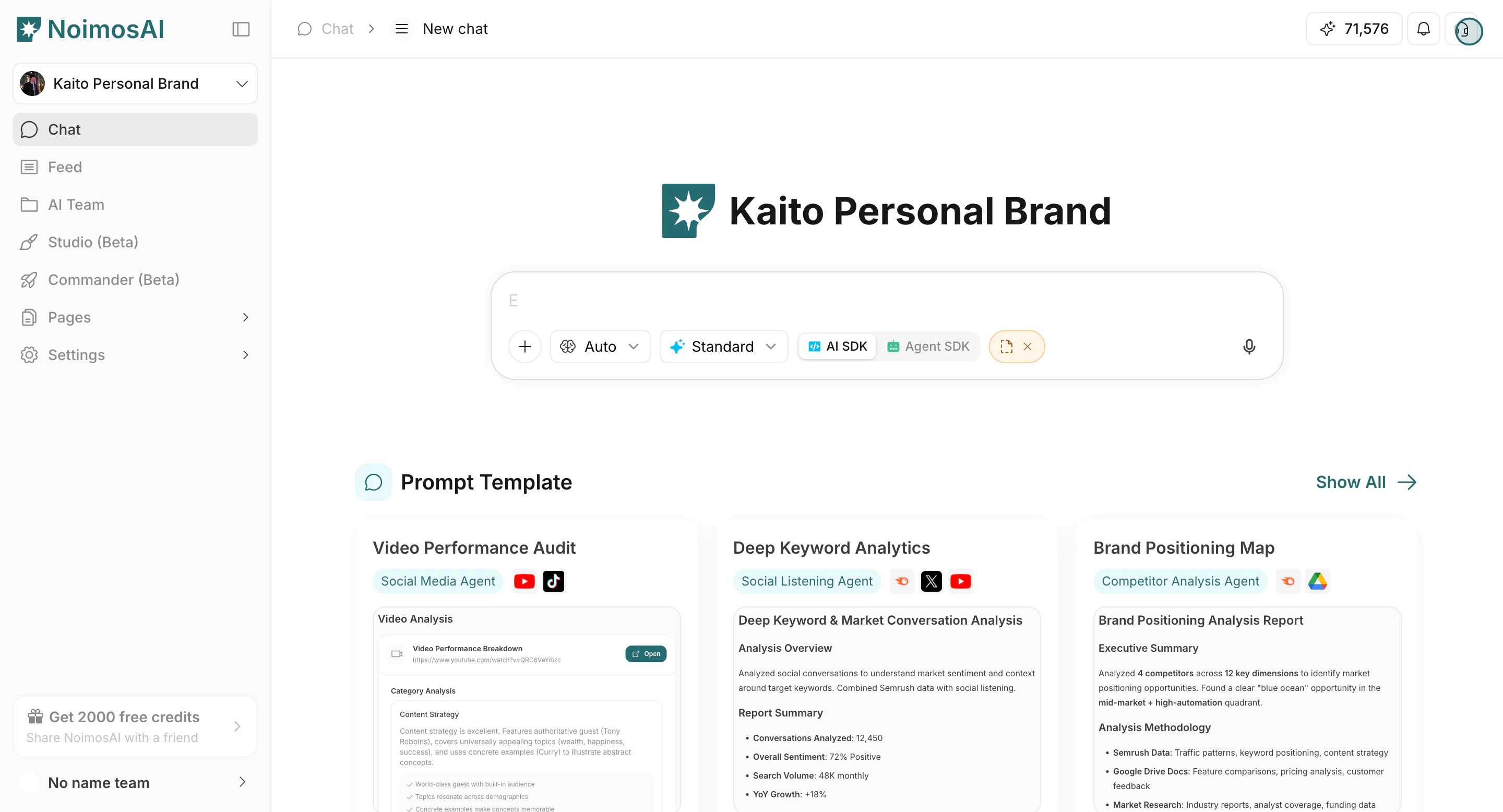
<img src="https://mintcdn.com/agoslabstechnologiesfzco/dv4wqk6EXKIBh0RT/public/help-center/customer-support/support-entry.png?fit=max&auto=format&n=dv4wqk6EXKIBh0RT&q=85&s=da3ad607aceb850d5c36725f8fa25b4e" alt="右上メニューのサポート入口" style={{ border: '1px solid #e5e7eb', borderRadius: '8px', marginBottom: '2rem' }} width="2880" height="1556" data-path="public/help-center/customer-support/support-entry.png" />

## サポートリクエストを送信する

この手順では、問い合わせフォームを開いて必要事項を入力します。

1. アプリ右上のサポートアイコンをクリックします。
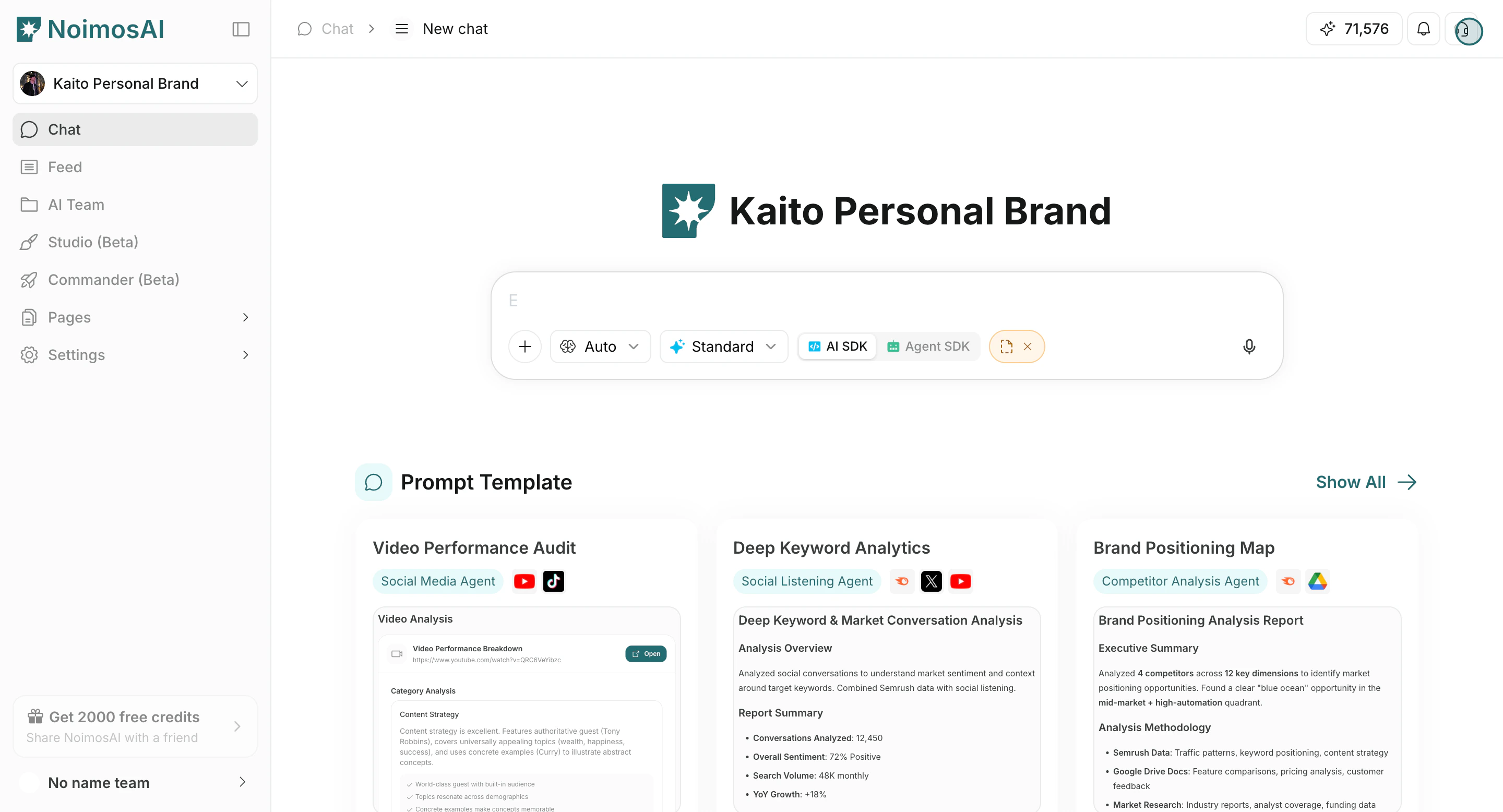
<img src="https://mintcdn.com/agoslabstechnologiesfzco/Nczo-Nsvecgkkv7J/public/help-center/arcade/customer-support/contact-customer-support/step-02.png?fit=max&auto=format&n=Nczo-Nsvecgkkv7J&q=85&s=bd4003f8d4cafcdccc2b47380e8b0e7e" alt="右上のサポートアイコンからサポートを開く" style={{ border: '1px solid #e5e7eb', borderRadius: '8px', marginBottom: '1rem' }} width="2880" height="1556" data-path="public/help-center/arcade/customer-support/contact-customer-support/step-02.png" />

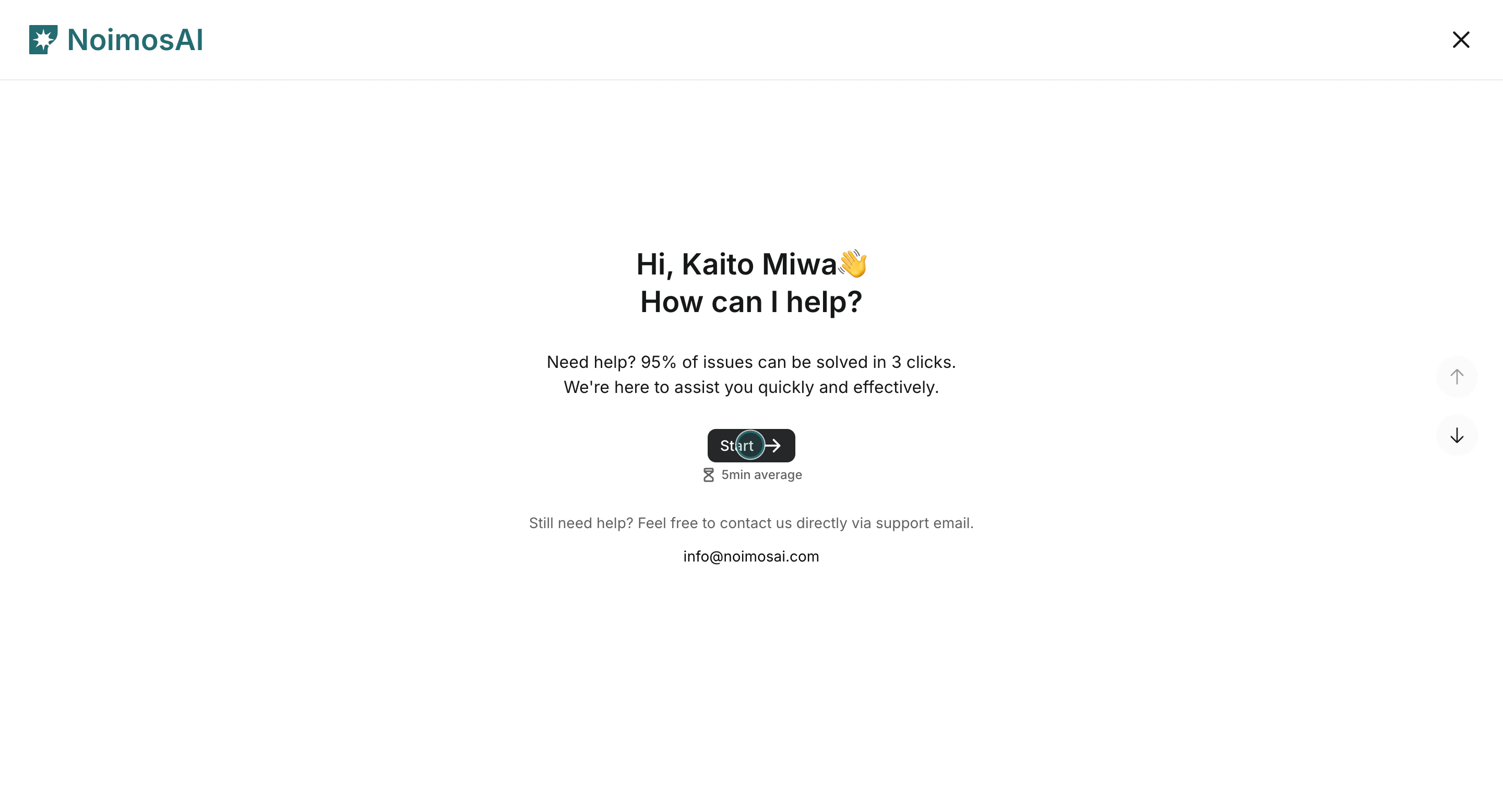
2. サポートフォームを開始します。

<img src="https://mintcdn.com/agoslabstechnologiesfzco/Nczo-Nsvecgkkv7J/public/help-center/arcade/customer-support/contact-customer-support/step-04.png?fit=max&auto=format&n=Nczo-Nsvecgkkv7J&q=85&s=1091dcb431e1df5a8e87397365bd0198" alt="カスタマーサポートの問い合わせフォームを開始する" style={{ border: '1px solid #e5e7eb', borderRadius: '8px', marginBottom: '1rem' }} width="2880" height="1556" data-path="public/help-center/arcade/customer-support/contact-customer-support/step-04.png" />

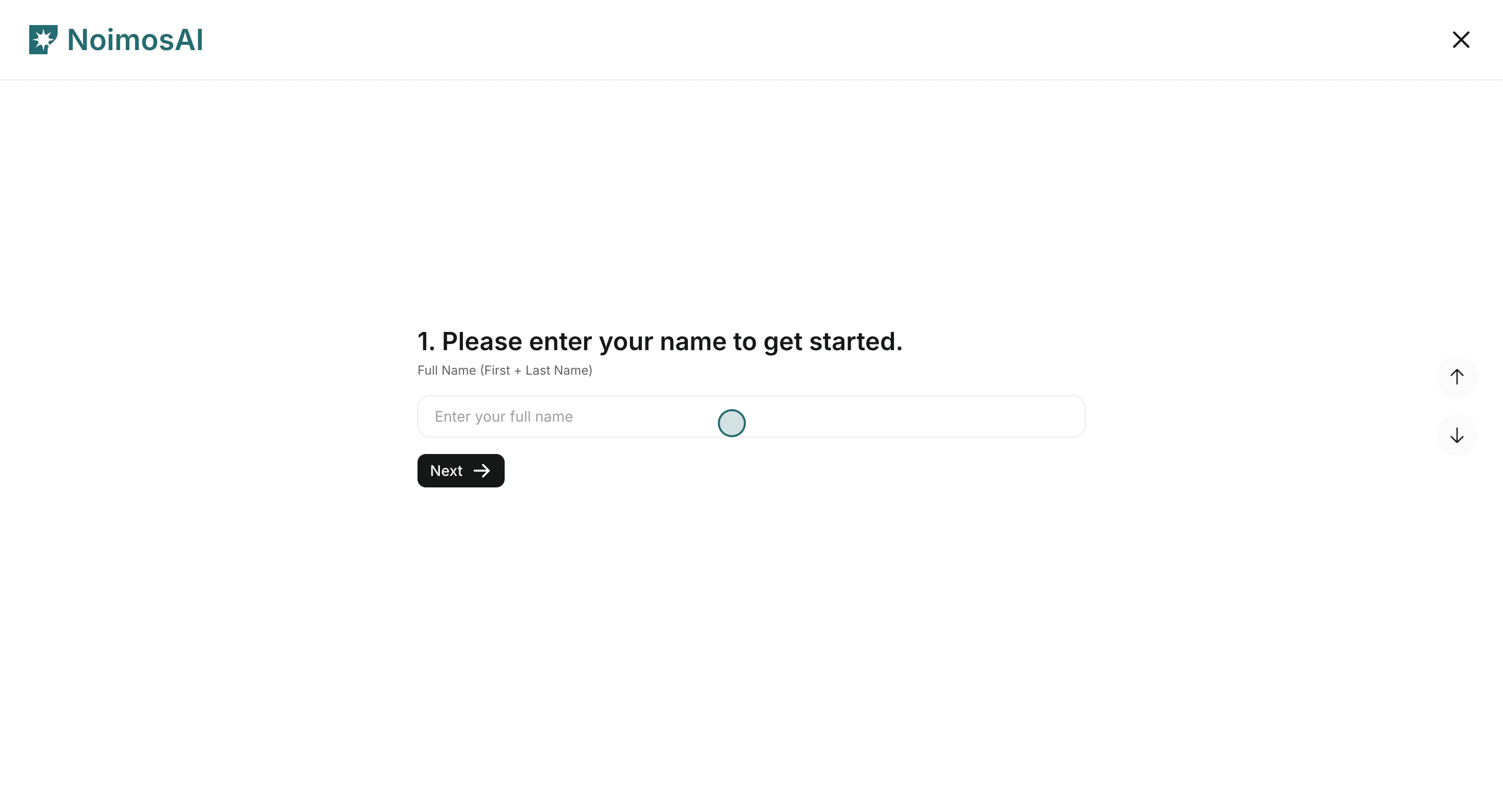
3. 氏名を入力します。

<img src="https://mintcdn.com/agoslabstechnologiesfzco/Nczo-Nsvecgkkv7J/public/help-center/arcade/customer-support/contact-customer-support/step-05.png?fit=max&auto=format&n=Nczo-Nsvecgkkv7J&q=85&s=ca001022e02adcc982bd922d53c274bd" alt="サポートフォームに氏名を入力する" style={{ border: '1px solid #e5e7eb', borderRadius: '8px', marginBottom: '1rem' }} width="2880" height="1556" data-path="public/help-center/arcade/customer-support/contact-customer-support/step-05.png" />

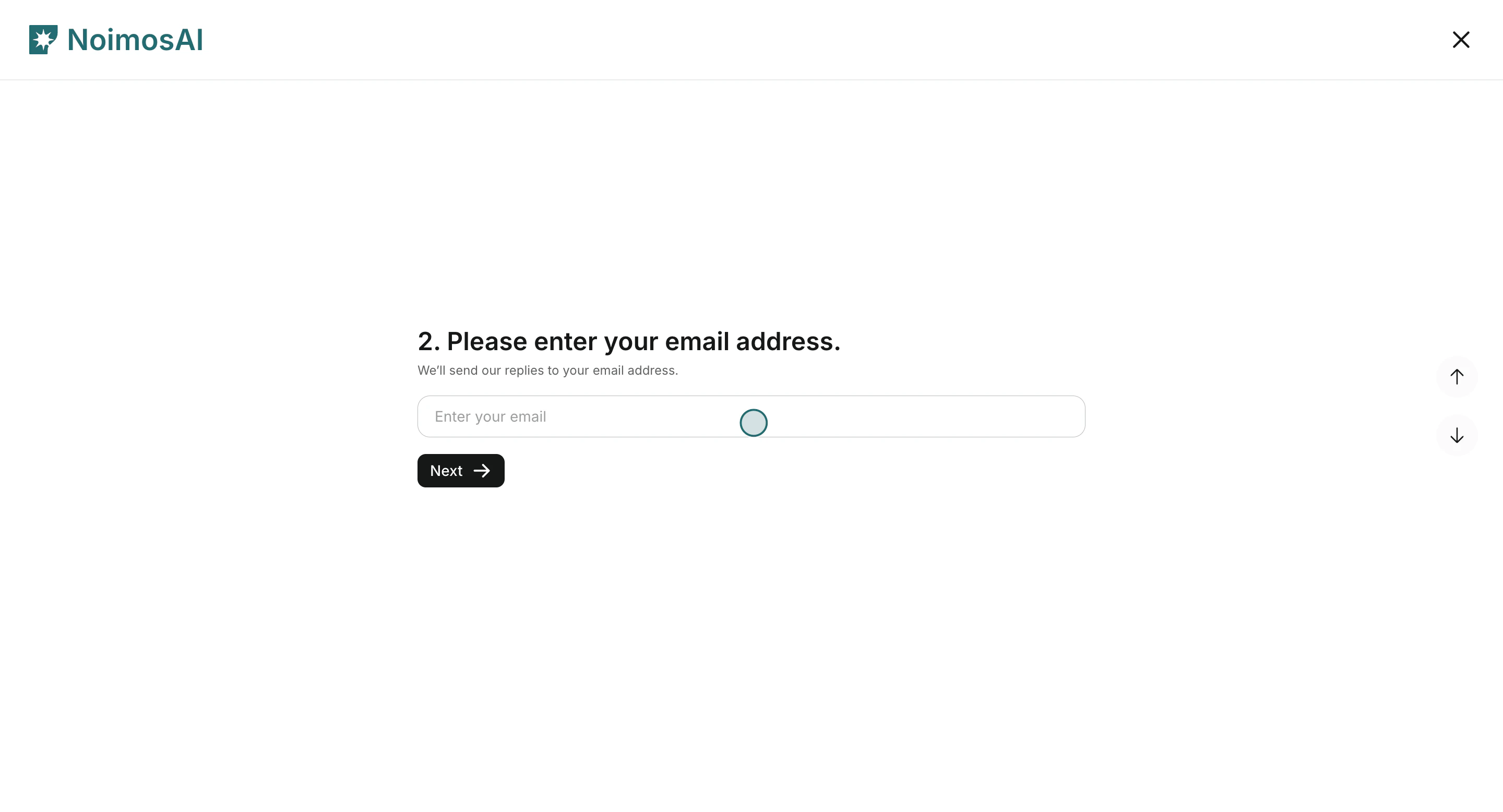
4. メールアドレスを入力します。

<img src="https://mintcdn.com/agoslabstechnologiesfzco/Nczo-Nsvecgkkv7J/public/help-center/arcade/customer-support/contact-customer-support/step-07.png?fit=max&auto=format&n=Nczo-Nsvecgkkv7J&q=85&s=35a85d0db752d2b68b0475d56efeb552" alt="サポートフォームにメールアドレスを入力する" style={{ border: '1px solid #e5e7eb', borderRadius: '8px', marginBottom: '1rem' }} width="2880" height="1556" data-path="public/help-center/arcade/customer-support/contact-customer-support/step-07.png" />

5. お困りごとの大分類を選びます。選択肢は `AIエージェント設定`、`請求とアカウント`、`技術的な問題`、`一般的なお問い合わせ` です。
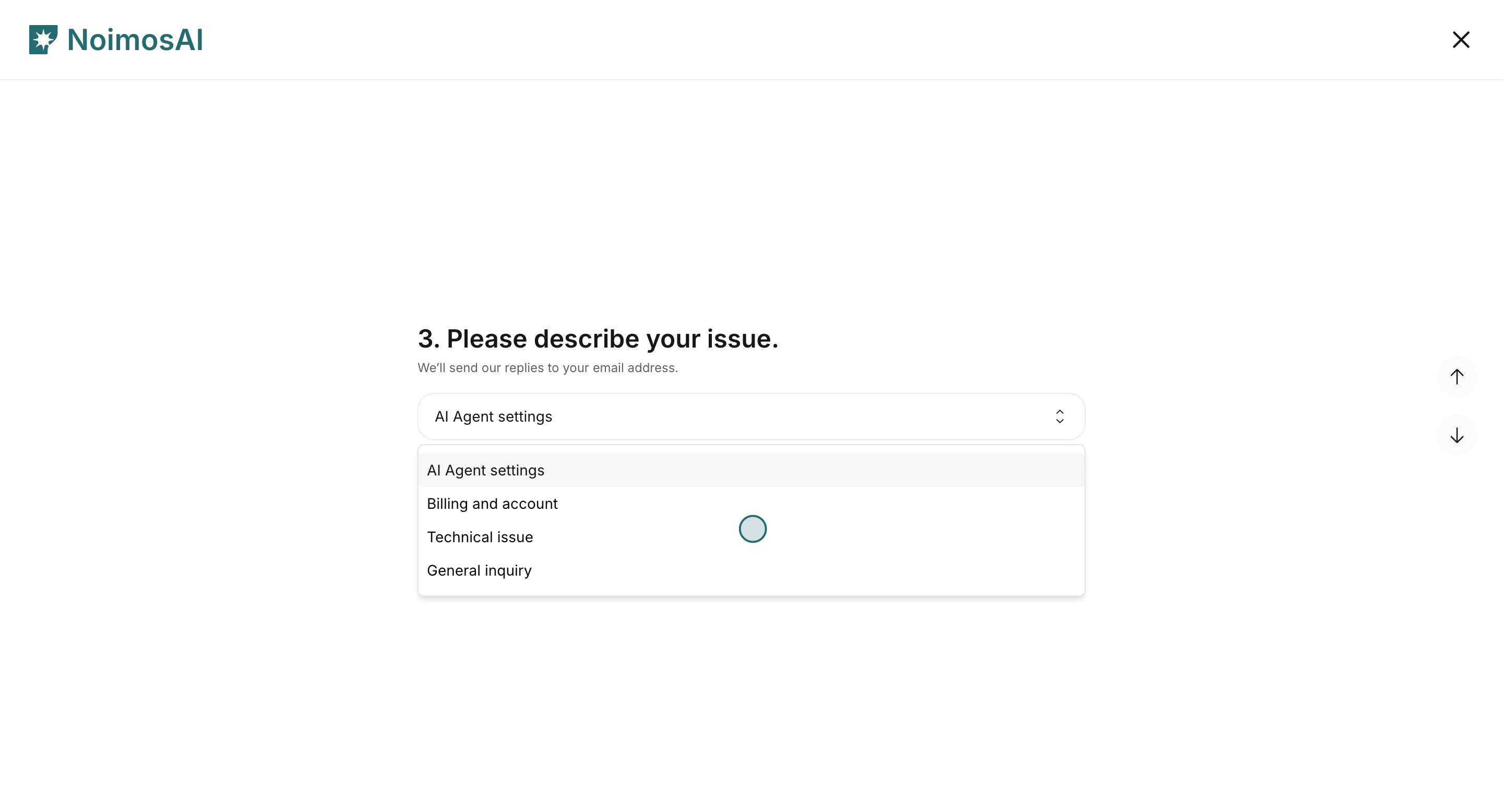
<img src="https://mintcdn.com/agoslabstechnologiesfzco/Nczo-Nsvecgkkv7J/public/help-center/arcade/customer-support/contact-customer-support/step-10.png?fit=max&auto=format&n=Nczo-Nsvecgkkv7J&q=85&s=63a77baee0bcf0b5abcfcd9160a6d740" alt="サポートフォームでお困りごとの大分類を選ぶ" style={{ border: '1px solid #e5e7eb', borderRadius: '8px', marginBottom: '1rem' }} width="2880" height="1556" data-path="public/help-center/arcade/customer-support/contact-customer-support/step-10.png" />

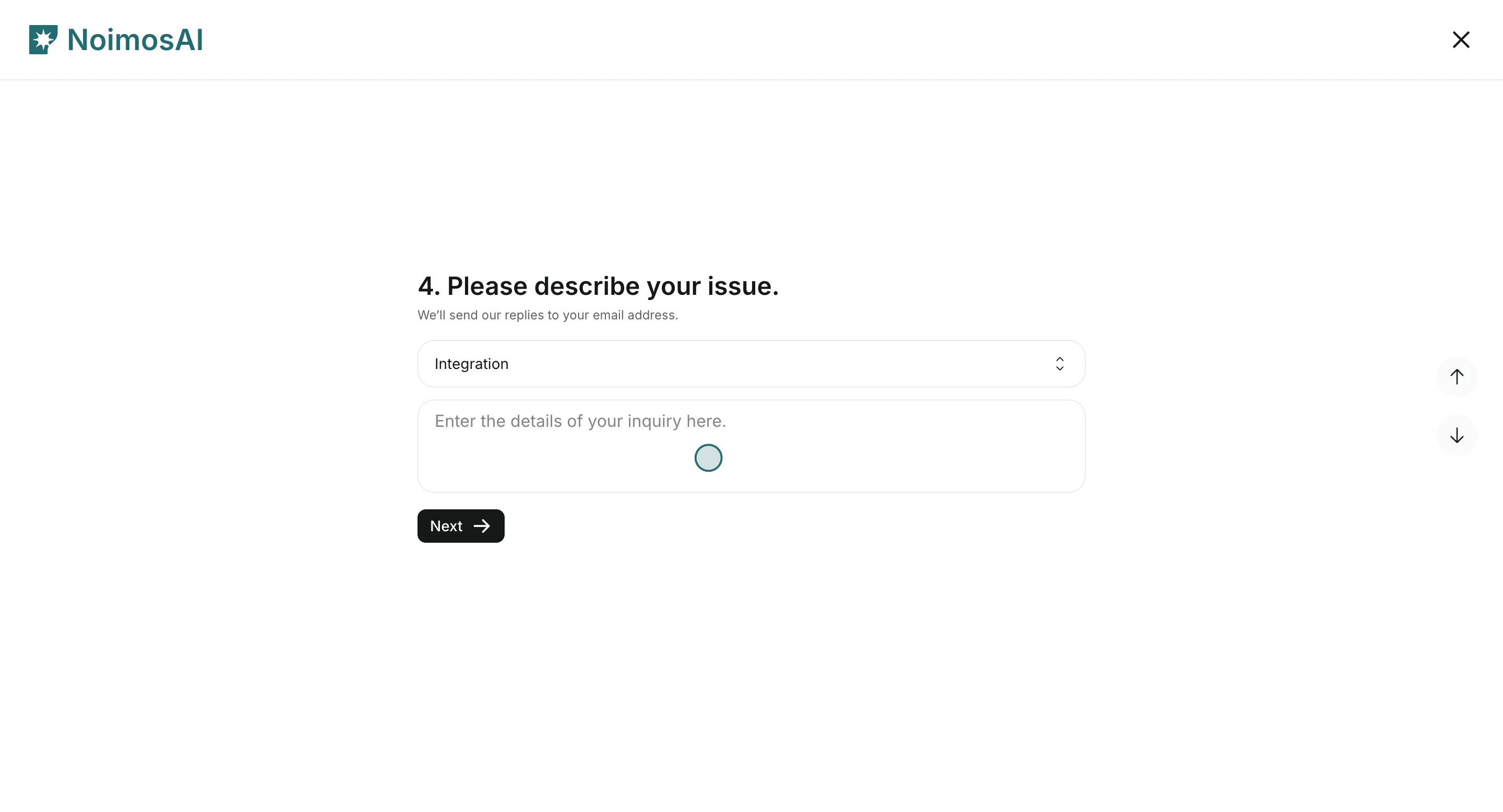
6. お困りごとの小分類を選び、詳細を入力します。

<img src="https://mintcdn.com/agoslabstechnologiesfzco/Nczo-Nsvecgkkv7J/public/help-center/arcade/customer-support/contact-customer-support/step-13.png?fit=max&auto=format&n=Nczo-Nsvecgkkv7J&q=85&s=aa9c8a685201a104f11fb3a60db3996b" alt="具体的な分類と詳細説明を入力する" style={{ border: '1px solid #e5e7eb', borderRadius: '8px', marginBottom: '1rem' }} width="2880" height="1556" data-path="public/help-center/arcade/customer-support/contact-customer-support/step-13.png" />

7. 確認画面で内容を確認し、`送信` をクリックします。

<img src="https://mintcdn.com/agoslabstechnologiesfzco/Nczo-Nsvecgkkv7J/public/help-center/arcade/customer-support/contact-customer-support/step-15.png?fit=max&auto=format&n=Nczo-Nsvecgkkv7J&q=85&s=1fd8259d618dbd7fef1b8b78849f3fc7" alt="問い合わせ内容を確認して送信する" style={{ border: '1px solid #e5e7eb', borderRadius: '8px', marginBottom: '2rem' }} width="2880" height="1556" data-path="public/help-center/arcade/customer-support/contact-customer-support/step-15.png" />

## 早く解決するために含める情報

調査に必要な情報を最初から入れると、やり取りを短くできます。

* 問題が起きた場所: チーム、ワークスペース、機能名（エージェント、すべてのタスク、チャット、ページ、ライブラリ、設定など）
* 期待していた結果と、実際に起きた結果
* 再現手順と発生頻度
* 関連するID、発生時刻、影響を受けたアカウント名

## 関連

* [AIエージェントの基本](/ja/help-center/ai-team/ai-agent-basics)
* [エージェントの実行結果を確認する](/ja/help-center/ai-team/check-agent-execution-results)
* [支払い履歴を確認してダウンロードする](/ja/help-center/plans-and-billing/check-and-download-payment-history)