> ## Documentation Index
> Fetch the complete documentation index at: https://docs.noimosai.com/llms.txt
> Use this file to discover all available pages before exploring further.

# トリガーが実行されないときに確認することは？

> トリガーが動かないときの確認ポイントを案内します。

## 要点

次の5つを順番に確認します。
`トリガー条件`、`オン/オフ状態`、`接続済みアカウント`、`実行タイミング`、`クレジット残高`

## チェックリスト

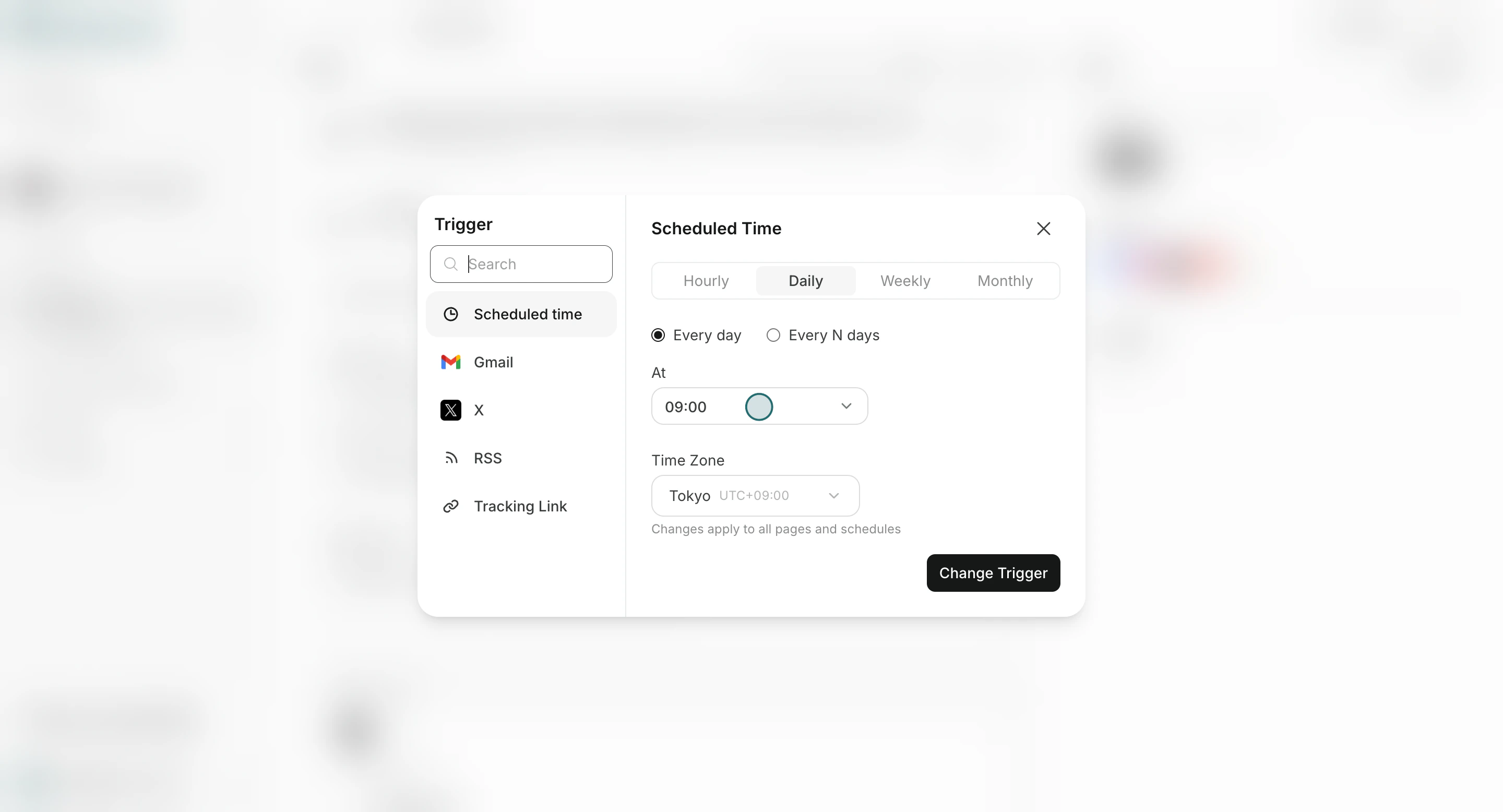
1. トリガータイプの条件を満たしているか確認します（`スケジュール設定`、`Gmail`、`X`、`RSS`、`トラッキングリンク`）。

<img src="https://mintcdn.com/agoslabstechnologiesfzco/Nczo-Nsvecgkkv7J/public/help-center/arcade/ai-team/edit-add-and-delete-triggers/step-10.png?fit=max&auto=format&n=Nczo-Nsvecgkkv7J&q=85&s=6fdb5b1669077e9cef17cabfbb444254" alt="トリガータイプ条件を示す設定画面" style={{ border: '1px solid #e5e7eb', borderRadius: '8px', marginBottom: '1rem' }} width="2880" height="1556" data-path="public/help-center/arcade/ai-team/edit-add-and-delete-triggers/step-10.png" />

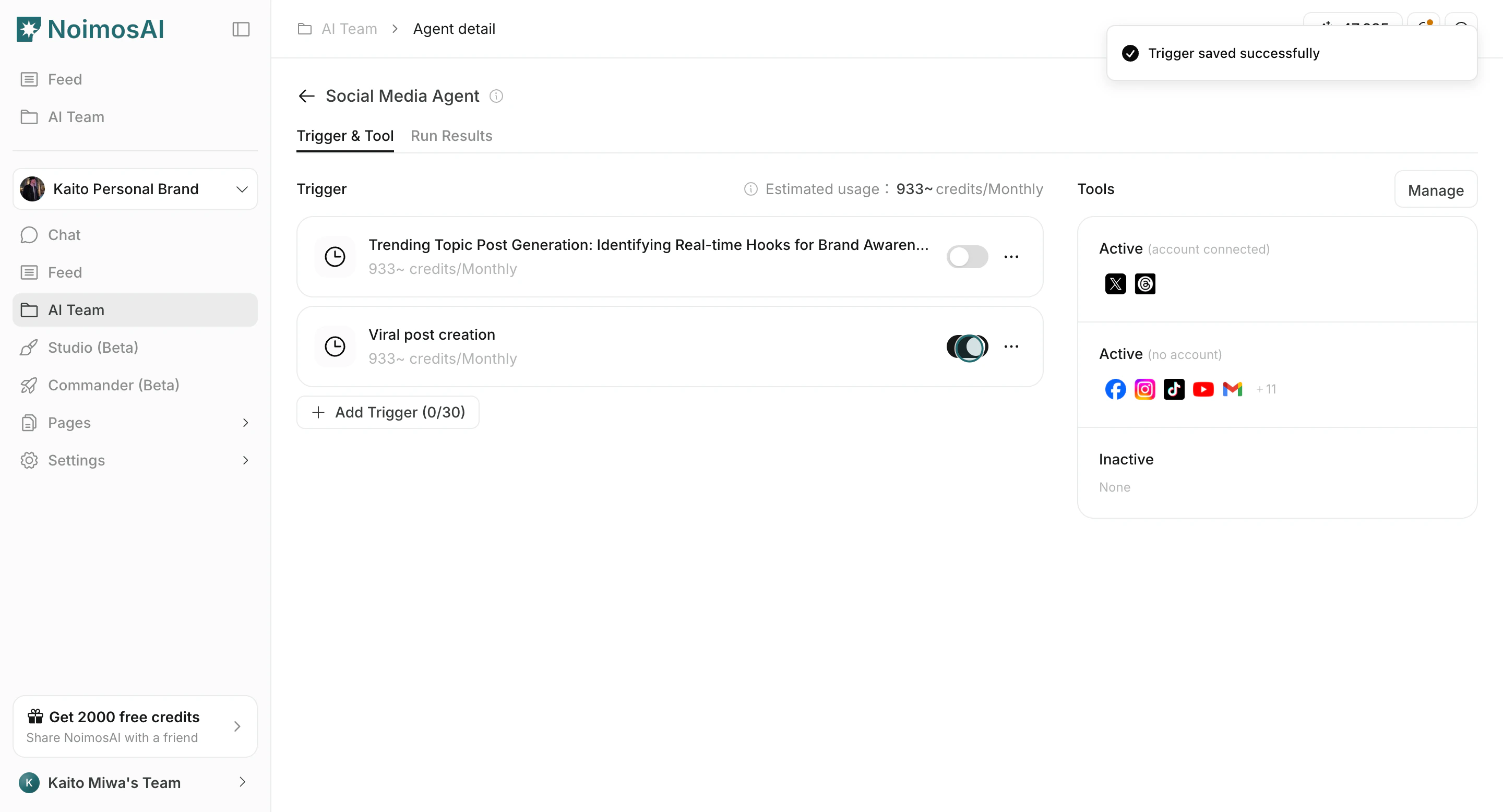
2. トリガーの切り替えがオンか確認します。

<img src="https://mintcdn.com/agoslabstechnologiesfzco/Nczo-Nsvecgkkv7J/public/help-center/arcade/ai-team/edit-add-and-delete-triggers/step-15.png?fit=max&auto=format&n=Nczo-Nsvecgkkv7J&q=85&s=7ce7dfdae9b6aebad57abfaf49a5f6c9" alt="トリガーの切り替えと操作部" style={{ border: '1px solid #e5e7eb', borderRadius: '8px', marginBottom: '1rem' }} width="2880" height="1556" data-path="public/help-center/arcade/ai-team/edit-add-and-delete-triggers/step-15.png" />

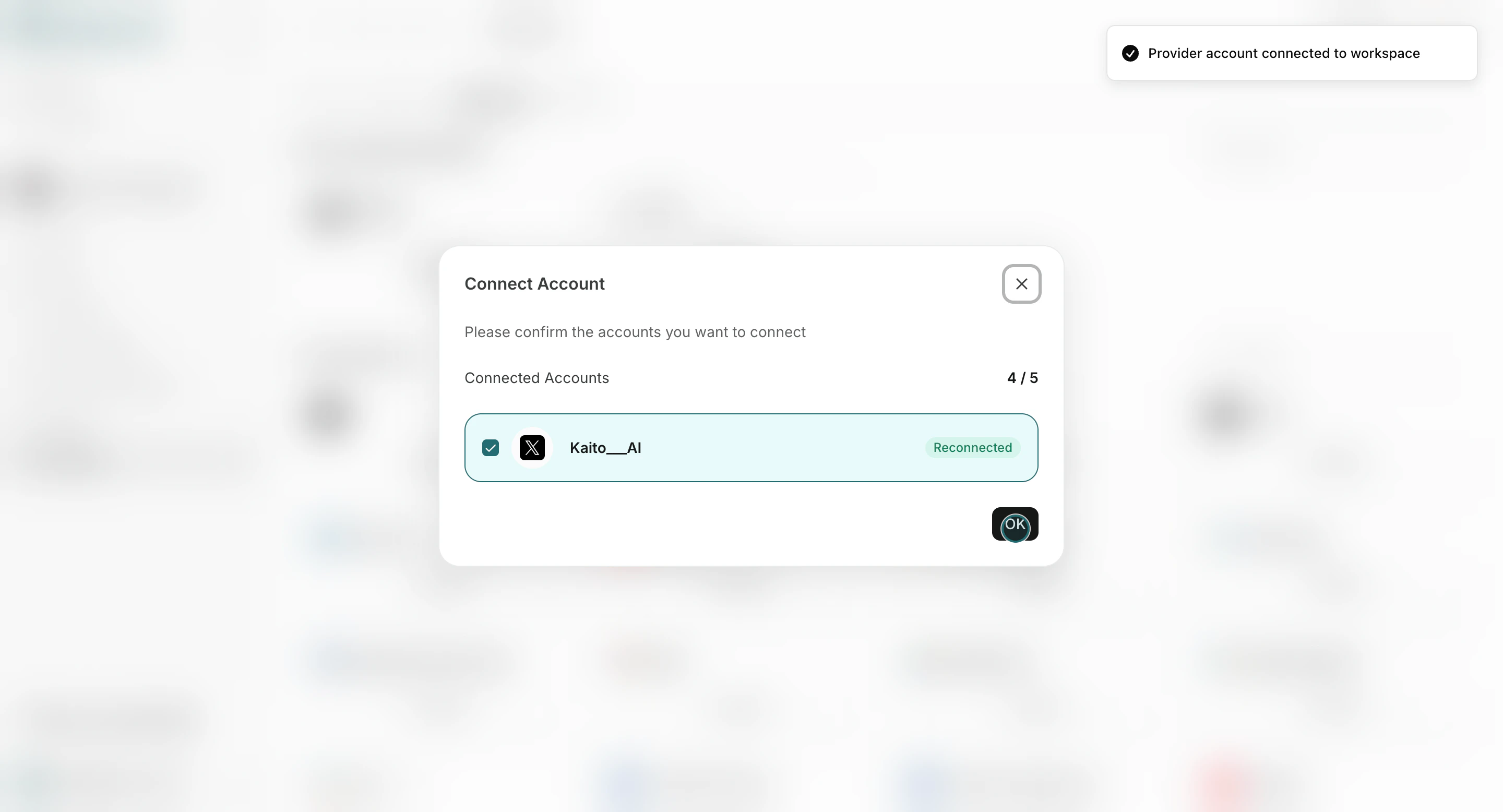
3. 必要な連携 / アカウントが接続され、認証されているか確認します。

<img src="https://mintcdn.com/agoslabstechnologiesfzco/Akti8JrQwF6FniPF/public/help-center/arcade/workspace/integrate-apps/step-10.png?fit=max&auto=format&n=Akti8JrQwF6FniPF&q=85&s=335f234a4fc1cea9838442a83ae09254" alt="ワークスペース設定の接続済み連携アカウント" style={{ border: '1px solid #e5e7eb', borderRadius: '8px', marginBottom: '1rem' }} width="2880" height="1556" data-path="public/help-center/arcade/workspace/integrate-apps/step-10.png" />

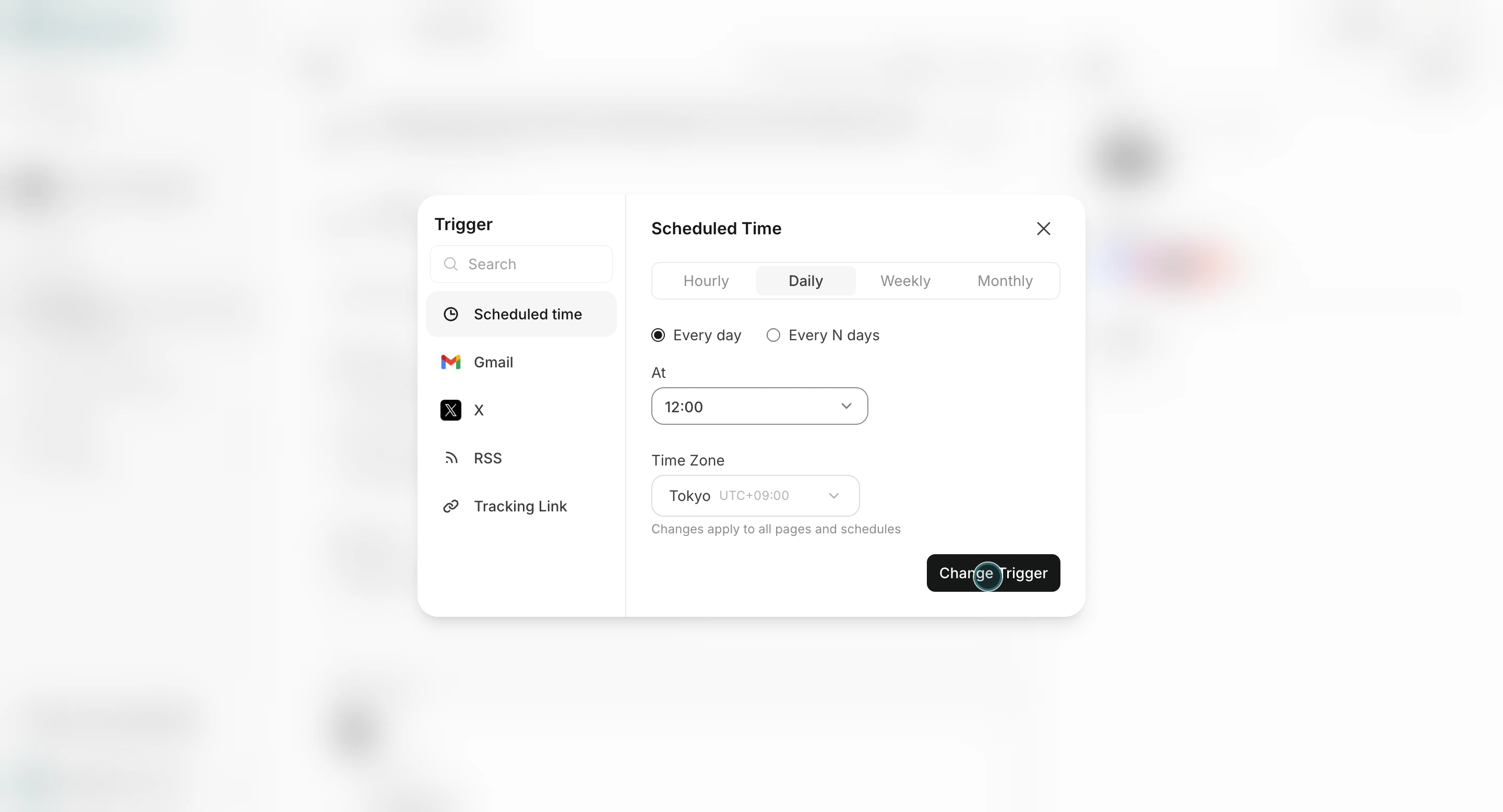
4. スケジュール頻度とタイムゾーン設定を確認します。

<img src="https://mintcdn.com/agoslabstechnologiesfzco/Nczo-Nsvecgkkv7J/public/help-center/arcade/ai-team/edit-add-and-delete-triggers/step-11.png?fit=max&auto=format&n=Nczo-Nsvecgkkv7J&q=85&s=a759d23875887a9b521b51c155c07f2f" alt="トリガーのスケジュールとタイムゾーン設定" style={{ border: '1px solid #e5e7eb', borderRadius: '8px', marginBottom: '1rem' }} width="2880" height="1556" data-path="public/help-center/arcade/ai-team/edit-add-and-delete-triggers/step-11.png" />

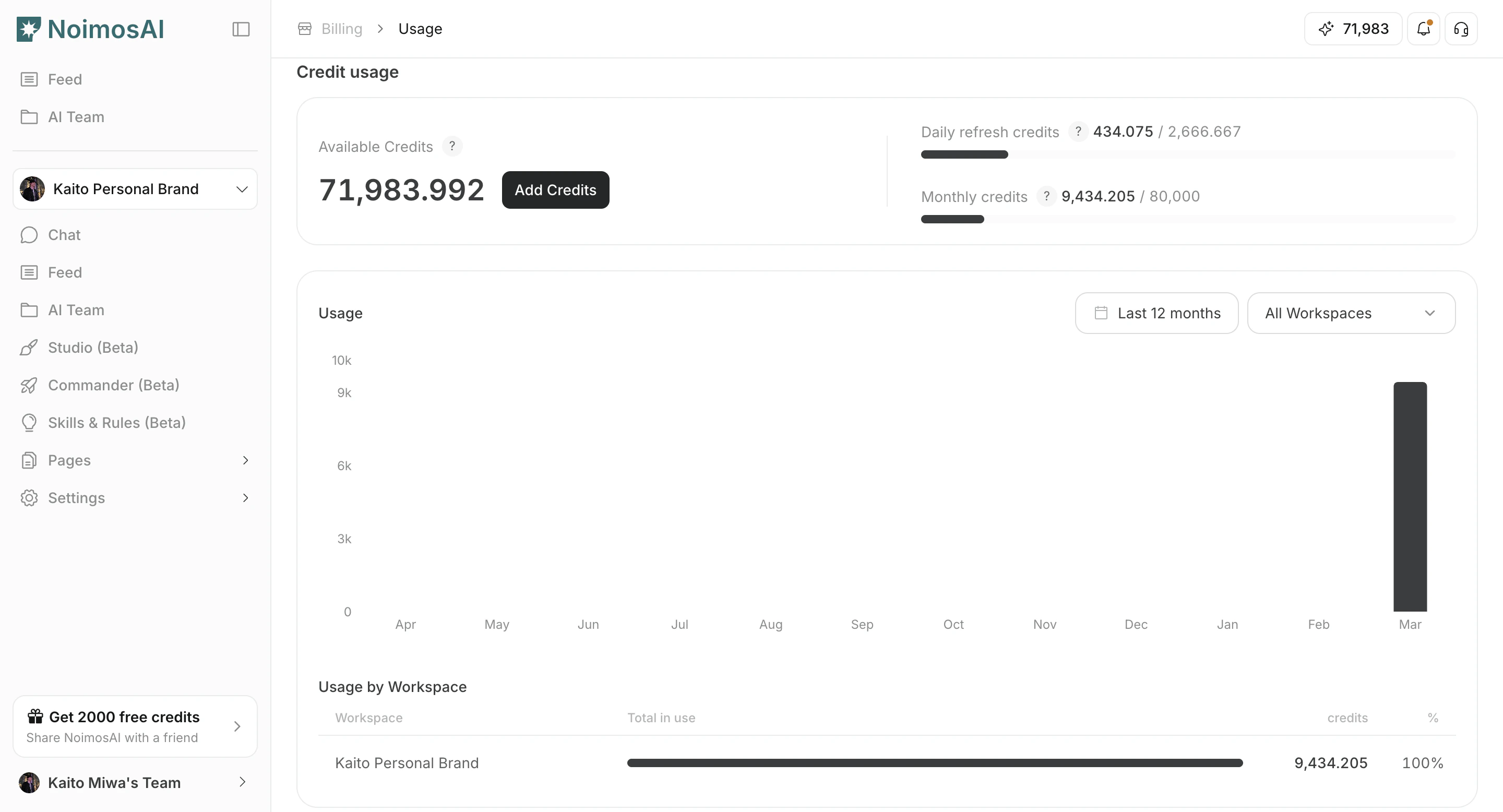
5. まだ利用可能なクレジットがあるか確認します。

<img src="https://mintcdn.com/agoslabstechnologiesfzco/dv4wqk6EXKIBh0RT/public/help-center/plans-and-billing/credit-usage-balance-and-topup.png?fit=max&auto=format&n=dv4wqk6EXKIBh0RT&q=85&s=fd684391a74469ecd07f33fbf0ccba60" alt="利用可能なクレジットを確認するお支払い画面" style={{ border: '1px solid #e5e7eb', borderRadius: '8px', marginBottom: '1.5rem' }} width="2880" height="1556" data-path="public/help-center/plans-and-billing/credit-usage-balance-and-topup.png" />

## 結果の確認場所

* `すべてのタスク` と `実行結果` で実行履歴を確認します。
* `チーム -> エージェント -> [エージェント] -> 実行結果` でエージェントごとの履歴を確認します。

## 関連

* [トリガーの種類](/ja/help-center/ai-team/trigger-types)
* [エージェントを編集・追加・削除する](/ja/help-center/ai-team/edit-add-and-delete-triggers)