> ## Documentation Index
> Fetch the complete documentation index at: https://docs.noimosai.com/llms.txt
> Use this file to discover all available pages before exploring further.
# サブスクリプションはどこで解約できますか?
> お支払い画面で解約を開始する場所を案内します。
## 要点
`チーム -> お支払い -> 利用状況` に移動し、`プラン詳細` から解約します。
## 手順
1. `お支払い利用状況` を開きます。
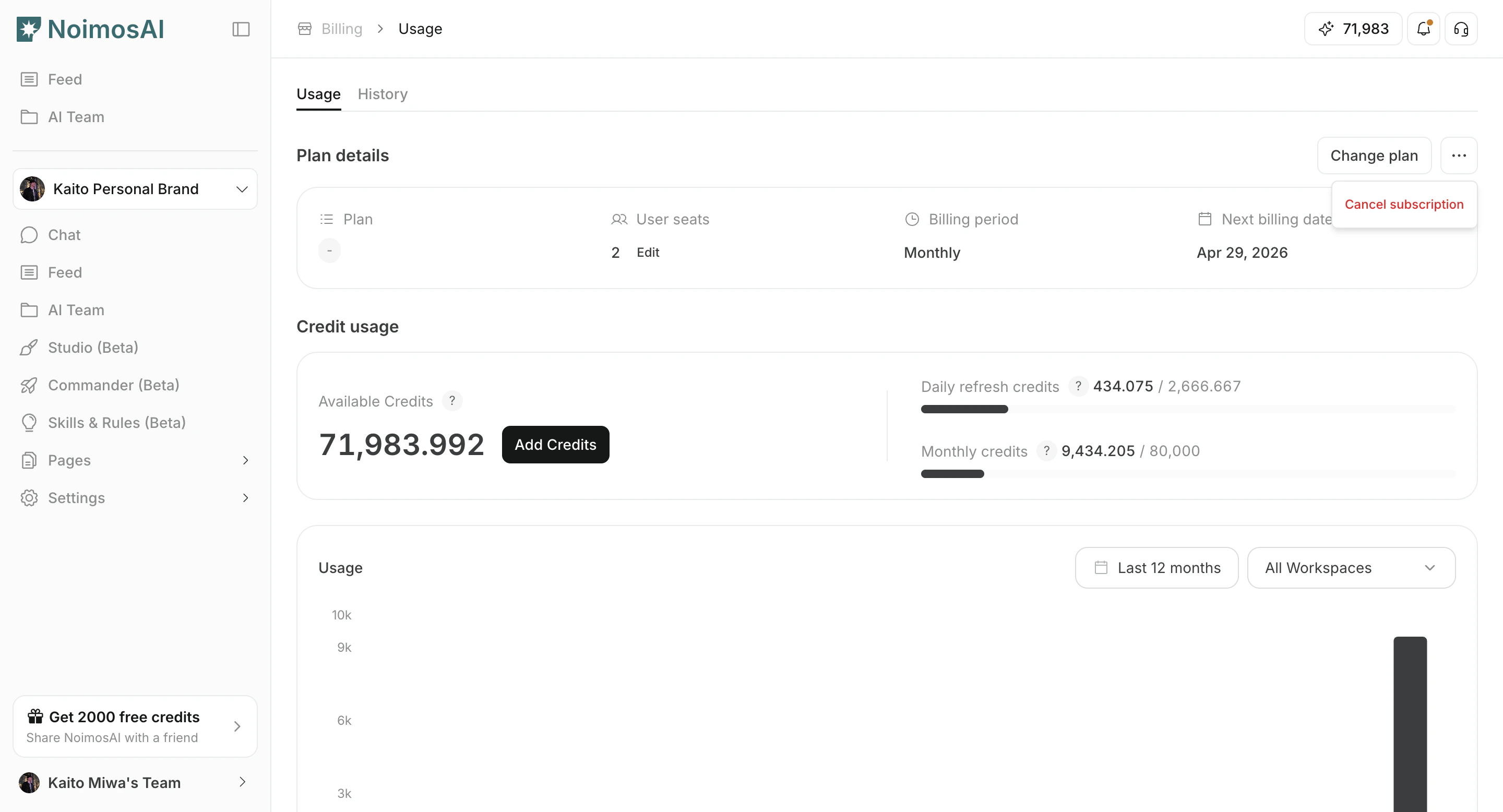
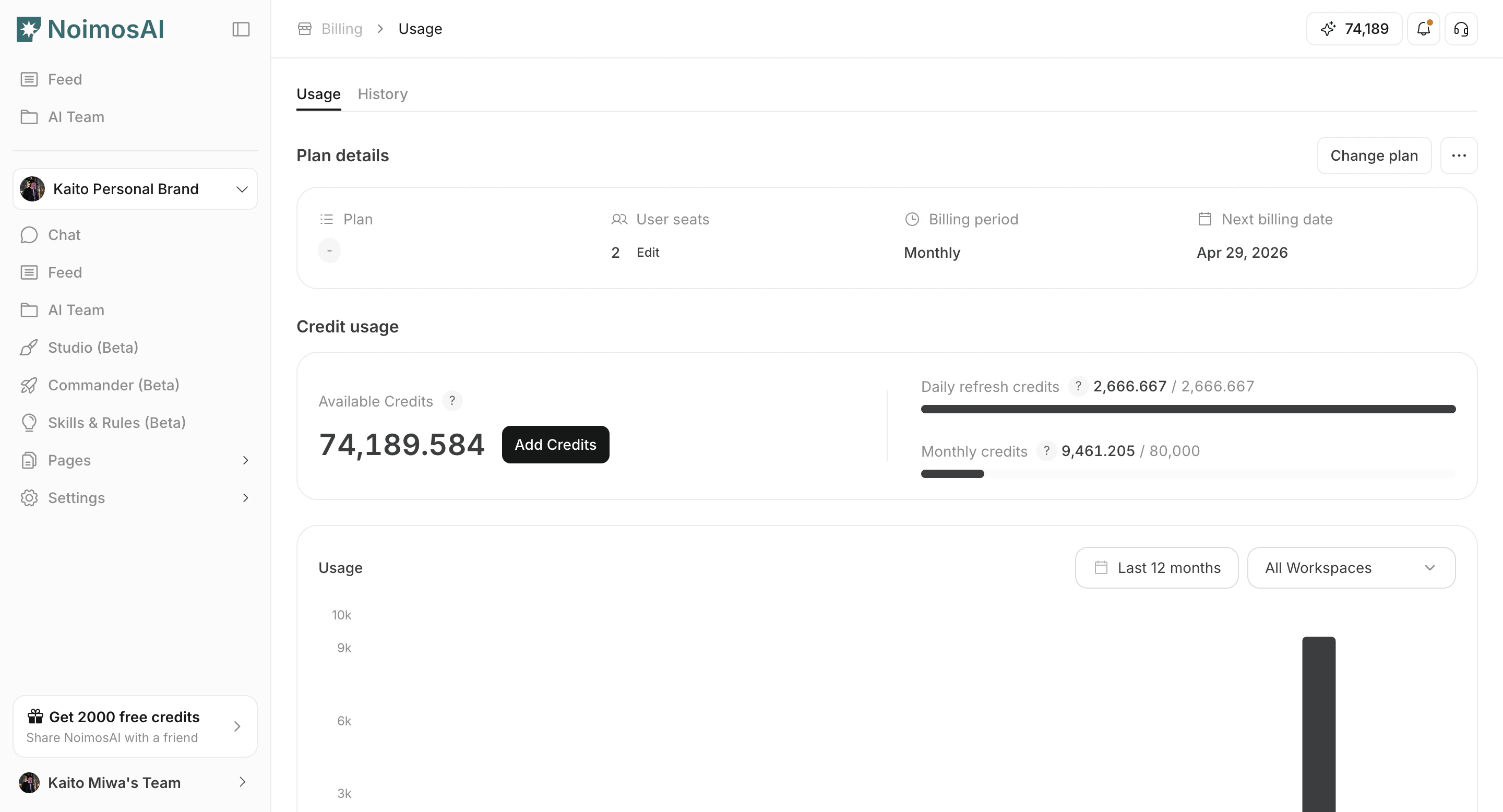 2. `プラン詳細` の `サブスクリプションをキャンセル` をクリックします。
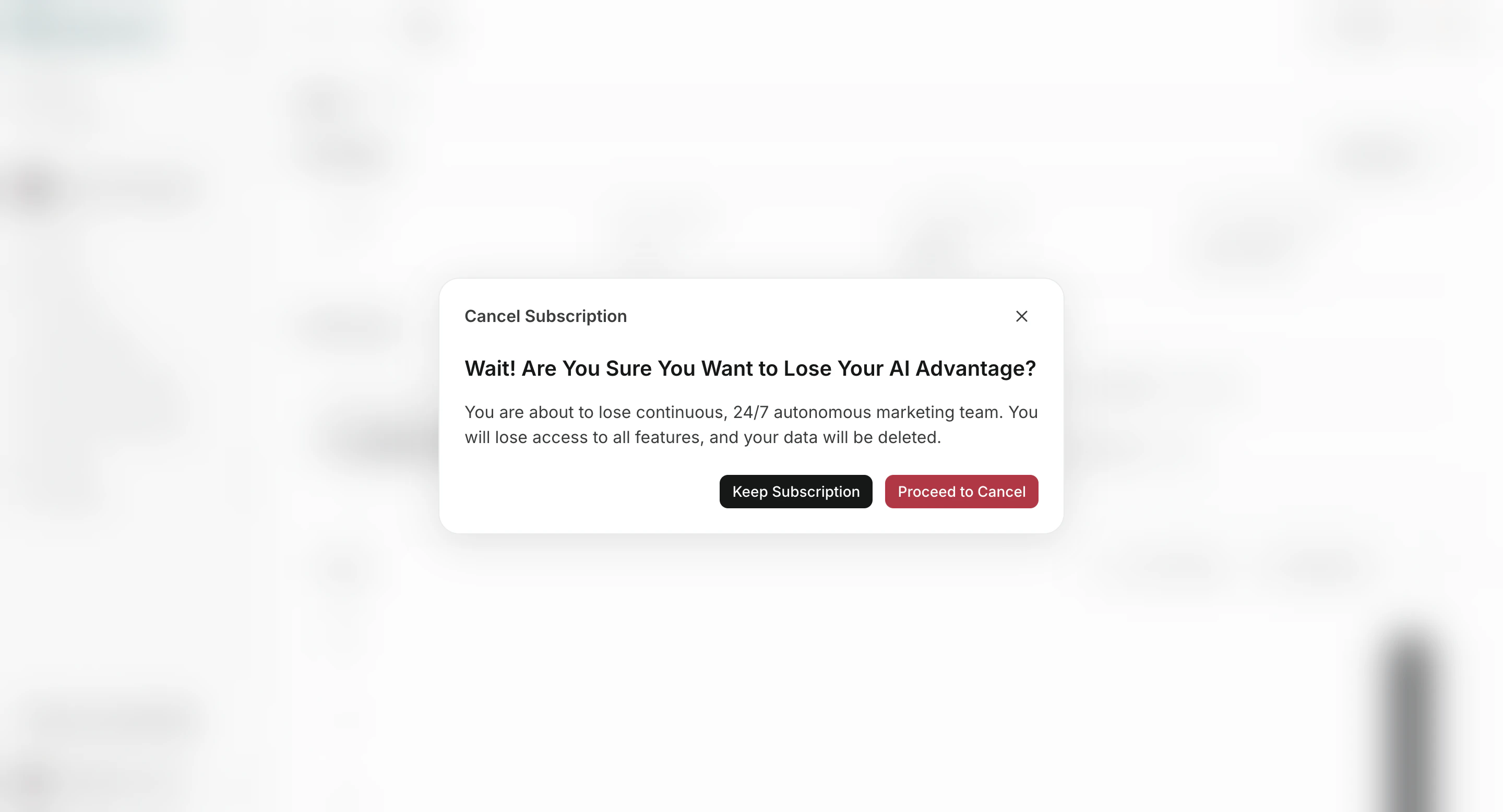
 3. 確認フローを完了します。
 ## 解約後に起きること
* 有料サブスクリプションは、通常は期間終了時に解約されます。
* トライアル中または支払い失敗中のサブスクリプションは、すぐに解約される場合があります。
* 解約通知では、30日後にパーソナライズ済みデータとナレッジベース設定が削除されることが案内されます。
## デモ
* [サブスクリプションを解約する(学習センター)](/ja/learning-center/plan-and-billing/cancel-subscription)
* [Arcade Demo](https://app.arcade.software/share/K5TAdwueKLKS3pWG7Xqd)
## 解約後に起きること
* 有料サブスクリプションは、通常は期間終了時に解約されます。
* トライアル中または支払い失敗中のサブスクリプションは、すぐに解約される場合があります。
* 解約通知では、30日後にパーソナライズ済みデータとナレッジベース設定が削除されることが案内されます。
## デモ
* [サブスクリプションを解約する(学習センター)](/ja/learning-center/plan-and-billing/cancel-subscription)
* [Arcade Demo](https://app.arcade.software/share/K5TAdwueKLKS3pWG7Xqd)