> ## Documentation Index
> Fetch the complete documentation index at: https://docs.noimosai.com/llms.txt
> Use this file to discover all available pages before exploring further.
# プランを変更する
> お支払い画面からチームプランをアップグレードまたはダウングレードする方法を説明します。
## 概要
シート数、使用上限、請求サイクルを変えたいときに、チームプランを変更します。
## 変更前の確認
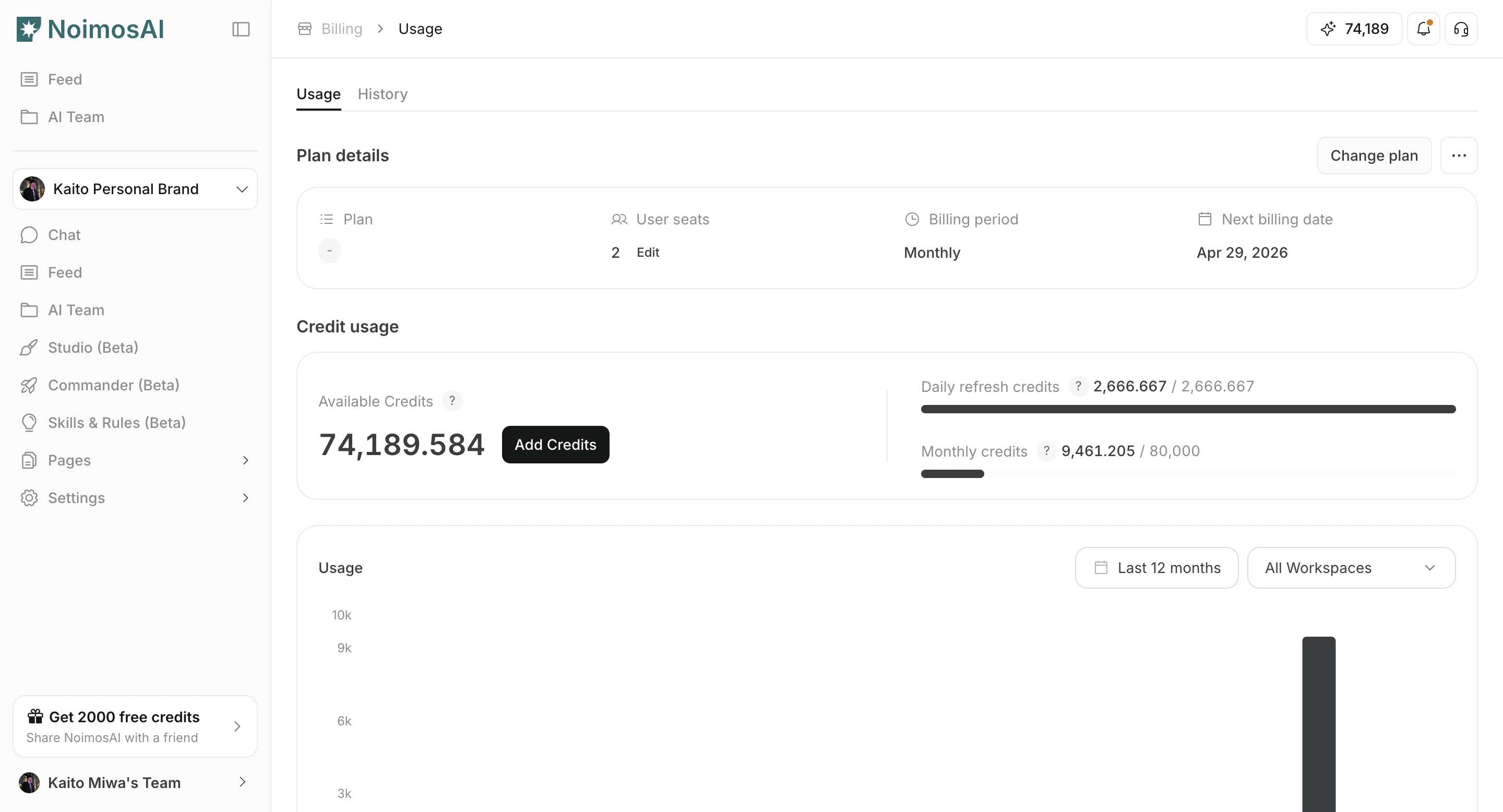
* `お支払い -> 利用状況` で現在の使用状況を確認する
* チーム内のシート数とワークスペース数を確認する
* 変更日と日割り請求の有無を確認する
## 場所
* `チーム -> お支払い -> 利用状況`
* `プラン詳細` の `プランを変更する` をクリックする
### プラン変更モーダルを開く
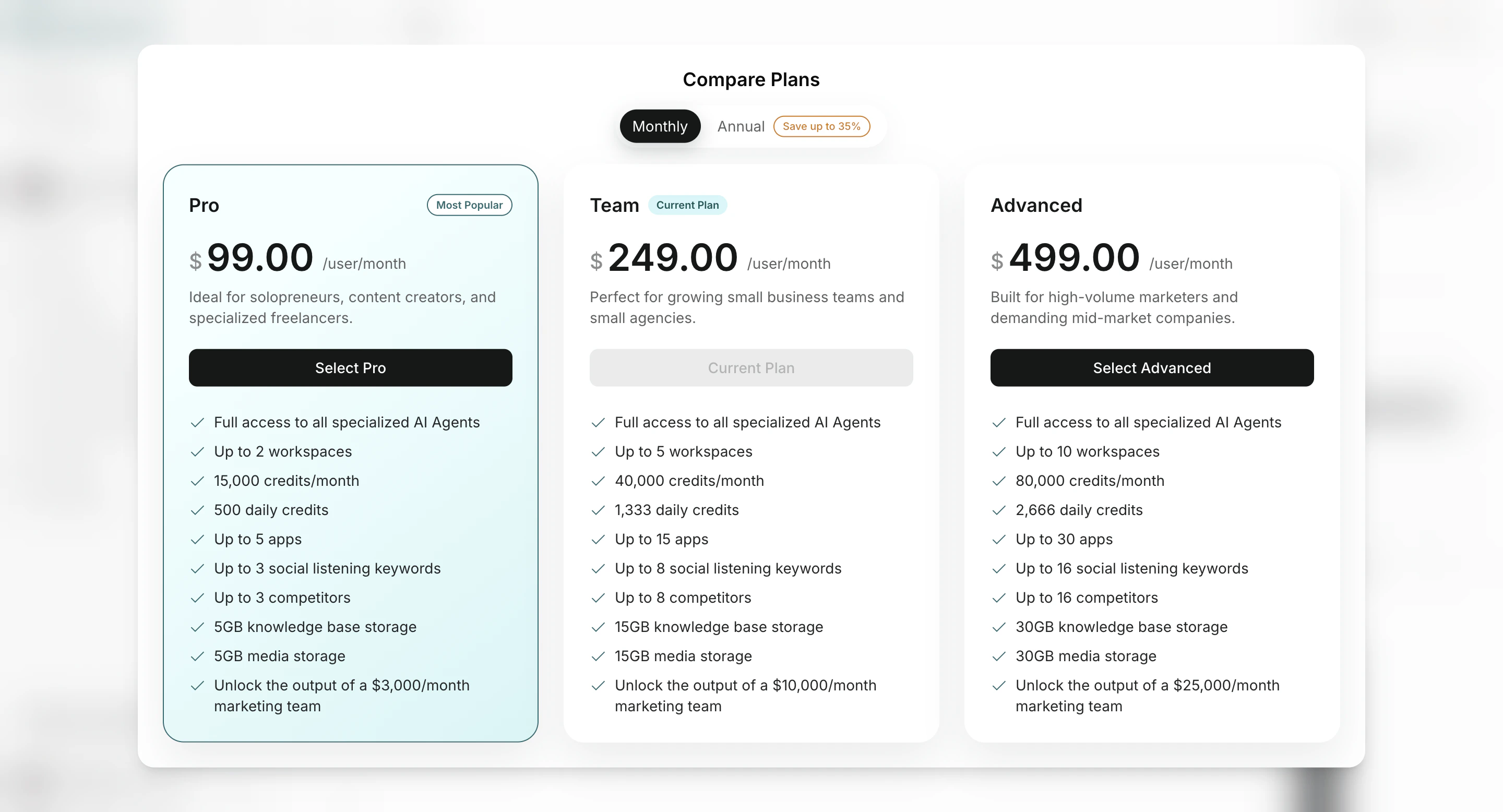
 ### 変更先プランと請求期間を選ぶ
 ## 変更手順
1. プラン比較モーダルを開く
2. 変更先プランと請求期間を選ぶ
3. 料金と請求条件を確認する
4. 変更を確定する
5. 変更後に上限と使用状況を再確認する
## 注意点
* プラン変更はチーム単位で反映され、配下のワークスペースにも影響します
* シート数とプラン階層は別々に管理されます
## 関連ページ
* [プランを確認する](/ja/help-center/plans-and-billing/check-plan)
* [サブスクリプションを解約する](/ja/help-center/plans-and-billing/cancel-subscription)
## 変更手順
1. プラン比較モーダルを開く
2. 変更先プランと請求期間を選ぶ
3. 料金と請求条件を確認する
4. 変更を確定する
5. 変更後に上限と使用状況を再確認する
## 注意点
* プラン変更はチーム単位で反映され、配下のワークスペースにも影響します
* シート数とプラン階層は別々に管理されます
## 関連ページ
* [プランを確認する](/ja/help-center/plans-and-billing/check-plan)
* [サブスクリプションを解約する](/ja/help-center/plans-and-billing/cancel-subscription)