> ## Documentation Index
> Fetch the complete documentation index at: https://docs.noimosai.com/llms.txt
> Use this file to discover all available pages before exploring further.

# チーム名と画像を変更する

> チームの名前とプロフィール画像を更新して、識別しやすい状態に保つ方法を説明します。

## 概要

チーム設定の `一般` から、チーム名とプロフィール画像を変更できます。複数チームを使う場合は、見分けやすい名前と画像にしておくと運用しやすくなります。

## 場所

以下の場所から開きます。

1. 左サイドバーで対象の `チーム` を選ぶ
2. `チーム設定` を開く
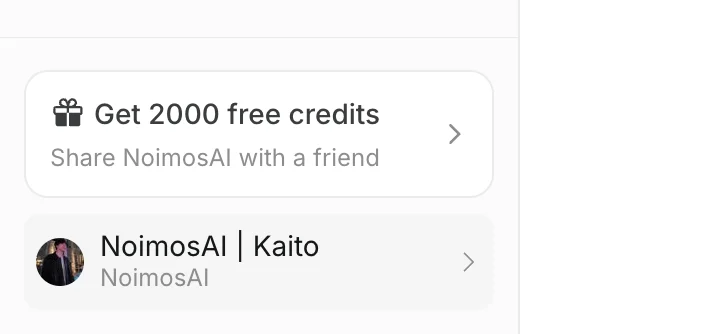
<img src="https://mintcdn.com/agoslabstechnologiesfzco/LDZN9knKW8aRsRmG/public/help-center/arcade/team-settings/change-team-name-and-profile-image/step-02.png?fit=max&auto=format&n=LDZN9knKW8aRsRmG&q=85&s=528d2851fa11b0a4fd3075a066d3f38b" alt="サイドバーからチームを選択する" style={{ border: '1px solid #e5e7eb', borderRadius: '8px', marginBottom: '2rem' }} width="724" height="334" data-path="public/help-center/arcade/team-settings/change-team-name-and-profile-image/step-02.png" />

## チーム名を変更する

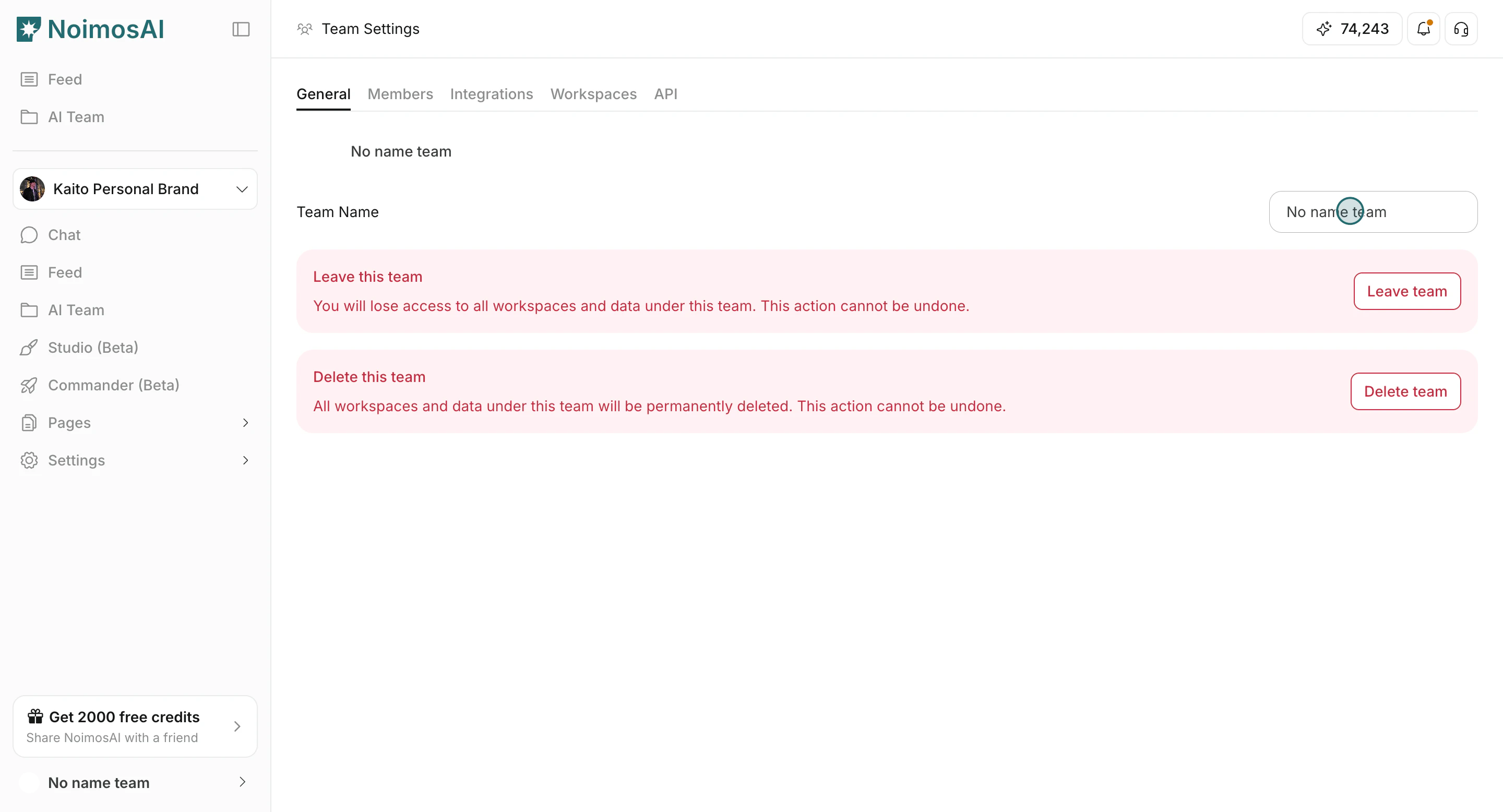
1. `一般` タブで `チーム名` を編集する

<img src="https://mintcdn.com/agoslabstechnologiesfzco/okAbFobT9iaP0HDF/public/help-center/arcade/team-settings/change-team-name-and-profile-image/step-04.png?fit=max&auto=format&n=okAbFobT9iaP0HDF&q=85&s=31a9286ae3c46052369fda46dd20c780" alt="チーム名を編集する" style={{ border: '1px solid #e5e7eb', borderRadius: '8px', marginBottom: '1rem' }} width="2880" height="1556" data-path="public/help-center/arcade/team-settings/change-team-name-and-profile-image/step-04.png" />

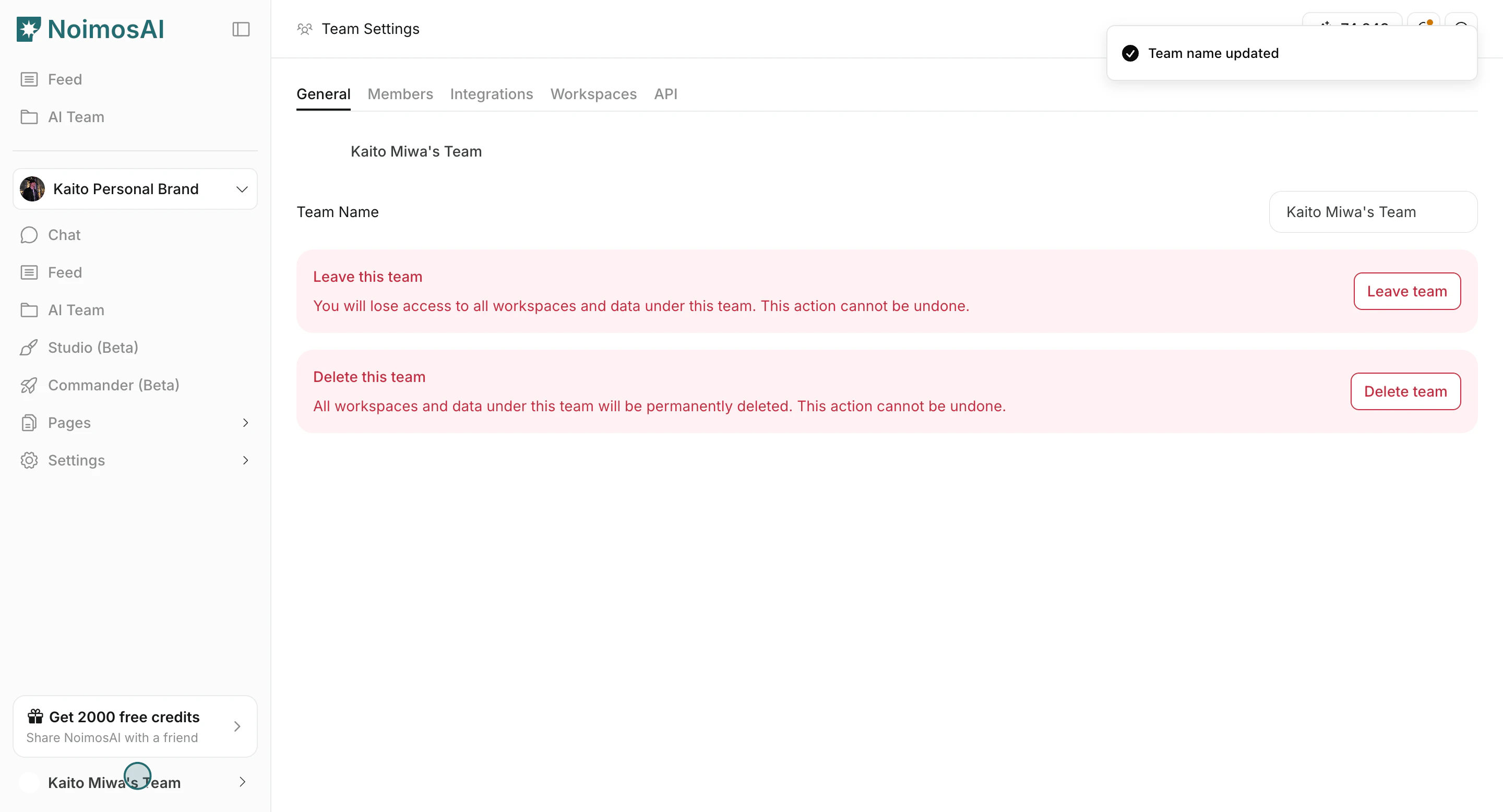
2. 入力欄外をクリックして保存する

<img src="https://mintcdn.com/agoslabstechnologiesfzco/okAbFobT9iaP0HDF/public/help-center/arcade/team-settings/change-team-name-and-profile-image/step-05.png?fit=max&auto=format&n=okAbFobT9iaP0HDF&q=85&s=2a4ad3830901f100d962cfcf0cda1a33" alt="チーム名の変更を保存する" style={{ border: '1px solid #e5e7eb', borderRadius: '8px', marginBottom: '2rem' }} width="2880" height="1556" data-path="public/help-center/arcade/team-settings/change-team-name-and-profile-image/step-05.png" />

## チーム画像を変更する

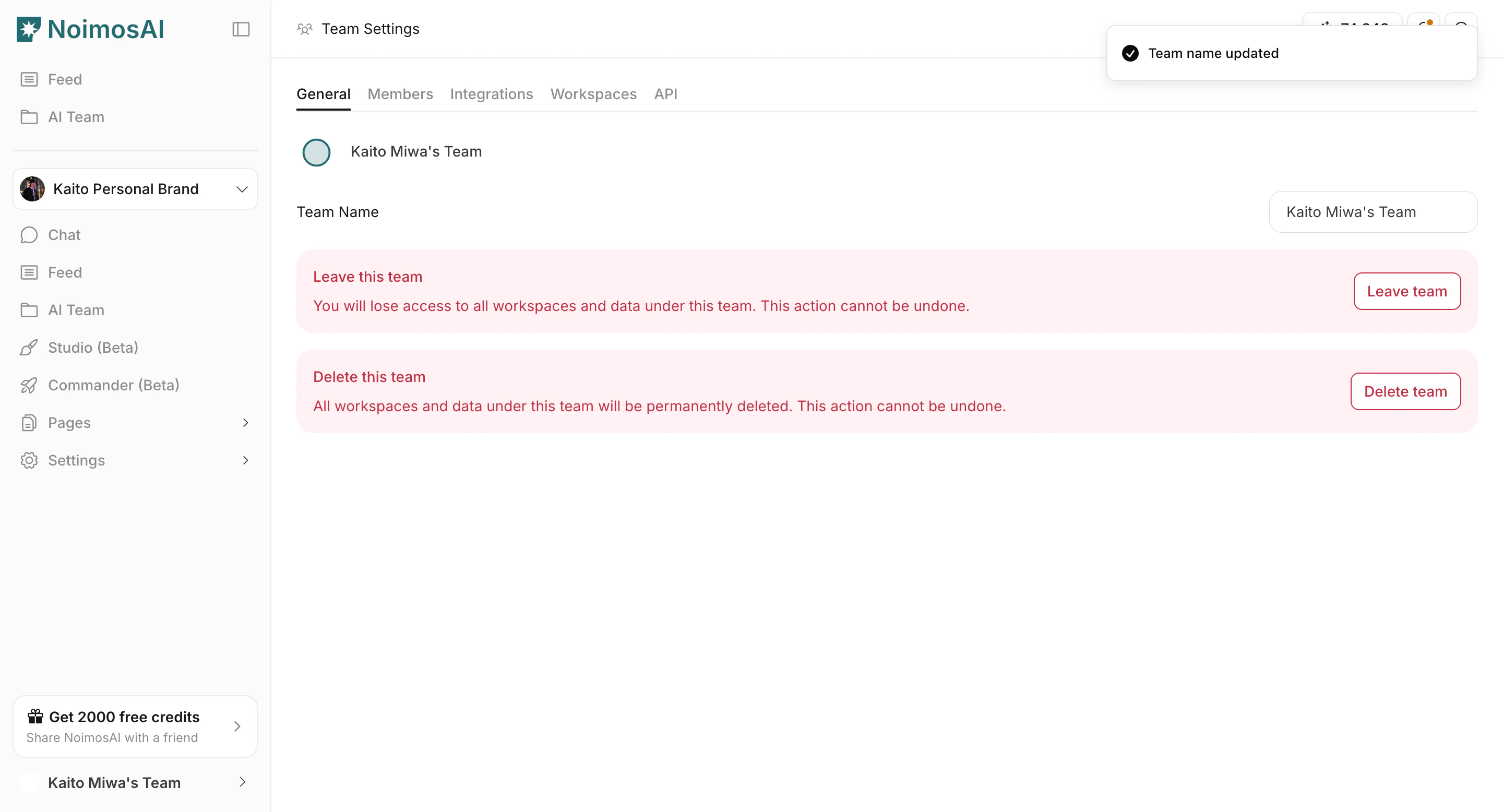
1. `一般` タブでチーム画像をクリックする

<img src="https://mintcdn.com/agoslabstechnologiesfzco/okAbFobT9iaP0HDF/public/help-center/arcade/team-settings/change-team-name-and-profile-image/step-06.png?fit=max&auto=format&n=okAbFobT9iaP0HDF&q=85&s=8cab870bd75bdd15468852f98f9d1817" alt="チーム画像アイコンをクリックする" style={{ border: '1px solid #e5e7eb', borderRadius: '8px', marginBottom: '1rem' }} width="2880" height="1556" data-path="public/help-center/arcade/team-settings/change-team-name-and-profile-image/step-06.png" />

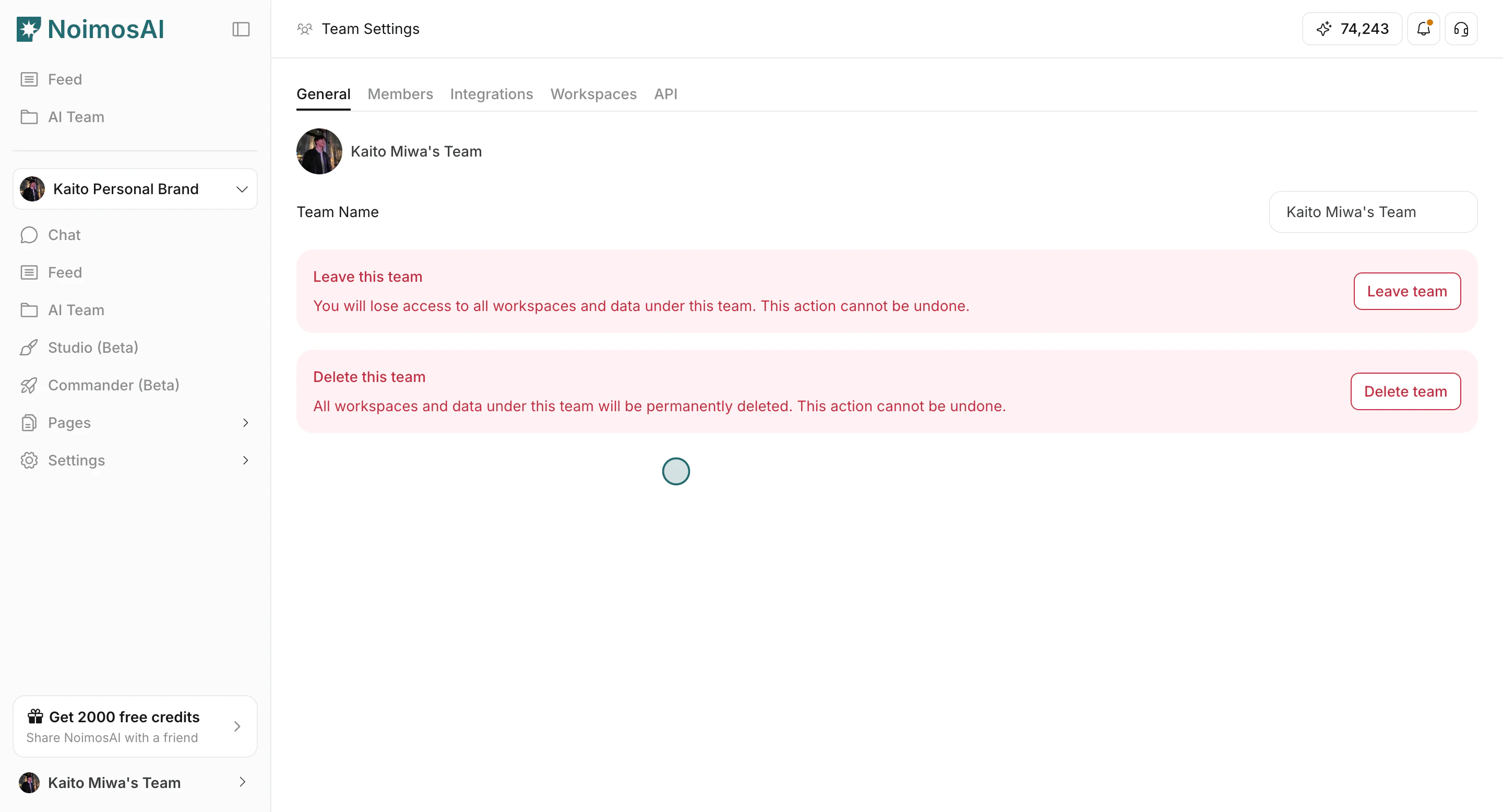
2. 新しい画像ファイルをアップロードする

<img src="https://mintcdn.com/agoslabstechnologiesfzco/okAbFobT9iaP0HDF/public/help-center/arcade/team-settings/change-team-name-and-profile-image/step-07.png?fit=max&auto=format&n=okAbFobT9iaP0HDF&q=85&s=51a9dffc77c4d0c68753ba585265ee24" alt="更新後のチーム名と画像を確認する" style={{ border: '1px solid #e5e7eb', borderRadius: '8px', marginBottom: '2rem' }} width="2880" height="1556" data-path="public/help-center/arcade/team-settings/change-team-name-and-profile-image/step-07.png" />

## ファイル要件

* 画像ファイル形式を使用する
* 最大ファイルサイズは 5 MB

## 運用のコツ

* 複数チームを運用する場合は、すぐ見分けられる名前にする
* 画像は小さい表示でも識別しやすいものを使う

## 関連ページ

* [チームの基本](/ja/help-center/team/team-basics)
* [チームを離脱または削除する](/ja/help-center/team/leave-or-delete-a-team)