> ## Documentation Index
> Fetch the complete documentation index at: https://docs.noimosai.com/llms.txt
> Use this file to discover all available pages before exploring further.

# 계정 이름 변경

> 프로필에 표시되는 이름을 변경합니다.

## 개요

표시 이름을 변경하면 NoimosAI에서 팀원에게 보이는 계정 이름을 조정할 수 있습니다.

## 위치

* `설정 -> 프로필`

## 변경 방법

1. `설정`을 열고 `프로필`로 이동합니다.
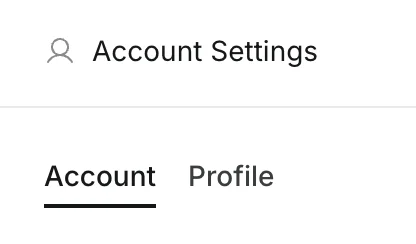
<img src="https://mintcdn.com/agoslabstechnologiesfzco/LPhU3Zr6jeMvQ4AZ/public/help-center/arcade/account-settings/change-display-name-and-profile-image/step-04.png?fit=max&auto=format&n=LPhU3Zr6jeMvQ4AZ&q=85&s=4929efde789ce3293b3bea1ea4dfcf6f" alt="계정 설정에서 프로필 탭 열기" style={{ border: '1px solid #e5e7eb', borderRadius: '8px', marginBottom: '1rem' }} width="416" height="244" data-path="public/help-center/arcade/account-settings/change-display-name-and-profile-image/step-04.png" />

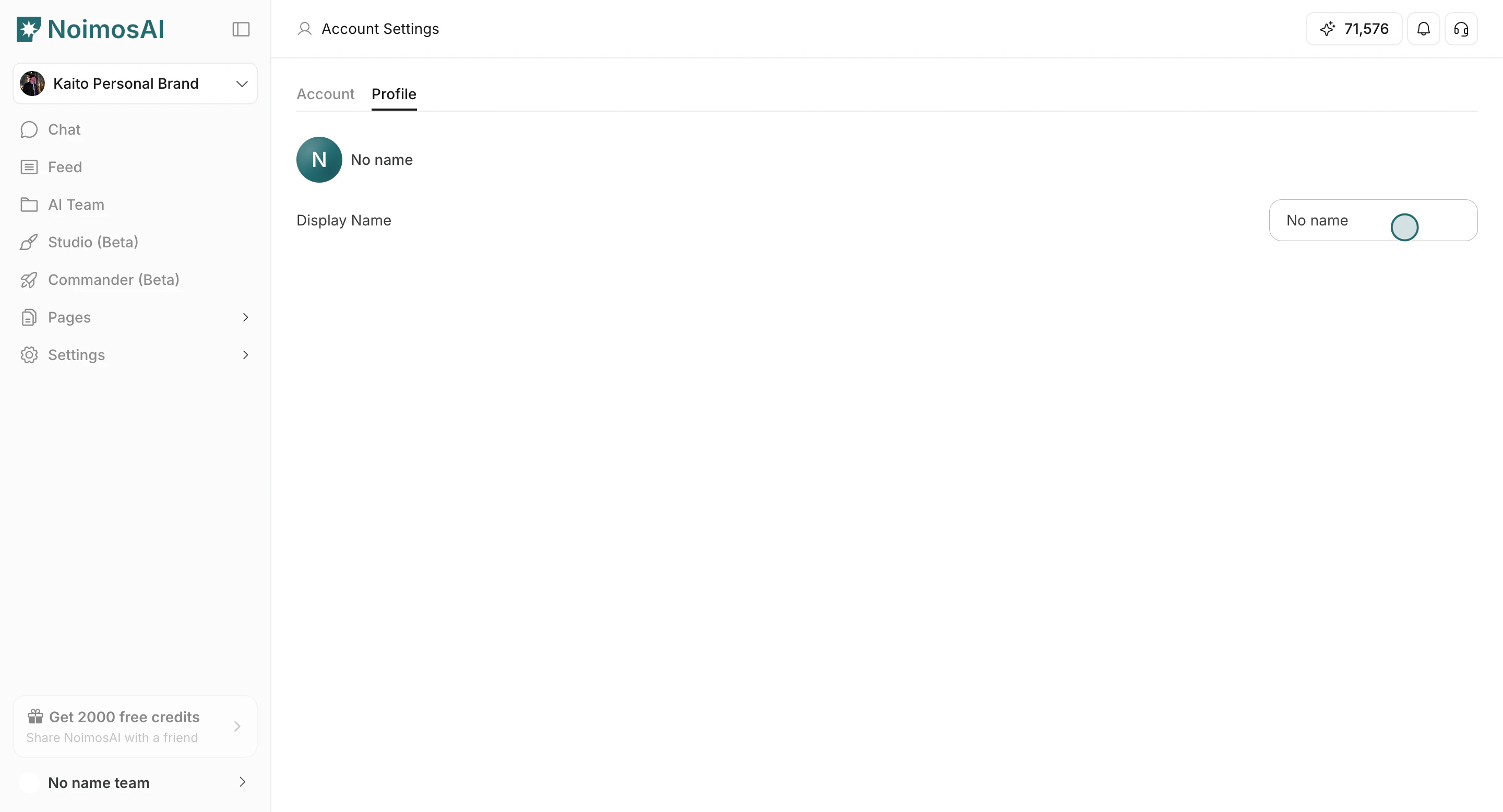
2. `표시 이름` 입력란을 수정합니다.

<img src="https://mintcdn.com/agoslabstechnologiesfzco/Fp8XwoziZBVDha6p/public/help-center/arcade/account-settings/change-display-name-and-profile-image/step-05.png?fit=max&auto=format&n=Fp8XwoziZBVDha6p&q=85&s=22f63cd2b53960a8e57519da2330d2ca" alt="표시 이름 입력란 수정" style={{ border: '1px solid #e5e7eb', borderRadius: '8px', marginBottom: '1rem' }} width="2880" height="1556" data-path="public/help-center/arcade/account-settings/change-display-name-and-profile-image/step-05.png" />

3. 입력란 바깥을 클릭해 저장합니다.

<img src="https://mintcdn.com/agoslabstechnologiesfzco/Fp8XwoziZBVDha6p/public/help-center/arcade/account-settings/change-display-name-and-profile-image/step-05.png?fit=max&auto=format&n=Fp8XwoziZBVDha6p&q=85&s=22f63cd2b53960a8e57519da2330d2ca" alt="표시 이름 변경 저장" style={{ border: '1px solid #e5e7eb', borderRadius: '8px', marginBottom: '1rem' }} width="2880" height="1556" data-path="public/help-center/arcade/account-settings/change-display-name-and-profile-image/step-05.png" />

4. 프로필과 팀원에게 보이는 UI에 변경된 이름이 반영됐는지 확인합니다.
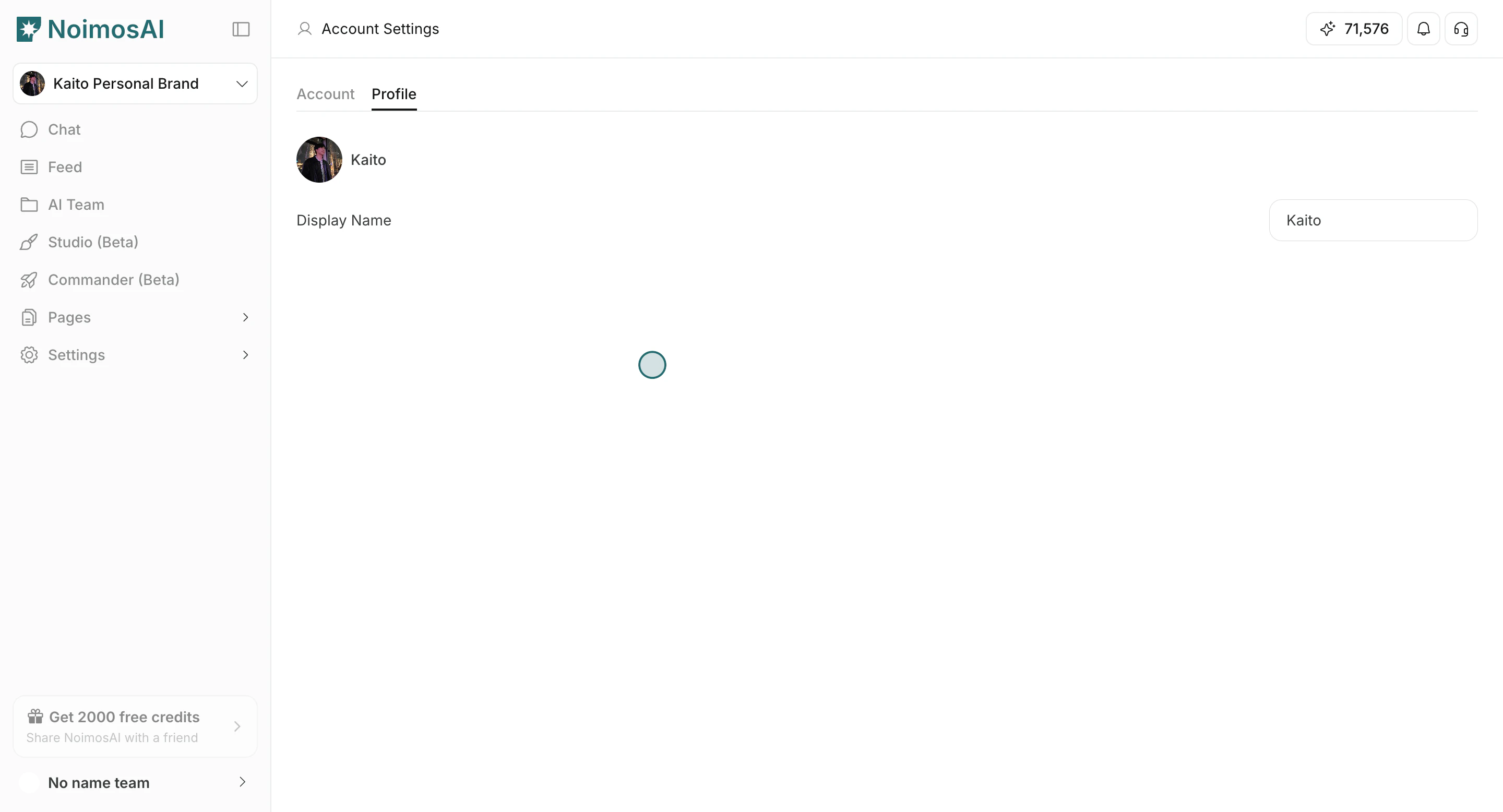
<img src="https://mintcdn.com/agoslabstechnologiesfzco/Fp8XwoziZBVDha6p/public/help-center/arcade/account-settings/change-display-name-and-profile-image/step-07.png?fit=max&auto=format&n=Fp8XwoziZBVDha6p&q=85&s=c2bc8b0fe864ccd7a3eec6123865c587" alt="변경된 프로필 이름이 UI에 반영된 모습" style={{ border: '1px solid #e5e7eb', borderRadius: '8px', marginBottom: '1rem' }} width="2880" height="1556" data-path="public/help-center/arcade/account-settings/change-display-name-and-profile-image/step-07.png" />

## 팁

* 팀원이 바로 알아볼 수 있는 이름 형식을 사용하는 것이 좋습니다.
* 여러 팀에서 활동한다면 이름 표기를 일관되게 유지하세요.

## 관련 문서

* [계정 설정 소개](/ko/help-center/account/account-basics)
* [계정 프로필 이미지 변경](/ko/help-center/account/change-account-profile-image)