> ## Documentation Index
> Fetch the complete documentation index at: https://docs.noimosai.com/llms.txt
> Use this file to discover all available pages before exploring further.
# 채팅 설정 사용자 지정
> AI 동작 설정, 응답 모드, 연동, 생성 모드, Knowledge Base 첨부를 조정하는 방법을 설명합니다.
## 개요
`Chat settings`를 조정하면 속도, 품질, 개인화, 생성 모드, 참조 정보를 제어할 수 있습니다.
## 위치
1. `Chat`을 엽니다.
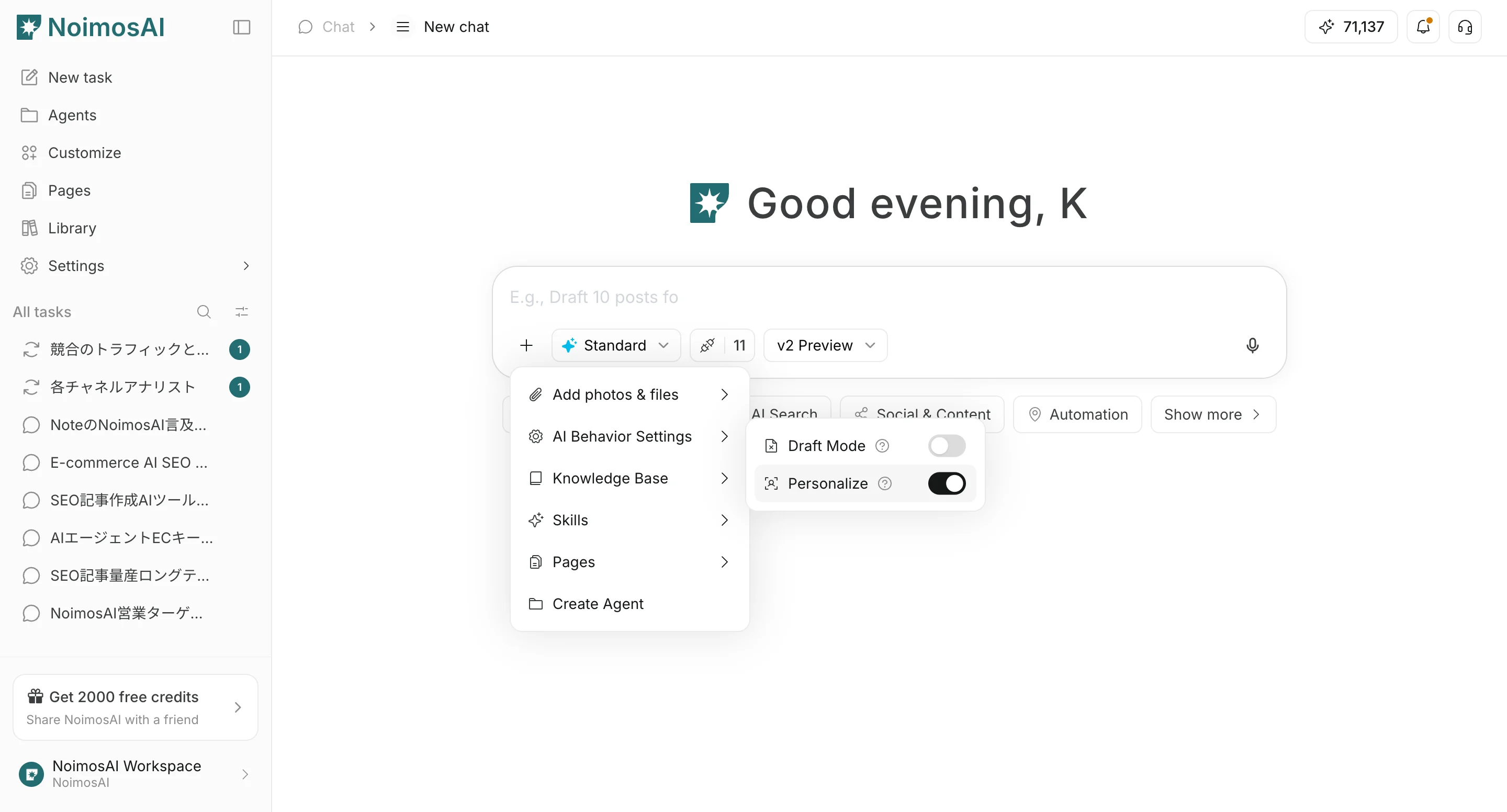
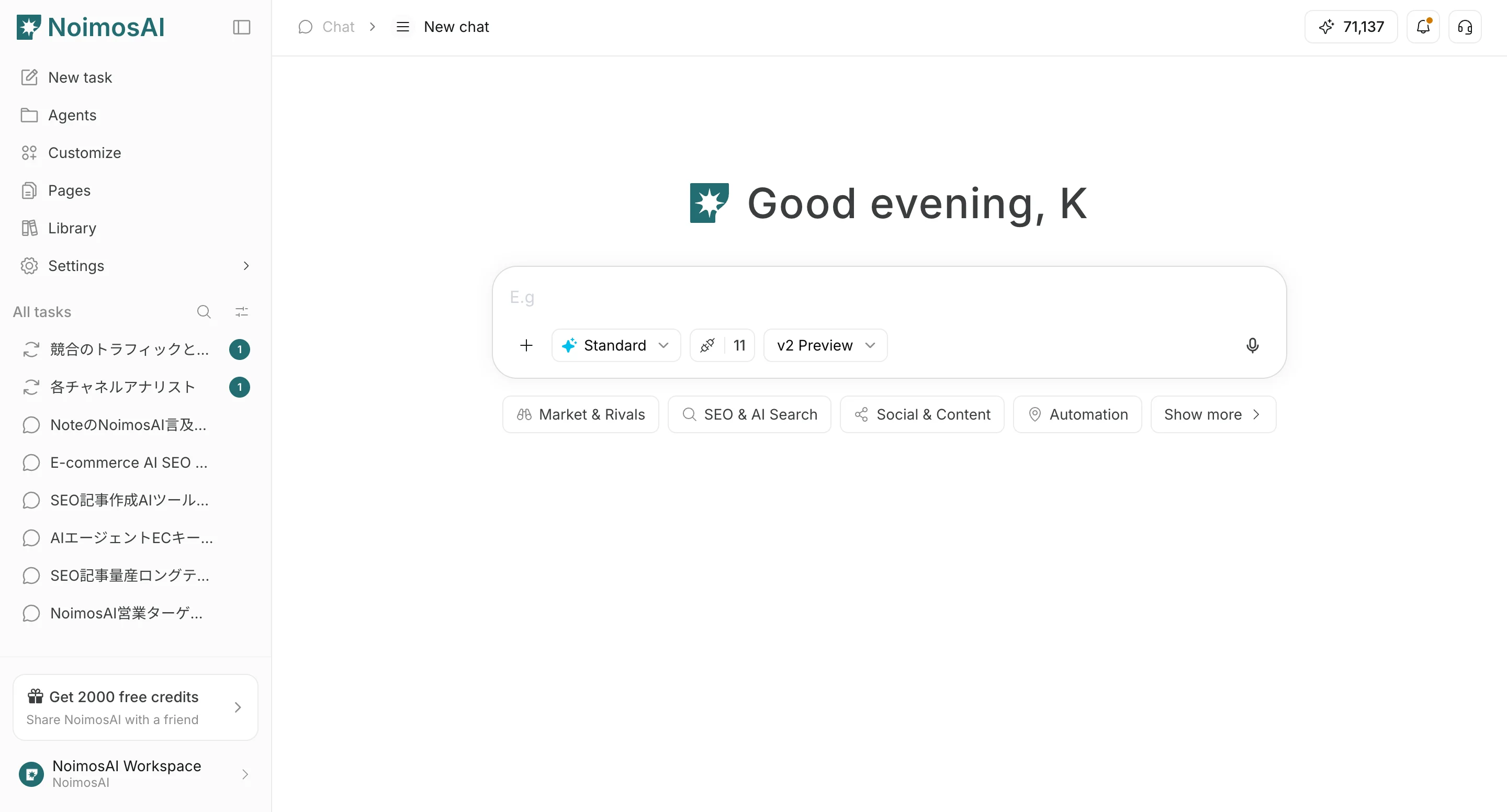 2. 입력창 아래의 `+`에서 파일 작업과 `AI behavior settings`를 엽니다.
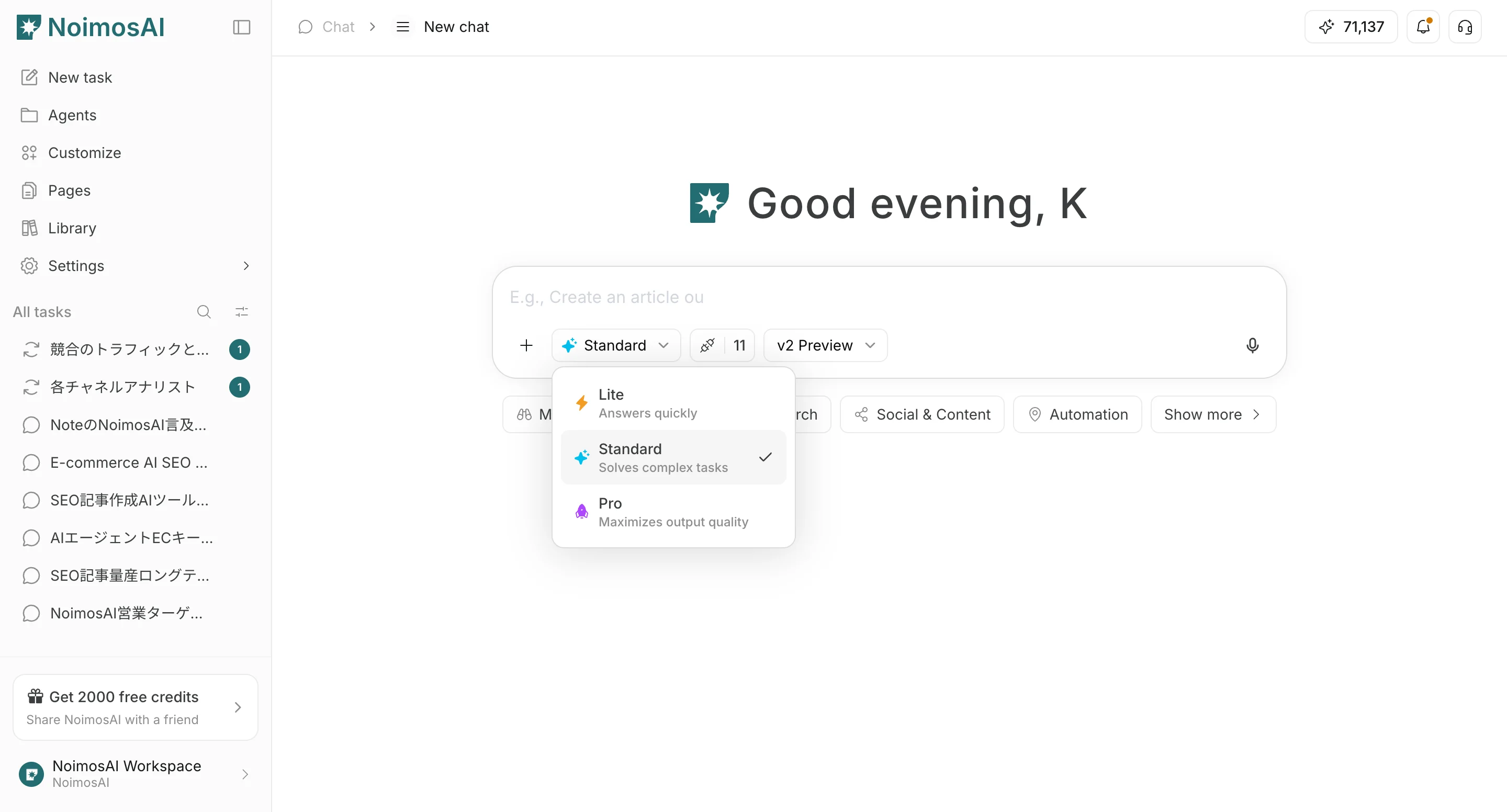
 3. 응답 모드인 `Light`, `Standard`, `Pro`를 설정합니다.
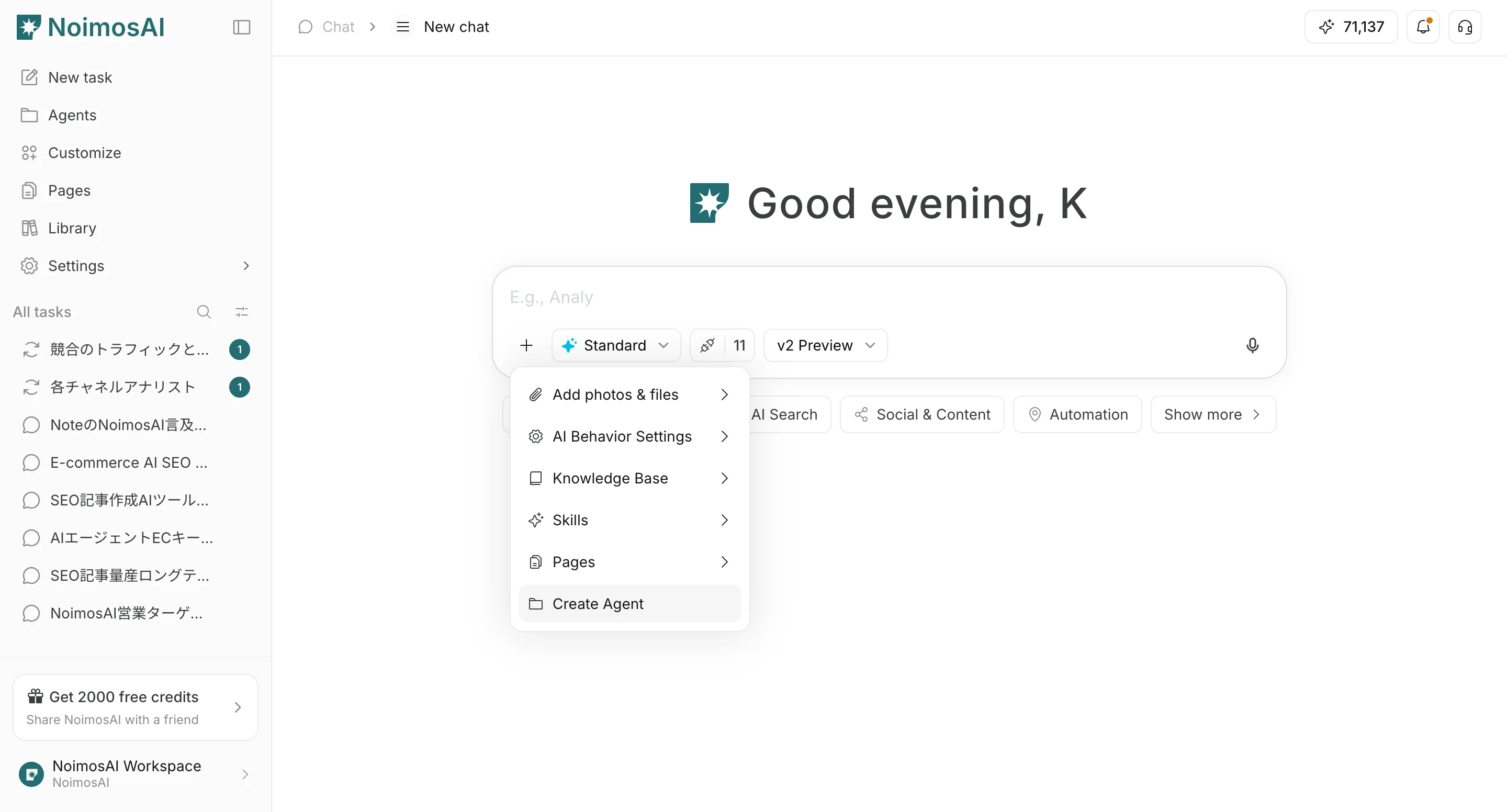
 4. 필요한 경우 `Agent creation`, `Page creation`, Knowledge Base 첨부, 사용할 연동을 설정합니다.
 ## 설정 항목
* `Skip draft step`: 초안 단계를 건너뛰고 본 생성으로 진행합니다.
* `Do not personalize`: 저장된 개인화 문맥을 사용하지 않습니다.
* `Response mode`: `Light`는 빠른 응답, `Standard`는 균형, `Pro`는 품질 우선입니다.
* `Agent creation`: 채팅 내용으로 지속 실행용 에이전트를 만듭니다.
* `Page creation`: 채팅 내용으로 페이지 초안을 만듭니다.
* `Knowledge Base`: 채팅 지시에 첨부해 AI가 참조할 명시적 문맥으로 사용합니다.
* `Integrations`: 채팅에서 사용할 연동을 제어합니다.
## 권장 초기값
* 먼저 `Standard`를 사용합니다.
* 빠른 초안에는 `Light`를 사용합니다.
* 최종 품질이 중요하면 `Pro`를 사용합니다.
* 중립적인 출력이 필요할 때만 `Do not personalize`를 켭니다.
## 관련 문서
* [채팅 기본](/ko/help-center/chat/ai-chat-basics)
* [파일 업로드](/ko/help-center/chat/upload-files)
* [출력 결과 확인](/ko/help-center/chat/check-output-results)
## 설정 항목
* `Skip draft step`: 초안 단계를 건너뛰고 본 생성으로 진행합니다.
* `Do not personalize`: 저장된 개인화 문맥을 사용하지 않습니다.
* `Response mode`: `Light`는 빠른 응답, `Standard`는 균형, `Pro`는 품질 우선입니다.
* `Agent creation`: 채팅 내용으로 지속 실행용 에이전트를 만듭니다.
* `Page creation`: 채팅 내용으로 페이지 초안을 만듭니다.
* `Knowledge Base`: 채팅 지시에 첨부해 AI가 참조할 명시적 문맥으로 사용합니다.
* `Integrations`: 채팅에서 사용할 연동을 제어합니다.
## 권장 초기값
* 먼저 `Standard`를 사용합니다.
* 빠른 초안에는 `Light`를 사용합니다.
* 최종 품질이 중요하면 `Pro`를 사용합니다.
* 중립적인 출력이 필요할 때만 `Do not personalize`를 켭니다.
## 관련 문서
* [채팅 기본](/ko/help-center/chat/ai-chat-basics)
* [파일 업로드](/ko/help-center/chat/upload-files)
* [출력 결과 확인](/ko/help-center/chat/check-output-results)