> ## Documentation Index
> Fetch the complete documentation index at: https://docs.noimosai.com/llms.txt
> Use this file to discover all available pages before exploring further.

# 구독은 어디에서 해지하나요?

> 구독 해지를 시작하는 위치를 안내합니다.

## 짧은 답변

`팀 -> 결제 -> 사용량`으로 이동한 뒤 `플랜 상세`를 열고 `구독 취소`을 클릭합니다.

## 단계별 안내

1. 팀의 결제 사용량 화면을 엽니다.
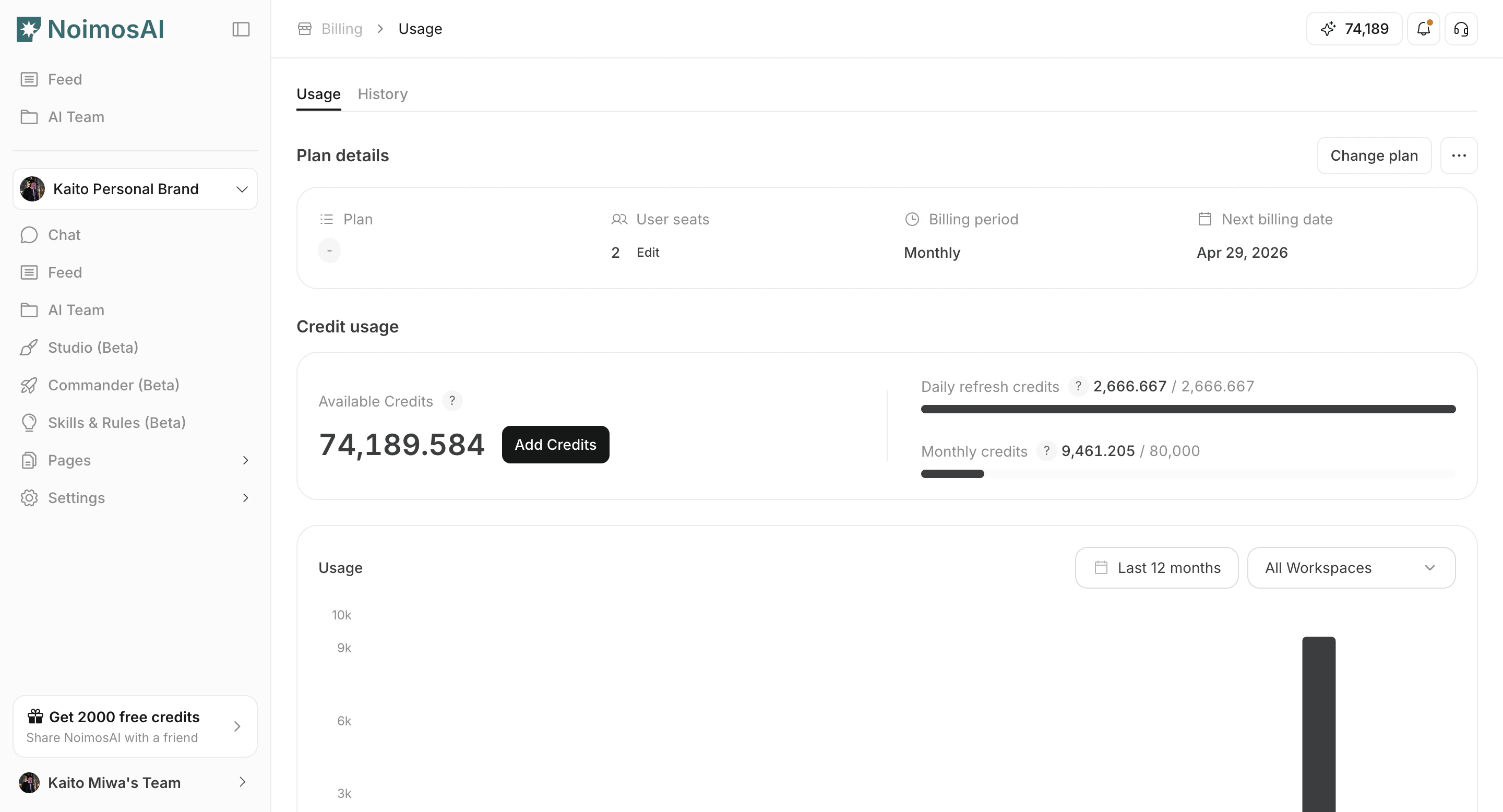
<img src="https://mintcdn.com/agoslabstechnologiesfzco/dv4wqk6EXKIBh0RT/public/help-center/plans-and-billing/check-plan-plan-details.png?fit=max&auto=format&n=dv4wqk6EXKIBh0RT&q=85&s=d4ec6971baeae2bf161788ba809d0584" alt="팀 결제 사용량 화면 열기" style={{ border: '1px solid #e5e7eb', borderRadius: '8px', marginBottom: '1rem' }} width="2880" height="1556" data-path="public/help-center/plans-and-billing/check-plan-plan-details.png" />

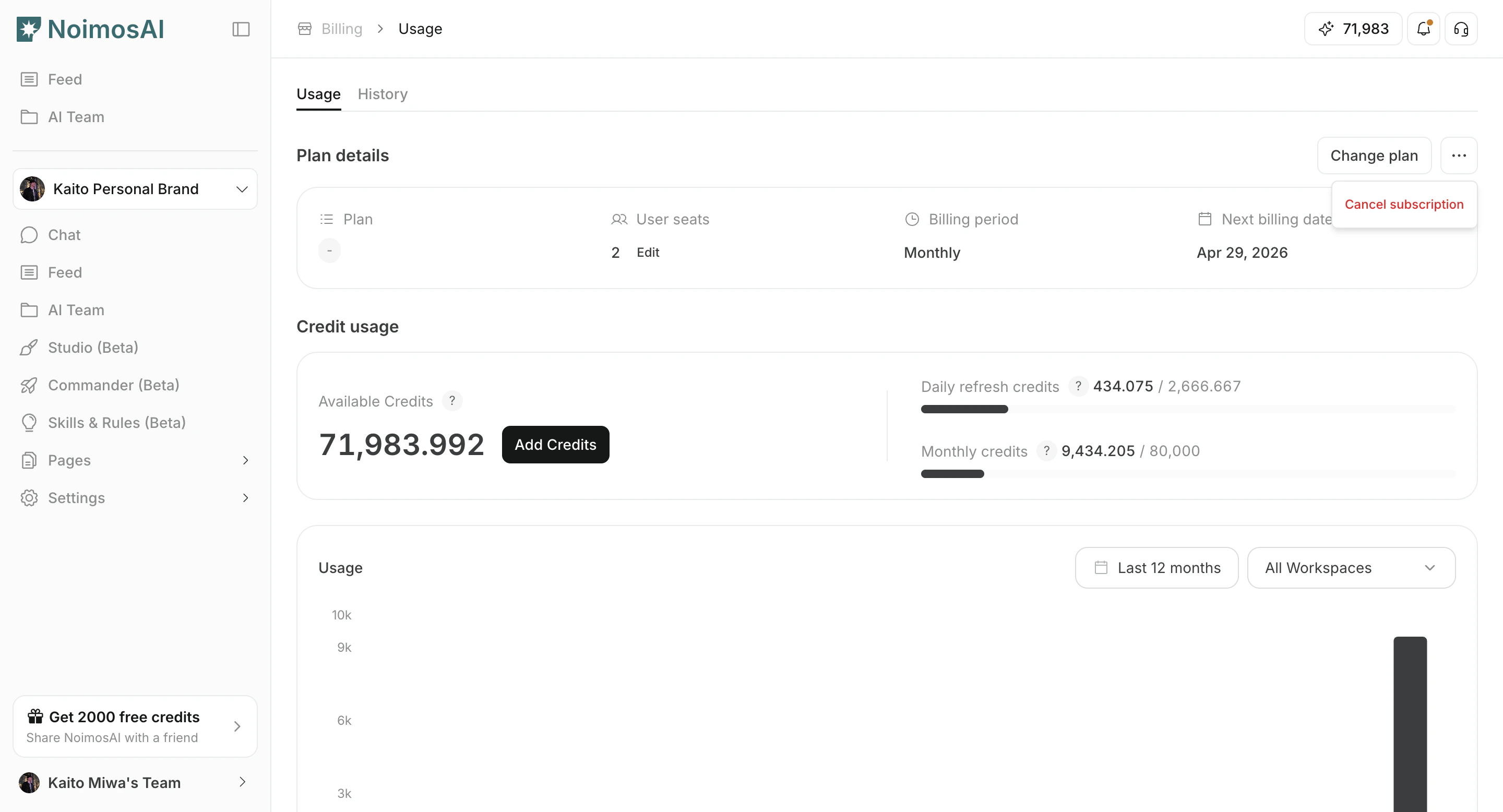
2. 플랜 상세에서 해지를 시작합니다.

<img src="https://mintcdn.com/agoslabstechnologiesfzco/dv4wqk6EXKIBh0RT/public/help-center/plans-and-billing/cancel-subscription-action.png?fit=max&auto=format&n=dv4wqk6EXKIBh0RT&q=85&s=25485499d66e82f9db5e4e7a09db2cf2" alt="팀 결제 화면의 구독 해지 동작" style={{ border: '1px solid #e5e7eb', borderRadius: '8px', marginBottom: '1rem' }} width="2880" height="1556" data-path="public/help-center/plans-and-billing/cancel-subscription-action.png" />

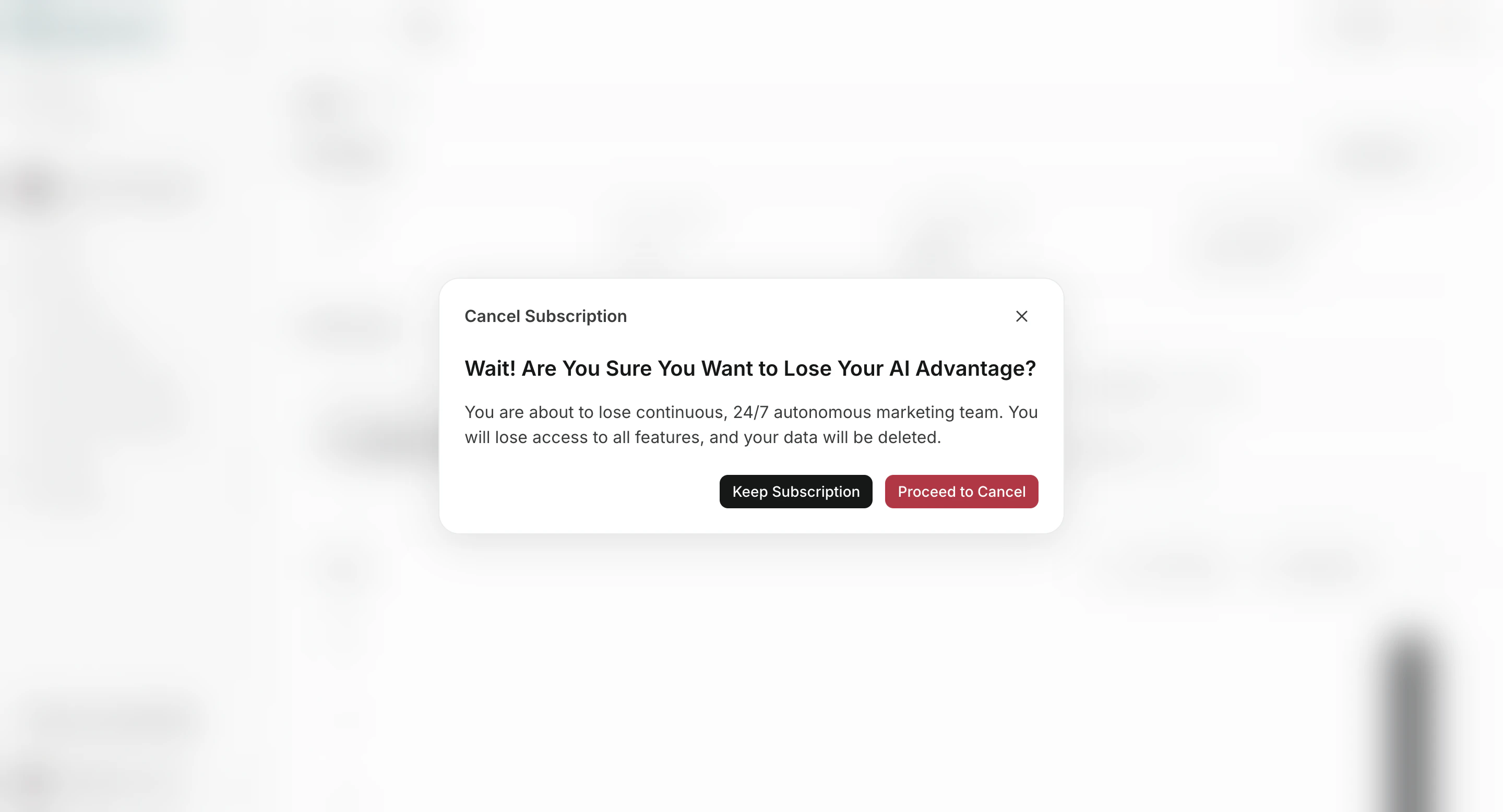
3. 확인 문구를 검토한 뒤 해지를 완료합니다.

<img src="https://mintcdn.com/agoslabstechnologiesfzco/dv4wqk6EXKIBh0RT/public/help-center/plans-and-billing/cancel-subscription-confirm.png?fit=max&auto=format&n=dv4wqk6EXKIBh0RT&q=85&s=17c760baf6cecadc74eae22281b790af" alt="구독 해지 확인 화면" style={{ border: '1px solid #e5e7eb', borderRadius: '8px', marginBottom: '1.5rem' }} width="2880" height="1556" data-path="public/help-center/plans-and-billing/cancel-subscription-confirm.png" />

## 해지 후

* 구독이 활성 상태라면 보통 현재 결제 주기 종료 시점에 해지가 반영됩니다.
* 체험판이거나 결제 실패 상태라면 즉시 해지될 수 있습니다.
* 현재 상태는 `결제 -> 사용량`에서 다시 확인할 수 있습니다.

## 데모

* [구독 해지 (러닝 센터)](/ko/learning-center/plan-and-billing/cancel-subscription)
* [Arcade 데모](https://app.arcade.software/share/K5TAdwueKLKS3pWG7Xqd)