> ## Documentation Index
> Fetch the complete documentation index at: https://docs.noimosai.com/llms.txt
> Use this file to discover all available pages before exploring further.
# 결제 정보가 표시되지 않는 이유는 무엇인가요?
> 팀의 결제 정보가 표시되지 않을 때 확인할 권한과 점검 방법을 안내합니다.
## 핵심 내용
등록된 결제 수단과 결제 내역을 포함한 민감한 결제 정보는 팀의 `관리자`에게만 표시됩니다.
`멤버` 또는 `게스트`로 로그인한 경우 결제 수단이 등록되어 있어도 결제 수단이 없다는 메시지가 표시되거나 결제 내역이 비어 있을 수 있습니다. 이는 결제 수단이 삭제되었다는 의미가 아닙니다.
## 확인 방법
1. 결제 정보를 확인하려는 팀을 선택합니다.
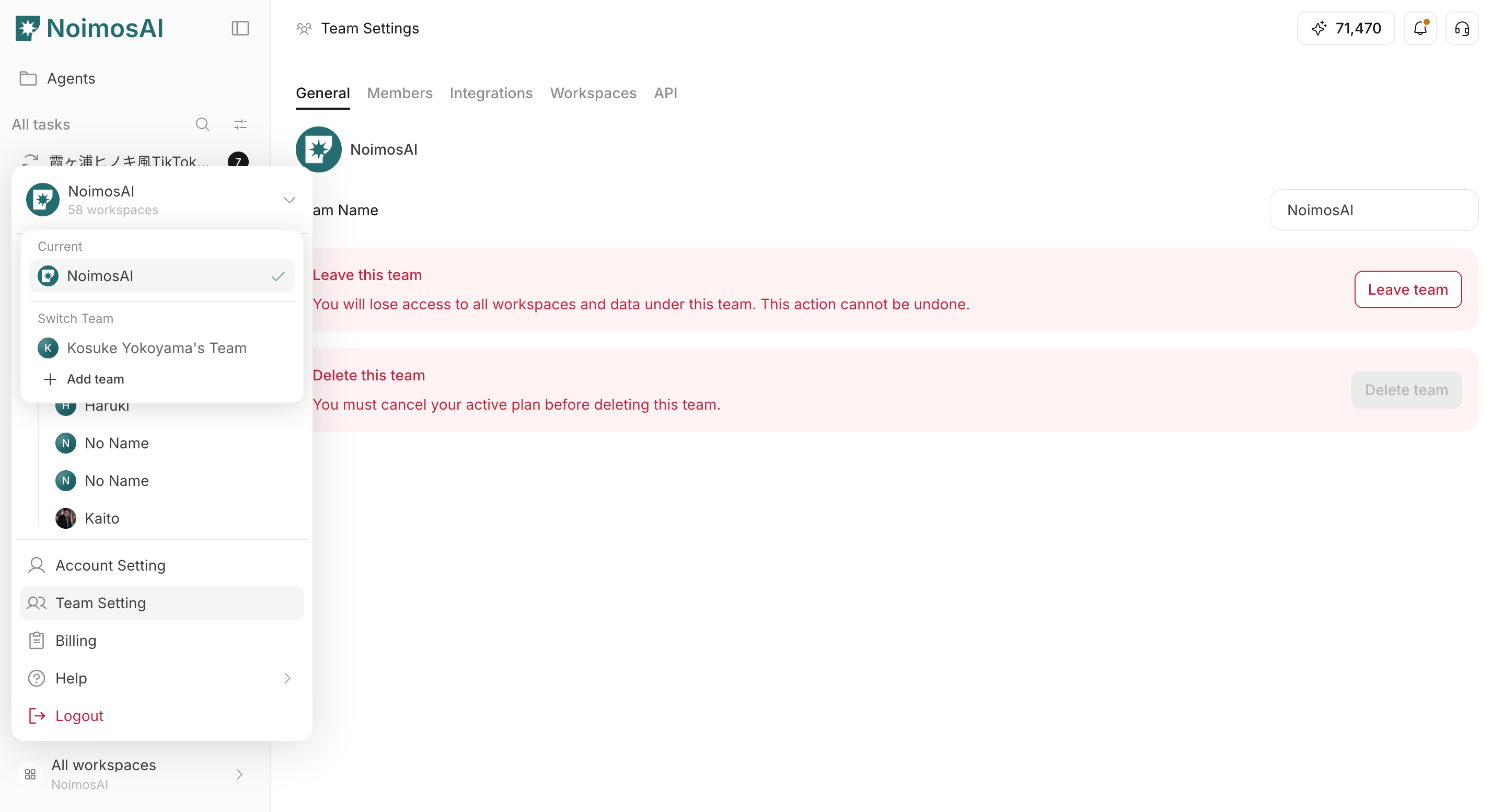 2. `팀 설정 -> 멤버`를 열어 자신의 팀 역할을 확인합니다.
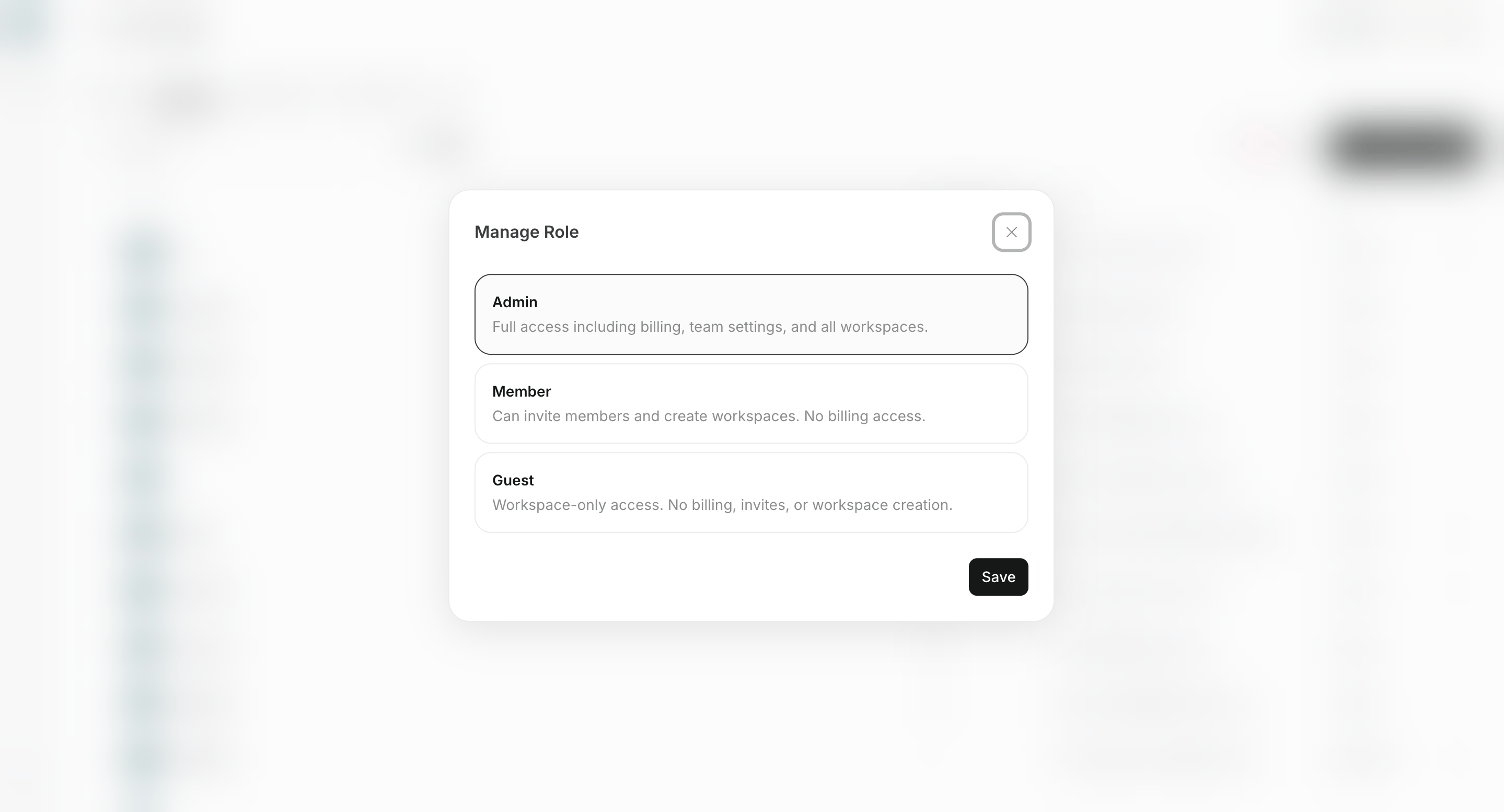 3. `멤버` 또는 `게스트`인 경우 팀 `관리자`에게 결제 정보 확인 또는 변경을 요청합니다.
## 관리자인데도 표시되지 않는 경우
올바른 팀을 선택했는지 확인한 후 페이지를 새로고침하세요. 그래도 정보가 표시되지 않으면 팀 이름과 결제 화면의 스크린샷을 첨부해 지원팀에 문의하세요.
## 관련 문서
* [팀 멤버 추가 및 편집](/ko/help-center/team/add-and-edit-team-members)
* [결제 내역 확인 및 다운로드](/ko/help-center/plans-and-billing/check-and-download-payment-history)
* [지원팀에 어떻게 문의하나요?](/ko/help-center/faq/support/how-can-i-contact-support)
3. `멤버` 또는 `게스트`인 경우 팀 `관리자`에게 결제 정보 확인 또는 변경을 요청합니다.
## 관리자인데도 표시되지 않는 경우
올바른 팀을 선택했는지 확인한 후 페이지를 새로고침하세요. 그래도 정보가 표시되지 않으면 팀 이름과 결제 화면의 스크린샷을 첨부해 지원팀에 문의하세요.
## 관련 문서
* [팀 멤버 추가 및 편집](/ko/help-center/team/add-and-edit-team-members)
* [결제 내역 확인 및 다운로드](/ko/help-center/plans-and-billing/check-and-download-payment-history)
* [지원팀에 어떻게 문의하나요?](/ko/help-center/faq/support/how-can-i-contact-support)