> ## Documentation Index
> Fetch the complete documentation index at: https://docs.noimosai.com/llms.txt
> Use this file to discover all available pages before exploring further.
# 팀 탈퇴 또는 삭제
> 팀에서 나가는 것과 팀을 영구 삭제하는 것의 차이를 설명합니다.
## 개요
`Leave team`과 `Delete team`은 영향이 완전히 다른 두 가지 작업입니다.
* `Leave team`: 내 계정의 팀 접근 권한만 제거합니다.
* `Delete team`: 해당 팀과 그 아래의 모든 작업공간 및 데이터를 영구적으로 삭제합니다. 팀에 연결된 구독도 함께 해지됩니다.
두 작업 모두 되돌릴 수 없습니다.
## 위치
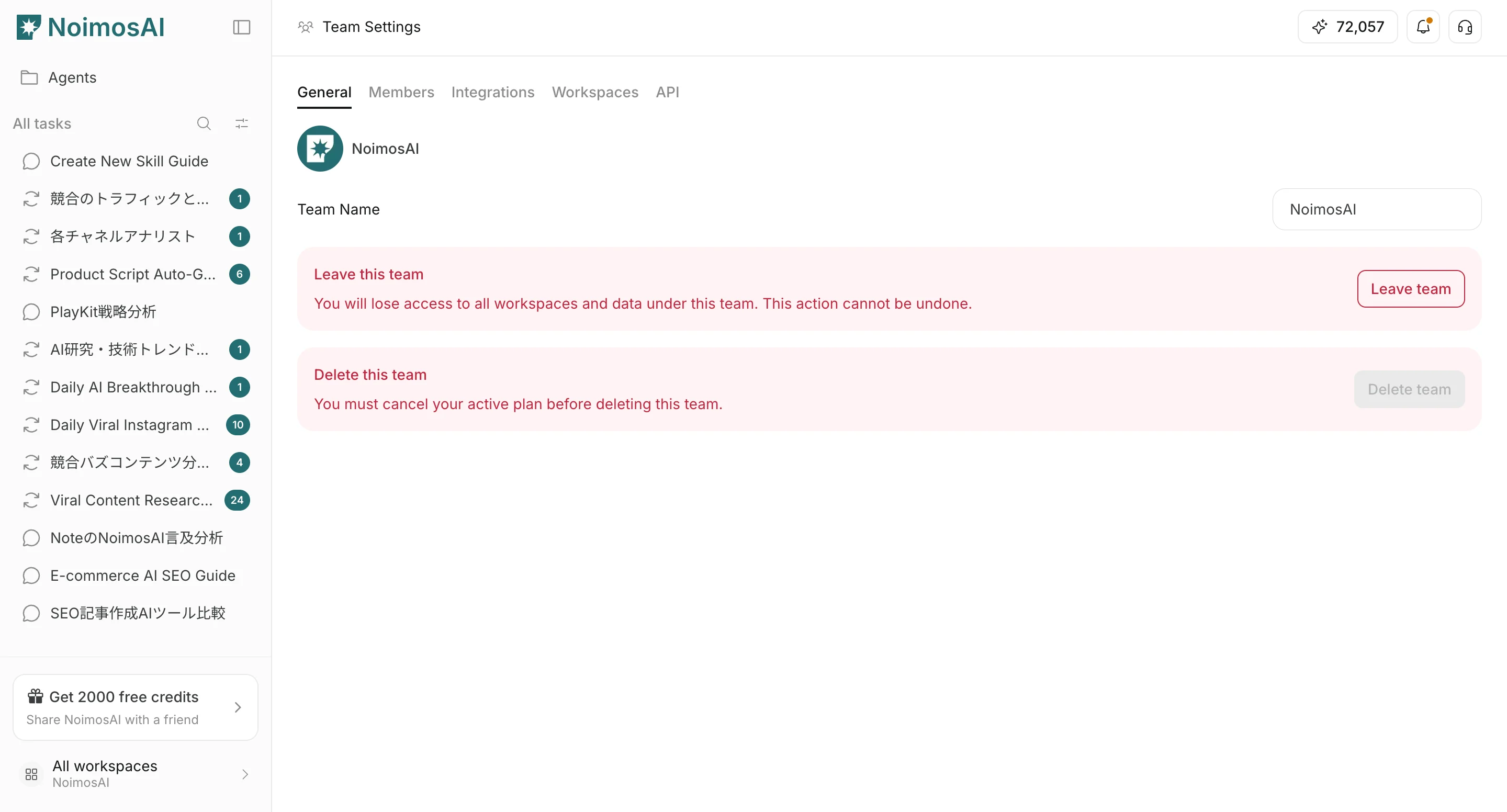
1. `팀 설정`을 엽니다.
2. `일반`로 이동합니다.
3. `Danger Zone`까지 스크롤합니다.
 ## 팀 탈퇴
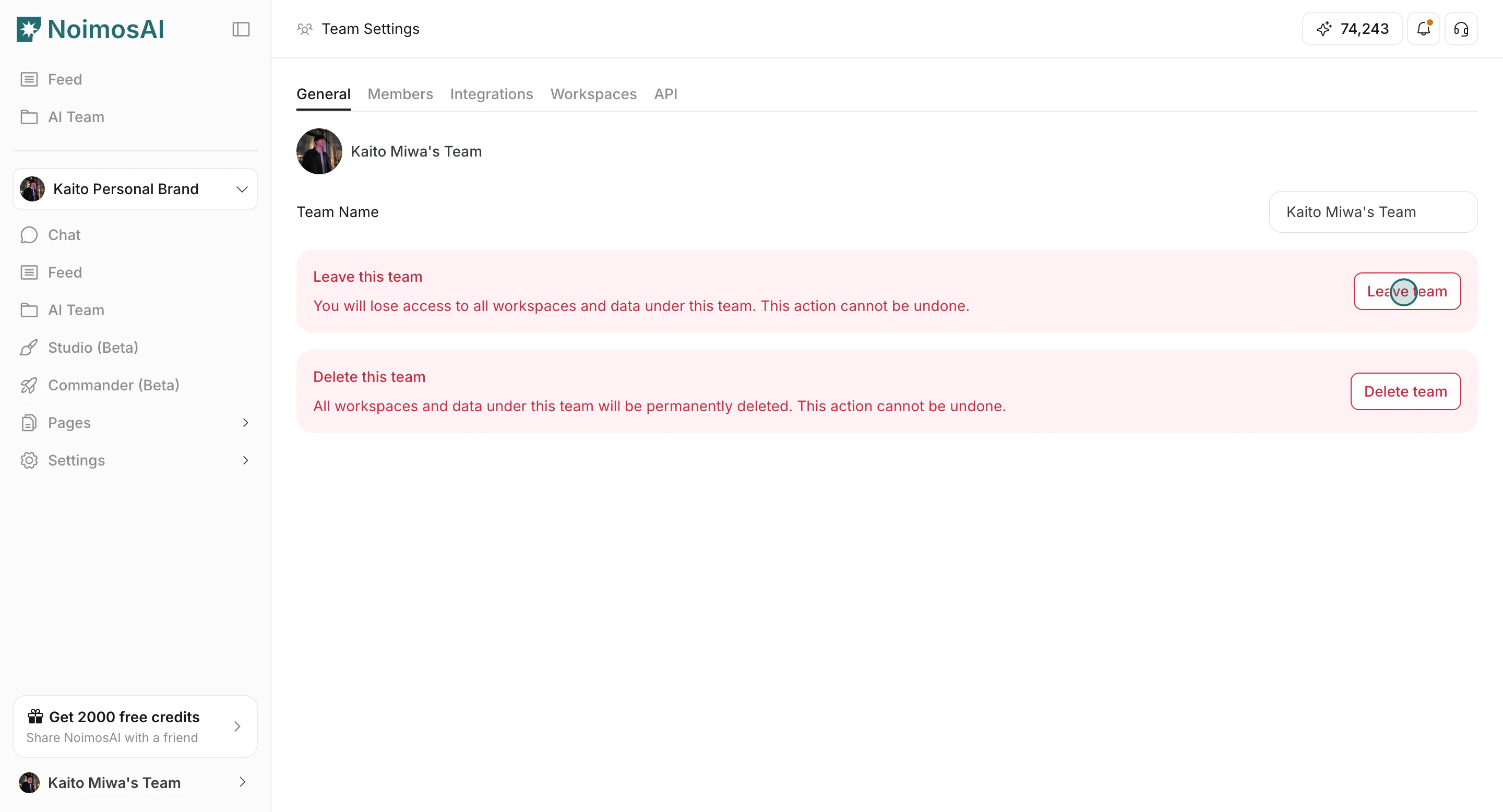
다른 구성원은 계속 팀을 사용하지만, 나만 더 이상 접근할 필요가 없을 때 선택합니다.
1. `Leave team`을 클릭합니다.
## 팀 탈퇴
다른 구성원은 계속 팀을 사용하지만, 나만 더 이상 접근할 필요가 없을 때 선택합니다.
1. `Leave team`을 클릭합니다.
 2. 모달에서 확인합니다.
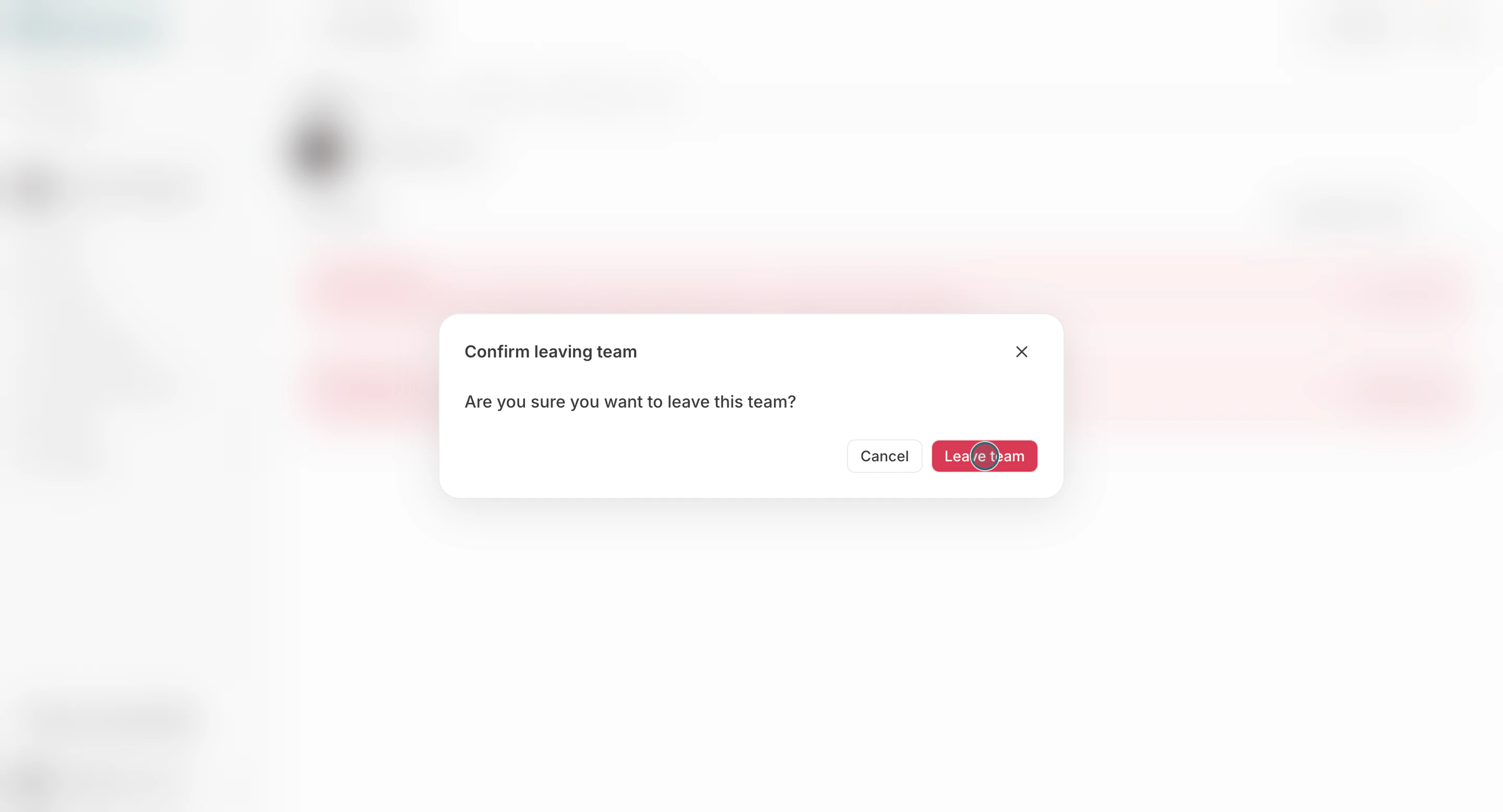 탈퇴가 완료되면 해당 팀의 모든 작업공간과 데이터에 접근할 수 없습니다.
## 팀 삭제
팀과 모든 작업공간을 완전히 없애야 할 때만 선택합니다. 팀에 연결된 구독도 함께 해지됩니다.
1. `Delete team`을 클릭합니다.
탈퇴가 완료되면 해당 팀의 모든 작업공간과 데이터에 접근할 수 없습니다.
## 팀 삭제
팀과 모든 작업공간을 완전히 없애야 할 때만 선택합니다. 팀에 연결된 구독도 함께 해지됩니다.
1. `Delete team`을 클릭합니다.
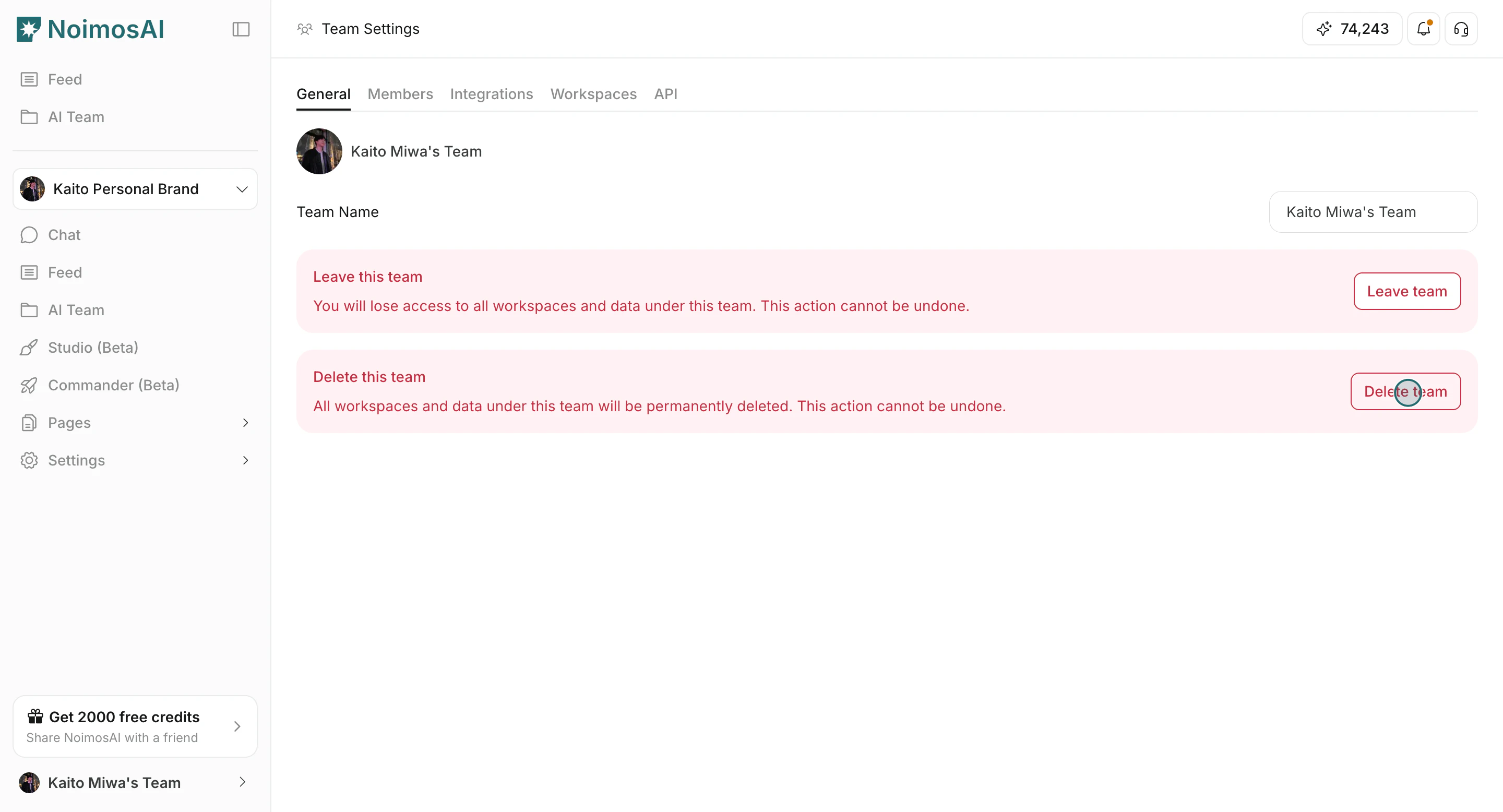 2. 모달에서 확인합니다.
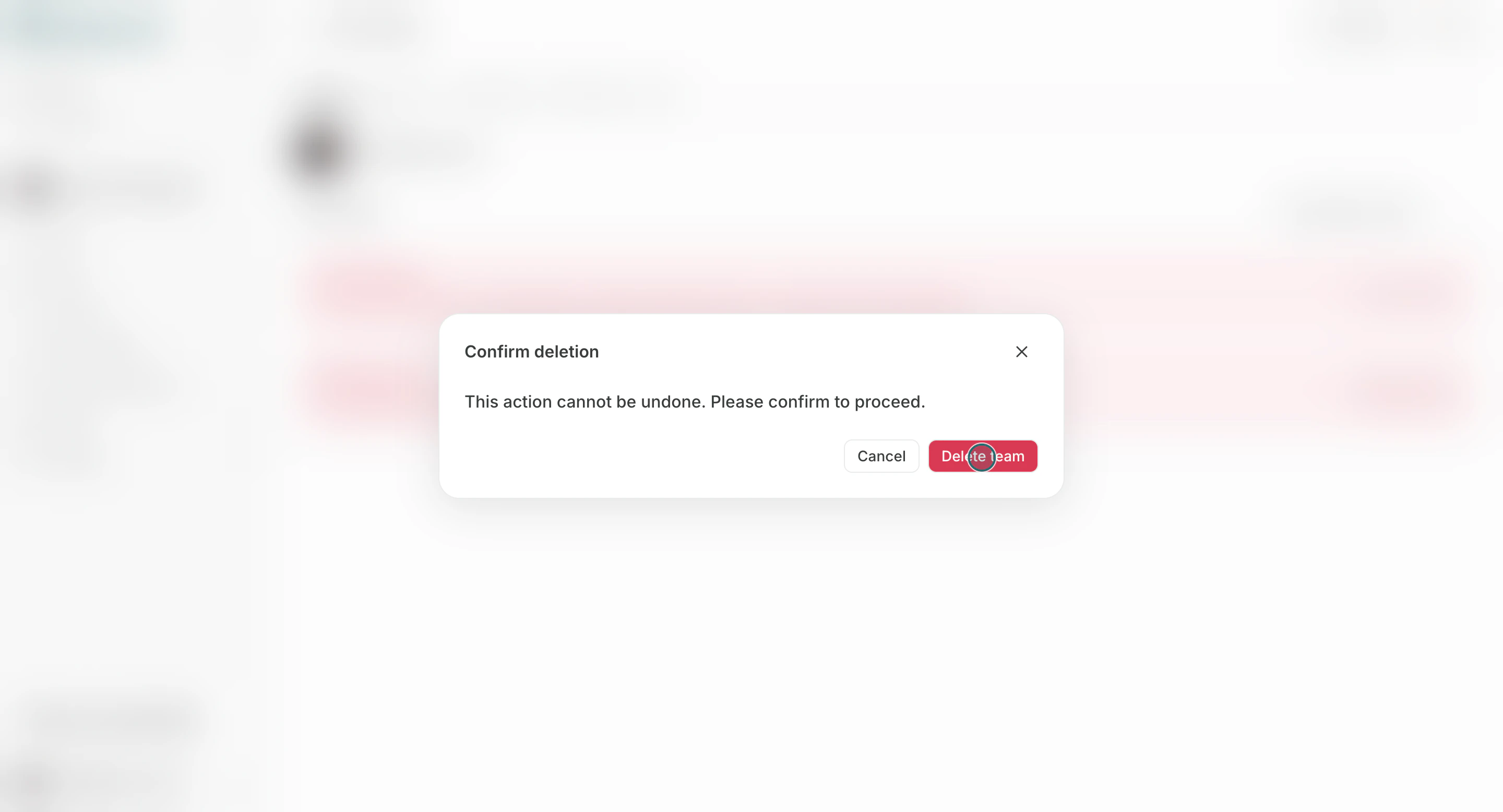 모든 작업공간과 팀 데이터가 삭제되며 복구할 수 없습니다.
## 진행 전 확인 사항
1. 작업공간과 데이터가 완전히 삭제되어도 문제가 없는지 확인합니다.
2. 다른 구성원이 남아 있다면 소유권과 역할을 먼저 재정리합니다.
3. 삭제 전에 필요한 정보를 내보내거나 백업합니다.
구독은 해지하되 이미 결제한 기간 동안 NoimosAI를 계속 사용하려면 팀을 삭제하지 말고 [구독 해지](/ko/help-center/plans-and-billing/cancel-subscription)를 진행하세요.
## 관련 문서
* [팀 기본 사항](/ko/help-center/team/team-basics)
* [팀 이름 및 프로필 이미지 변경](/ko/help-center/team/change-team-name-and-profile-image)
모든 작업공간과 팀 데이터가 삭제되며 복구할 수 없습니다.
## 진행 전 확인 사항
1. 작업공간과 데이터가 완전히 삭제되어도 문제가 없는지 확인합니다.
2. 다른 구성원이 남아 있다면 소유권과 역할을 먼저 재정리합니다.
3. 삭제 전에 필요한 정보를 내보내거나 백업합니다.
구독은 해지하되 이미 결제한 기간 동안 NoimosAI를 계속 사용하려면 팀을 삭제하지 말고 [구독 해지](/ko/help-center/plans-and-billing/cancel-subscription)를 진행하세요.
## 관련 문서
* [팀 기본 사항](/ko/help-center/team/team-basics)
* [팀 이름 및 프로필 이미지 변경](/ko/help-center/team/change-team-name-and-profile-image)