Overview
In Chat, you can ask NoimosAI to create and edit images, videos, and audio. Use this when you need social assets, ad creatives, short videos, narration, background music, or similar materials.When to use it
This is useful for production work such as:- Creating images or videos for social posts
- Adjusting composition, color, aspect ratio, or text based on existing images or videos
- Creating narration, background music, or sound effects for videos
- Trying multiple asset directions for an article, ad, or campaign
- Giving follow-up instructions to improve generated assets
What you can create
In Chat, you can request multiple formats depending on your goal.Basic flow
Start by telling Chat the purpose and conditions for the asset you want to create.- Open
Chat. - Enter the asset type, use case, and publishing destination.
- Attach reference images, videos, scripts, brand materials, or other files as needed.
- Review the generated result.
- Give additional instructions or edit manually.
Helpful details to include
In your first request, include concrete conditions that affect the finished result.- Use case: Instagram post, TikTok video, ad, landing page image, and so on
- Format: landscape, portrait, square, short video, narration, and so on
- Tone: bright, calm, trustworthy, pop, and so on
- Audience: target readers, viewers, or customer segment
- Materials to use: product images, existing videos, logo, reference URL, script
- Expressions to avoid: colors not to use, tone to avoid, claims to exclude
Edit generated results
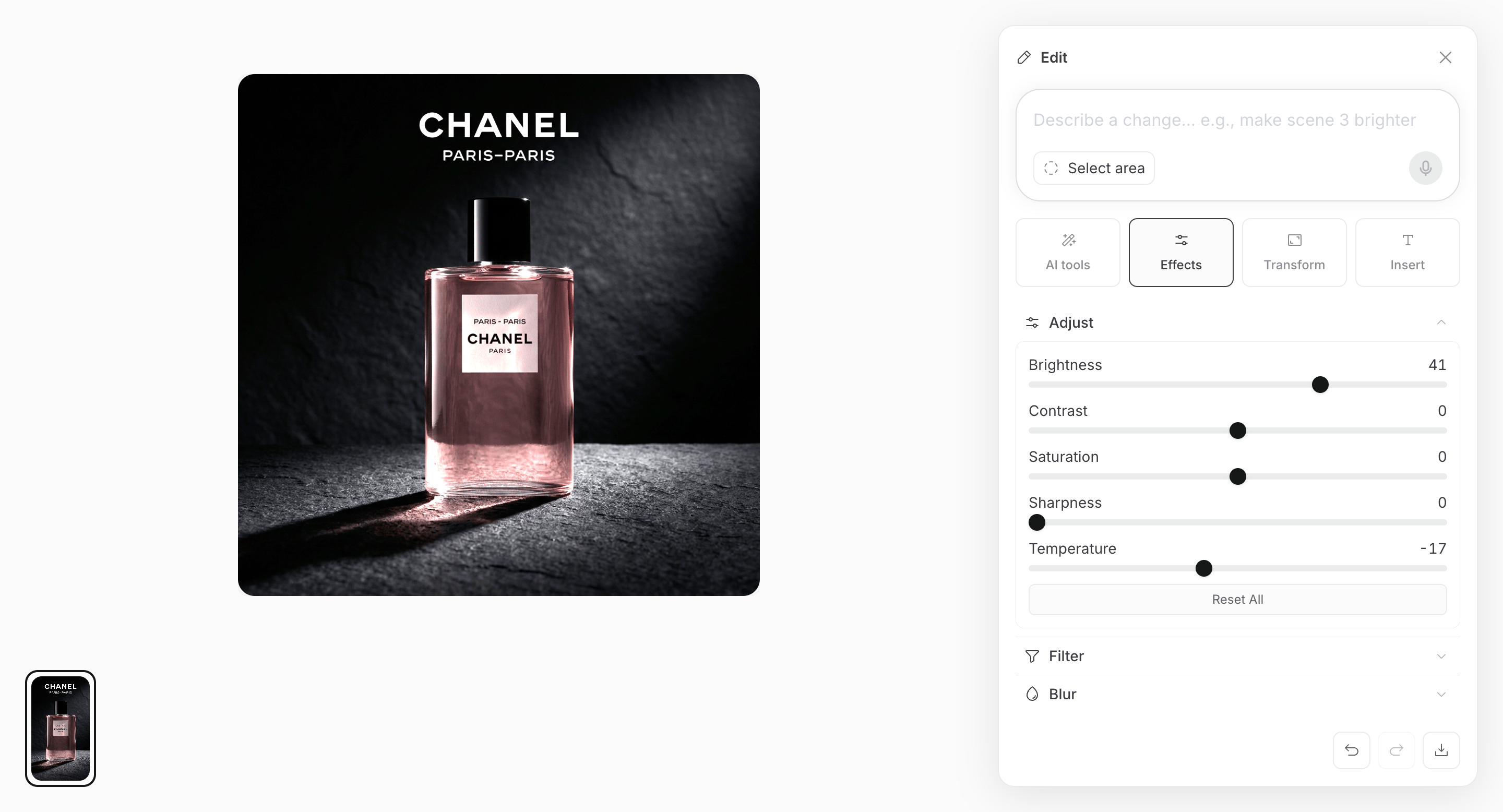
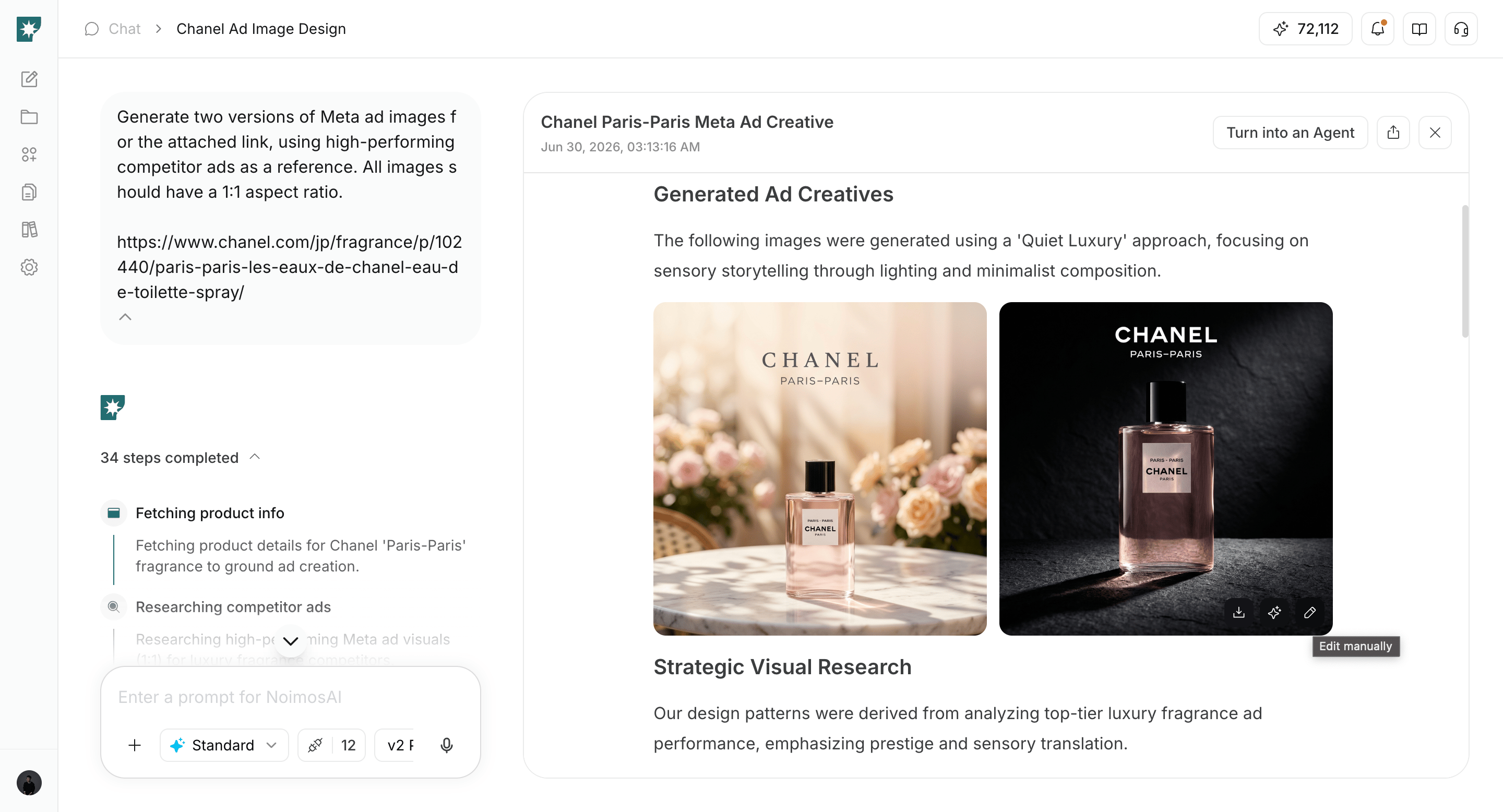
Generated images and videos can be opened from the result and edited.- Hover over the image or video you want to edit, then click the pencil icon.
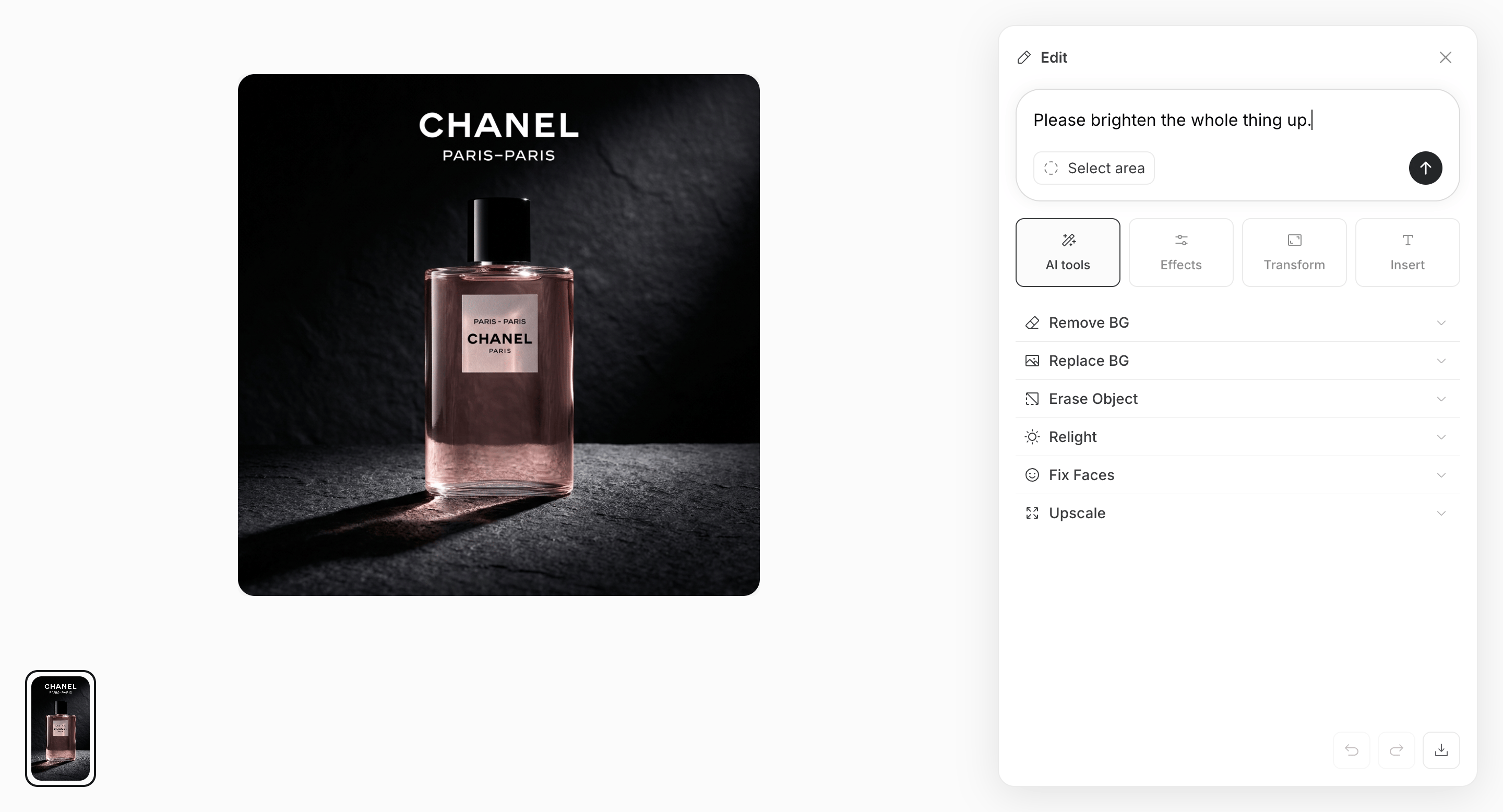
- Enter instructions in the chat box, and AI will make the edit.
- You can also edit manually.