

Overview
Deleting a workspace permanently removes all data in that workspace. This action cannot be undone.Where to find
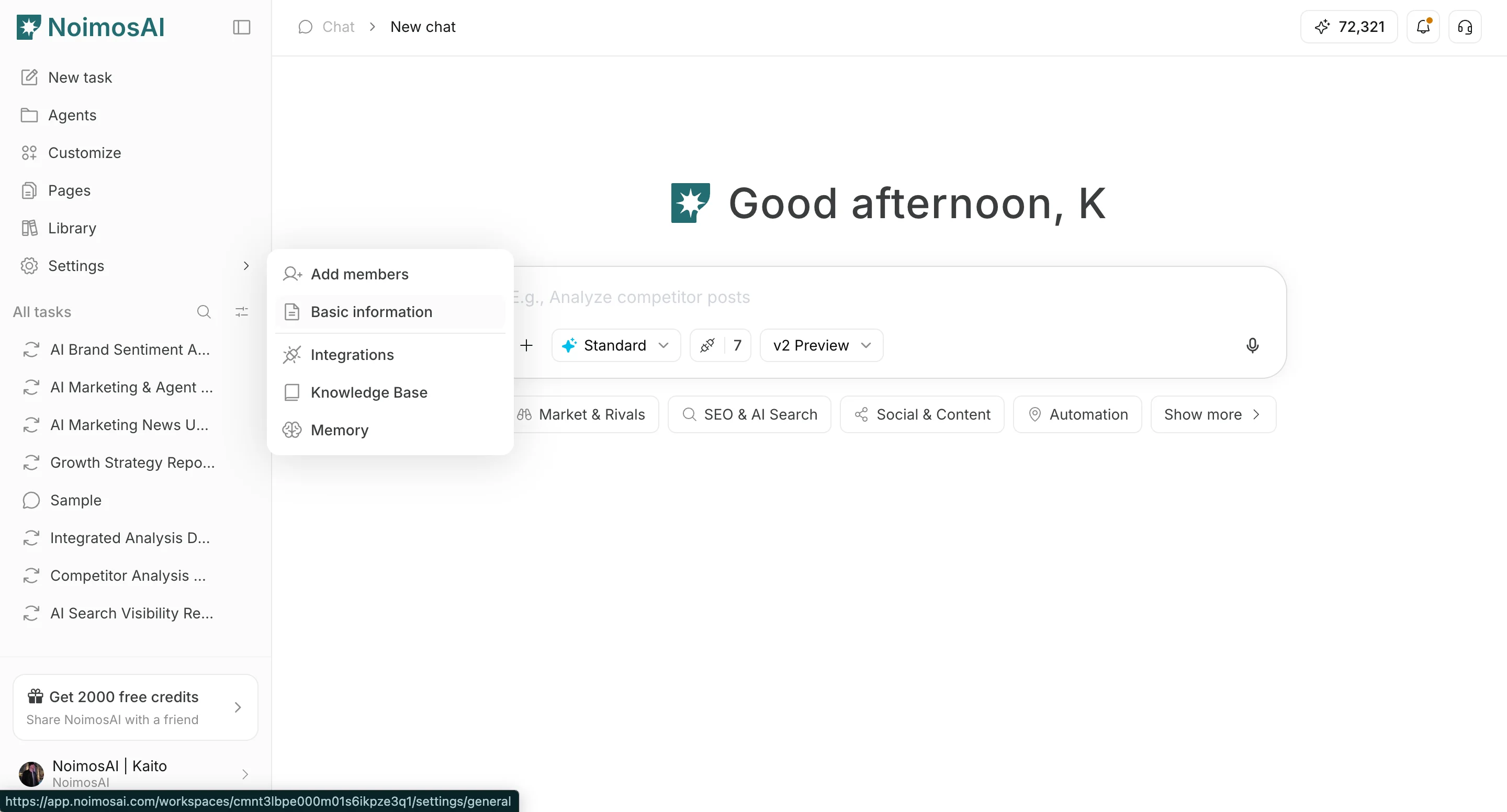
Use the following path to open this area.Workspace -> Settings -> Basic information -> General
How to Delete a Workspace
Follow the steps below to complete this action.- Switch to the target workspace.
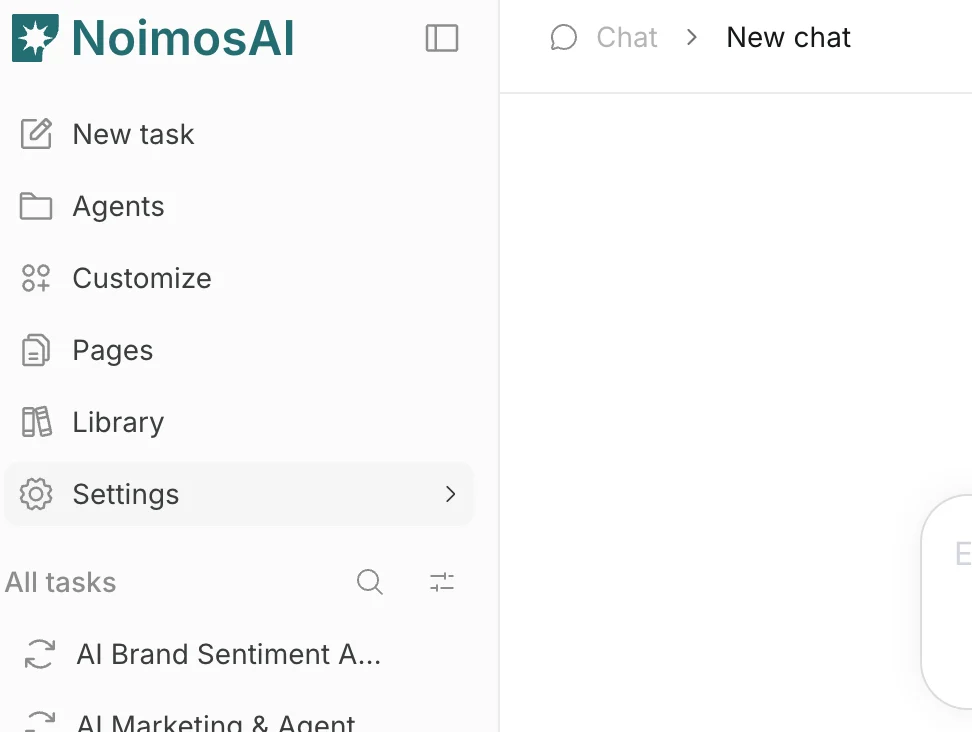
- Open
Settings -> Basic information -> General.
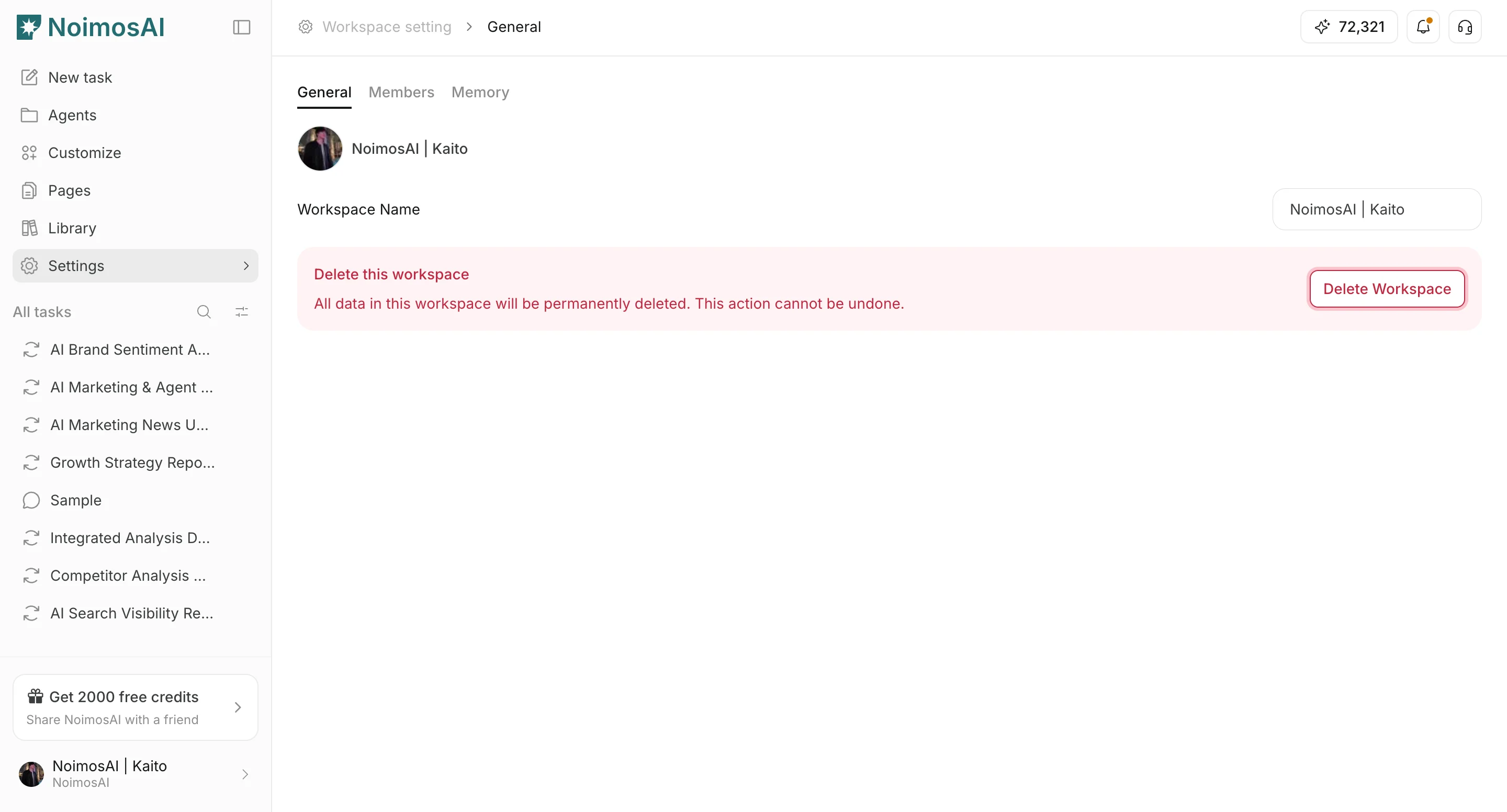
- Click
Delete Workspace.
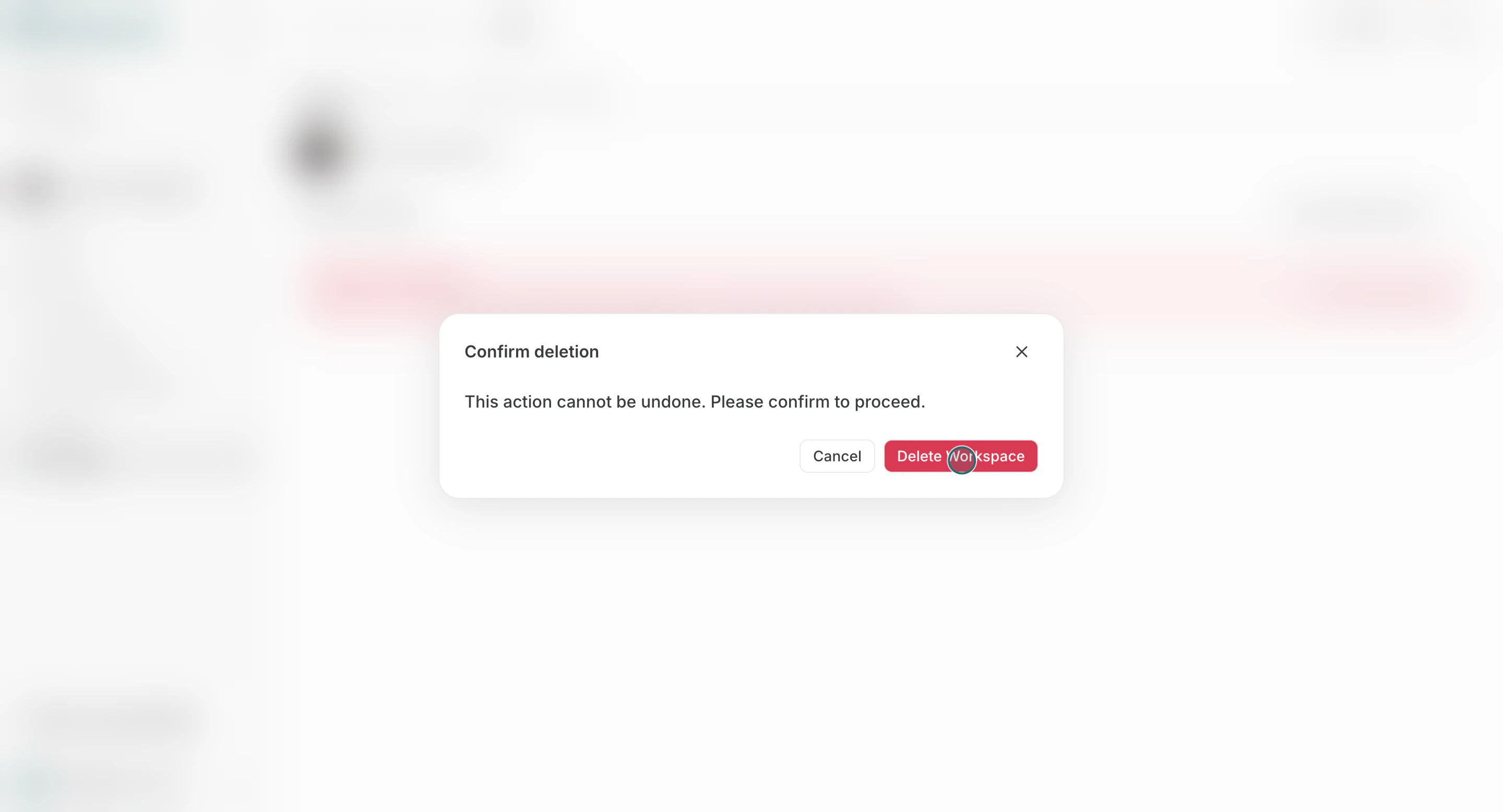
- Confirm deletion in the modal.
Before You Delete
Use this section to confirm before you delete so you can proceed without avoidable errors.- Confirm no active operations depend on this workspace.
- Notify members still using this workspace.
- Check whether this is the last remaining workspace in the team.
Notes
Review these notes before you proceed.- A team must keep at least one workspace.