

Overview
You can create or improve a new website on NoimosAI based on an already published website or a website managed on GitHub. By leveraging an existing site, you can refer to the previous content and design, discuss modification details via chat, preview changes, edit code, configure SEO/GEO settings, analytics, domains, and handle publishing and updates all in one place.Main Methods to Create Based on an Existing Site
Choose how to bring your existing site into NoimosAI depending on its current state.
If you need to transfer the existing site as is, it is safest to first enable GitHub integration. When recreating based only on a public URL, the structure and behavior may not be exactly the same as the original site, so please verify display, links, forms, and measurement settings before publishing.
Precautions to Avoid Affecting Production
When starting to create or improve based on an existing site with NoimosAI, separate the production environment and the working environment from the beginning. If you absolutely do not want to affect production, start working under the following conditions:- Do not import the repository used in production directly; use a duplicated repository or a working branch
- Do not connect a custom domain on NoimosAI
- Do not execute
PublishorUpdate - Do not push directly to the GitHub branch connected to production deployment
- If using a branch that triggers external automatic deployment services, check deployment settings in advance
Importing a Site Managed on GitHub
For existing sites managed on GitHub, import the repository into NoimosAI to enable editing and previewing on NoimosAI.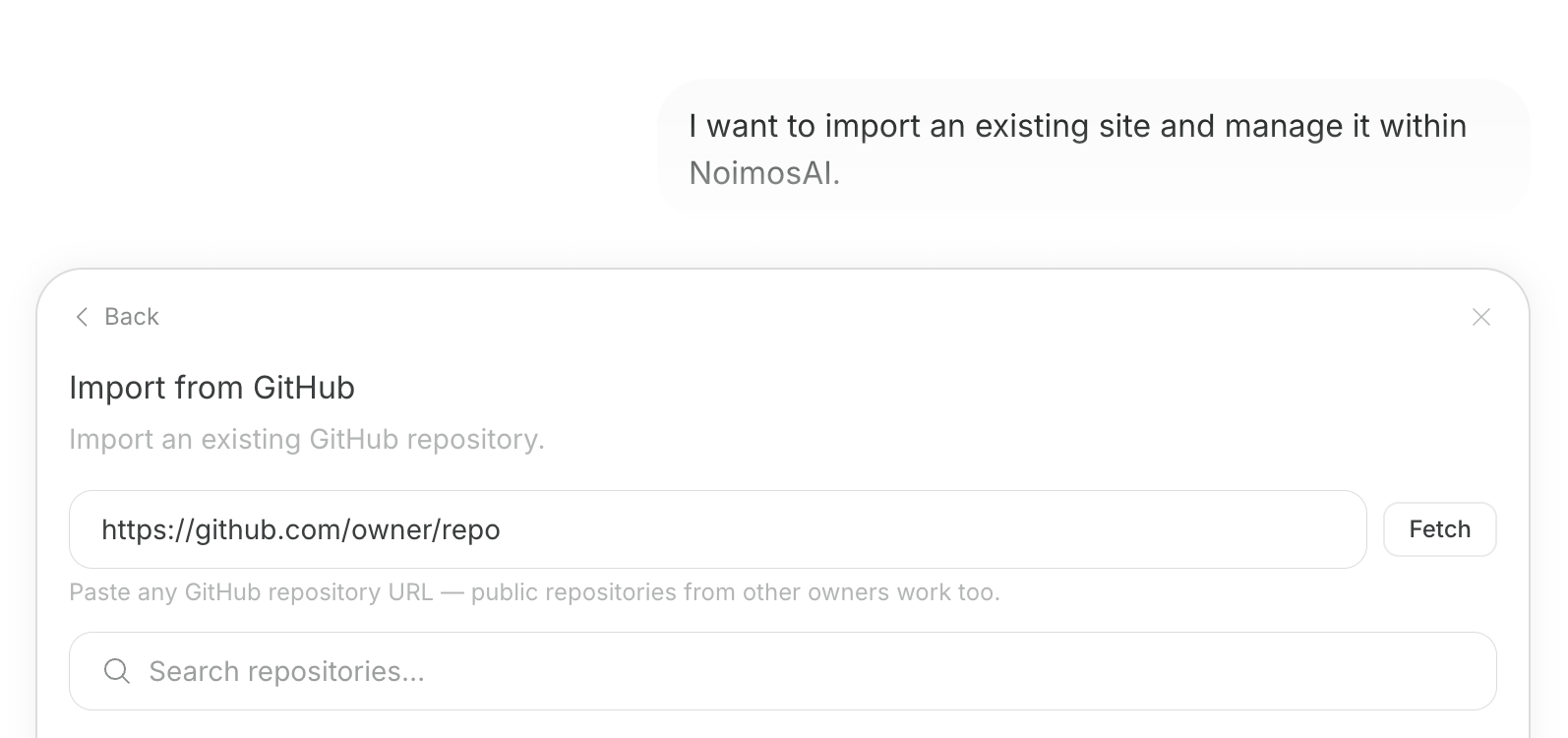
- Duplicate the existing site’s GitHub repository or create a working branch
- Confirm that the repository or branch is not used for production deployment
- Open the target website on NoimosAI
- Open
ManagementthenGitHub - Configure GitHub integration and select the repository or branch to import
- Preview the imported site
- Make corrections via chat or code editing
- Verify display, links, forms, measurement, SEO, and GEO settings
- Decide on publishing or updating when reflecting changes to production
Rebuilding Based on a Public URL
If you do not have a GitHub repository or want to renew rather than directly transfer the existing site, create a new website on NoimosAI using the public URL and existing materials as references. When chatting, providing the following information together makes creation easier:- Existing site URL
- Pages or sections to keep
- Messaging, CTA, and design directions to change
- Company materials, product documents, pricing tables, FAQs
- Images, logos, brand colors to use
- Issues with the existing site
First Checks After Importing
Once the existing site is in a state manageable by NoimosAI, first check the following items:
When migrating an existing site, check not only appearance but also form submissions, purchase flows, member registration, measurement tags, redirects, etc.