

Overview
Upload files when your request depends on reference materials, source documents, or visual assets.Where to find
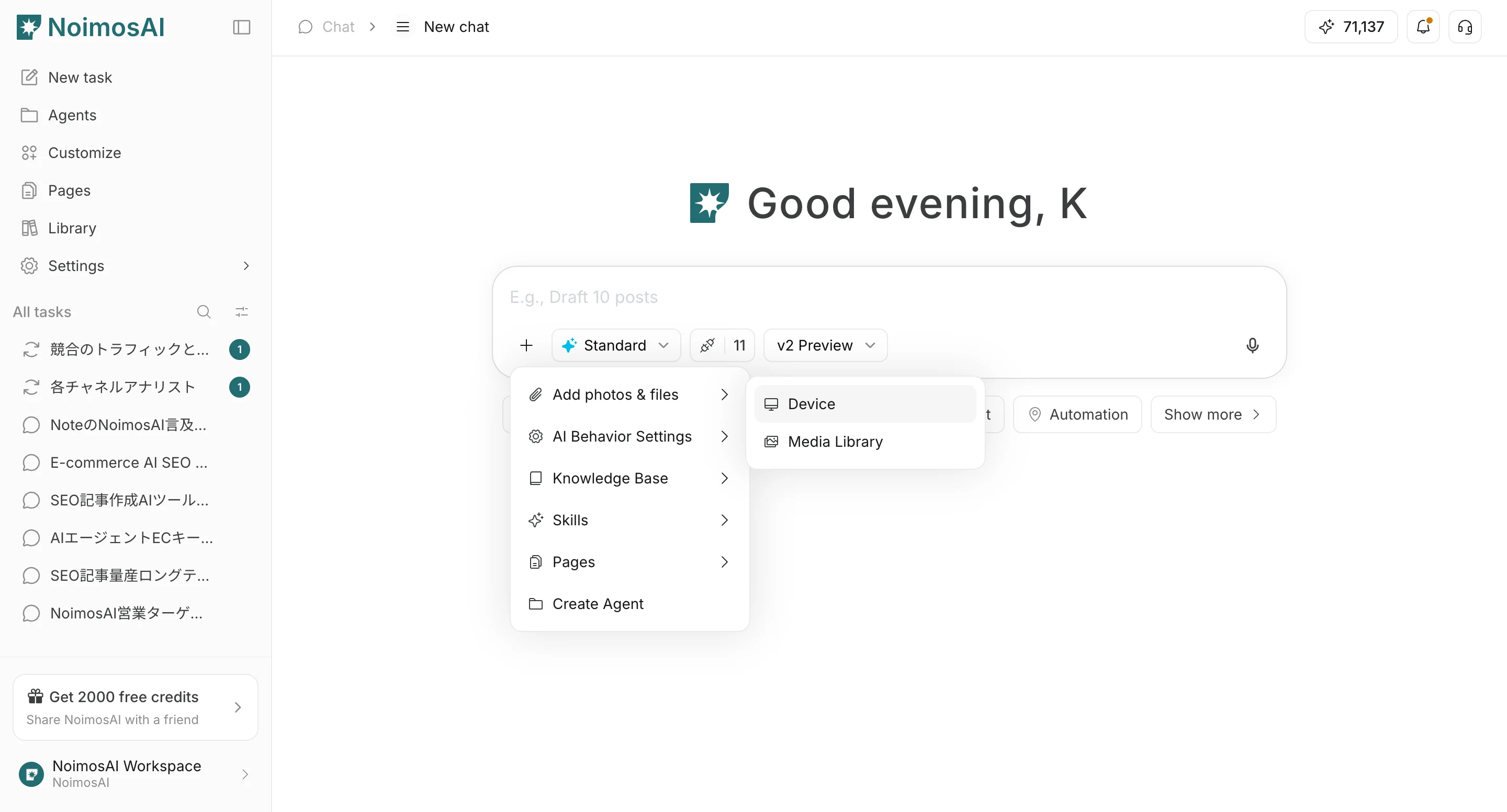
Use the following path to open this area.- In the prompt area, select
+. - Choose
Add photos & files, thenDeviceorMedia Library.
How it works
Follow the steps below to complete this action.- Attach files before sending your prompt.
- Confirm attached files appear in the draft.
- Explain how each file should be used in your instruction.
- Send and refine with follow-up requests if needed.
Notes
Review these notes before you proceed.- You can attach up to 5 files per message.
- Explicit instructions improve output quality (for example: summarize, compare, extract, rewrite).