

Overview
Use this page to manage team access and assign the correct role at Team scope. In NoimosAI, each person belongs to a Team role first, then gets assigned to one or more Workspaces as needed.Before You Start
Before you begin, check your Team role. OpenTeam Settings > Members, then check the role displayed for you in the member list.
Team Role Definitions
Each role allows different Team operations.
People invited from a Workspace appear as
Guest at Team level.
Team roles and Workspace roles (Owner, Editor, and Viewer) are managed separately. Even a Team Admin cannot manage members in a Workspace they have not joined.
Invite New Members
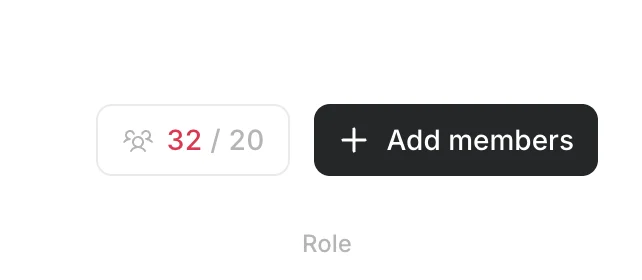
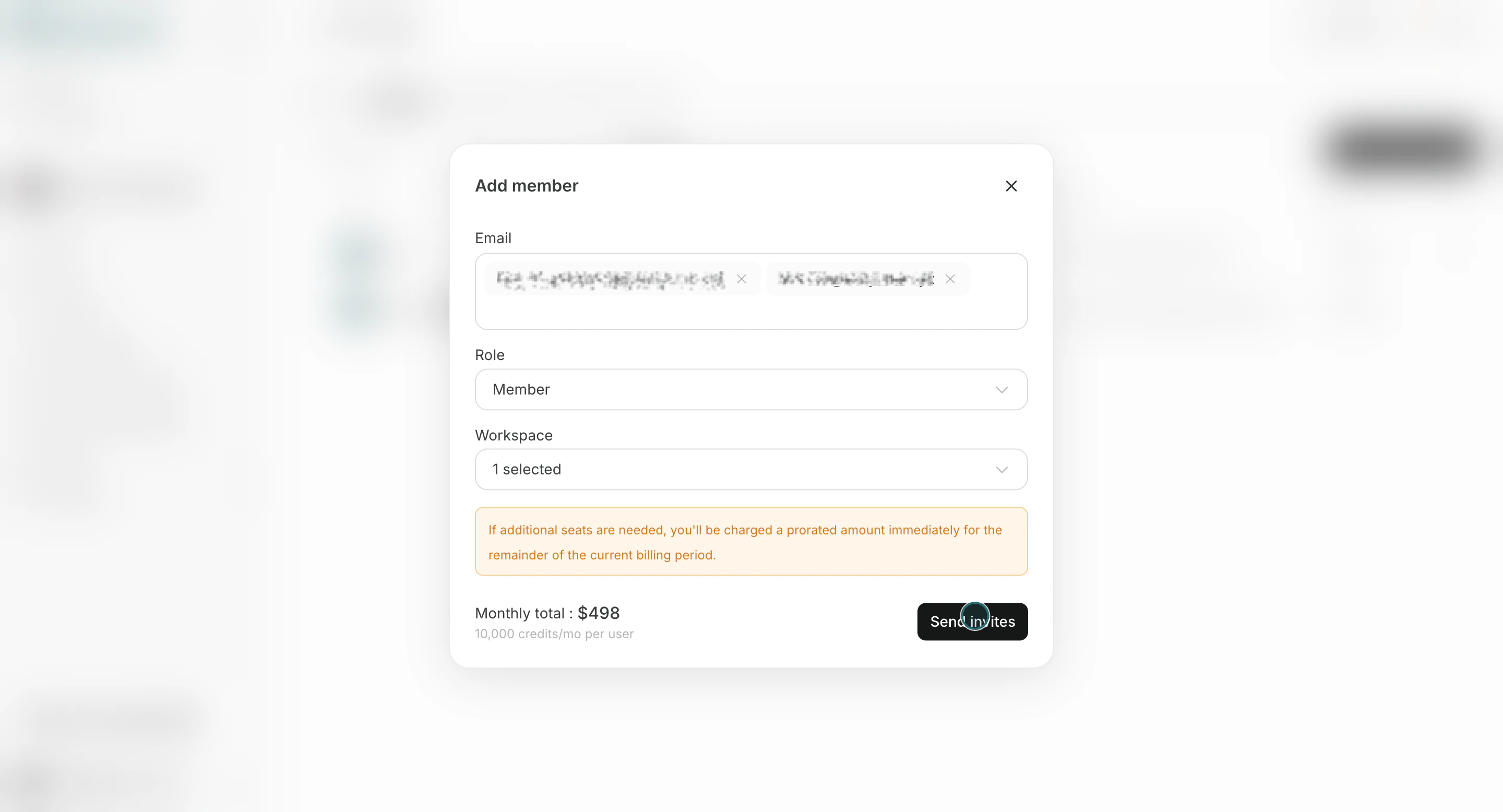
Use this flow to send invitations with the correct Team role and Workspace assignment.- Click
Add members.
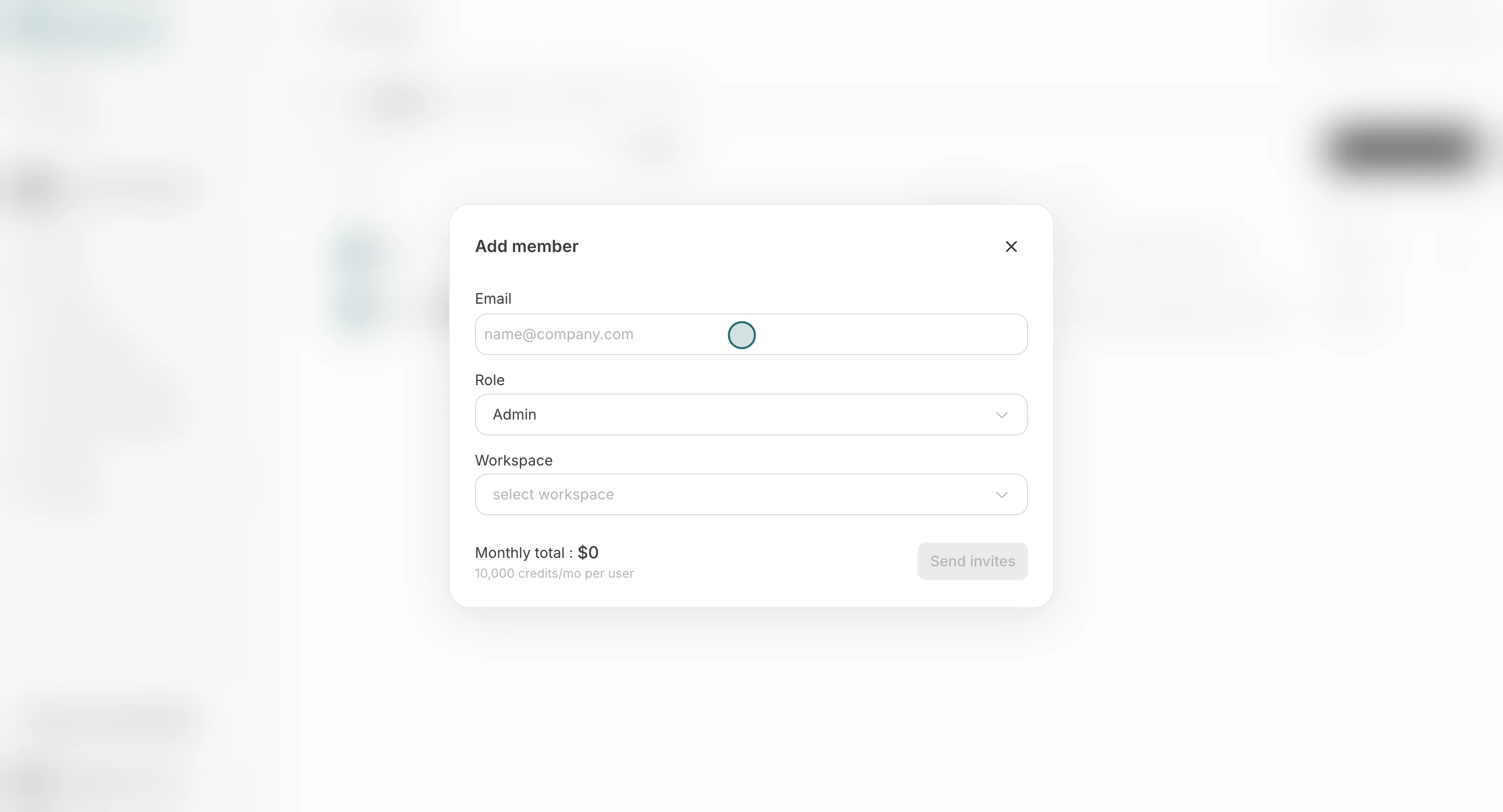
- Enter the member’s email address. You can invite multiple people at once when they share the same role and workspace assignment.
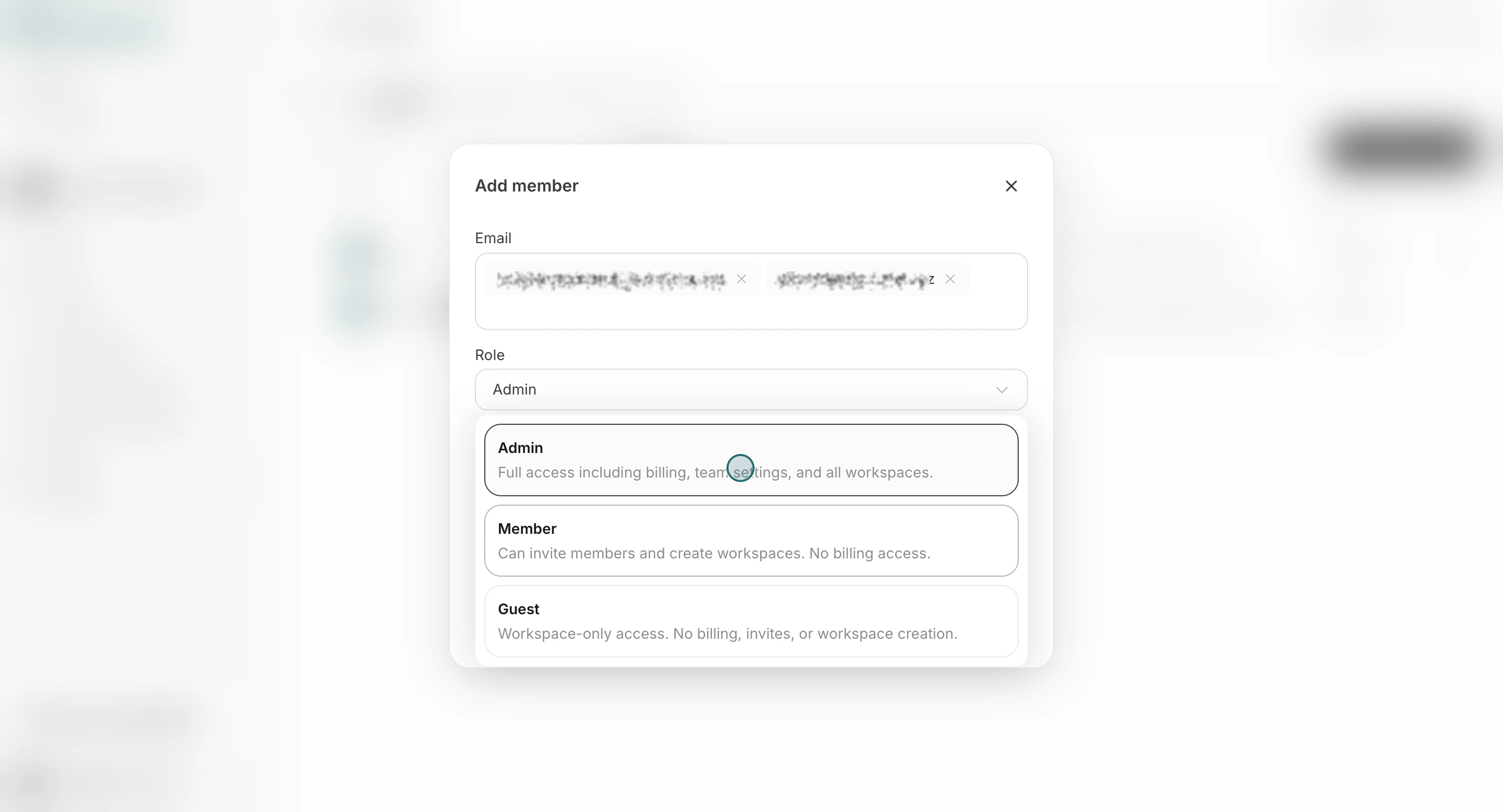
- Select a Team role. An
Admincan selectAdmin,Member, orGuest. AMembercan selectMemberorGuest.
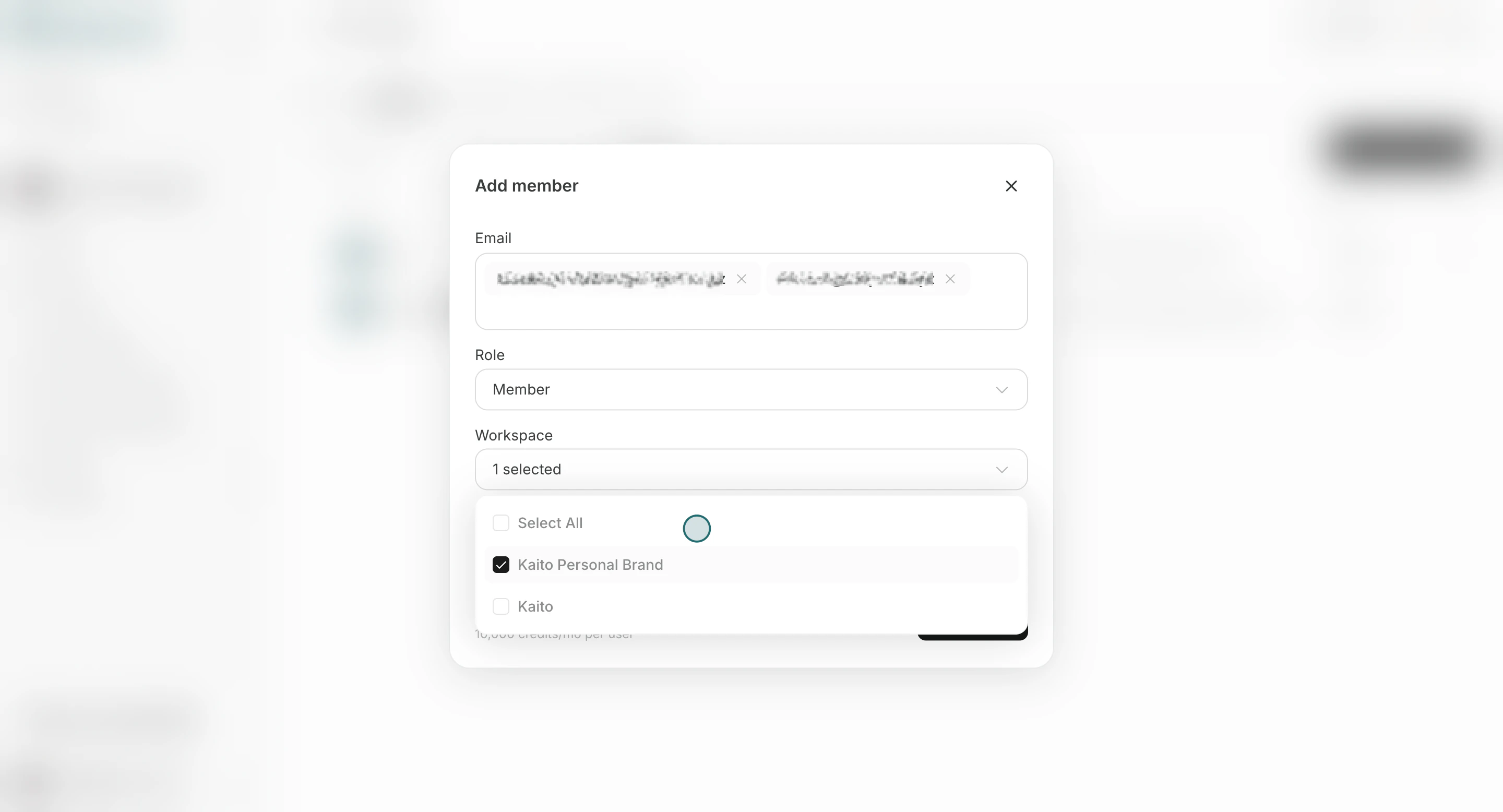
- Select which Workspaces the member should join. The list shows only Workspaces where you are a joined
Owner. You can also invite someone to the Team without selecting a Workspace.
- Click
Send invites.
Change Member’s Role
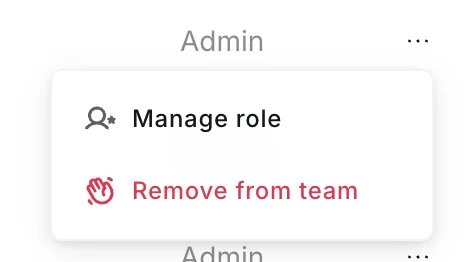
Use this section to update access level when responsibilities change.- Open the row menu and click
Manage role.
- Change the role and click
Save.
- You cannot change your own role.
- You cannot make a change that would leave the Team without a joined
Admin. - When you change a member to
Admin, theirEditorrole becomesOwnerin Workspaces they joined through the Team. Workspaces where they are aViewerand access granted through an individual Workspace invitation do not change. - When you change an
Adminto another role, theirOwnerrole in Workspaces joined through the Team normally returns toEditor. They remainOwnerif they are registered as the Workspace creator or are the lastOwner.
Remove Member
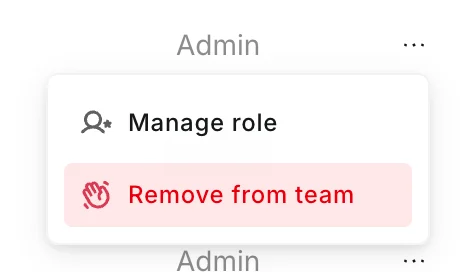
Use this section when someone should no longer access the Team.- Open the row menu and click
Remove from team.
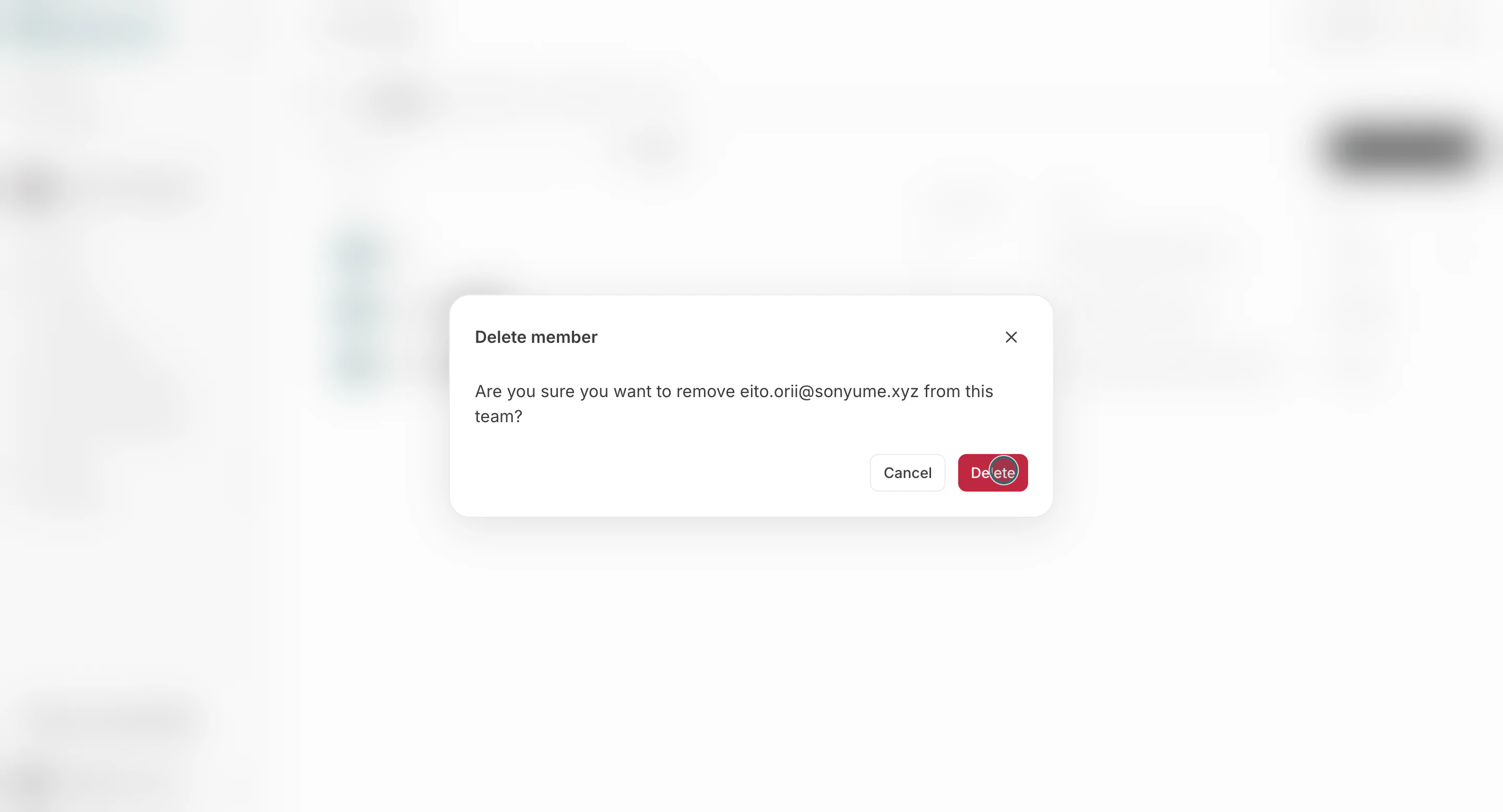
- Confirm deletion.
- You cannot remove yourself from this list.
- You cannot remove a member if doing so would leave the Team without a joined
Admin. - If the member is the last
Ownerof a Workspace, an eligible Team member is automatically madeOwnerbefore the member is removed. - You cannot remove a member who is the only member of a Workspace. Add another member or delete that Workspace first.
- You cannot remove the member if only external guests would remain and there is no eligible person in the Team to inherit ownership. Keep a joined
AdminorMemberin the Team first.
Notes
Review these constraints before finalizing changes.- Team seat limits can prevent additional invitations.
- Removing a member from the Team removes both their Team membership and their access to Workspaces under that Team.