Overview

Blocks are the building units of a page. Choosing the right mix keeps pages readable and operational.

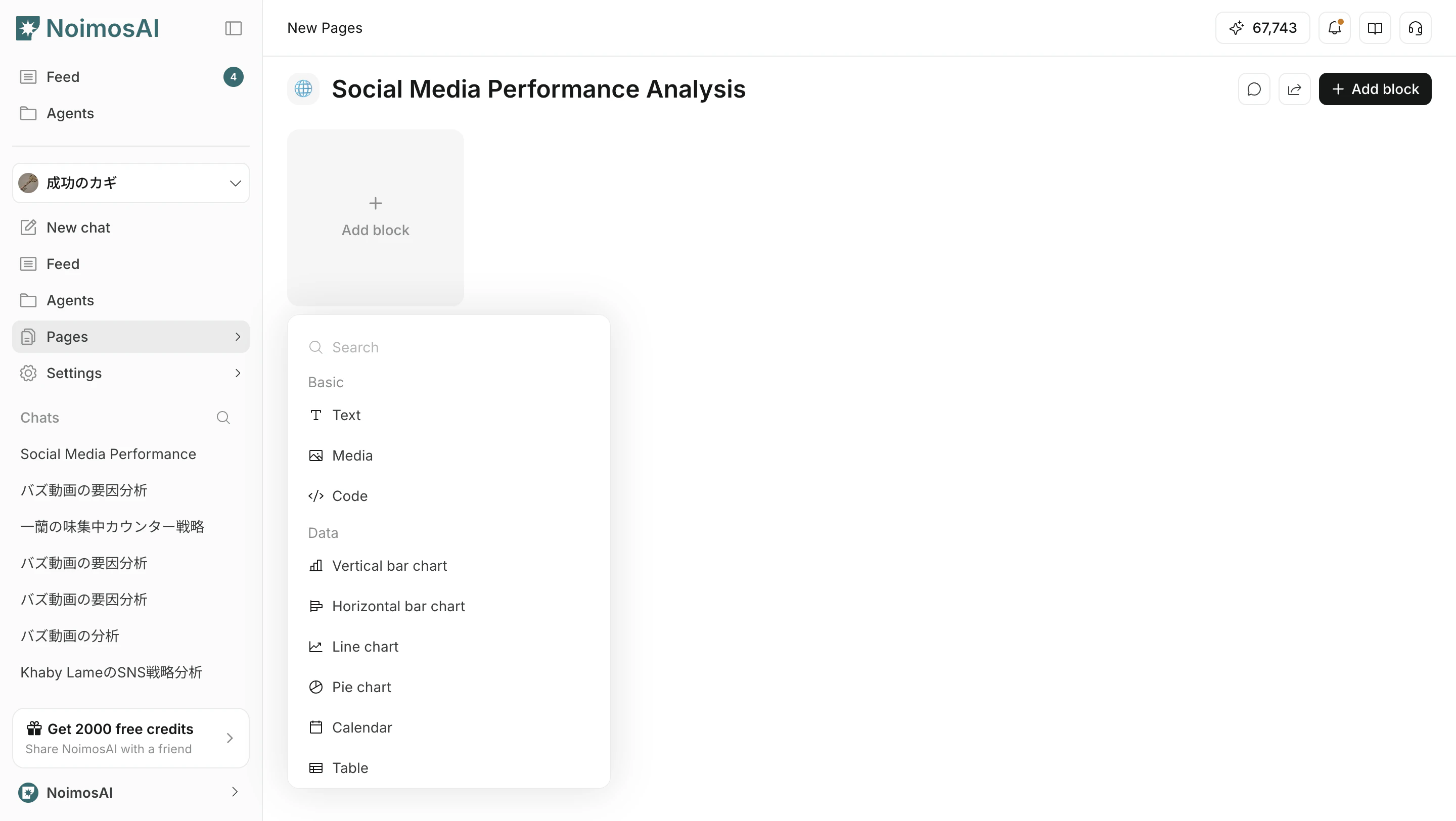
Block Type Menu

Use this menu to insert the block that matches your page objective. Block type menu in Add new block

Core Categories

Use these categories to decide whether you are structuring context, analyzing data, or executing operations.
  1. Basic blocks
  2. Data blocks
  3. Functional blocks

Basic Blocks (3)

These are the core blocks for adding text, media, and code to a page.
BlockWhat you can do
TextWrite content freely in a simple editor, apply headings/bold/underline, and switch styles such as inline or notification format.
MediaPlace images or visual references to support explanation, evidence, and handoff quality.
CodeInsert formatted technical snippets, templates, or command examples for reproducible operations.

Data Blocks

Use Data Blocks when you need measurable signals, diagnostics, and trend tracking for decision-making.
BlockWhat you can do
ChartVisualize trend movement (traffic, engagement, conversion, reach) and quickly detect momentum shifts.
CalendarPlan and align posting/campaign/review schedules by date and compare timing impacts.
TableCompare detailed item-level performance (post/page/query/campaign) with filterable analysis.
MetricTrack KPI snapshots in compact form for regular monitoring and reporting.
GEOAnalyze Generative Engine Optimization performance to understand how AI-search and generative channels are contributing to outcomes.
SEOTrack search visibility and content performance signals to prioritize organic growth actions.
CRM PipelineVisualize lead and deal stages so teams can identify bottlenecks and next actions in the pipeline.
CRM MetricsMonitor CRM KPI snapshots such as lead volume, stage conversion, and revenue movement.

Functional Blocks

These blocks are for execution workflows and connected app operations.
BlockWhat you can do
Media librarySurface connected media assets (images/videos) so teams can quickly reuse them in production flows.
Contents libraryCentralize published/scheduled content and outcomes so teams can find reusable winning patterns.
InboxConsolidate comments, mentions, messages, and threads to prioritize response handling.
Post editorDraft, refine, and publish social posts directly from the block.
Article EditorDraft, revise, and publish long-form articles from one workflow.
Image EditorGenerate and edit images for campaign-ready creative production.
Video EditorGenerate and edit video assets for short- and long-form distribution workflows.
Voice EditorPrepare and refine voice/audio outputs for scripted narration and channel-specific delivery.
NotionEmbed connected Notion context in the workspace for execution-time reference.

How to choose the right block

Follow the steps below to complete this action.
  1. Start from the decision you need to make on this page.
  2. Use Basic blocks for context and structure.
  3. Add Data blocks when you need measurable status or trends.
  4. Add Functional blocks when the page is used for execution work.

Practical Tips

Use these tips to improve consistency and output quality.
  • Keep one page focused on one operational purpose.
  • Prefer fewer blocks with clear labels over dense layouts.
  • Review old blocks regularly and remove unused ones.
Use these related pages for deeper guidance.