

Overview
Change your Team plan when you need different limits for seats, usage capacity, or billing cycle. The change is managed from Billing.Before you change
Use this section to confirm before you change so you can proceed without avoidable errors.- Confirm current usage in
Billing -> Usageso you do not move to a plan that is too small. - Review current seat count and Workspace needs under the Team.
- Check the confirmation modal for effective date and any prorated charges.
Where to find
Use the following path to open this area.Team -> Billing -> Usage.- Click
Change PlaninPlan Details.
Open the change plan modal
Use this section to understand open the change plan modal and what to confirm while completing this part.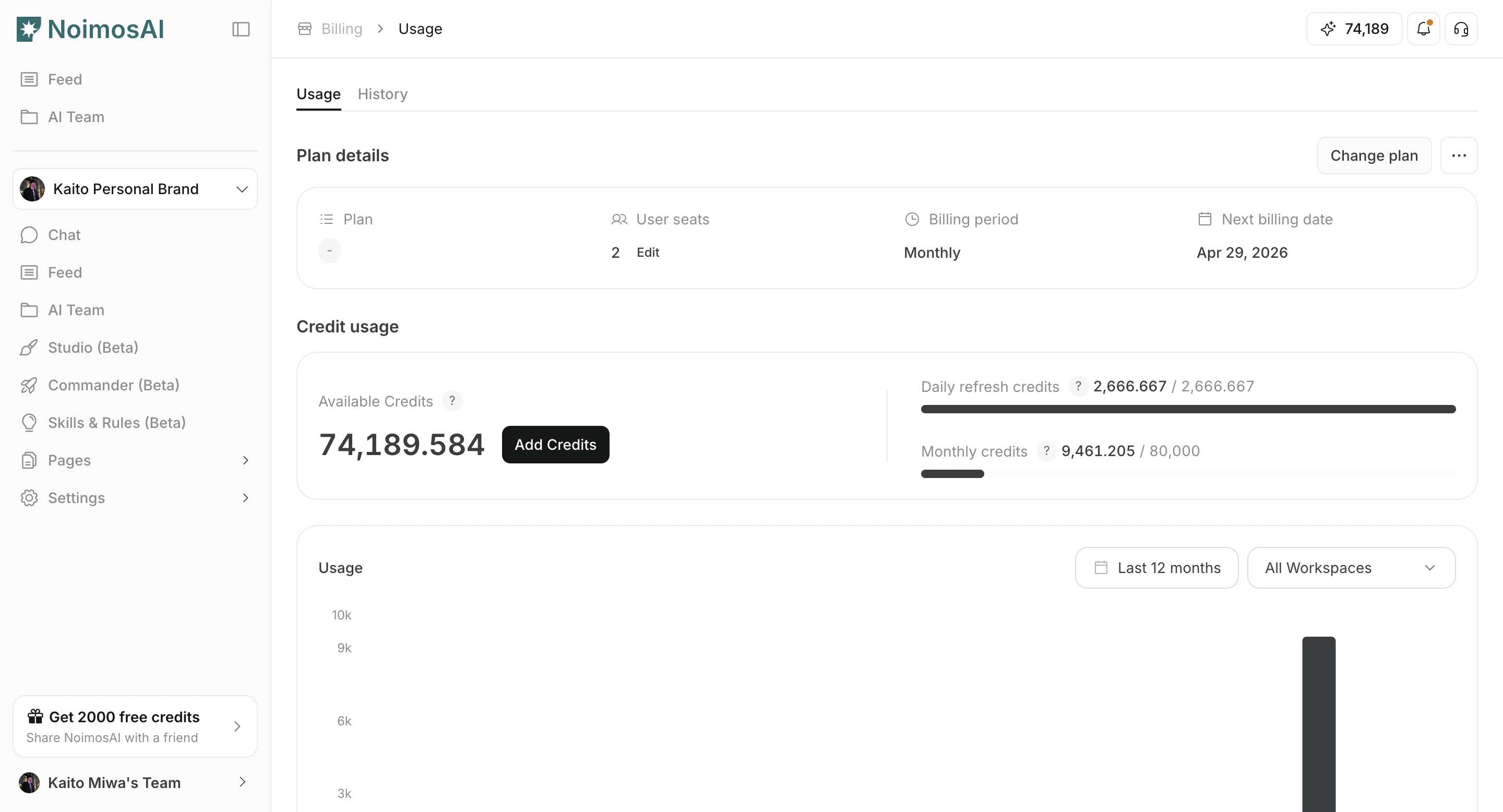
Select target plan and billing interval
Use this section to understand select target plan and billing interval and what to confirm while completing this part.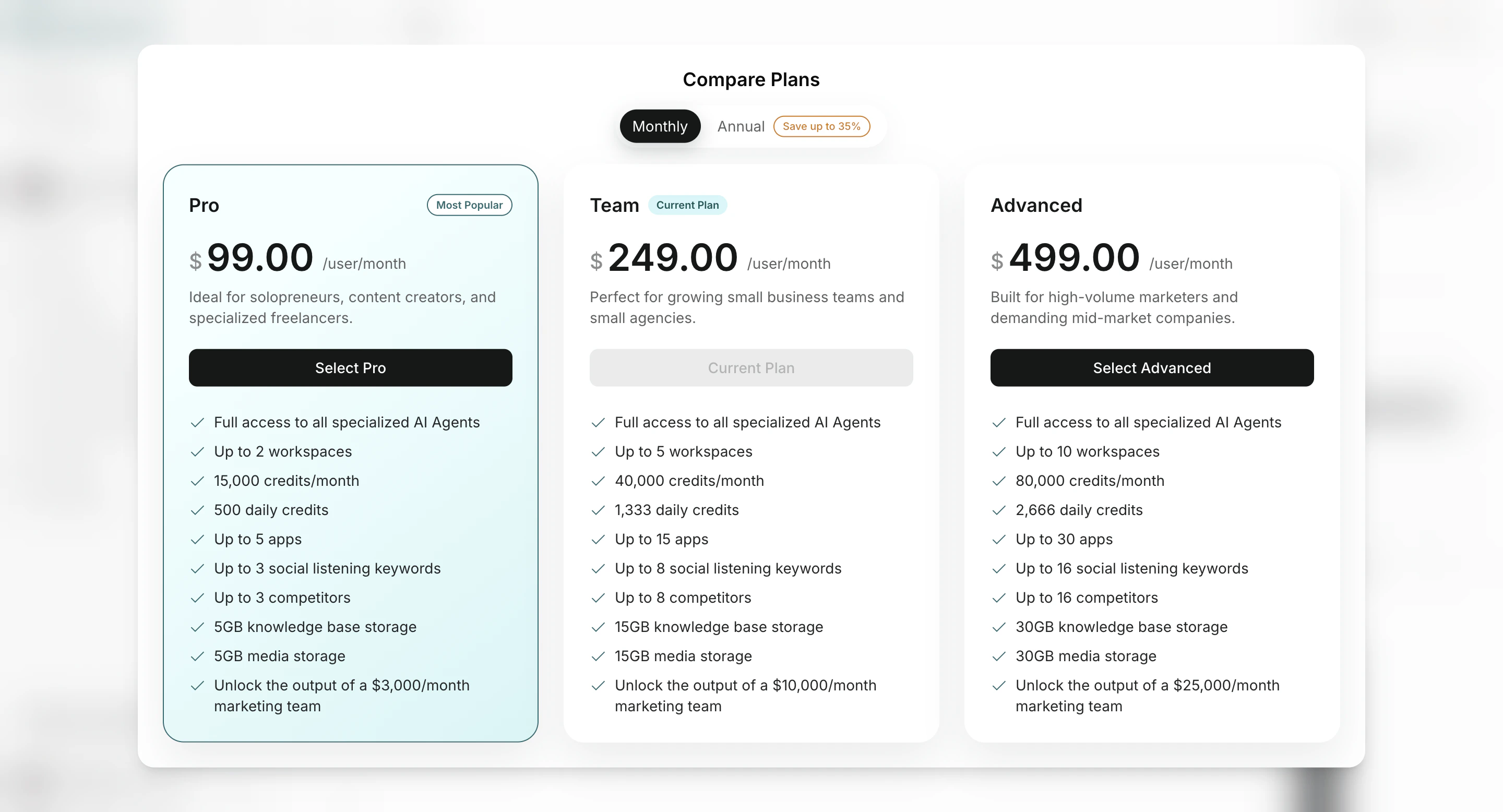
How to change
Follow the steps below to complete this action.- Open the plan comparison modal.
- Select the target plan and billing interval.
- Review pricing and billing terms in the confirmation step.
- Confirm the change.
- Recheck limits and current usage after the update.
Notes
Review these notes before you proceed.- Plan changes apply at Team scope, and all Team Workspaces are affected.
- Seat quantity and plan tier are managed separately.