

Key Points
AFacebook Page is required for Facebook integration.
You cannot connect to NoimosAI using only a personal profile.
Also, simply having a Facebook Page is not enough. The Facebook personal account used for connection must have management permissions for that page.
What is a Facebook Page?
A Facebook Page is a profile for businesses, brands, organizations, or public figures. NoimosAI’s Facebook integration supports Pages, not personal profiles. For detailed steps on creating and managing Facebook Pages, please refer to:- What is a Facebook Page / How to Create a Facebook Page (Meta Help Center)
- Create and Manage a Facebook Page (Meta Help Center)
Pre-Check
Before starting, please confirm the following:- You have a Facebook Page for your brand or business
- The Facebook personal account used for connection can manage that page
- You are signed into the correct Facebook account in the same browser
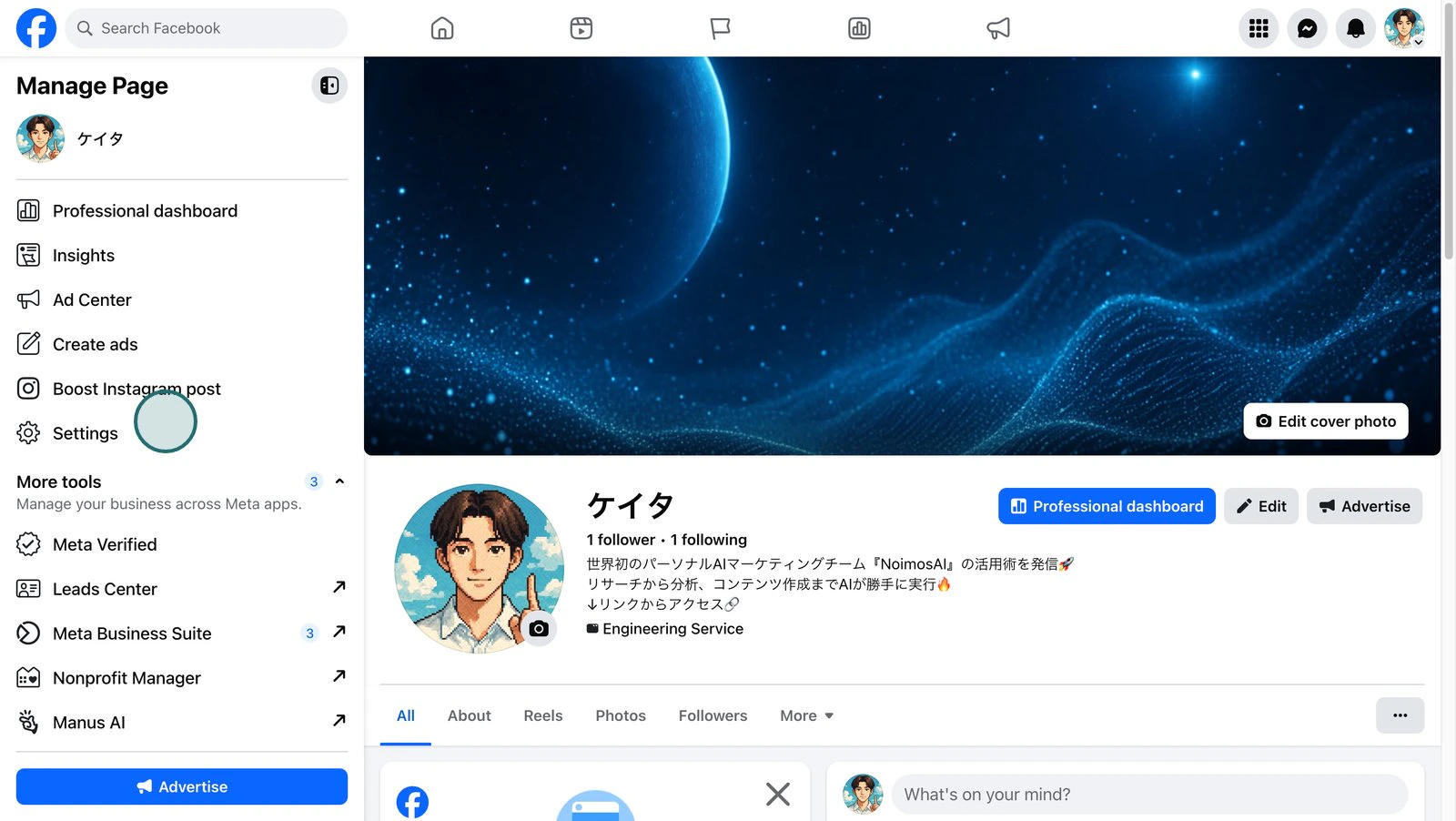
- Open the
Settingsof your Facebook Page.
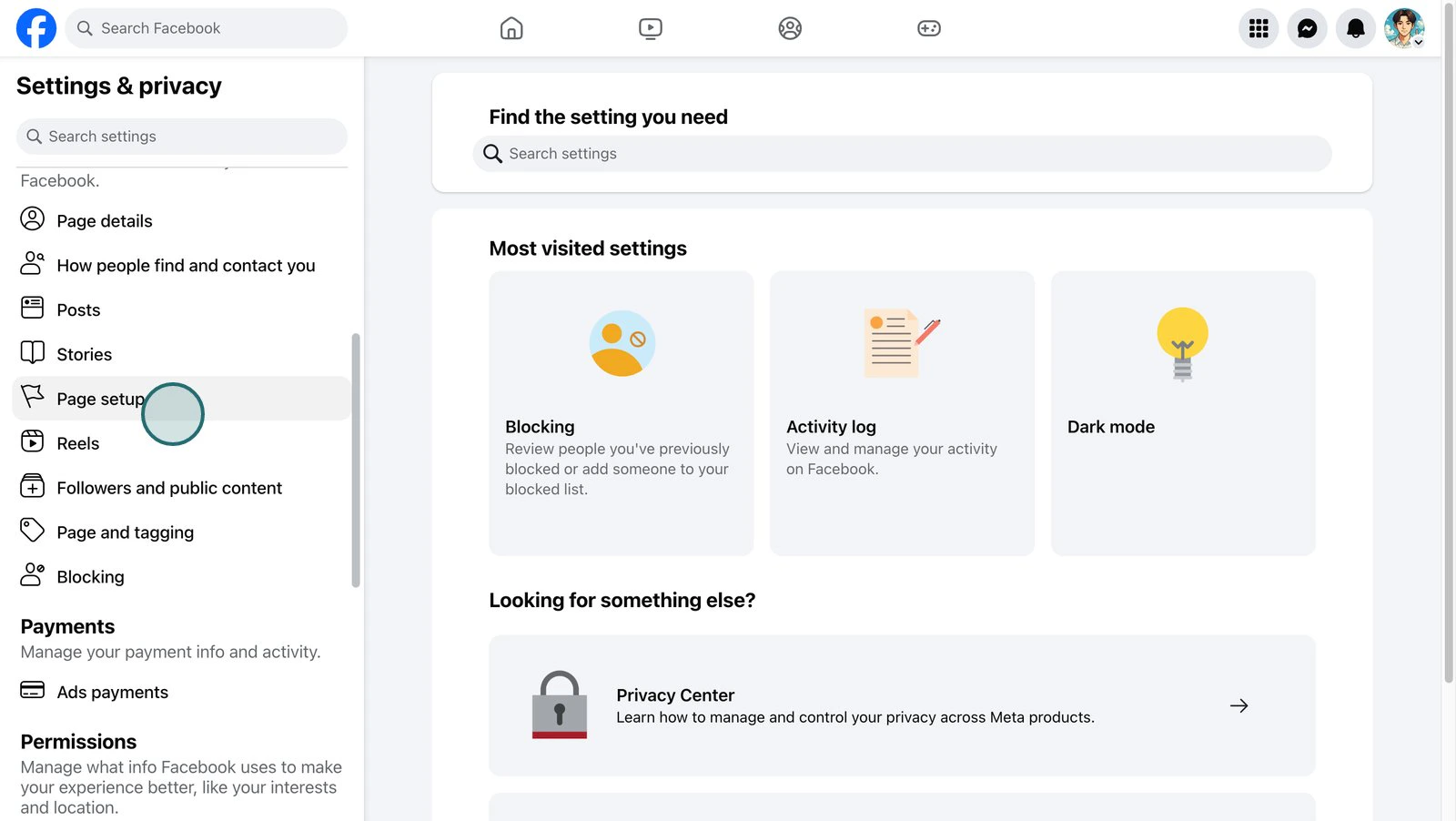
- Open
Page Settings.
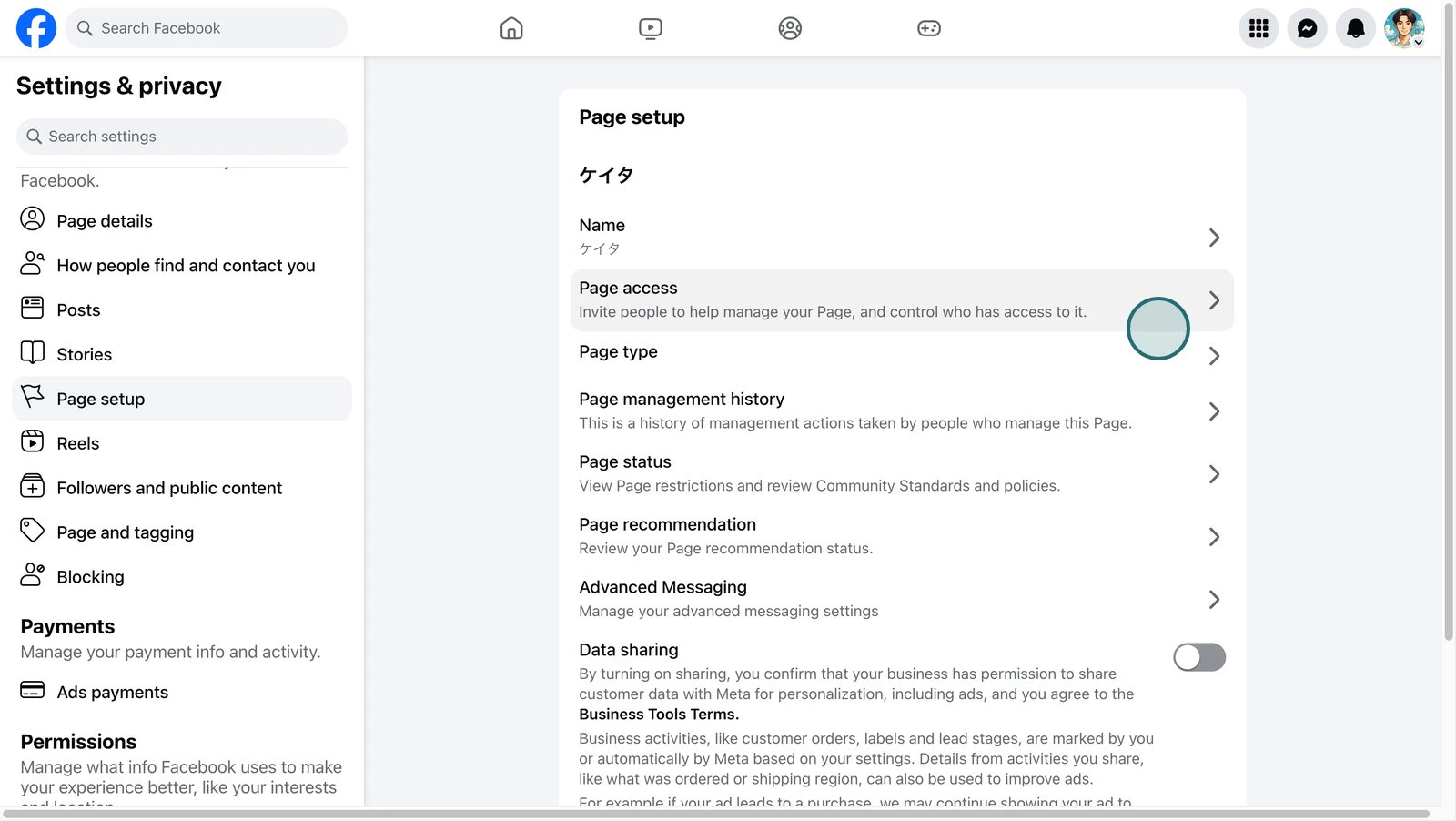
- Open
Page Access.
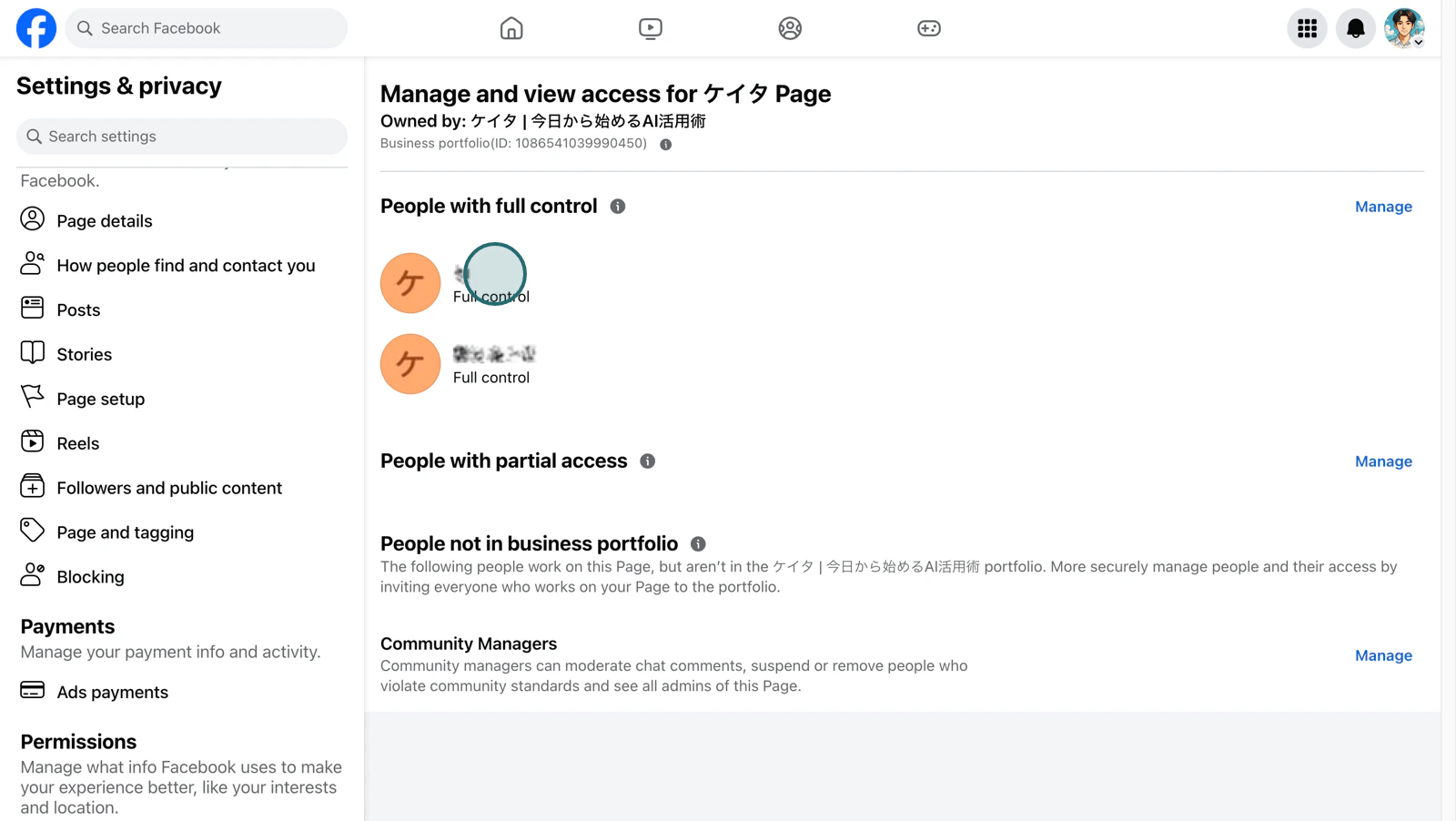
- Confirm the Facebook personal accounts that have access permissions to the page.
Required Page Permissions
Facebook Pages have classic page types and new Page experiences. In either case, the Facebook personal account used for authentication must be able to manage the target page to connect to NoimosAI.- For classic pages: must have
AdminorEditorpage roles - For new Page experience: must have full or partial control of
Facebook Access - For pages under Business Manager: must have access to the page as a business asset
Connection Procedure
The Meta authentication screen varies depending on your Facebook login status and past connection history. Please follow the instructions that match the screen you see. Multiple confirmation screens may appear consecutively.Start Connection in NoimosAI
First, go toWorkspace -> Integrations -> Add and click Connect for Facebook.
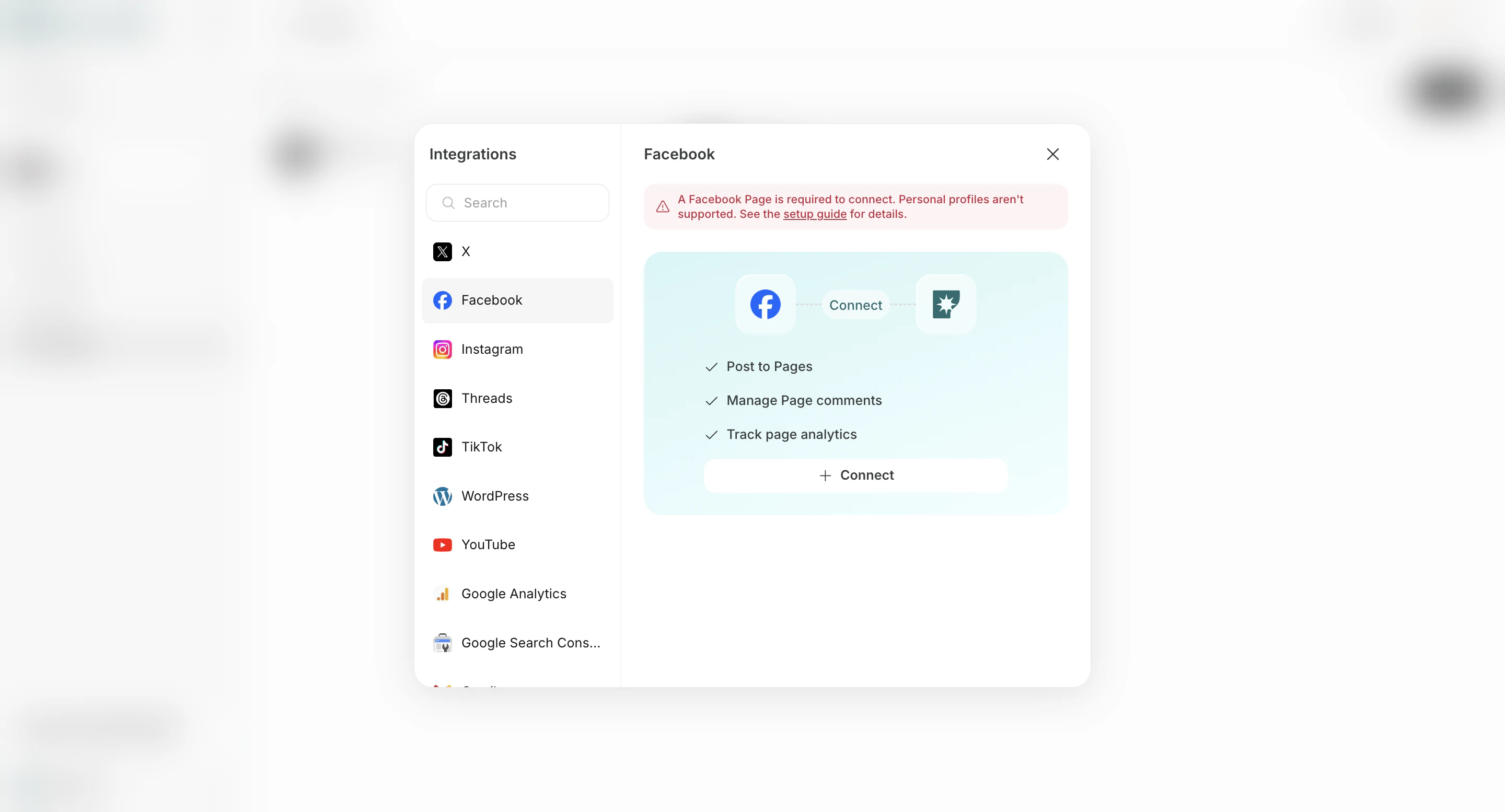
Confirm the Facebook Profile to Use
Here, you confirm the Facebook profile used to grant permissions to NoimosAI. This operation does not connect the Facebook profile itself as a NoimosAI operational target.If prompted to log in to Facebook or select a profile
If you are not logged into Facebook or multiple profile information remains in your browser, a login or profile selection screen will appear. Log in with or select a profile that has access permissions to the Facebook Page used by NoimosAI.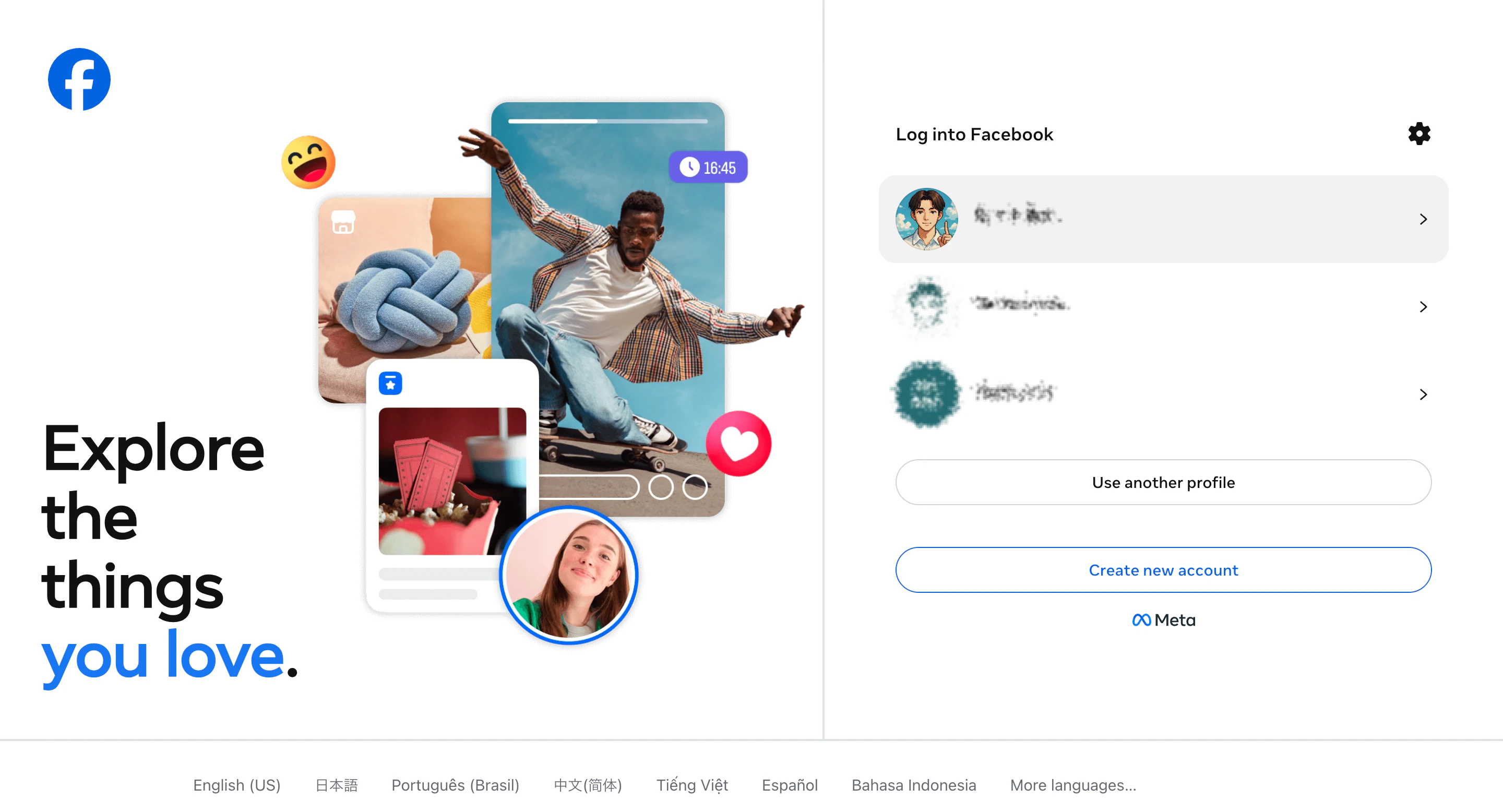
If “Continue as 〇〇” is displayed
If you are already logged into Facebook, a screen may appear asking you to confirm continuing authentication with the current profile. Confirm that the displayed profile has access permissions to the Facebook Page used by NoimosAI, then clickContinue as 〇〇. To use a different profile, click Log in to another account.
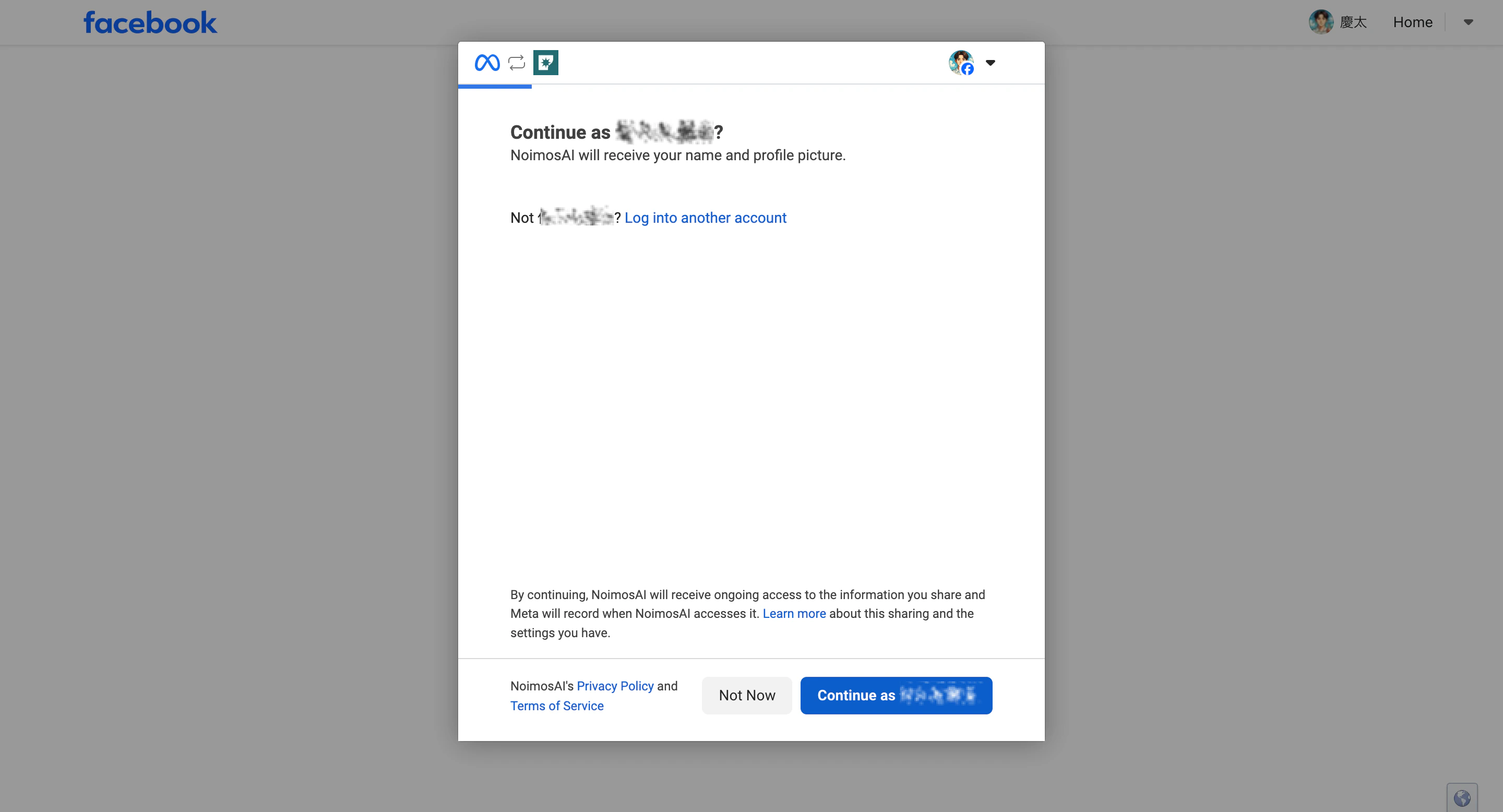
Both logging into Facebook and clicking Continue as 〇〇 are operations to confirm the profile to use. After that, depending on the connection status, a screen to select assets or a relink screen will appear.
Check Past Connection Settings
After confirming the profile, if there are previous permissions granted to NoimosAI remaining in Meta, a message likeRelink to NoimosAI? may appear.
To use the same settings as before
ClickRelink. The Facebook Pages and business assets previously authorized for NoimosAI will be reapplied.
If multiple Facebook Pages were previously authorized, all those permissions will be reapplied together. It does not automatically select one page.
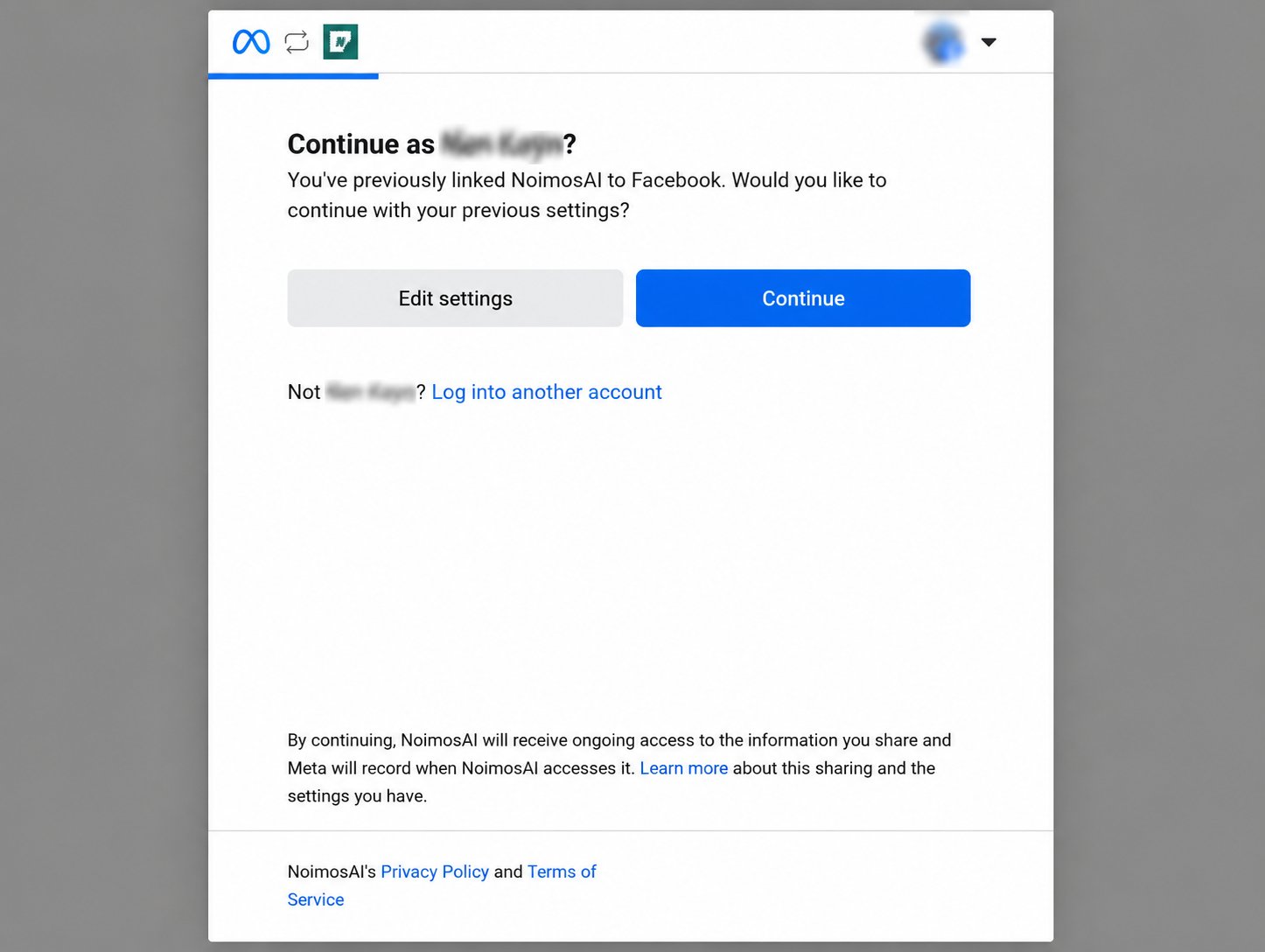
To review or change authorized assets
ClickEdit Settings. You can review and reselect the Facebook Pages and business assets to grant access to NoimosAI.
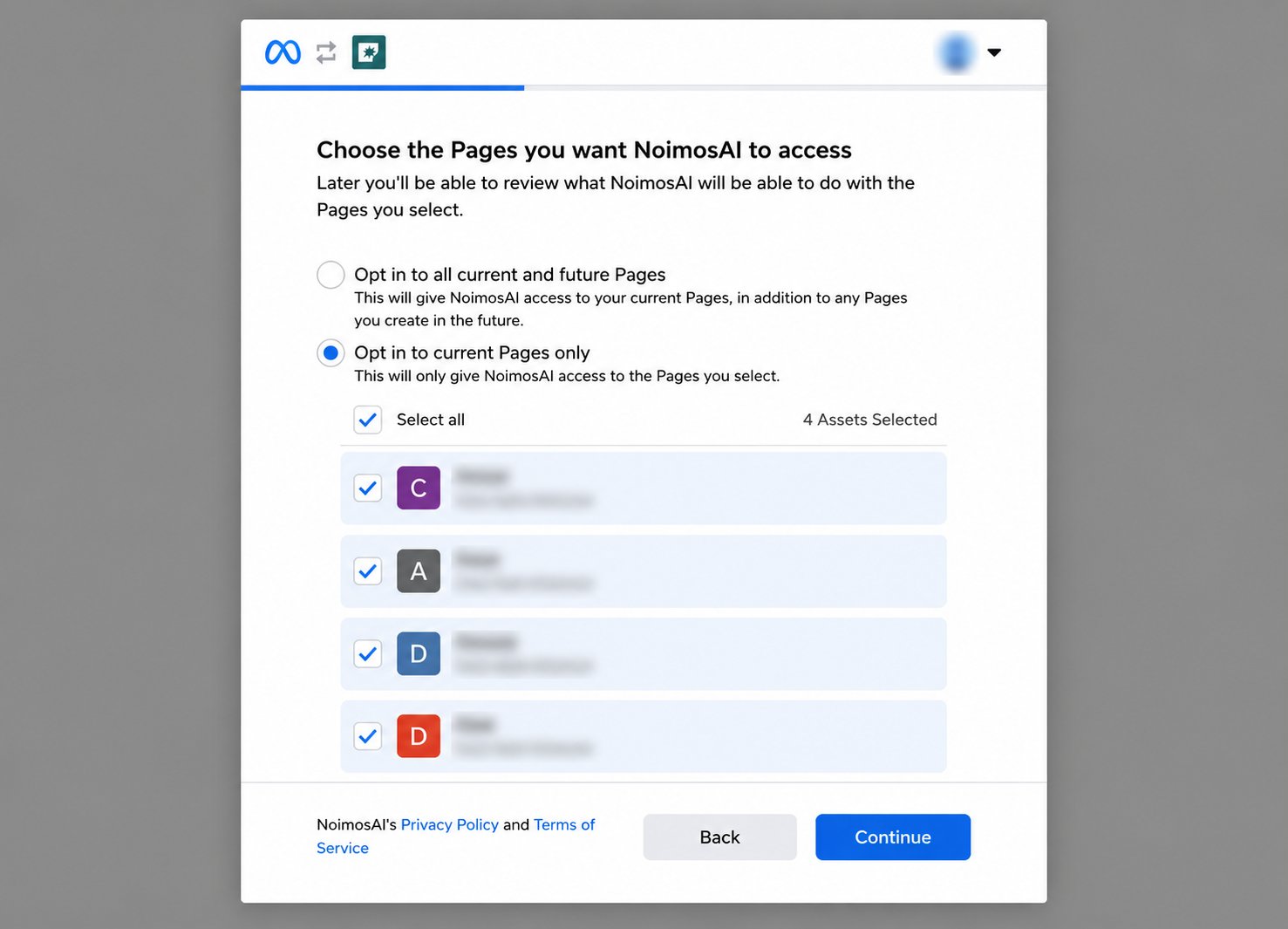
If you chooseRelink, the previous settings will be reapplied, so the screen to select Facebook Pages or business assets may not appear. If you want to confirm or change the pages to connect, selectEdit Settings.
Select Assets to Authorize for NoimosAI
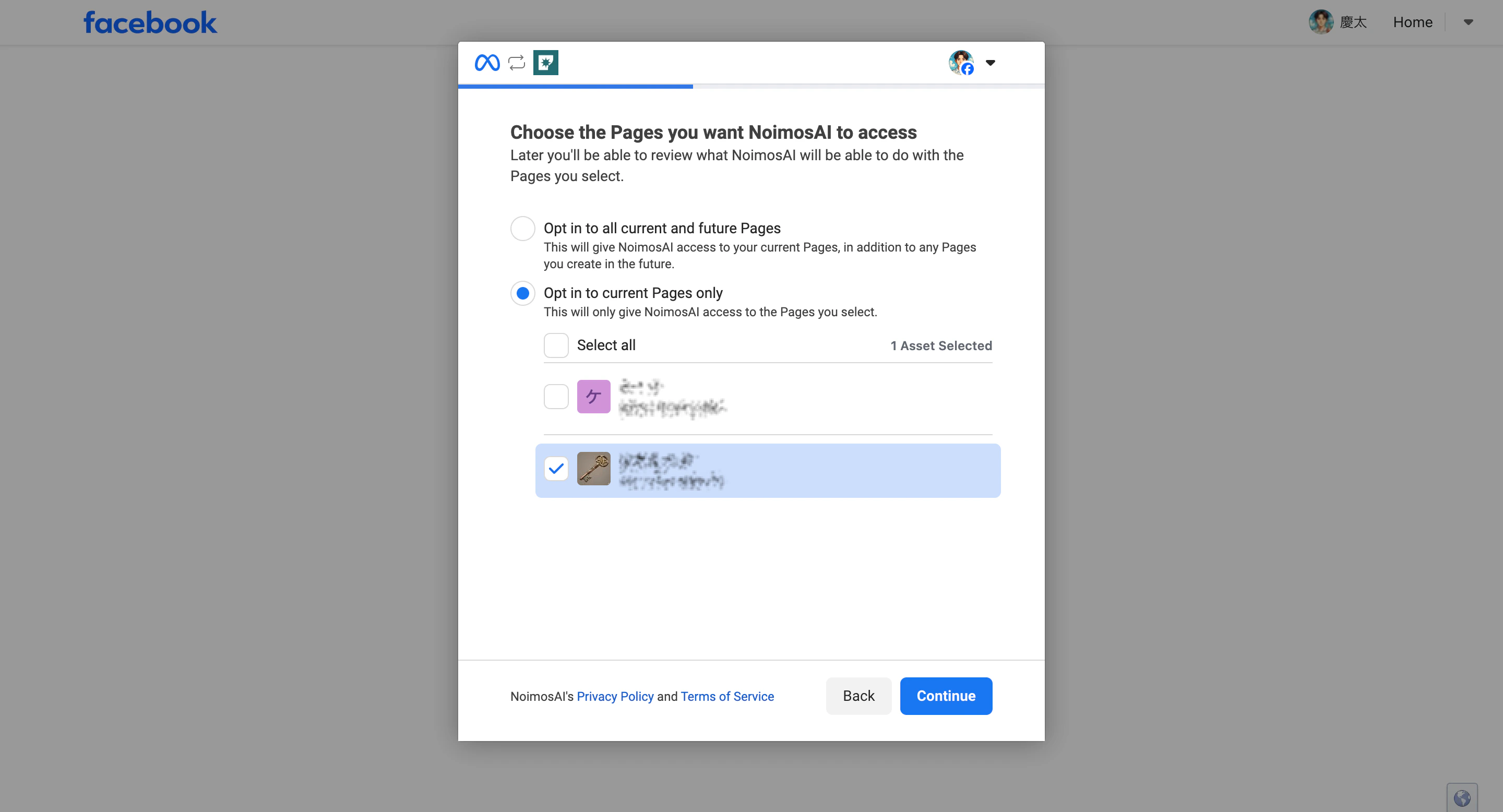
If this is your first time connecting or you selectedEdit Settings on the relink screen, select the Facebook Pages and business assets to authorize NoimosAI to access.
- Select the Facebook Pages to authorize NoimosAI to access, then click
Continue.
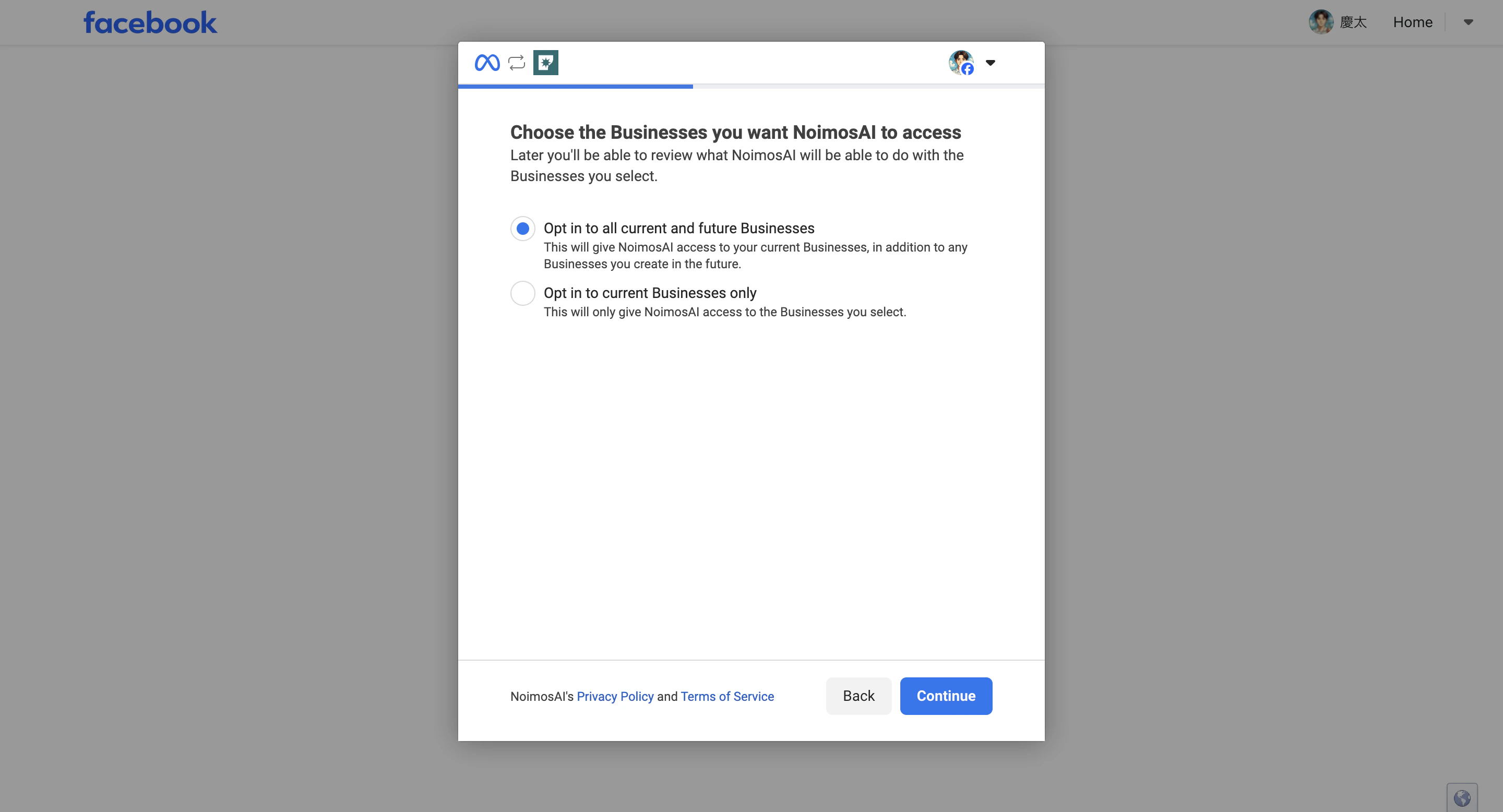
- Select the business assets to authorize for this connection.
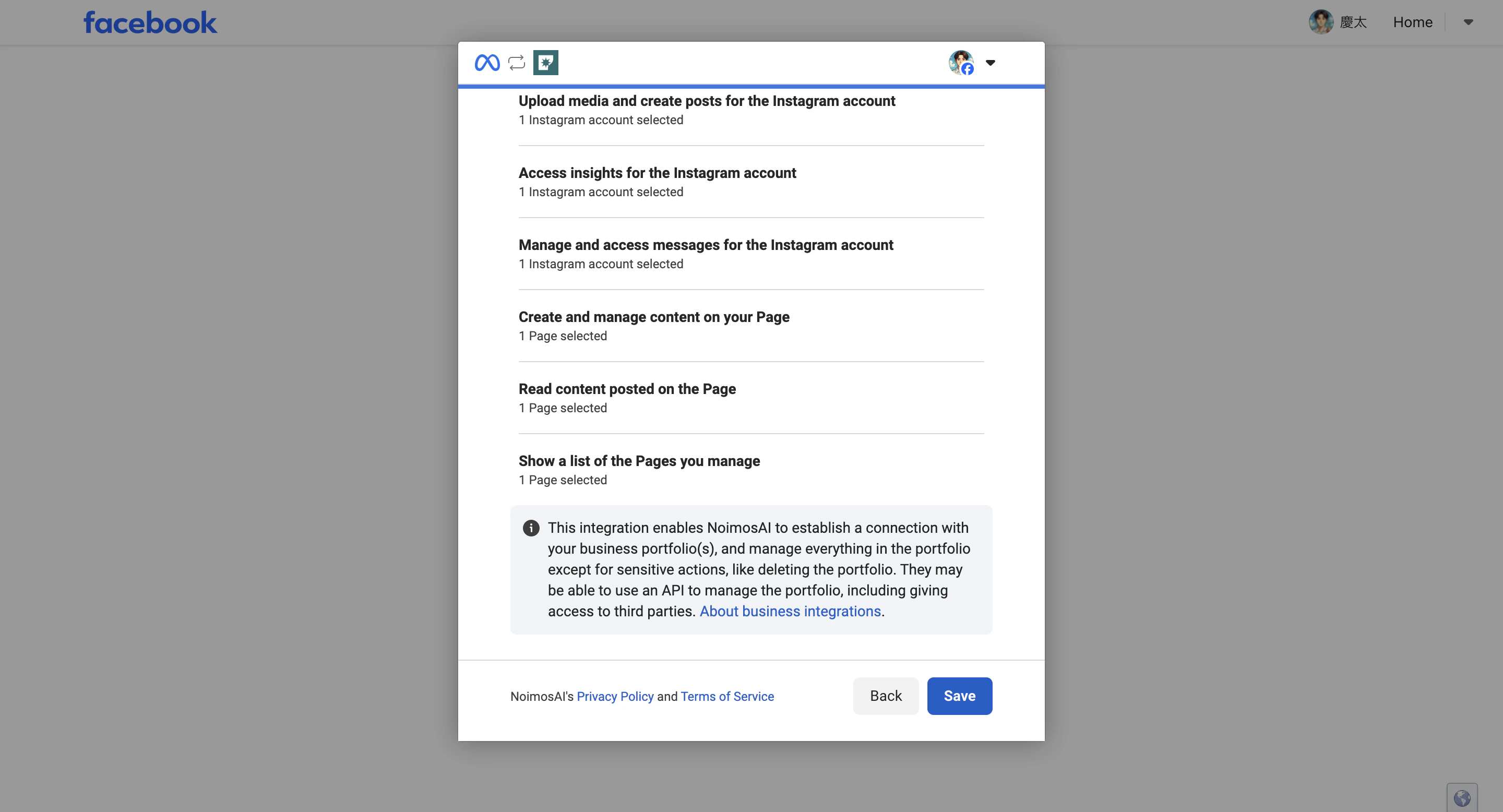
- Confirm the selected pages and business assets, then click
Saveto finalize permissions.
- Click
Doneto return to NoimosAI.
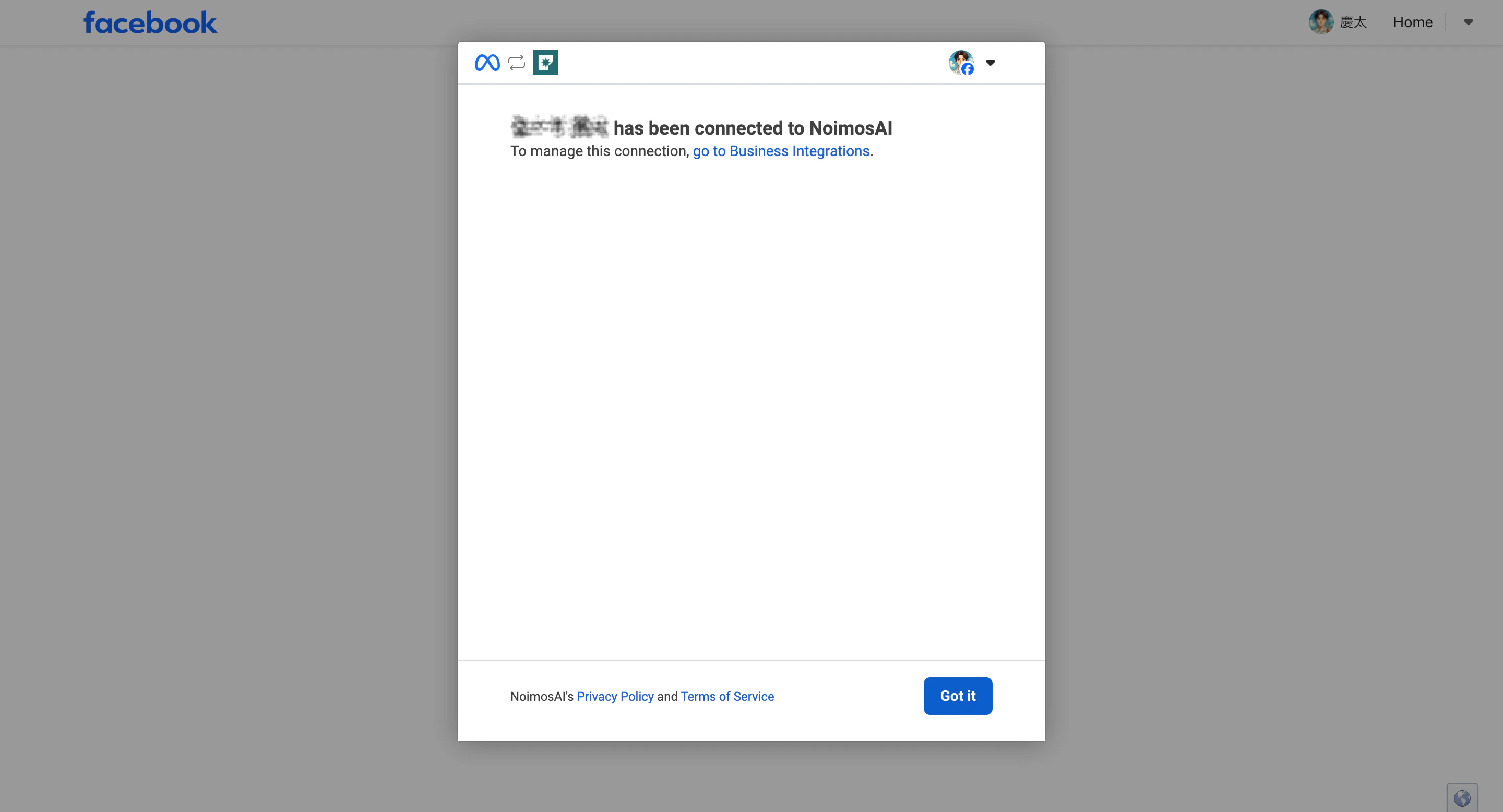
If Pages Do Not Appear or Cannot Be Selected
If Facebook Pages do not appear on the authentication screen, please check the following:- Confirm you are not logged into a different Facebook account in the browser
- Log out of Facebook once, then log back in with the personal account that manages the target page
- In Facebook’s
Settings & Privacy > Settings > Business Integrations, confirm that NoimosAI has page access permissions - For pages under Business Manager, confirm you have business asset access to the target page
- When connecting location pages, confirm you have permissions for the specific location page itself, not just the parent page
If “Sorry, something went wrong” Appears
If the Meta authentication screen shows “Sorry, something went wrong. We’re working to fix this as soon as possible,” it means an error occurred in Meta’s connection process. This message is not an error from NoimosAI. Common causes include:- Temporary authentication errors on Meta’s side
- Conflicting Facebook login information or cookies stored in the browser
- Simultaneous login to multiple Facebook accounts
- Access permissions or Business Portfolio asset permissions for the target page are not correctly recognized by Meta
- The connection state inside Meta has not yet updated after linking a Facebook Page and Instagram account
- Past business integration permissions granted to NoimosAI do not match the current page and permission structure
- Close the authentication screen, wait 10–30 minutes, then try connecting again.
- Log out of Facebook, then log back in only with the Facebook personal account that has access to the target page.
- If the issue persists, log into NoimosAI and Facebook using a browser incognito window and retry the connection.
- In Facebook’s
Settings & Privacy > Settings > Business Integrations, check NoimosAI’s connection. If old permissions remain, remove NoimosAI and reconnect from NoimosAI to reselect pages and permissions. - If using Instagram as well, confirm the target Instagram professional account is connected in both the Facebook Page’s
Settings > Linked Accountsand Meta Business Suite. If just connected, wait some time before retrying.
Connecting Instagram via Facebook
When connecting Instagram via Facebook, the Instagram account must be a Business account linked to the Facebook Page. For usual posting, comment responses, DMs, and analytics, you can also connect directly via Instagram login without needing a Facebook Page. See the differences between the two methods in Instagram Integration.If You Still Cannot Connect
Please share the following with support:- Exact error messages
- Team and workspace names
- Facebook Page name
- Screenshots of the failed steps
References
- Meta for Developers: Facebook Pages API Overview
- Meta Help Center: Create and Manage a Facebook Page