

Overview
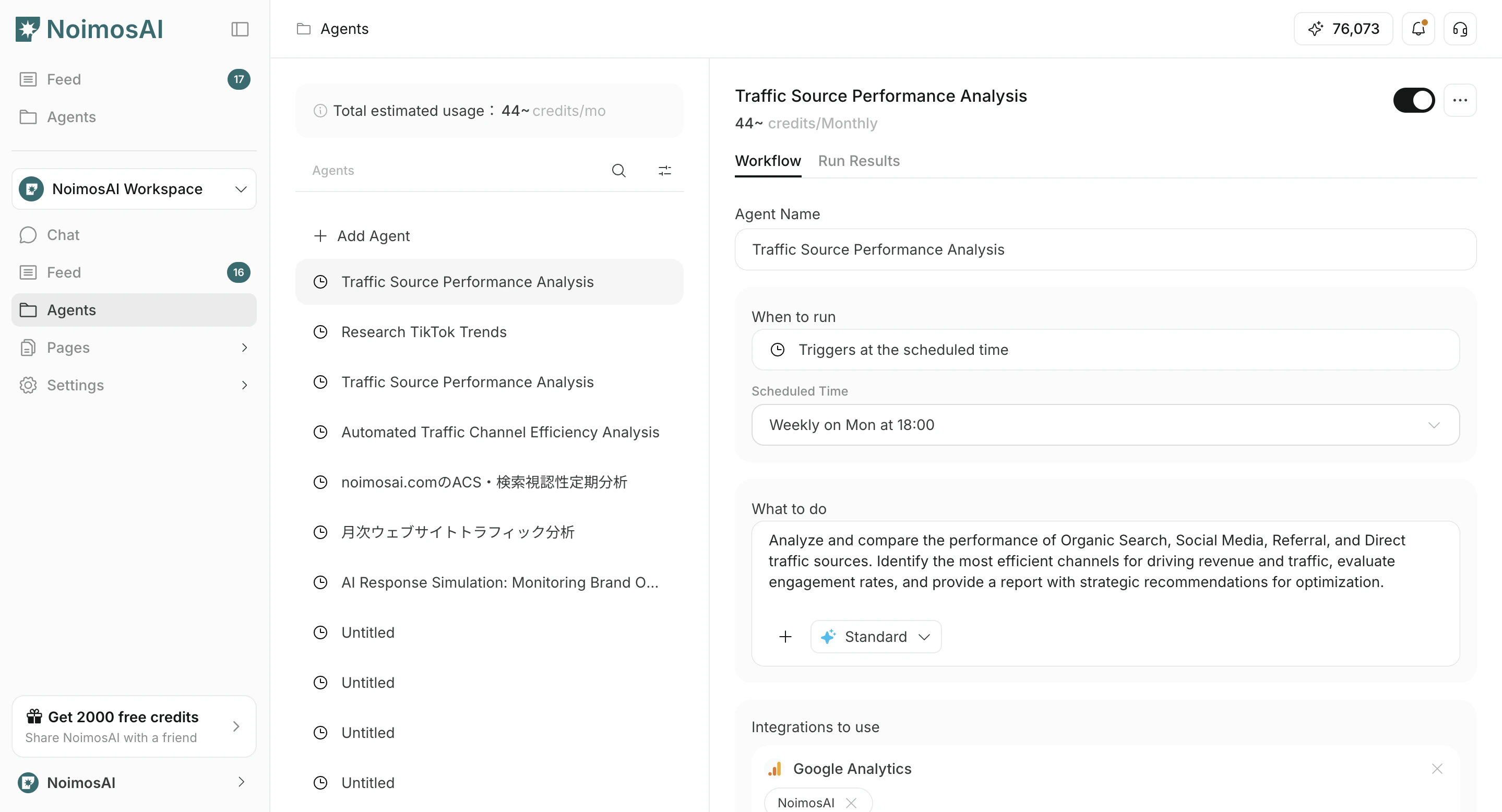
This page explains how to edit or delete an existing agent.1. Go to Agents and select the agent
- Go to the
Agentstab. - Select the agent you want to edit or delete.
2. Edit an agent
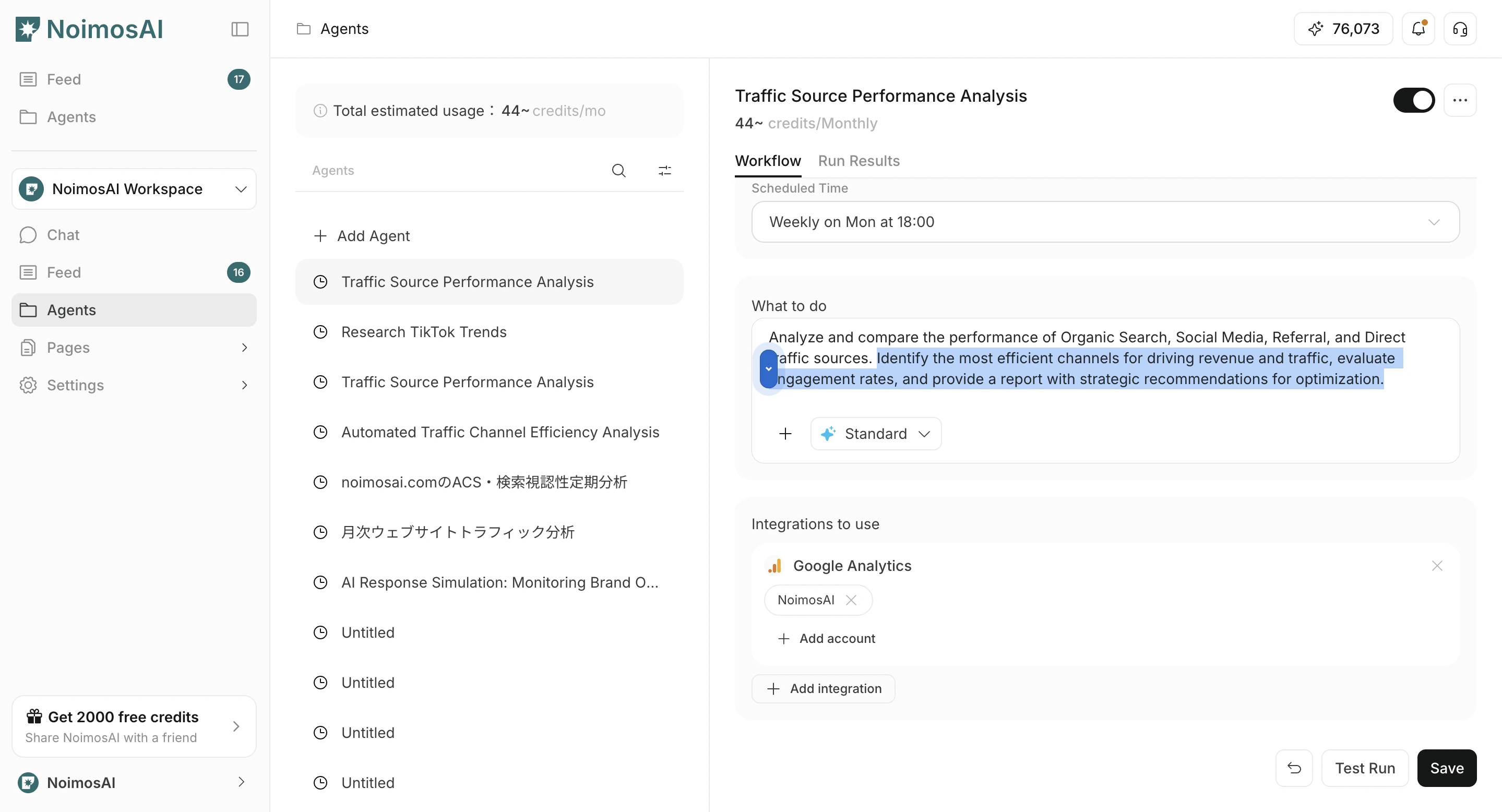
- Open the
Workflowtab. - Change
Execution timing,Workflow,Integrations, and optionalDestinations. - If needed, attach images or Knowledge Bases to the workflow.
- Click
Save. - To enable or disable the agent, turn the toggle on or off.
Destinations, you can choose Slack, LINE, Discord, Telegram, WhatsApp, email, Notion, Google Drive, and other destinations, then set the output format to Link, Summary, or PDF.
3. Delete an agent
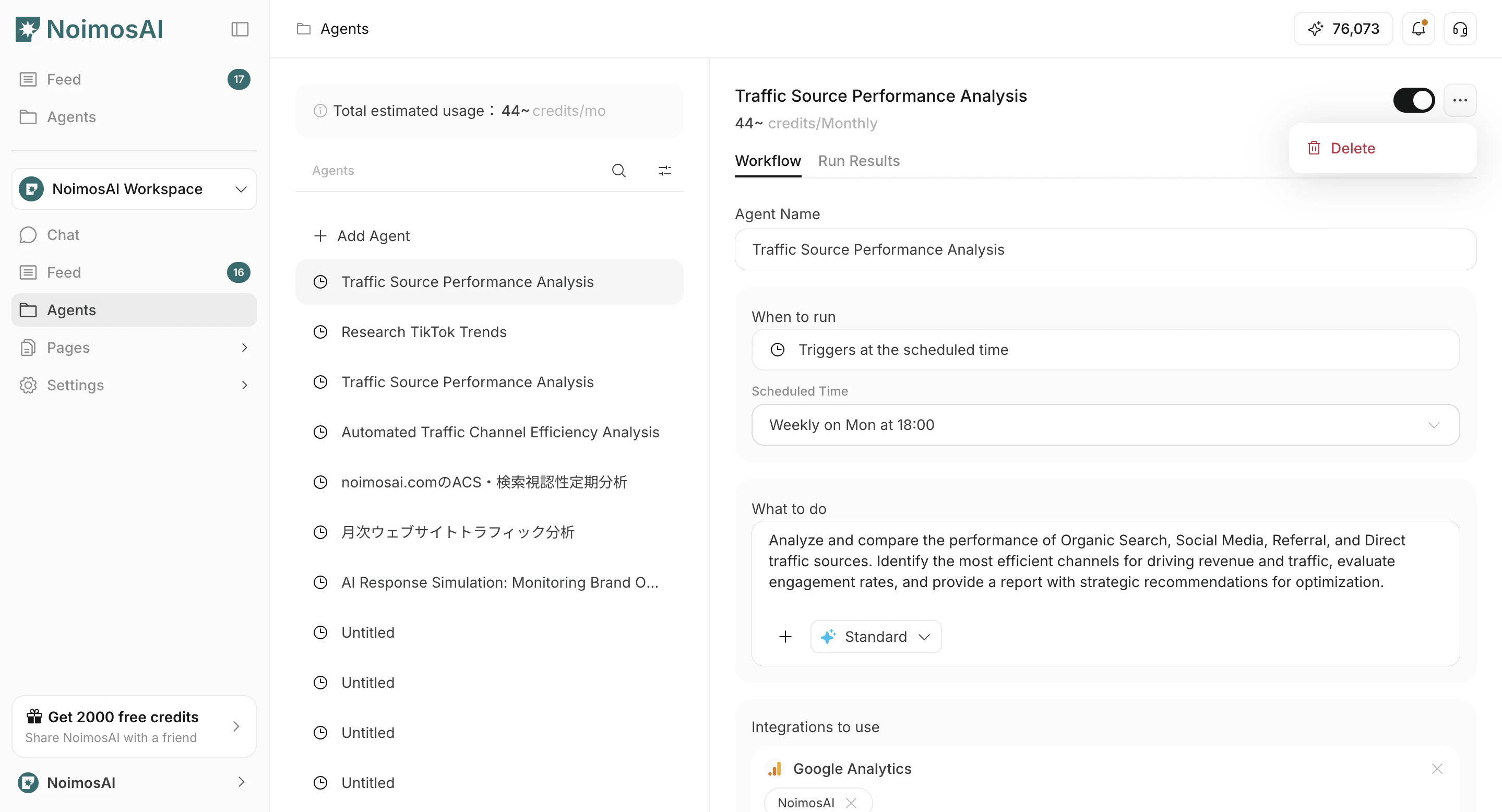
- Click
...on the target agent. - Click
Delete.
Disable or delete
- Disable: Temporarily stop execution while keeping the settings.
- Delete: Permanently remove an agent you no longer use.